

Hi Folks,
Here I would like to give some tips regarding Power BI Errors which will be encountered in everyday job of anyone who’s going to or work with Power BI Dashboards or understand any existing dashboards and integrate them with Model Driven Apps. You aren’t alone…so let’s gets started…
Error 1: Unable to open document
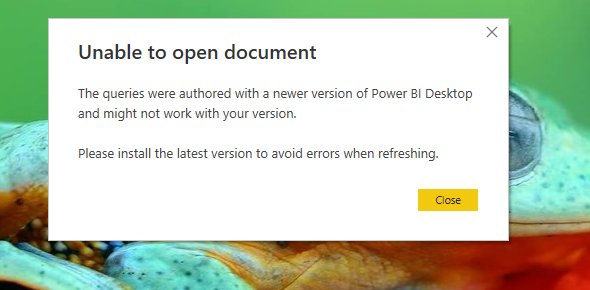
Fix:
You were not on the latest version of Power BI desktop with which it was authored. You can quickly check the version by navigating to Help –> About

You should see a update icon as below
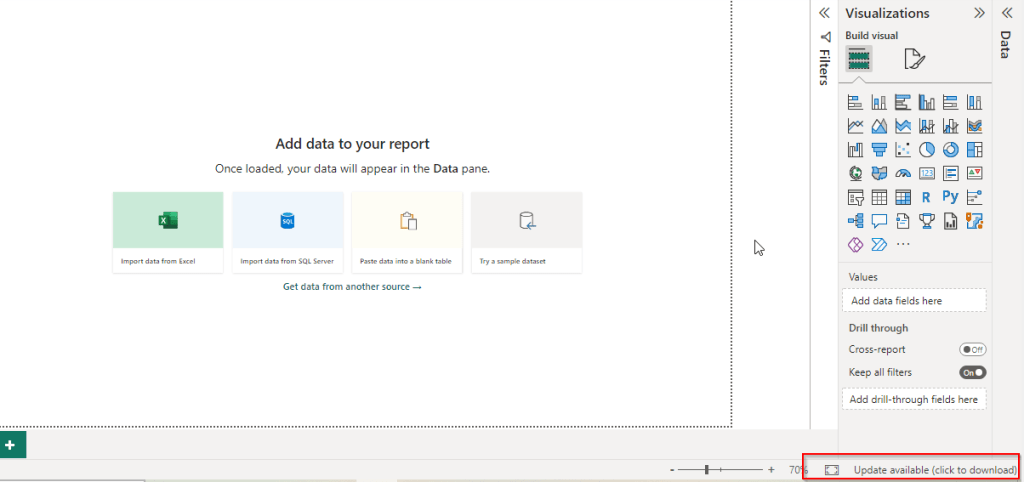
Clicking on it will take you to the respective page having the latest update from where you can update it.
Error 2: Class not registered error

Fix:
This can happen when you were trying to open an existing dashboard which was created by you or shared by someone to you, might be because you have two versions of Power BI Desktop installed..in your machine..like shown below.i.e.

Make sure you choose the right one which you have used earlier to develop the Dashboard so that you won’t run into any issue.
Error 3: Workspace deleted
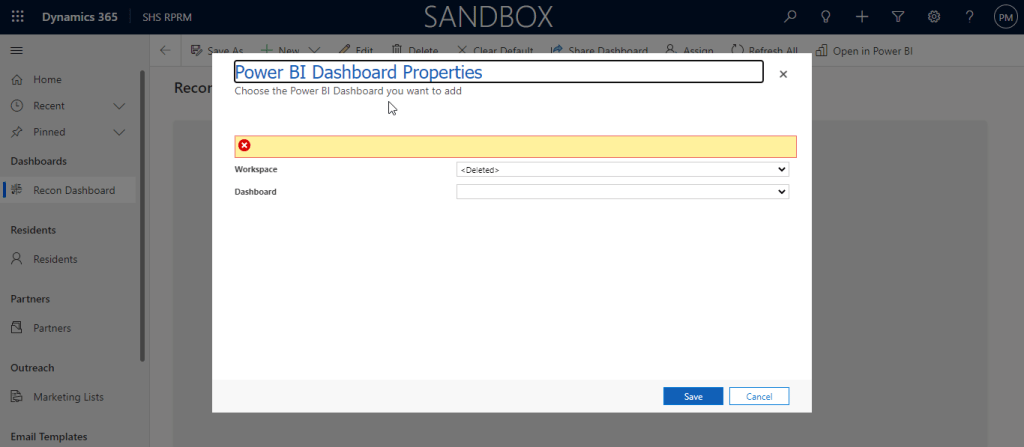
Fix:
This error can happen when you were trying to access any workspace while you were creating a Power BI Dashboard in Dynamics CE using an existing workspace, make sure you have a workspace and the logged in user have access to the Workspace.
Granting access to the workspace will fix the issue.
Error 4: One or more Cloud Datasources have been deleted

Fix:
Whenever you deploy any new Power BI report or dashboard to Power BI Service, you encounter this problem most of the times. Sometimes after making a change to a dataset or taking over ownership of a dataset, you might receive the following error:
1. Click the “Recreate cloud data sources” button.

2. Reenter credentials in the “Data Source Credentials” section for your data sources

Make sure dataset is connected to Gateway incase you have configured.
Error 5: There is no gateway to access the datasource

Fix:
The first thing to look at when you have a missing gateway is to make sure you created a data source for that gateway. Installing the On-Premises Data Gateway is not enough. That simply registers the gateway with the Power BI service and lists you as an admin for that gateway.
You then need to go into the Power BI service and create a data source for that gateway.

You can create a data source by doing the following.
- Select the gear icon within Power BI
- Select Manage Gateways.
- Select your gateway and then select Add Data Source.
- When you are done entering the information, select Add.
References:
Power BI Start up issues – MS Learn
One or more cloud datasources have been deleted
Restore and Recover Deleted Workspace
Hope my post helps someone who’s facing similar issues with their Power BI Dashboards…
Thank you for reading….
Cheers,
PMDY

 ECELLORS CRM Blog