What is Microsoft Cloud for Health Care…?

Hi Folks,

Have you heard about this before?

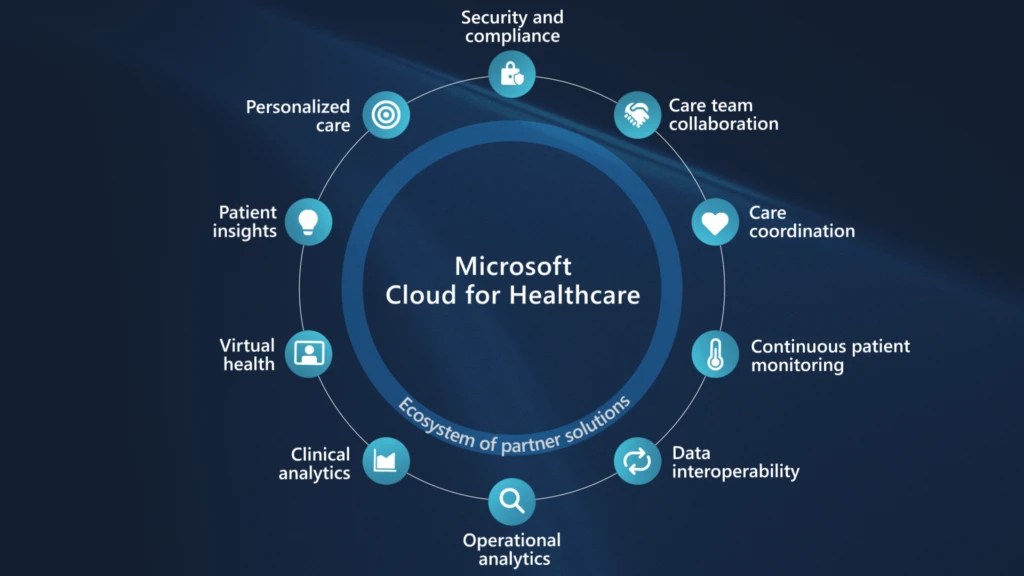
Microsoft Cloud for Healthcare provides capabilities to manage health data at scale and make it easier for healthcare organizations to improve the patient experience, coordinate care, and drive operational efficiency, while helping support security, compliance, and interoperability of health data.

Microsoft Cloud for Healthcare includes solutions that are built on capabilities within Microsoft Dynamics 365, Microsoft 365, Microsoft Azure, and Microsoft Power Platform.

This is an introduction blog post. Firstly, Microsoft Cloud for Healthcare solution should be installed from Microsoft Cloud Solution Center. To say about Microsoft Cloud Solution Center, it actually checks for requirements such as licenses, dependencies, and enables you to easily discover and deploy capabilities and solutions in Microsoft Cloud for Healthcare, there by simplifying the deployment process from a single location.

We will see what are the prerequisites.

Prerequisites

  • You must be a tenant admin, Dynamics 365 admin, or Power Platform admin to deploy Microsoft Cloud for Healthcare solutions.
  • You must have licenses for the Microsoft Cloud for Healthcare solutions and apps that you’re deploying. If your organization doesn’t have the necessary licenses, you’ll be notified during the deployment process in Solution Center.

Here are the solutions that are part of Microsoft Cloud for Healthcare, for each solution. We need to keep in mind that:

  • Some solutions have predeployment setup requirements.
  • Some solutions require configuration or have additional capabilities that you can set up after deployment.
SolutionDependencies
Patient accessPower Pages, Dynamics 365 Customer Service
Patient service centerDynamics 365 Customer Service, Digital Messaging add-on for Dynamics 365 Customer Service
Patient outreachDynamics 365 Marketing
Patient insight cardsDynamics 365 Sales Premium
Care managementDynamics 365 Customer Service*
Home healthDynamics 365 Field Service
Data integration toolkitPower Apps
Unified patient viewPower Apps
Patient trends (preview)Power Apps, Dynamics 365 Customer Insights
Patient population dashboard (preview)Power BI
Provider data modelPower Apps
Payor data model (preview)Power Apps
Life sciences data model (preview)Power Apps
Virtual VisitsMicrosoft Teams
Text analytics for healthAzure subscription
Azure IoT for healthcareAzure subscription
Azure Health BotAzure subscription
Azure Health Data ServicesAzure subscription
Healthcare database templatesAzure subscription
Health document intelligenceAzure subscription

There were a ton of Microsoft Azure capabilities to explore which I will do in my upcoming blog posts. So here, I am using a personal Azure subscription and rest everything I will try to keep using Trial accounts as long as possible. So, you don’t need to worry if you will charge just to try it out.

Also, with the advent of AI, health care industry is getting revolutionized.

Interested…? Then keep looking this space as I will explore more with all of you. Stay tuned…

Cheers,

PMDY
Azure API Management(APIM) for Power Platform

Hi Folks,

In today’s world, all the modern software applications use API for the front end to communicate with the backend systems, so lets see as it is very important for every developer working on Azure and API’s. Basically this is a PAAS Service from Azure. Follow along if you would like to know more details on this.

In short APIIM is a hybrid and multi cloud platform used to manage complete API life cycle. Azure API Management is made up of an API gateway, a management plane, and a developer portal.

  • Caching response to improve performance
  • Limit the number of API Calls
  • Security API and providing access
  • Interface to test API calls
  • API Analytics
  • Package related API Services
  • Transforms your API’s without
  • API Gateway is the first point of contact for any requests for your API which will route your requests to the appropriate backends. Imposes additional security restrictions with the help of JWT tokens and other certificates. Responses can be cached so that the API response could be faster.
  • Emits logs, metrics, and traces for monitoring, reporting, and troubleshooting
  • API Management are highly configurable, with control over URL mapping, query and path parameters, request and response content, and operation response caching.
  • Groups helps to provide conditional viewing capabilities.
  • Policy can help to change the behavior of an API without any code changes, this is well suited for your production API’s.

Also its easy to integrate API Management with all the other Azure Service available in the market.

Now lets go into the hands on by creating an APIIM simply from Azure.

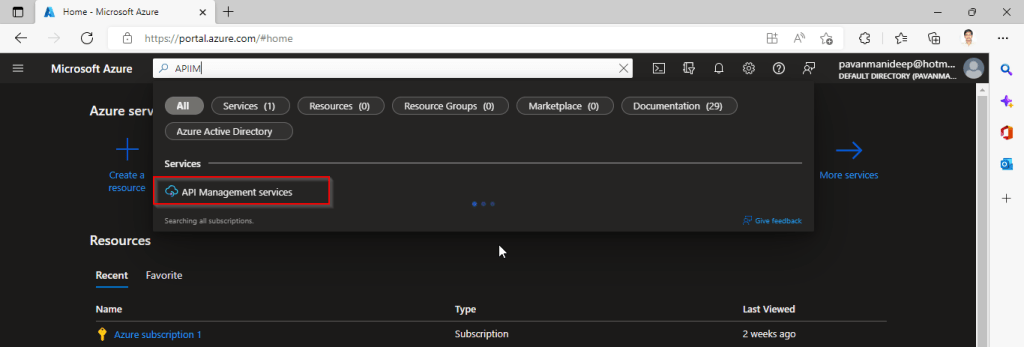
Go to Home – Microsoft Azure and search for APIIM and select API Management services and click on Create.

Input all the details, it was pretty self explanatory, coming to the pricing tier you could select based on your project needs and use case. Click on Review and Create and then Create.

It will take few minutes for the deployment to complete and you can use it.

The below Power point slide presentation is complete resource which can help you with all your queries related to Azure API Management.

Grand Tour of Azure API Management

I hope this gives you a bit of introduction to Azure API Management, now lets see how you can use this in your Power Platform Solutions.

For this, once your API ready, all you have do is to export your API’s from Azure API Management to your Power Platform Environment. With this the citizen developers can unleash the capabilities of Azure where the API’s are developed by professional developers. With this capability, citizen developers can use the Power Platform to create and distribute apps that are based on internal and external APIs managed by API Management.

Steps to follow would be as below:

All you need to do is to create a custom connector for your API which can be used in Power Platform like Power Apps, Power Automate etc.

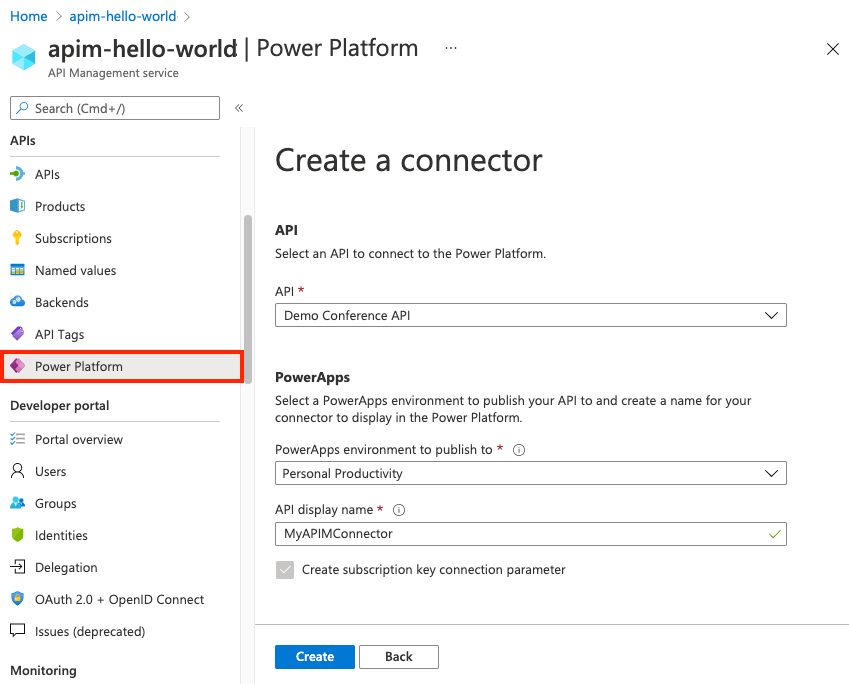
  1. Navigate to your API Management service in the Azure portal.
  2. In the menu, under APIs, select Power Platform.
  3. Select Create a connector.
  4. In the Create a connector window, do the following:
    1. Select an API to publish to the Power Platform.
    2. Select a Power Platform environment to publish the API to.
    3. Enter a display name, which will be used as the name of the custom connector.
    4. Optionally, if the API doesn’t already require a subscription, select Create subscription key connection parameter.
    5. Optionally, if the API is protected by an OAuth 2.0 server, provide details including Client IDClient secretAuthorization URLToken URL, and Refresh URL.
  5. Select Create.

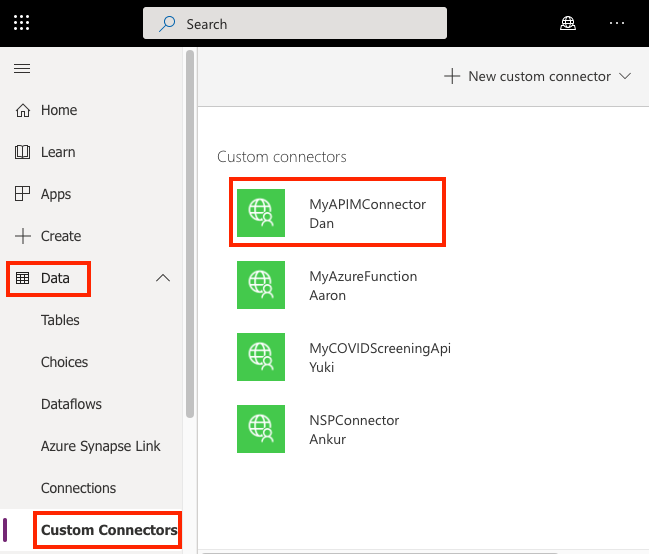
Once the connector is created, navigate to your Power Apps or Power Automate environment. You will see the API listed under Data > Custom Connectors.

Custom connector in Power Platform

I hope this will give you a complete picture about API Management in Azure…if you have any further queries, don’t hesitate to comment here…

Cheers,

PMDY