Dynamics CE integration with Logic Apps – A quick review…

Hi Folks,

This blog post talks all about integration of your Logic apps to your Dynamics CE instance and it’s advantages. Lets get started…

By the way, I can’t redefine the definition provided by Microsoft, so here it goes.

Azure Logic Apps is fully managed integration PaaS service that helps you schedule, automate, orchestrate tasks, business processes, and workflows when you need to integrate apps, data, systems, and services across enterprises or organizations and simplify how you design and build scalable solutions for app integration, data integration, system integration, enterprise application integration (EAI), and business-to-business (B2B) communication, whether in the cloud, on premises, or both. It’s simple to say that you can integrate any system and it is built on a containerized runtime.

Now let’s understand how does the logic apps work:

Every logic app workflow starts with a trigger, which fires when a specific event happens, or when new available data meets specific criteria. Each time that the trigger fires, the Logic Apps engine creates a logic app instance that runs the actions in the workflow. These actions can also include data conversions and flow controls, such as conditional statements, switch statements, loops, and branching. As soon as the Logic App stops running, these resources are discarded.

The interesting part here is that Logic Apps is more developer friendly and can used directly create integrations using logic apps either from Visual studio, Visual Studio Code or browser.

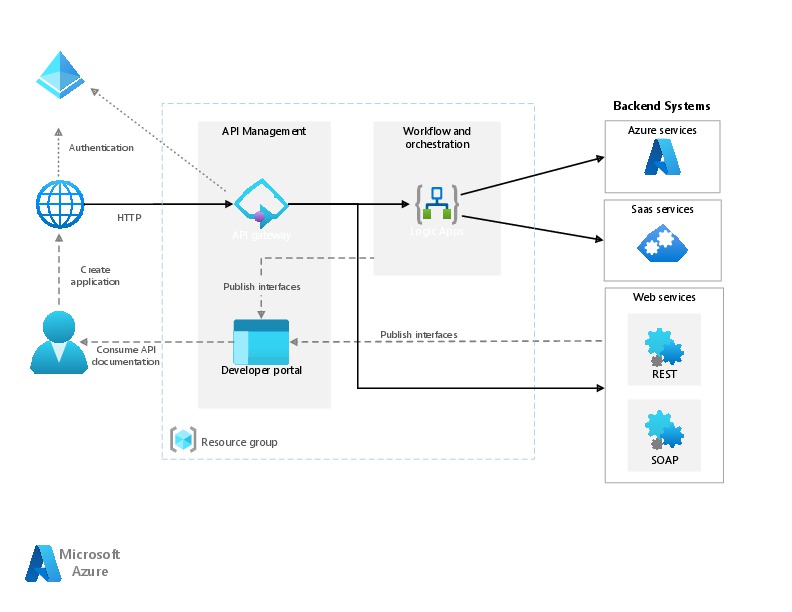
We were given flexibility to choose the type of Logic Apps, Single-tenant and multi-tenant. While creating logic apps, we can use Standard or Consumption based resource type. Logic Apps can create complex orchestrations and it is serverless. This means there is no upfront knowledge required for developer about the infrastructure. You have to bear in mind that it is both a stateful and stateless service unlike Azure Function which is stateless. It allows you to use webhooks as triggers. Coming to the pricing part, the price of Microsoft Azure Logic Apps is inexpensive. Look at it’s architecture below
You can simply edit your Azure logic App in Visual studio code / Visual studio and push your changes to your Devops repository…wow such a easy approach…don’t forget to try it out…

Do let me know if you have any queries or if you can add any more points, do let me know in comments….

That’s it for today…will come back next week with another article in #PowerfulAloneBetterTogether Series.

Cheers,

PMDY
Azure Service Bus Integration with Dynamics CE

Hi Folks,

In this post, we’ll talk about Azure Service bus.

Overview:

To start with Service Bus is fully managed messaging service which is used to connect any applications, devices, and services running in the cloud to any other applications or services. In this we can have queues which helps in the one directional communication and topics which provides two directional communication with the help of publish subscribe model.

Service bus can serve the following purposes

  1. Used for messaging
  2. For Decoupling producer and consumer of the message
  3. Load balancing
  4. For 1:N(publish and subscribe model) using Topics

Queues and Topics follow FIFO mechanism.

That said, lets see in action…

Create an Azure service bus namespace in Azure like below…

Following this, once you have created a namespace which is actually a container for all messaging components (queues and topics).

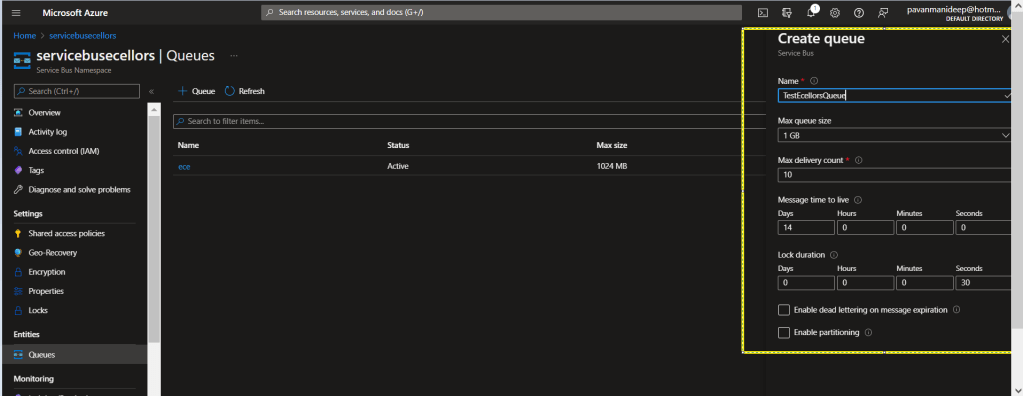
Next step is to create a queue or topic, in this case I am creating a queue….creating topic will be similar.

Fill up the details as required for the queue setup in the highlighted section…

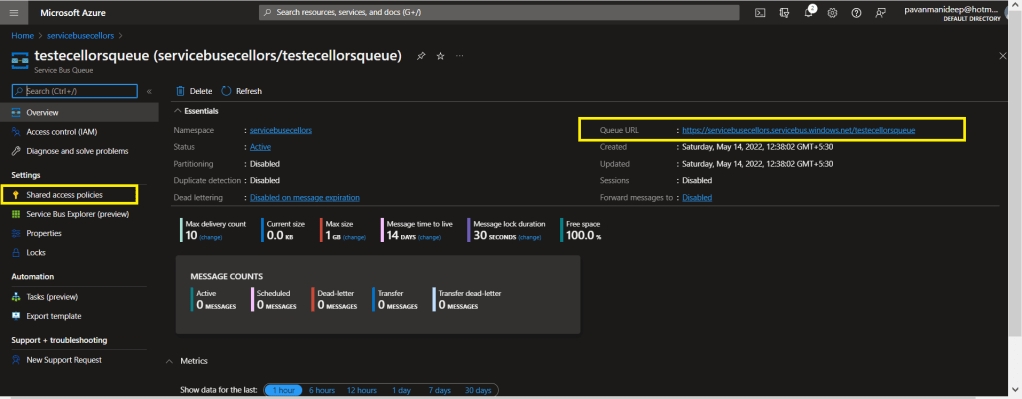
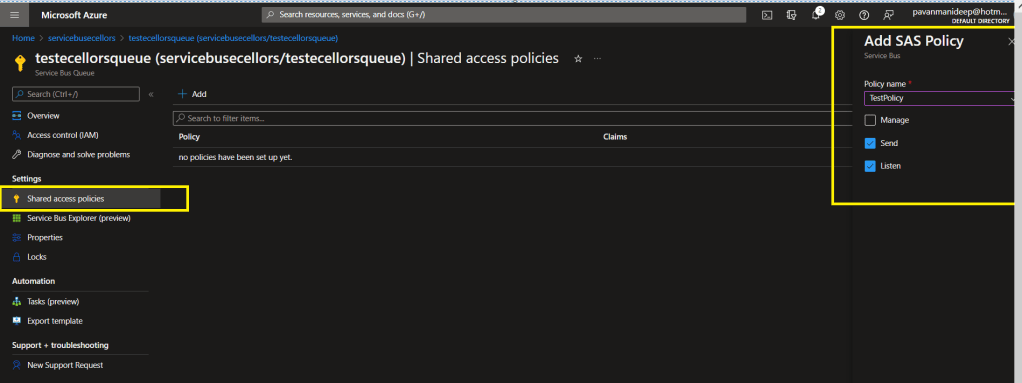
After creating a queue or topic, you need to create an access policy for the same as below

Do note the queue URL as highlighted above….access control in service bus is achieved through Shared Access policies.

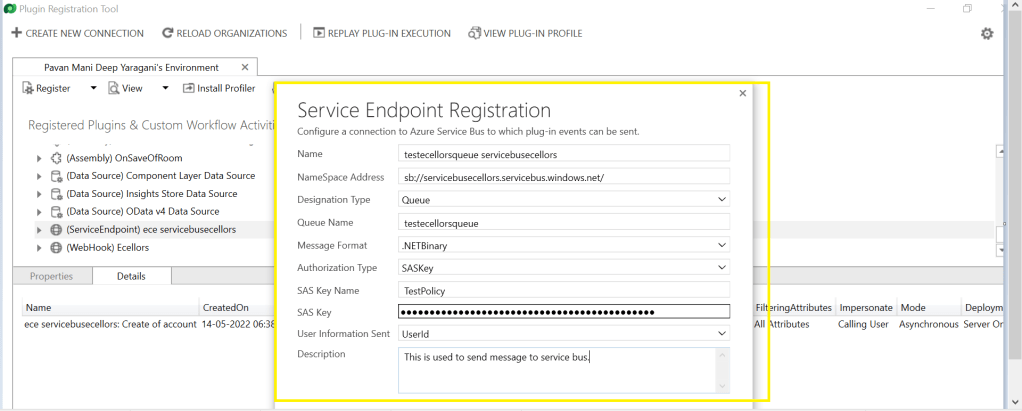
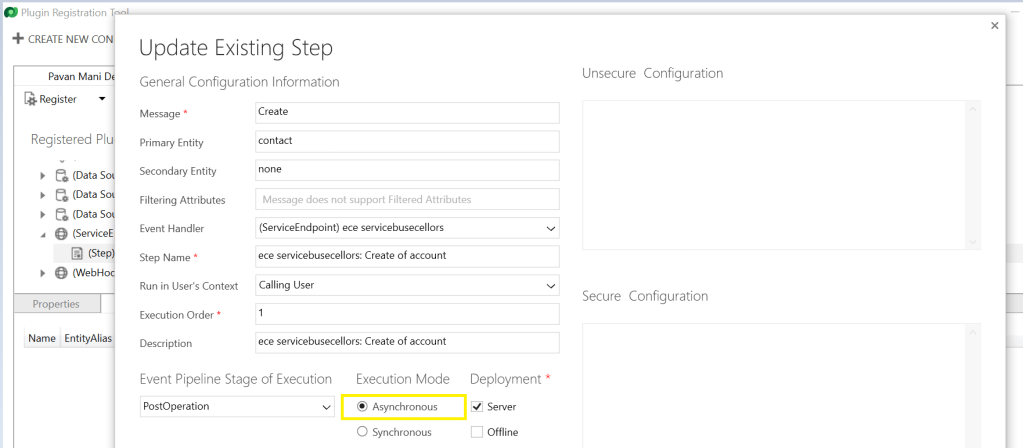
Once you have Primary connection string created, you need to go back to your Plugin registration tool and register a service end point for triggering your service bus message and provide the connection string in the below areas highlighted and click on next.

Next below appears for your review..

You can provide SAS Key or SAS Token for authentication in order to retrieve the messages from service bus and click on save. Now your end point is configured, now you can go ahead and create a step which will trigger the message to service bus from Dynamics, do note that you can only register an asynchronous operation inorder to communicate with your service bus.

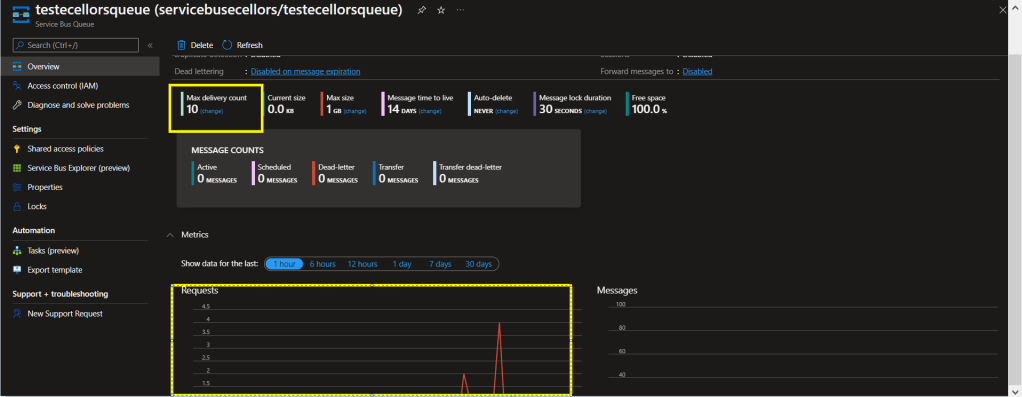
You can perform the necessary operation and you can find the message being created in the service bus. If it didn’t show up immediately, please refresh and try after a few mins.

In order to consume these messages, you can use a console application for the sake of retrieval. Once the message is retrieved, it will be deleted from the queue by default.

Incase you want to use those messages for your troubleshooting purposes, you can peek command, the Peek operation on a queue or a subscription returns at most the requested number of messages. The following table shows the types of messages that are returned by the Peek operation.

Type of messagesIncluded?
Active messagesYes
Dead-lettered messagesNo
Locked messagesYes
Expired messagesMay be (before they are dead-lettered)
Scheduled messagesYes for queues. No for subscriptions

I hope this provides right insights for integrating service bus with Azure and service bus is widely used when both systems were not in sync and available at the same time.

Thank you for reading…

Reference: Service Bus from Microsoft

Happy integrating Dynamics CE with Azure….#PowerfulAloneBetterTogether

Cheers,

PMDY