Python + Dataverse Series – #06: Data preprocessing steps before running Machine Learning Algorithms

Hi Folks,

If you were already a Power Platform Consultant and new to working with Python, then I would encourage to start from the beginning of this series.

Now in this series, we entered an interesting part where Machine learning algorithms were run to analyze Dataverse Data and in this post we will understand why feature scaling is a critical preprocessing step for many machine learning algorithms because it ensures that all features contribute equally to the model’s outcome, prevents numerical instability, and helps optimization algorithms converge faster to the optimal solution

Primarily before running any Machine Learning Algorithm, we need to do some data preprocessing like scaling the data, in this case we will use a formula which is used to scale using min–max normalization (feature scaling to the [0, 1] range).

#preprocessing step before running machine learning algorithms
from azure.identity import InteractiveBrowserCredential #using Interactive Login
from PowerPlatform.Dataverse.client import DataverseClient #installing Python SDK for Dataverse
import numpy as np #import Numpy Library to perform calculations
# Connect to Dataverse
credential = InteractiveBrowserCredential()
client = DataverseClient("https://ecellorsdev.crm8.dynamics.com", credential) #Creates Dataverse Client
# Fetch account data as paged batches
account_batches = client.get(
"account",
select=["accountid", "revenue"],
top=10,
) #Fetches top 10 accounts with accountid, revenue columns
revenues = []
for batch in account_batches:
for account in batch:
if "revenue" in account and account["revenue"] is not None:
revenues.append(account["revenue"])
revenues = np.array(revenues)
#Normalize the revenue
if len(revenues) > 0:
min_rev = np.min(revenues)
max_rev = np.max(revenues)
normalized_revenues = (revenues – min_rev) / (max_rev – min_rev)
print("Normalized Revenues:", normalized_revenues)
#visualize the result
import matplotlib.pyplot as plt
plt.plot(normalized_revenues, marker='o')
plt.title('Normalized Revenues from Dataverse Accounts')
plt.xlabel('Account Index')
plt.ylabel('Normalized Revenue')
plt.grid()
plt.show()

You can download the Python Notebook below if you want to work with VS Code

https://github.com/pavanmanideep/DataverseSDK_PythonSamples/blob/main/Python-PreProcessingStepBeforeMachineLearning.ipynb

Hope you found this useful…

Cheers,

PMDY

Python + Dataverse Series – #04: Create records in batch using Execute Multiple

Hi Folks,

This is continuation in this Python with Dataverse Series, in this blog post, we will see how can we create multiple records in a single batch using ExecuteMultiple in Python.

Please use the below code for the same…to make any calls using ExecuteMultiple…

import pyodbc
import msal
import requests
import json
import re
import time
# Azure AD details
client_id = '0e1c58b1-3d9a-4618-8889-6c6505288d3c'
client_secret = 'qlU8Q~dmhKFfdL1ph2YsLK9URbhIPn~qWmfr1ceL'
tenant_id = '97ae7e35-2f87-418b-9432-6733950f3d5c'
authority = f'https://login.microsoftonline.com/{tenant_id}'
resource = 'https://ecellorsdev.crm8.dynamics.com'
# SQL endpoint
sql_server = 'ecellorsdev.crm8.dynamics.com'
database = 'ecellorsdev'
# Get token with error handling
try:
print(f"Attempting to authenticate with tenant: {tenant_id}")
print(f"Authority URL: {authority}")
app = msal.ConfidentialClientApplication(client_id, authority=authority, client_credential=client_secret)
print("Acquiring token…")
token_response = app.acquire_token_for_client(scopes=[f'{resource}/.default'])
if 'error' in token_response:
print(f"Token acquisition failed: {token_response['error']}")
print(f"Error description: {token_response.get('error_description', 'No description available')}")
else:
access_token = token_response['access_token']
print("Token acquired successfully and your token is!"+access_token)
print(f"Token length: {len(access_token)} characters")
except ValueError as e:
print(f"Configuration Error: {e}")
except Exception as e:
print(f"Unexpected error: {e}")
#Get 5 contacts from Dataverse using Web API
import requests
import json
try:
#Full CRUD Operations – Create, Read, Update, Delete a contact in Dataverse
print("Making Web API request to perform CRUD operations on contacts…")
# Dataverse Web API endpoint for contacts
web_api_url = f"{resource}/api/data/v9.2/contacts"
# Base headers with authorization token
headers = {
'Authorization': f'Bearer {access_token}',
'OData-MaxVersion': '4.0',
'OData-Version': '4.0',
'Accept': 'application/json',
'Content-Type': 'application/json'
}
# Simple approach: create multiple contacts sequentially
# generate 100 contacts with different last names
contacts_to_create = [
{"firstname": "Ecellors", "lastname": f"Test{str(i).zfill(3)}"}
for i in range(1, 101)
]
create_headers = headers.copy()
create_headers['Prefer'] = 'return=representation'
created_ids = []
print("Creating contacts sequentially…")
for i, body in enumerate(contacts_to_create, start=1):
try:
resp = requests.post(web_api_url, headers=create_headers, json=body, timeout=15)
except requests.exceptions.RequestException as e:
print(f"Request error creating contact #{i}: {e}")
continue
if resp.status_code in (200, 201):
try:
j = resp.json()
cid = j.get('contactid')
except ValueError:
cid = None
if cid:
created_ids.append(cid)
print(f"Created contact #{i} with id: {cid}")
else:
print(f"Created contact #{i} but response body missing id. Response headers: {resp.headers}")
elif resp.status_code == 204:
# try to extract id from headers
entity_url = resp.headers.get('OData-EntityId') or resp.headers.get('Location')
if entity_url:
m = re.search(r"([0-9a-fA-F\-]{36})", entity_url)
if m:
cid = m.group(1)
created_ids.append(cid)
print(f"Created contact #{i} (204) with id: {cid}")
else:
print(f"Created contact #{i} (204) but couldn't parse id from headers: {resp.headers}")
else:
print(f"Created contact #{i} (204) but no entity header present: {resp.headers}")
else:
print(f"Failed to create contact #{i}. Status code: {resp.status_code}, Response: {resp.text}")
# small pause to reduce chance of throttling/rate limits
time.sleep(0.2)
if created_ids:
print("Created contact ids:")
for cid in created_ids:
print(cid)
except Exception as e:
print(f"Unexpected error during Execute Multiple: {e}")
print("Failed to extract Contact ID from headers.")

Please download this Jupyter notebook to work on it easily using VS Code.

https://github.com/pavanmanideep/DataverseSDK_PythonSamples/blob/main/Python-Dataverse-ExecuteMultipleUsingPython.ipynb

If you want to continue reading this series, follow along

Hope this helps..

Cheers,

PMDY

Python + Dataverse Series – Post #03: Create, Update, Delete records via Web API

Hi Folks,

This is continuation in this Python with Dataverse Series, in this blog post, we will perform a full CRUD(Create, Retrieve, Update, Delete) in Dataverse using Web API.

Please use the below code for the same…to make any calls using WEB API to Dataverse.

import pyodbc
import msal
import requests
import json
import re
# Azure AD details
client_id = 'XXXX'
client_secret = 'XXXX'
tenant_id = 'XXXX'
authority = f'https://login.microsoftonline.com/{tenant_id}'
resource = 'https://XXXX.crm8.dynamics.com'
# SQL endpoint
sql_server = 'XXXX.crm8.dynamics.com'
database = 'XXXX'
# Get token with error handling
try:
print(f"Attempting to authenticate with tenant: {tenant_id}")
print(f"Authority URL: {authority}")
app = msal.ConfidentialClientApplication(client_id, authority=authority, client_credential=client_secret)
print("Acquiring token…")
token_response = app.acquire_token_for_client(scopes=[f'{resource}/.default'])
if 'error' in token_response:
print(f"Token acquisition failed: {token_response['error']}")
print(f"Error description: {token_response.get('error_description', 'No description available')}")
else:
access_token = token_response['access_token']
print("Token acquired successfully and your token is!"+access_token)
print(f"Token length: {len(access_token)} characters")
except ValueError as e:
print(f"Configuration Error: {e}")
print("\nPossible solutions:")
print("1. Verify your tenant ID is correct")
print("2. Check if the tenant exists and is active")
print("3. Ensure you're using the right Azure cloud (commercial, government, etc.)")
except Exception as e:
print(f"Unexpected error: {e}")
#Get 5 contacts from Dataverse using Web API
import requests
import json
try:
#Full CRUD Operations – Create, Read, Update, Delete a contact in Dataverse
print("Making Web API request to perform CRUD operations on contacts…")
# Dataverse Web API endpoint for contacts
web_api_url = f"{resource}/api/data/v9.2/contacts"
# Base headers with authorization token
headers = {
'Authorization': f'Bearer {access_token}',
'OData-MaxVersion': '4.0',
'OData-Version': '4.0',
'Accept': 'application/json',
'Content-Type': 'application/json'
}
# Create a new contact
new_contact = { "firstname": "John", "lastname": "Doe" }
print("Creating a new contact…")
# Request the server to return the created representation. If not supported or omitted,
# Dataverse often returns 204 No Content and provides the entity id in a response header.
create_headers = headers.copy()
create_headers['Prefer'] = 'return=representation'
response = requests.post(web_api_url, headers=create_headers, json=new_contact)
created_contact = {}
contact_id = None
# If the API returned the representation, parse the JSON
if response.status_code in (200, 201):
try:
created_contact = response.json()
except ValueError:
created_contact = {}
contact_id = created_contact.get('contactid') or created_contact.get('contactid@odata.bind')
print("New contact created successfully (body returned).")
print(f"Created Contact ID: {contact_id}")
# If the API returned 204 No Content, Dataverse includes the entity URL in 'OData-EntityId' or 'Location'
elif response.status_code == 204:
entity_url = response.headers.get('OData-EntityId') or response.headers.get('Location')
if entity_url:
# Extract GUID using regex (GUID format)
m = re.search(r"([0-9a-fA-F]{8}-[0-9a-fA-F]{4}-[0-9a-fA-F]{4}-[0-9a-fA-F]{4}-[0-9a-fA-F]{12})", entity_url)
if m:
contact_id = m.group(1)
created_contact = {'contactid': contact_id}
print("New contact created successfully (no body). Extracted Contact ID from headers:")
print(f"Created Contact ID: {contact_id}")
else:
print("Created but couldn't parse entity id from response headers:")
print(f"Headers: {response.headers}")
else:
print("Created but no entity location header found. Headers:")
print(response.headers)
else:
print(f"Failed to create contact. Status code: {response.status_code}")
print(f"Error details: {response.text}")
# Read the created contact
if not contact_id:
# Defensive: stop further CRUD if we don't have an id
print("No contact id available; aborting read/update/delete steps.")
else:
print("Reading the created contact…")
response = requests.get(f"{web_api_url}({contact_id})", headers=headers)
if response.status_code == 200:
print("Contact retrieved successfully!")
contact_data = response.json()
print(json.dumps(contact_data, indent=4))
else:
print(f"Failed to retrieve contact. Status code: {response.status_code}")
print(f"Error details: {response.text}")
# Update the contact's email
updated_data = { "emailaddress1": "john.doe@example.com" }
response = requests.patch(f"{web_api_url}({contact_id})", headers=headers, json=updated_data)
if response.status_code == 204:
print("Contact updated successfully!")
else:
print(f"Failed to update contact. Status code: {response.status_code}")
print(f"Error details: {response.text}")
# Delete the contact
response = requests.delete(f"{web_api_url}({contact_id})", headers=headers)
if response.status_code == 204:
print("Contact deleted successfully!")
else:
print(f"Failed to delete contact. Status code: {response.status_code}")
print(f"Error details: {response.text}")
except requests.exceptions.RequestException as e:
print(f"Request error: {e}")
except KeyError as e:
print(f"Token not available: {e}")
except Exception as e:
print(f"Unexpected error: {e}")
view raw FullCRUDWebAPI hosted with ❤ by GitHub

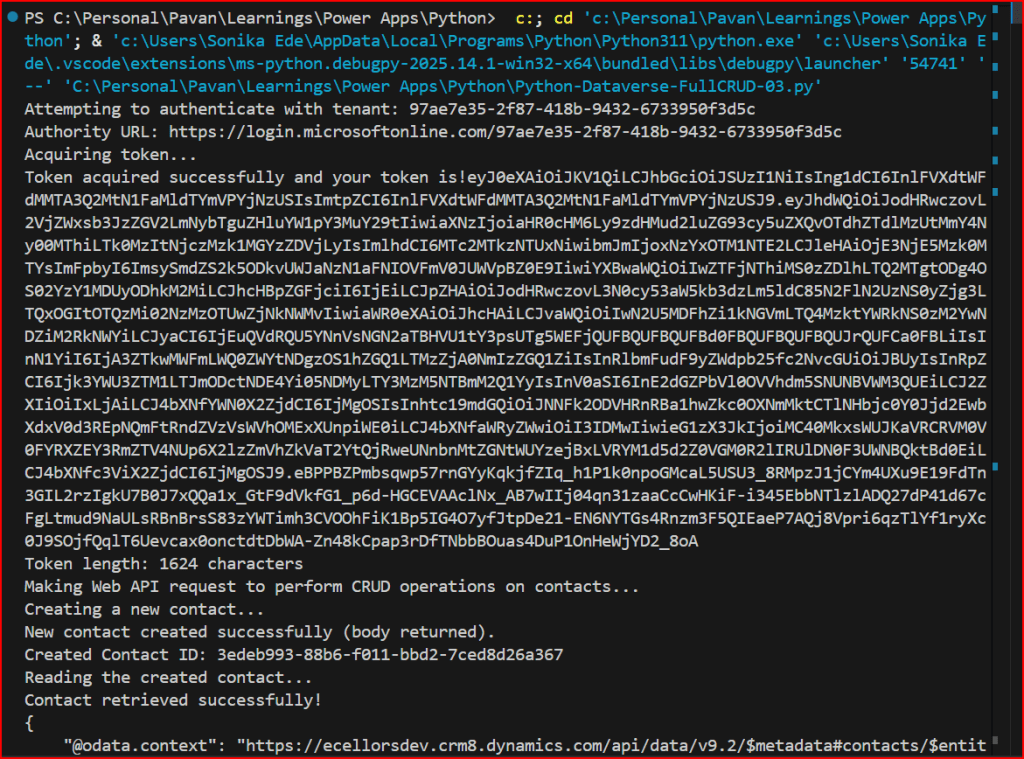
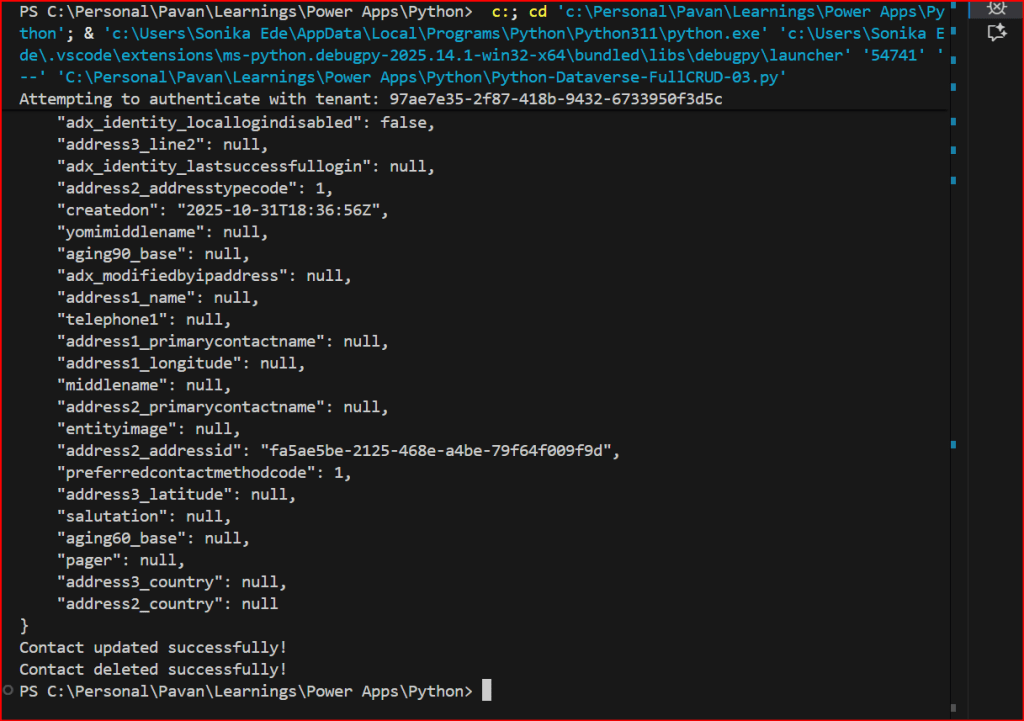
You can use the VS Code as IDE, copy the above code in a python file, next click on Run Python File at the top of the VS Code

Hope this helps someone making Web API Calls using Python.

If you want to try this out, download the Python Notebook and open in VS Code.

https://github.com/pavanmanideep/DataverseSDK_PythonSamples/blob/main/Python-Dataverse-FullCRUD-03.ipynb

Looking to continue following this series, don’t forget the next article in this series

Cheers,

PMDY

Python + Dataverse Series – #02 – use Datavese Web API using Python

Hi Folks,

This is in continuation to the previous blog post…if you haven’t gone through the earlier post on connecting to Dataverse using Python, please have a look here

Now, we will see how you can retrieve the records in Dataverse using Web API using Python…

  1. Follow the previous blog post for connecting to Dataverse using Python
  2. Once you get the access token via the TDS End point, we can invoke the Dataverse Web API using below code…
import pyodbc
import msal
import requests
import json
# Azure AD details
client_id = 'XXXX'
client_secret = 'XXXX'
tenant_id = 'XXXX'
authority = f'https://login.microsoftonline.com/{tenant_id}'
resource = 'https://XXXX.crm8.dynamics.com'
# SQL endpoint
sql_server = 'XXXX.crm8.dynamics.com'
database = 'XXXX'
# Get token with error handling
try:
print(f"Attempting to authenticate with tenant: {tenant_id}")
print(f"Authority URL: {authority}")
app = msal.ConfidentialClientApplication(client_id, authority=authority, client_credential=client_secret)
print("Acquiring token…")
token_response = app.acquire_token_for_client(scopes=[f'{resource}/.default'])
if 'error' in token_response:
print(f"Token acquisition failed: {token_response['error']}")
print(f"Error description: {token_response.get('error_description', 'No description available')}")
else:
access_token = token_response['access_token']
print("Token acquired successfully and your token is!"+access_token)
print(f"Token length: {len(access_token)} characters")
except ValueError as e:
print(f"Configuration Error: {e}")
print("\nPossible solutions:")
print("1. Verify your tenant ID is correct")
print("2. Check if the tenant exists and is active")
print("3. Ensure you're using the right Azure cloud (commercial, government, etc.)")
except Exception as e:
print(f"Unexpected error: {e}")
#Get 5 contacts from Dataverse using Web API
import requests
import json
try:
print("Making Web API request to get contacts…")
# Dataverse Web API endpoint for contacts
web_api_url = f"{resource}/api/data/v9.2/contacts"
# Set up headers with authorization token
headers = {
'Authorization': f'Bearer {access_token}',
'OData-MaxVersion': '4.0',
'OData-Version': '4.0',
'Accept': 'application/json',
'Content-Type': 'application/json'
}
# Add query parameters to get only 5 contacts with specific fields
params = {
'$top': 5,
'$select': 'contactid,fullname,emailaddress1,telephone1,createdon'
}
# Make the GET request
response = requests.get(web_api_url, headers=headers, params=params)
if response.status_code == 200:
print("Web API request successful!")
contacts_data = response.json()
print(f"\nFound {len(contacts_data['value'])} contacts:")
print("-" * 80)
for i, contact in enumerate(contacts_data['value'], 1):
print(f"Contact {i}:")
print(f" ID: {contact.get('contactid', 'N/A')}")
print(f" Name: {contact.get('fullname', 'N/A')}")
print(f" Email: {contact.get('emailaddress1', 'N/A')}")
print(f" Phone: {contact.get('telephone1', 'N/A')}")
print(f" Created: {contact.get('createdon', 'N/A')}")
print("-" * 40)
else:
print(f"Web API request failed with status code: {response.status_code}")
print(f"Error details: {response.text}")
except requests.exceptions.RequestException as e:
print(f"Request error: {e}")
except KeyError as e:
print(f"Token not available: {e}")
except Exception as e:
print(f"Unexpected error: {e}")

You can use the VS Code as IDE, copy the above code in a python file, next click on Run Python File at the top of the VS Code

So, once you get the Access token, you can invoke the Web API using Python similar to how we did it using Javascript…

Please download the Python Jupyter Notebook if you want to work on this in VS Code

https://github.com/pavanmanideep/DataverseSDK_PythonSamples/blob/main/Python-Dataverse-WebAPI-GetData-02.ipynb

If you want to follow along in this series, please see below post

Hope this helps…

Cheers,

PMDY

Python + Dataverse Series – #01 – Console Application using Python

Hi Folks,

This series is for Pro Code Developers especially those working on Dataverse and want to know how to work with Dataverse and Python. I am starting this series as I see little to no content in this area.

So, in this post, first we will try to understand how to write a console application using Python Code utilizing(Tabular Data Stream) the TDS end point. Well, there were many posts in the internet for connecting to Dataverse using Python but uses more libraries and requires bit more code

Below posts will have hardcoded configurations as they are meant for initial trial purposes, going further, we will align with the best practices.

import pyodbc
import msal
# Azure AD details
client_id = '0e1c58b1-3d9a-4618-8889-6c6505288d3c'
client_secret = 'qlU8Q~dmhKFfdL1ph2YsLK9URbhIPn~qWmfr1ceL'
tenant_id = '97ae7e35-2f87-418b-9432-6733950f3d5c'
authority = f'https://login.microsoftonline.com/{tenant_id}'
resource = 'https://ecellorsdev.crm8.dynamics.com'
# SQL endpoint
sql_server = 'ecellorsdev.crm8.dynamics.com'
database = 'ecellorsdev'
# Get token with error handling
try:
print(f"Attempting to authenticate with tenant: {tenant_id}")
print(f"Authority URL: {authority}")
app = msal.ConfidentialClientApplication(client_id, authority=authority, client_credential=client_secret)
print("Acquiring token…")
token_response = app.acquire_token_for_client(scopes=[f'{resource}/.default'])
if 'error' in token_response:
print(f"Token acquisition failed: {token_response['error']}")
print(f"Error description: {token_response.get('error_description', 'No description available')}")
else:
access_token = token_response['access_token']
print("Token acquired successfully and your token is!"+access_token)
print(f"Token length: {len(access_token)} characters")
except ValueError as e:
print(f"Configuration Error: {e}")
print("\nPossible solutions:")
print("1. Verify your tenant ID is correct")
print("2. Check if the tenant exists and is active")
print("3. Ensure you're using the right Azure cloud (commercial, government, etc.)")
except Exception as e:
print(f"Unexpected error: {e}")

The logic just uses two libraries in Python

  1. pyodbc
  2. msal

The code efficiently handles all the errors for efficient tracking….

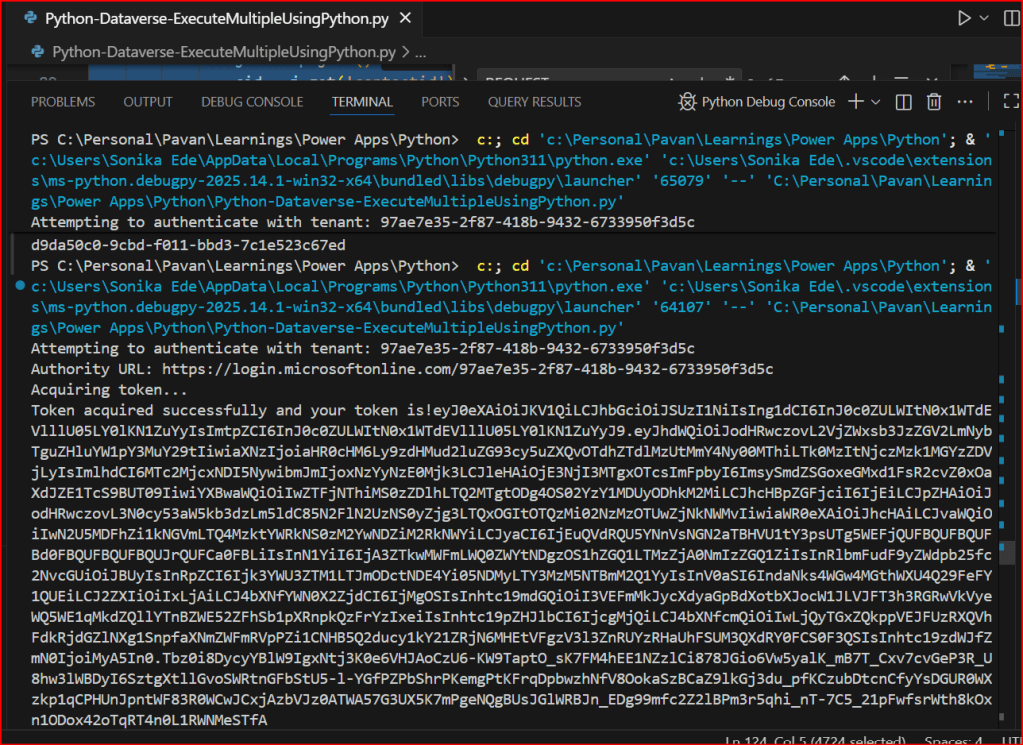
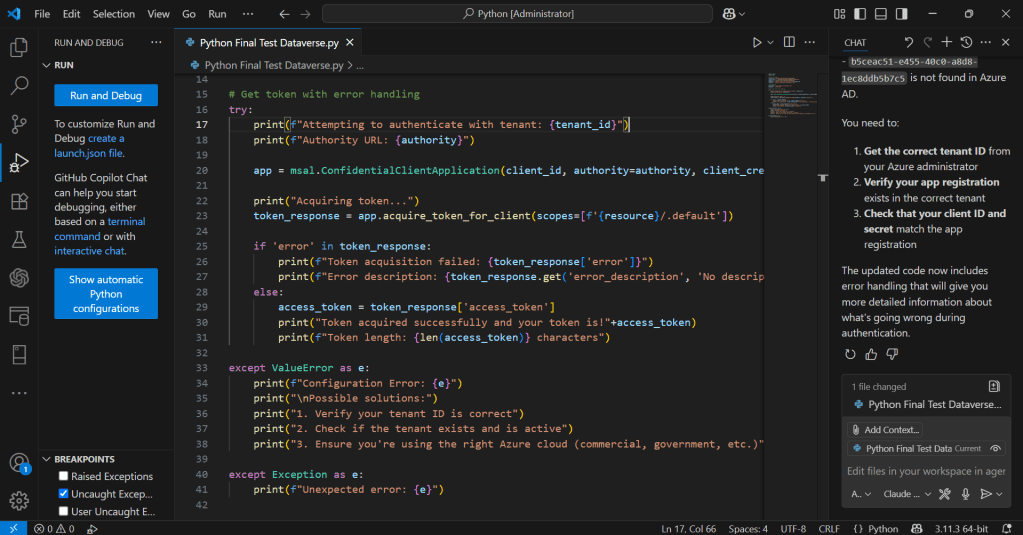
You can easily work with Python using VS Code as below,

Hover over Run option –> Click Start Debugging

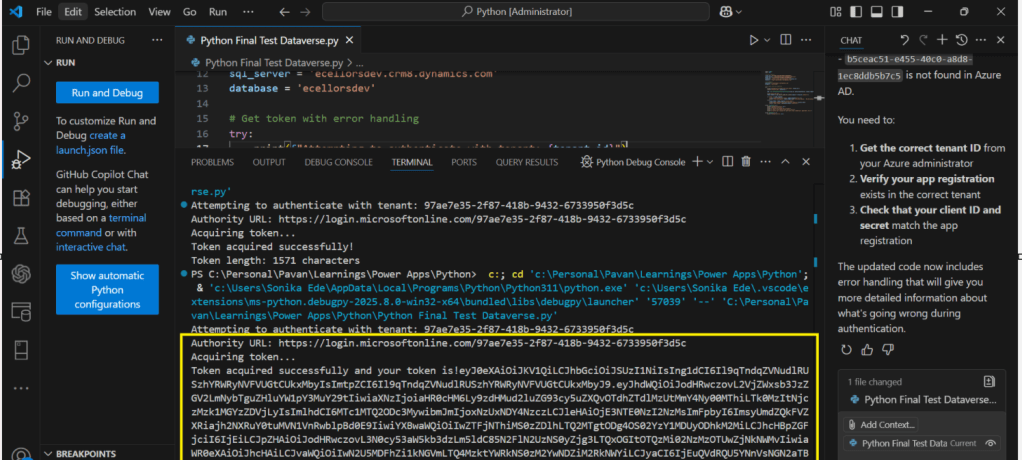
You will able to get the Access Token after invoking the Dataverse.

Download the Python Jupyter Notebook if you want to work on this in VS Code.

https://github.com/pavanmanideep/DataverseSDK_PythonSamples/blob/main/Python-Dataverse-ConsoleApp-01.ipynb

Hope this posts helps…

If you want to continue reading this series, please follow along

Cheers,

PMDY

Embed Python Visuals in Power BI Desktop – Quick Review

Hi Folks,

This post is all about embedding Python visuals in Power BI, you will need to install the respective dependent libraries like Seaborn, Matplotlib when you were creating visuals as we are using the respective libraries.

Thank you @Dr.S.Gomathi for sharing insights at GPPB Tamil Nadu, 2024, while I don’t know that Power BI has this capability. I am writing this down.

The first thing you need to do is to install Python, you can install the latest version from internet. Click here to Download Python for Windows.

Once downloaded and installed in your local machine, you can find a folder created under your Windows Start menu like below.

You need to right click on Python 3.11(64-bit) icon which is the current latest version and then click on open file location.

Then you will be able to see the contents in the folder

You need again right click on Python 3.11 (64 bit) and open its actual contents where the library files reside.

Copy this path, we need this in a while.

Now open Power BI Desktop and navigate to File –> Options and Settings –> Options

Now in the options and settings, you need to select on the Python scripting and specify the path which you just copied above as below.

Now you were ready to use Python visuals in Power BI.

Next step is to click on Python visual as highlighted below

You will be then asked to enable Python scripts as below

You will need to click on Enable as shown above. Once it is done, you are ready to start using Python visuals in Power BI.

Then you need to load data from your DataSource. Here is the link to the excel I have used. Once data is loaded into your Power BI report, you need to select respective data fields which you want to visualize. Here I am using two fields for X and Y axis, then in Power BI Desktop, you should be able to see something like below.

and in order to effectively visualize the sales trends, I will be visualizing the data using Violin Chart, which is using Seaborn library, while the Seaborn is actually based on Matplotlib library. So, I need to make sure I have those two libraries installed in my machine. You can install by using Command Prompt in your PC, you need to enter below commands and press enter to install.

pip install matplot lib

pip install seaborn

Once installed, we can plot using the below command in the python script tab in Power BI Desktop

# The following code to create a dataframe and remove duplicated rows is always executed and acts as a preamble for your script:
# dataset = pandas.DataFrame(Sales, Country)
# dataset = dataset.drop_duplicates()
# Paste or type your script code here:
import pandas as pd
import seaborn as sns
import matplotlib.pyplot as plt
# Set the aesthetic style of the plots
sns.set_style("whitegrid")
# Create a violin plot for Sales Satisfaction across different Product Categories
plt.figure(figsize=(12, 8))
sns.violinplot(x='Year', y='COGS', data=dataset, palette='muted', split=True)
plt.title('Sales by Product Category')
plt.xlabel('Product Category')
plt.ylabel('Customer Satisfaction Rating')
plt.show()

Then you may need to click on run script as highlighted below

This gives your Violin chart showing the sales distribution for different product categories in your Power BI Desktop. If you were facing any problems viewing the report, check the error in the pop-up message displayed by Power BI, you can also follow the Microsoft article on this mentioned in the references.

Hope this helps someone trying to use Python visuals inside Power BI. Same way, you can use different visualizations available with Python which were not available in Power BI by default.

References:

https://learn.microsoft.com/en-us/power-bi/connect-data/desktop-python-scripts

Cheers,

PMDY