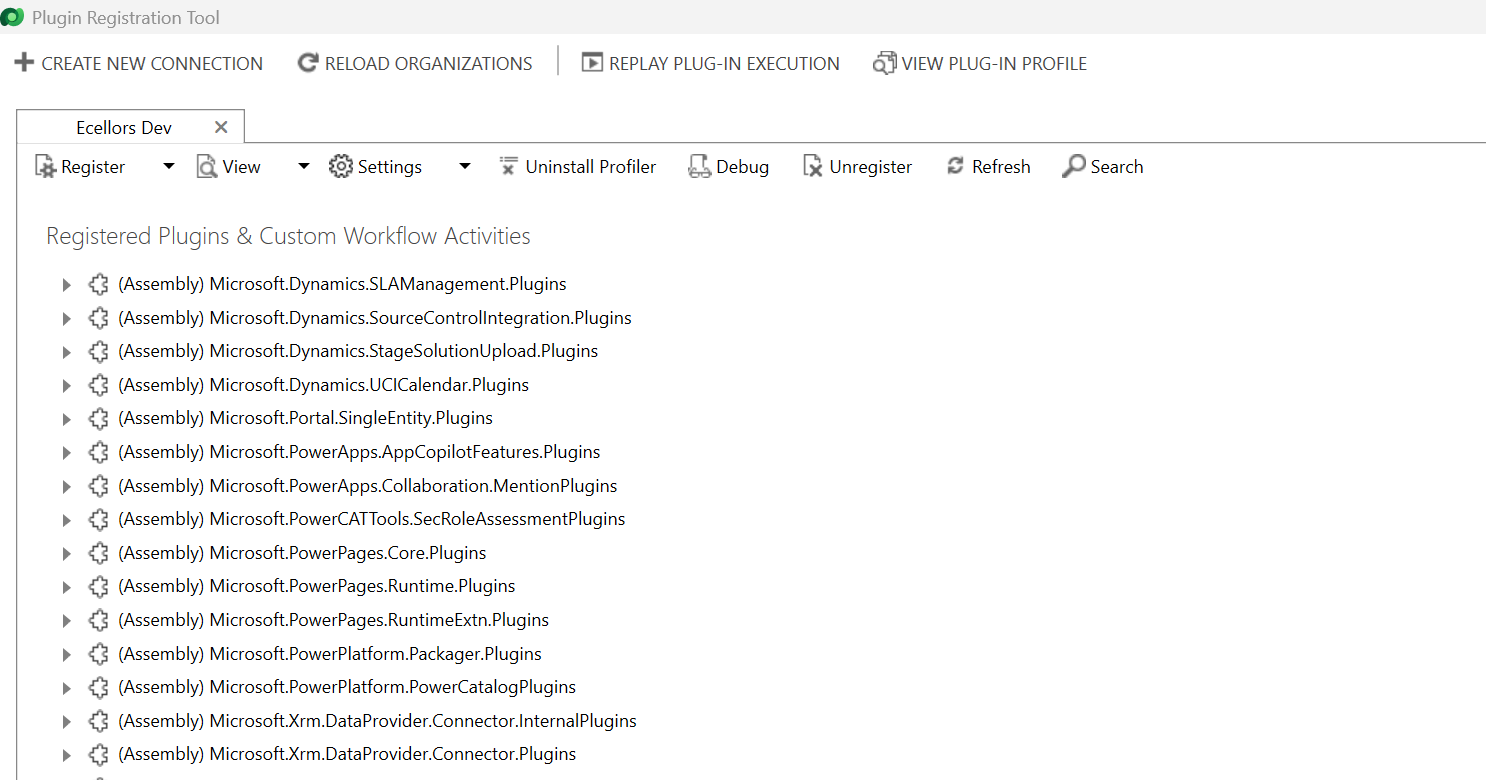
It’s been a since I posted on Dynamics 365 Plugins, so this blog post talks about one small tip when connecting to your Dynamics 365 instance from Plugin Registration Tool either if you were connecting from Standalone Plugin Registration Tool or using Plugin Registration Tool from XrmToolBox.
If you were looking to install plugin registration tool itself, you can check the below post or if you want to learn about all Plugin related issues at once, you can check the references at the bottom of this post, else you can continue reading this post.
If you don’t know this tip, it will be difficult and least you will spend many minutes figuring out the error message you see in the Plugin registration tool.
This is applicable for applications who have MFA enabled, even if you haven’t enabled, it was enabled by Microsoft by default to enforce security.
As usually, you select:
Office 365
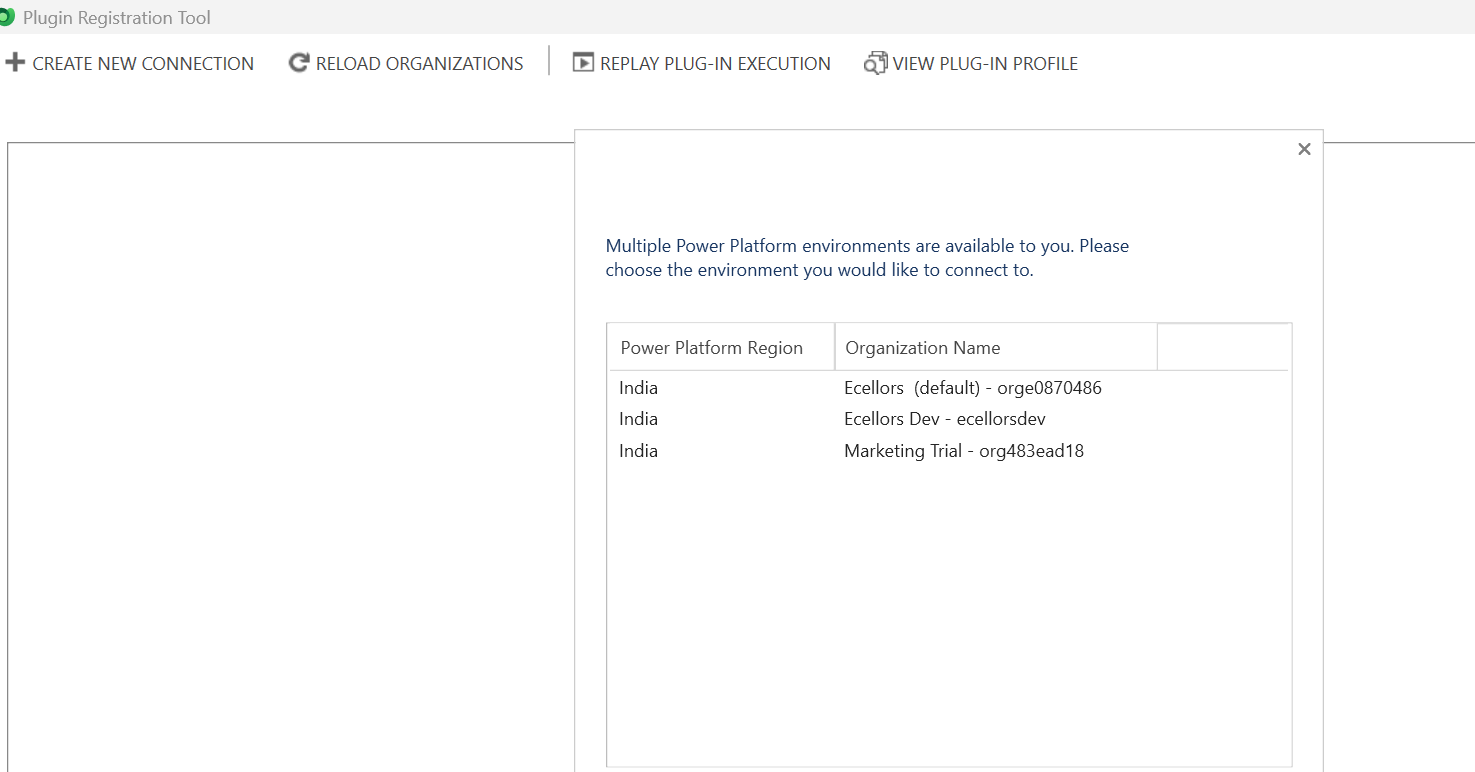
Enable Display list of available organizations, Show Advanced
Provide User Name, Password
Click on Login
You will be prompted this error in such case
This file contains hidden or bidirectional Unicode text that may be interpreted or compiled differently than what appears below. To review, open the file in an editor that reveals hidden Unicode characters.
Learn more about bidirectional Unicode characters
Error : AADSTS50076: Due to a configuration change made by your administrator, or because you moved to a new location, you must use multi-factor authentication to access '00000007-0000-0000-c000-000000000000'. Trace ID: 7a7cac23-056c-4e77-ba82-98d50c0b7001 Correlation ID: d8b32fe6-6197-4d9a-a460-3834c8dc292a Timestamp: 2025-04-12 09:09:52Z
at Microsoft.Xrm.Tooling.CrmConnectControl.CrmConnectionManager.QueryOAuthDiscoveryServer(Uri discoServer, ClientCredentials liveCreds, UserIdentifier user, String clientId, Uri redirectUri, PromptBehavior promptBehavior, String tokenCachePath, Boolean useGlobalDisco)
at Microsoft.Xrm.Tooling.CrmConnectControl.CrmConnectionManager.QueryOnlineServerList(ObservableCollection`1 svrs, OrganizationDetailCollection col, ClientCredentials liveCreds, Uri trimToDiscoveryUri, Uri globalDiscoUriToUse)
at Microsoft.Xrm.Tooling.CrmConnectControl.CrmConnectionManager.FindCrmOnlineDiscoveryServer(ClientCredentials liveCreds)
at Microsoft.Xrm.Tooling.CrmConnectControl.CrmConnectionManager.ValidateServerConnection(CrmOrgByServer selectedOrg)
Error : {"error":"interaction_required","error_description":"AADSTS50076: Due to a configuration change made by your administrator, or because you moved to a new location, you must use multi-factor authentication to access '00000007-0000-0000-c000-000000000000'. Trace ID: 7a7cac23-056c-4e77-ba82-98d50c0b7001 Correlation ID: d8b32fe6-6197-4d9a-a460-3834c8dc292a Timestamp: 2025-04-12 09:09:52Z","error_codes":[50076],"timestamp":"2025-04-12 09:09:52Z","trace_id":"7a7cac23-056c-4e77-ba82-98d50c0b7001","correlation_id":"d8b32fe6-6197-4d9a-a460-3834c8dc292a","error_uri":"https://login.microsoftonline.com/error?code=50076","suberror":"basic_action"}: Unknown error
======================================================================================================================
Inner Exception Level 2	:
Source	: Not Provided
Method	: Not Provided
Date	: 12/4/2025
Time	: 5:09:52 pm
Error	: {"error":"interaction_required","error_description":"AADSTS50076: Due to a configuration change made by your administrator, or because you moved to a new location, you must use multi-factor authentication to access '00000007-0000-0000-c000-000000000000'. Trace ID: 7a7cac23-056c-4e77-ba82-98d50c0b7001 Correlation ID: d8b32fe6-6197-4d9a-a460-3834c8dc292a Timestamp: 2025-04-12 09:09:52Z","error_codes":[50076],"timestamp":"2025-04-12 09:09:52Z","trace_id":"7a7cac23-056c-4e77-ba82-98d50c0b7001","correlation_id":"d8b32fe6-6197-4d9a-a460-3834c8dc292a","error_uri":"https://login.microsoftonline.com/error?code=50076","suberror":"basic_action"}: Unknown error
Stack Trace	: Not Provided
======================================================================================================================
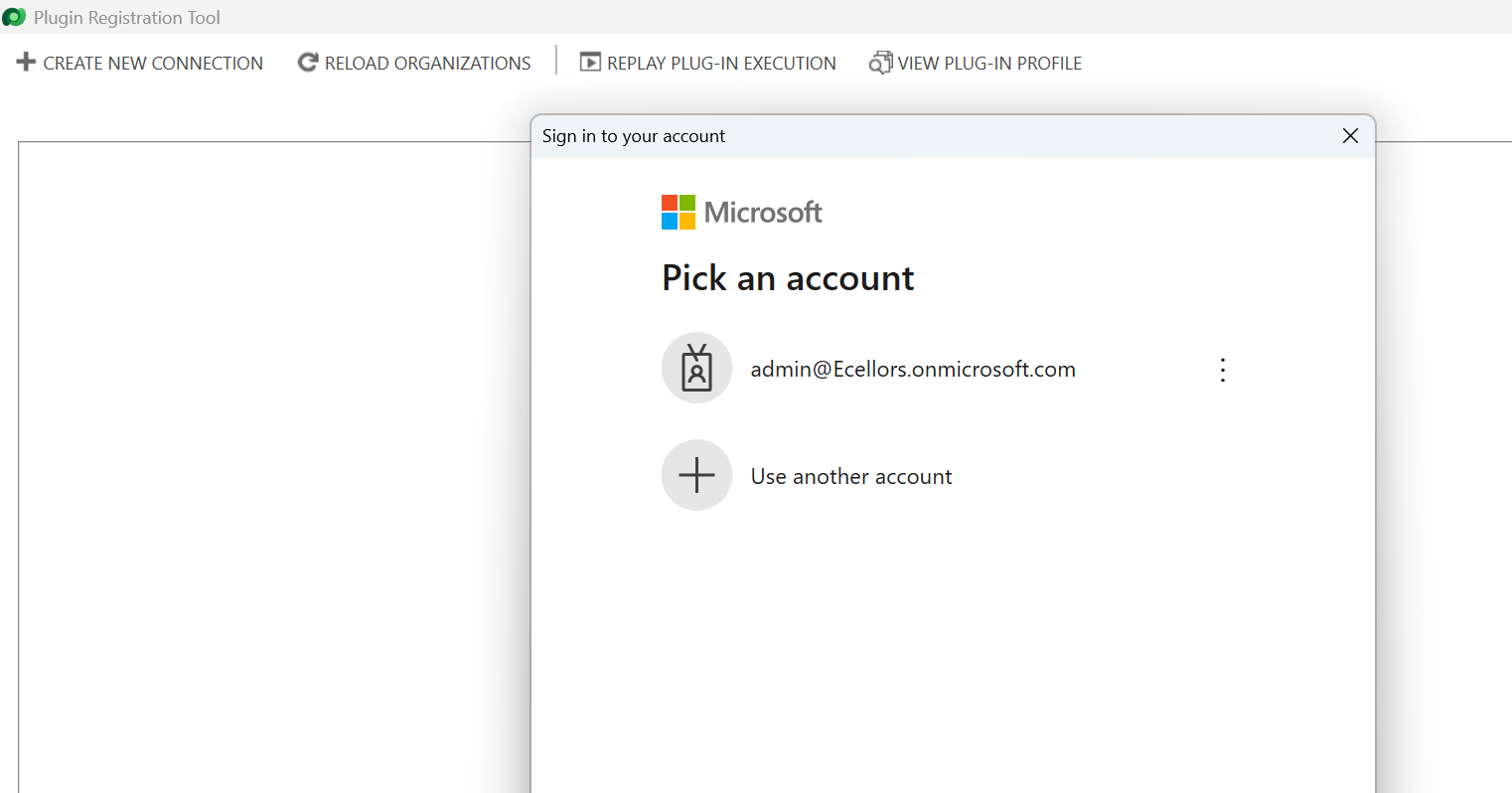
Based on the above inner exception, we can clearly understand that it is looking for Multifactor Authentication, so untick the Show Advanced checkbox, it then asks for Multifactor Authentication as shown below.
That’s it, with this simple tick of unchecking the Show Advanced, you were able to overcome this error, how cool is it…?
I have written lot of articles with respect to Plugin registration tool, you can check them below
Did u ever been asked in your project to update the User Personal Settings….possibly you could have resorted to User Settings Utility in XrmToolBox…may be you could have updated the settings manually for each user in list provided to you…
Do you know you could update them in bulk at one shot in a much easier way, so you don’t need to update it manually one by one. I could see many blog posts talking about updating through this tool, but this was missed in those.
Scenario:
You have newly added users to your Azure Active Directory, now you need to set up the user personal settings for them so see proper time zone in Dynamics.
There were two ways:
Use a view
Choose users from FXB(Fetch XML Builder)
The first approach is easiest of course…
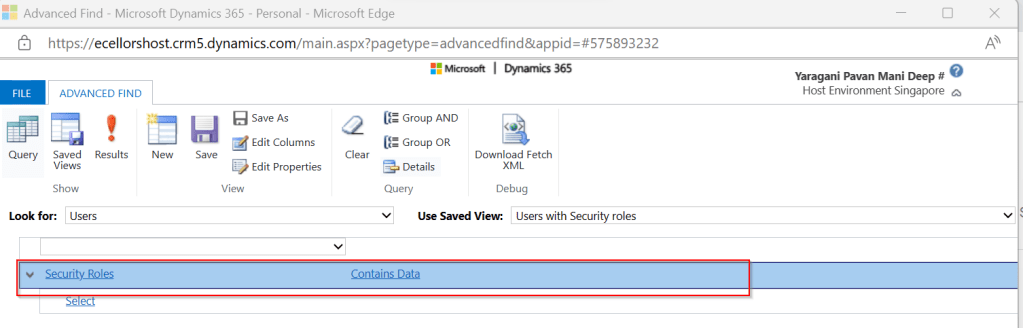
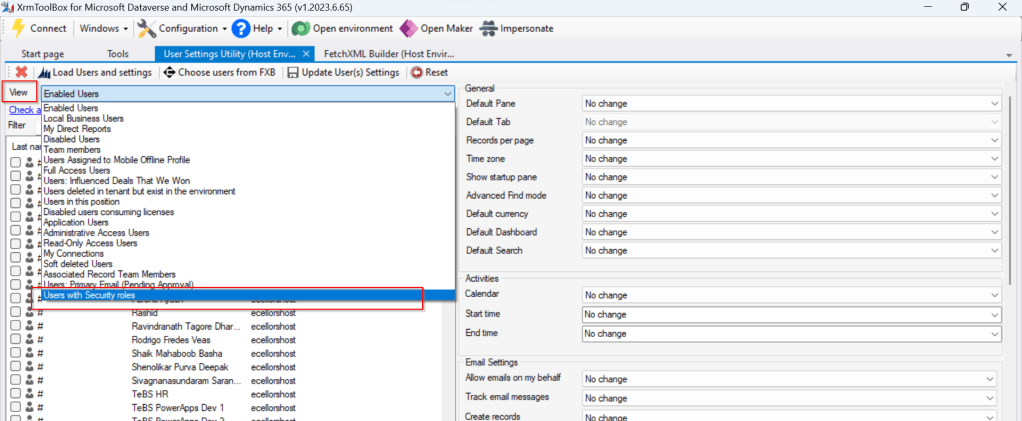
For this, lets create a view Users with Security in user entity as below…you know that you could only update settings for those who were having security role.
Mainly the user need prvReadUserSettings privilege to update the personal settings, the tool doesn’t allow if not.
Once you have connected to the environment, click on Load Users and settings. Now just select the view which have created before…upon selecting the tool will list down all the active users satisfying the view criteria.
All you need is to click on Check all and there by selecting all the users satisfying your filter criteria, change the settings as per your needs on the right-hand side of the tool and click on Update User(s) Settings in one go.
Here I have 3 users in the view, all were updated in one shot…
Isn’t it easy, this trick will save you a lot of time if your user list grows…
So today, I would like to give you a list of most useful tools available till now for Dynamics CRM which increases the developer productivity and helps Admins.
Some great tools you should check out to see if they could work in your organization.
CRM DevTools – Chrome extension visible in the F12 developer area with lots of helpful functions for admins. It is worth it just to remember the debug and diagnostic links
Link Buddy – It’s useful for converting logging/tracing details from CRM plug-ins, custom apps, etc. into click-able links that open the CRM record for which the GUID represents.
Convert FetchXML to SQL query – people find difficulties in converting the fetch xml query created from advanced find to a SQL query to retrieve records from Backend, use this tool to help the same
Convert SQL query to Fetch XML – Two way round, use this to convert your backend queries to fetch XML to use them in your Code to retrieve data and metadata.
Diagnostics Tool for On premise – Helps CRM developers and administrators to enable trace and devErrors on CRM server. Whereas its name only mentions CRM 2011, it is compatible with CRM 2013 and 2015 too (OnPremise only)
Fetch XML Formatter 1, Fetch XML Formatter 2– Two similar tools for the same functionality, use according to your convenience. These were lightweight windows application that tool will be help you when you are extensively working with FetchXML in Javascript / C# code to get desired result. Takes fetchXML from Advance Find as an input and convert that into desired format, which can be used into Javascript / C# for further coding.
Local option set to Global optionset converter – It’s purpose is to automate the task of converting a Local Option Set (an option set that is defined by and specific to a single entity. e.g. a CRM 4.0 Picklist), into a Global Option Set.
Win Merge – A great tool to compare customizations.xml files taken from solutions
CRM Rest Builder – A tool for CRM 2011/2013/2015/2016 Online & On Premise to generate JavaScript code using the 2011 & Web API REST endpoints.
TableTools2 – Add on for only Mozilla firefox to improve the CRM Grids. You can use the addon in grids that don’t display a filter or just in general with any page that displays a table like structure.
CRM Theme Generator – Use this tool to generate the feature and create themes in CRM, supporting latest versions
Advanced Query outer Join – Plugin to enable outer join queries from Advanced Find. This plugin enabled you to do that. The plugin runs on pre-RetrieveMultiple and alter the query that gets sent to the pipeline, with the correct outer join conditions
Easy VS Code in Action – Use this to work with JavaScript file types from your desktop itself and without opening visual studio
Custom code validation tool – Between CRM 2015 and CRM 2016 there are no differences for the checking of unsupported customizations of Js code, so if you get results to fix with the 2015 custom code validation tool means that you need to fix as well for 2016
CRM DevTools – from Sonoma Partners is a Chrome extension which quickly provides CRM record and environment information and makes troubleshooting and testing so much easier. Once it’s installed, you can access the features by going to the Chrome DevTools (F12 key) and clicking the CRM DevTools tab.
Dynamics 365 developer extensions(tool kit) – Tool to search for CRM related MSDN content, and tooling to assist with managing and deploying web resources, plug-ins, and reports
Network Visualisation tool – Visualize the relationships between accounts, contacts and activities in a network graph, refer to this video to get insights
Level up for dynamics CRM – Works with Edge and Chrome only. Gives form helpers and Navigation helpers, an amazing tool
Ribbon workbench 2016 – Most user friendly and universally accepted tool to customize ribbon, note that this version don’t need Silverlight within your browser
ilspy – Used to decompile your source code from your .NET DLL, helpful to find your source code from plugin DLL’s
Autonumbering solution – free autonumbering solution used to generate a Unique Reference Number for new records so they can easily be tracked, and is also useful for integrations.
ReSharper – on the fly code analysis, identifies problems and provides quick fixes, best addin to visual studio
Scribe Insights – Good data migration platform to move data between two systems and create new records in MS CRM. Reasonably the best in terms of performance with such a kind of UI and easy to learn. Comes with one month free trial.
CRM Maintenance Job Editor – Used to reschedule jobs that have caused performance issues in the CRM, it would also allow you to schedule the recurrence pattern of the Jobs to be executed during the day
SOAP UI – Most widely used tool for testing web services and other API’s without much hassles.
DLL Extractor – Extract your plugin DLL’s located on your CRM Database, this applies only for On premise applications. Login to your Client network and specify the server and database name with Integrated security or SQL Authentication. Click on List Plugins which shows the assemblies registered and download the required ones.





 ECELLORS CRM Blog