ChatGPT – Insights

Hi Folks,

In this modern era where AI/ML is ruling the world and automating all the possible day to day activities done by a human, in this blog article, let’s talk about the latest buzz word since November 2022. i.e. ChatGPT.

So, what is ChatGPT, why its has become so much popular?

Officially ChatGPT stands for Generative PreTrained Transformer, it’s an AI-powered chatbot created by OpenAI. ChatGPT was fine-tuned on top of GPT-3.5 using supervised learning as well as reinforcement learning using Microsoft’s neural network technology. Open AI’s Chat GPT uses powerful machine learning algorithms to generate coherent and natural-sounding responses for user queries. To some extent, its giving a tough competition to its competitor Google Deep Mind Sparrow. The differences between the two can be found here.

The AI race between Microsoft and Google has definitely been ignited. Microsoft’s recent $10 billion investment into OpenAI, the startup behind their popular Chat GPT chatbot, has increased competition for AI supremacy.

Ok, that’s all the sleek intro. Let’s see how to work on this Chat GPT.

It can be accessed here

Once you click on the above link, you need login either with your Google or Microsoft credentials. You will be presented with below screen.
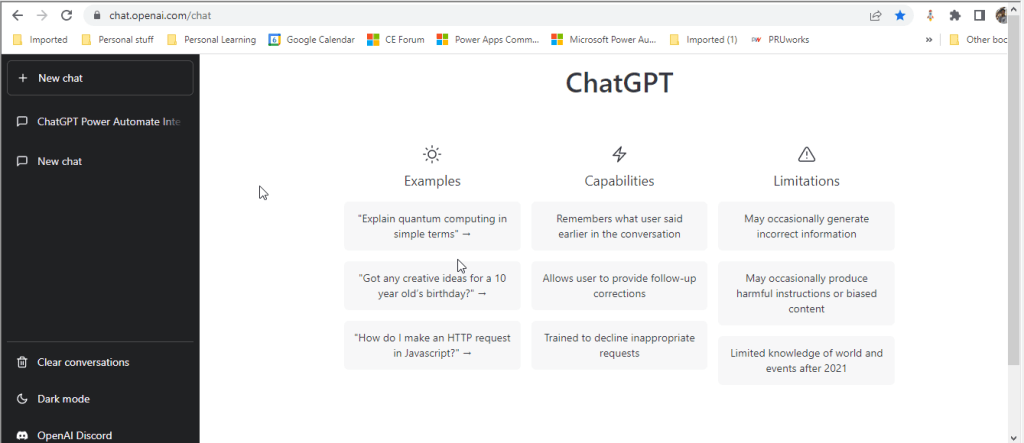
In the text box available at the bottom, you can enter your input for ChatGPT to search and get back the result to you.

I have just tried entering how we can integrate Open AI’s ChatGPT and Power Automate and results are pretty much shown in a manner which is easier to understand as below.
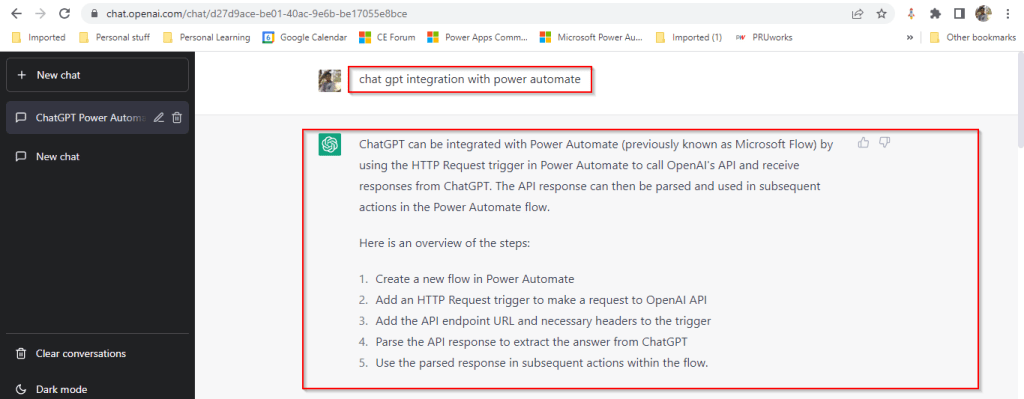
The interesting part compared to Power Platform’s Power Virtual Agents is that ChatGPT has the capability to record the previous responses used under the login which is a great enhancement. So with this, the problems can be analyzed and solutions can be generated. By the way, the GPT-3 model, in particular, is 175 billion parameters in size, making it the largest language model ever trained.

In the upcoming blogs, I will try to elaborate how Chat GPT can be used for Power Platform real world scenarios and how we can integrate with Power Automate step by step…. Till then stay tuned…and keep rocking….

Cheers,

PMDY

Power Automate performance improvement considerations

Hi Folks,

Thanks for visiting my blog…in this blog post, have you ever faced the situation where your flow keeps running with no output. Today I will list down the possible scenarios where you were struck with slow performance of the Flow.

Consider the below actions to make your flow execute smoothly.

Remediation steps/Actions to take to make your flow run efficiently:

  1. Understand the throttling limits for your connectors and data sources
  2. Check for Request limits based on user licenses
  3. Cross verify the throughput limits
  4. See the minimum number of actions that the Power Automate service will allow for each plan on the Request limits and allocation page.
  5. Do verify if you were using any on premise connectors
  6. You are hitting the throttling limit in Power Automate
  7. Redesigning your flow to use fewer actions and less data.
  8. Reduce the number of loop iterations for the iteration in ‘Do Until’ and ‘For each item’
  9. Filter your data to retrieve only what is necessary Filtering with Odata
  10. Consider reducing the frequency of scheduled cloud flow
  11. Reduce the file size being accessed if possible if your flow uses them
  12. Consider using Variables for frequently accessed information in your flow
  13. Use Compose and Variable actions to view the data at any time.
  14. Purchasing a Per User or Per Flow license from the pricing page
  15. Per Flow plan may provide best performance quotas available
  16. Enable concurrency control for your ‘Apply to each’ action
  17. Consider creating custom retry policy
  18. Use Select Actions
  19. Check your System jobs in Data verse if asynchronous service performance is normal
  20. Reduce the flow complexity
  21. Consider using Process Advisor for Power Automate.
  22. Verify if you were hitting 2 minute timelimit in dataverse if you were calling Bound or Unbound action in Flow.

Hope this helps someone who’s looking to optimize their flow.

Cheers,

PMDY

Top picks for Power Automate

What is Solution Checker and App Checker in Power Apps – Quick recap

Hi Folks,

While its been quite sometime since Microsoft shipped the Solution checker and App checker, these tools can help a developer to validate all the solutions that was being built before moving to higher environments. It is always advisable to run solution checker once your solution is developed so this can help you achieve better performance following the Power Platform best practices. Previously we used to send for Code review to senior folks but now with this tool, even the junior developer working at the ground level can easily understand and can make the necessary tweaks in the solution.

Solution Checker serves as a static analysis tool for the developers to check any platform related issues.

The solution checker analyzes these solution components:

  • Dataverse custom workflow activities
  • Dataverse web resources (HTML and JavaScript)
  • Dataverse configurations, such as SDK message steps

Note: Solution checker won’t analyze plugins in solutions. Plugin validations are modernized and will eventually the focus is on the native plugin authoring time, which will help you detect and fix issues earlier. So if you were looking for improvements in Plugin code, this will not help you.

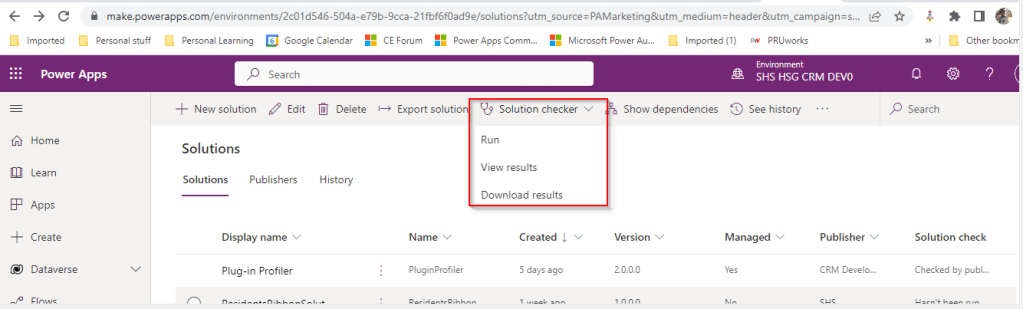
Once solution checker starts running, it will be shown as below with a loading symbol on solution checker

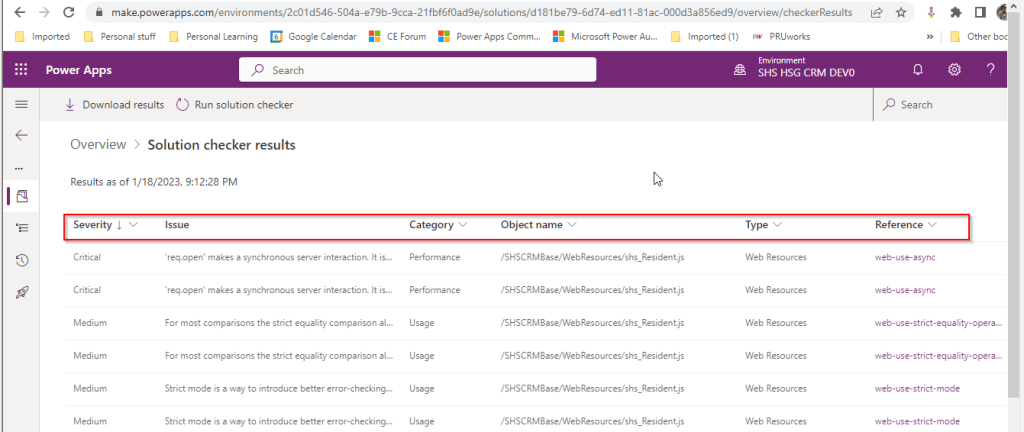
It would take a few minutes to complete the process and will be based on the size of the solution. Once this process is complete, you should be able to download the results or view the results like below

If we open the results file, it shows the potential issues or improvements along with their severity which helps us to prioritize the issues which we need to work upon.

The report can also be downloadable excel file with analysis shipped in Zip format.

Now that we have seen what is solution checker, let’s see what App checker is and its pro’s and con’s.

App Checker:

  1. The App checker is now available to help provide a clear list of formula issues in your app, and to provide items to fix to make your app accessible
  2. This helps to make debugging, performance and best practice decisions an easier and more guided experience.  
  3. This is an ideal way to check the formulas you wrote for your Canvas Apps.
  4. There isn’t any possibility to download the app checker results but you can analyze the results on the fly in canvas apps.

To conclude you can think of Solution checker is a tool to check Model Driven Apps and App checker is a tool for Canvas Apps. Hope you will use this great features to improve your solutions and design according to best practices.

Reference:

Solution checker from MS Learn

Apps checker from MS Learn

Cheers,

PMDY

Top Picks for Power Apps

Top Picks for Power Automate

Top Picks for Microsoft Azure

Environment variables in Power Platform makes your life easier – Quick recap…

Often there is a need to use some kind of configuration for your customizations to work across environments in Power Platform or for storing the 3rd party URLs like SharePoint, other API services etc…previously there were ways where you can store your config but now with this helps in efficient way of interacting with your configuration across environments.

One environment variable can be used across many different solution components – whether they’re the same type of component or different ex. Power Apps and Flow can use the same variable in the environment. Environment variables store the parameter keys and values, which then serve as input to various other application objects.

Additionally, if you need to retire a data source in production environments, you can simply update the environment variable values with information for the new data source. The apps and flows don’t require modification and will start using the new data source.

The environment variables can be unpacked and stored in source control. You may also store different environment variables values files for the separate configuration needed in different environments. Solution Packager can then accept the file corresponding to the environment the solution will be imported to. Thanks @Rezza Dorani for the video…

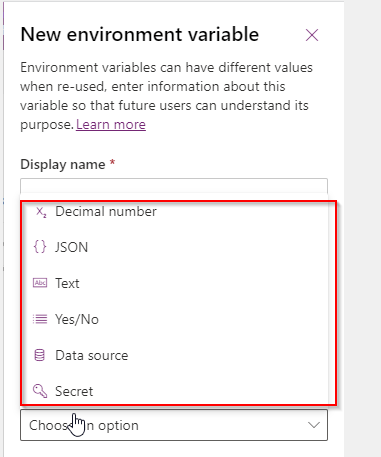
The following environment variables are available as on today…

Use cases:

  1. Access Environment variables in Plugins
  2. Get & Set Environment variables using Javascript

Few Advantages:

  1. Environment variables are supported in custom connectors.
  2. Provide new parameter values while importing solutions to other environments. 
  3. Supported by Solution Packager and DevOps tools enable continuous integration and continuous delivery (CI/CD).
  4. Its very easy to maintain datasources in Environment variables.
  5. Its ideal for passing any parameters to bound or unbound actions from Power Automate.

Neverthless there were few limitions:

  1. When environment variable values are changed directly within an environment instead of through an ALM operation like solution import, flows will continue using the previous value until the flow is either saved or turned off and turned on again.
  2. If the environment value is changed, it may take up to an hour to fully publish updated environment variables.
  3. If you made the same mistake as I did and imported a Managed Solution without a Current Value, added a Current Value for the first time and cannot edit the new Current Value anymore.
  4. It looks like a potential risk.

Hope this post helped in some way…please let me know if you have any questions….

Cheers,

PMDY

Add Members to static marketing list from excel file to Dynamics 365 using C#

Hi,

Happy new year 2023….

To start with this scenario, this is one of the most commonly asked functionalities when we talk about of adding members to marketing list using an excel import.

In this scenario, we will make use of Connections entity and associate the marketing list to the contacts on creation of the connection…ok…let us give it a try….we will make use of plugin here….which runs on Create and on Post operation and calls the below method…

 public void MarketingListImport()
        {
            Entity connectionER = (Entity)executionContext.InputParameters["Target"];
            Entity marketingList = new Entity();
            if (connectionER.Contains("record2id"))
            {
                EntityReference connectTo = connectionER.GetAttributeValue<EntityReference>("record2id");
                EntityReference connectFrom = connectionER.GetAttributeValue<EntityReference>("record1id");

                if (connectTo != null)
                {
                    marketingList = organizationService.Retrieve(connectTo.LogicalName, connectTo.Id, new ColumnSet("type", "createdfromcode"));
                }

                if (connectTo.LogicalName == "list")//Marketing list 
                {
                    if (marketingList.Contains("type") && marketingList.GetAttributeValue<bool>("type") == false)
                    {

                        if (connectFrom.LogicalName == "contact" && marketingList.Contains("createdfromcode") && marketingList.GetAttributeValue<OptionSetValue>("createdfromcode").Value == 2)//Resident
                        {
                            // Add a list of contacts to the marketing list.
                            var addMemberListReq = new AddListMembersListRequest
                            {
                                MemberIds = new[] { connectFrom.Id },
                                ListId = connectTo.Id
                            };

                            organizationService.Execute(addMemberListReq);

                            tracingService.Trace("Contacts with GUIDs \r\n\t{{{0}}} is added to the list.",
                                connectFrom.Id);
                        }

                        else
                        {
                            throw new InvalidPluginExecutionException("Marketing list should be targeted at contact and contacts can be imported");
                        }
                    }

                    else
                    {
                        throw new InvalidPluginExecutionException("Members cannot be imported into a Dynamic Marketing list, please select a static marketing list and try again");
                    }
                }
            }
        }
    }

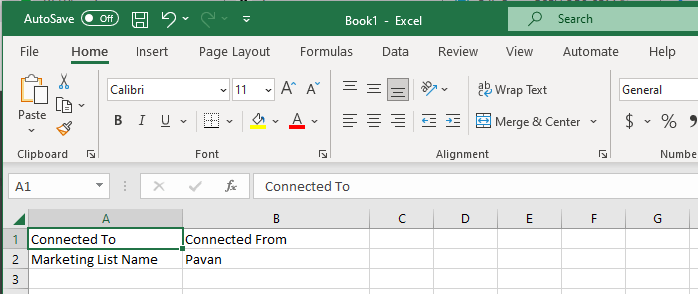
Once you were done writing the code, next step is to test the functionality…for this we will use the following template.

Import this template from the imports area under settings in your Dynamics 365…boom….the contacts in the template will be added to your Static Marketing List.

Cheers,

PMDY