With this post I will show you how you can quickly add classes for your JSON and XML in Power Platform using Visual Studio.
Sometimes, there will be requirements where you need to convert and replace your Power Automate Flows with custom code either usingPlugins or Actions. In this case, you may definitely need to parse the response returned by REST API calls and you might need to create relevant classes to hold the parameters and attributes, creating these manually would be cumbersome and takes few minutes of time even for a good developer.
Here I am taking the example using JSON.
So, without further due, let’s see in this in action.
Step 1: So, just copy using Cntrl + C shortcut, this is mandatory, else you will not able to see the Paste JSON as Classes and Paste XML as classes under edit..
This file contains hidden or bidirectional Unicode text that may be interpreted or compiled differently than what appears below. To review, open the file in an editor that reveals hidden Unicode characters.
Learn more about bidirectional Unicode characters
Thanks for visiting my blog, this post is a continuation of my previous blog post on creating a Copilot, if you haven’t gone through that, I would strongly recommend checking my introductory post on this topic, you can find it here.
Well, so in this blog post, we will see how you can test and publish your bot so your bot development would be complete.
Your bot can be tested, and messages will be displayed on the chat screen.
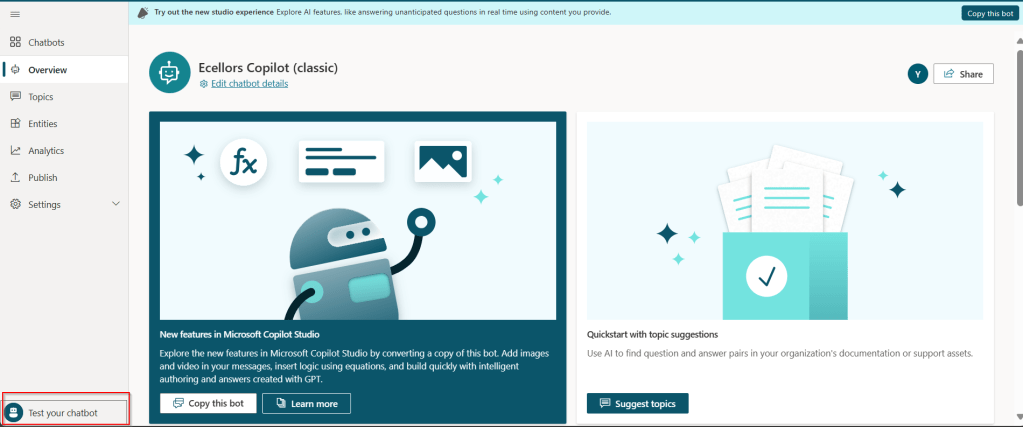
Step 1:Test your Copilot:
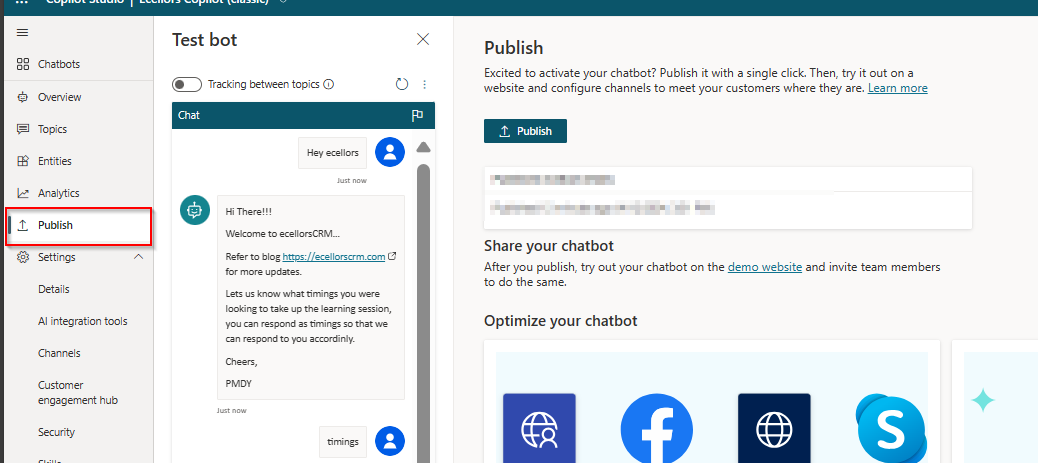
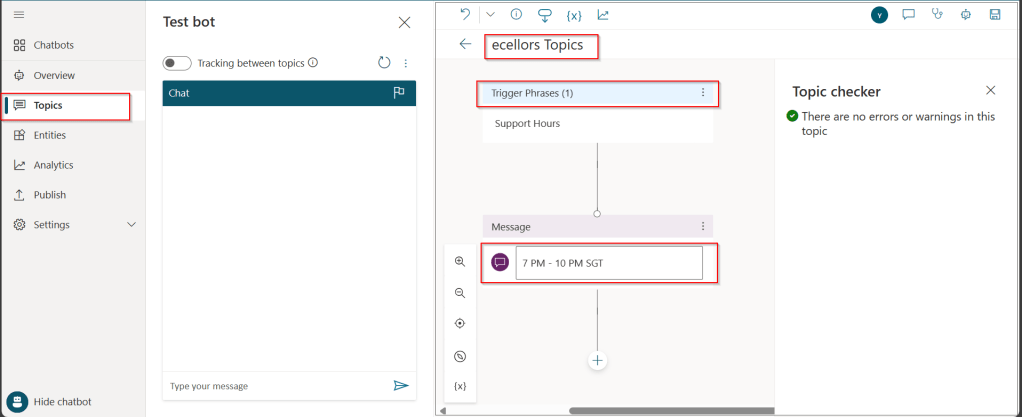
The bot calls the topics based on the trigger phrases you have entered as below.
You can return to the authoring canvas for the topic at any time to revise its conversation path. The Test chat pane will automatically refresh itself when you save changes to a topic.
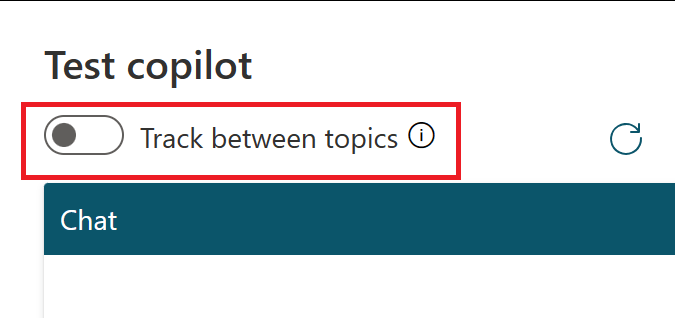
As you fine-tune your bot, it can be useful to enable tracking between topics so you can follow through the conversation path step by step.
Step 2:Publish your bot
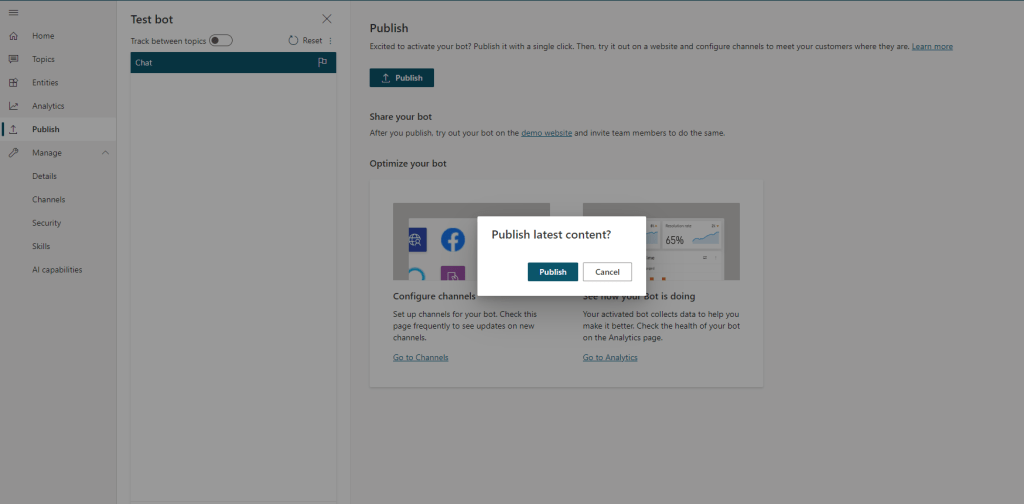
Once you confirm that everything is good and then you can publish your Copilot.
Publishing you bot helps to engage with your customers on multiple platforms or channels.
Each time an update is made, you would need to publish the bot in the Copilot Studio and this will publish the changes to all your respective configured channels. If you haven’t configured any channels, you may proceed to next step to get to know this.
Step 3:Configure Channels
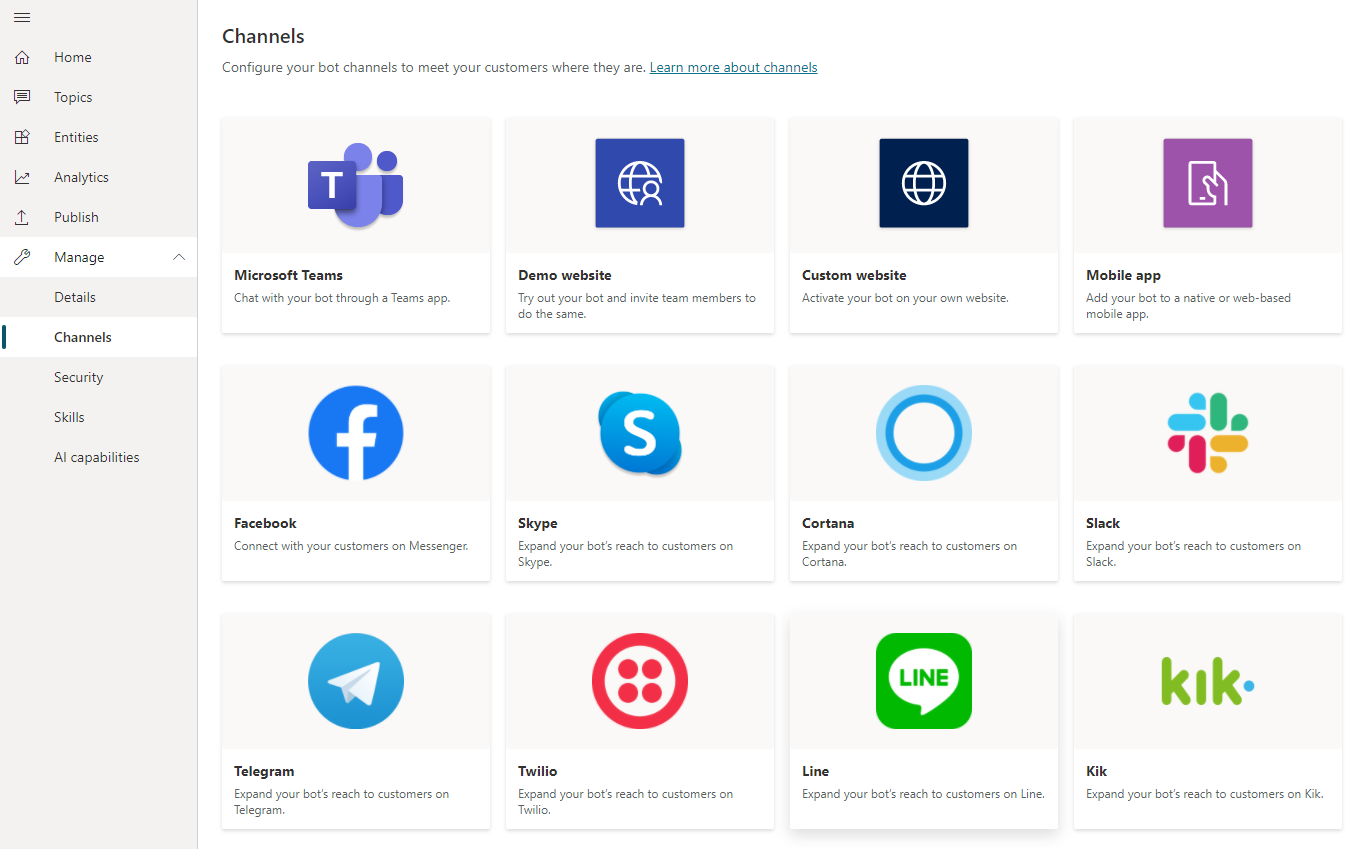
You can see what channels we currently support by selecting Manage and going to the Channels tab in the side navigation pane and each channel may require different setup and configuration.
Step 4:Finally let’s see how the Copilot looks like when you embed...
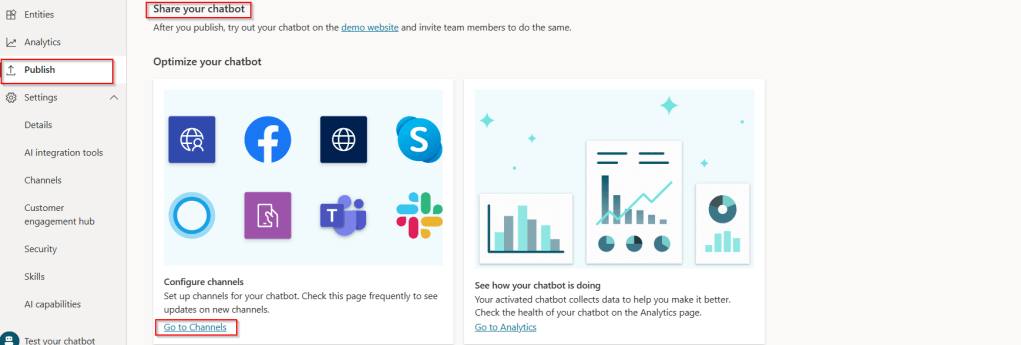
a. Navigate to channels as highlighted from publish tab:
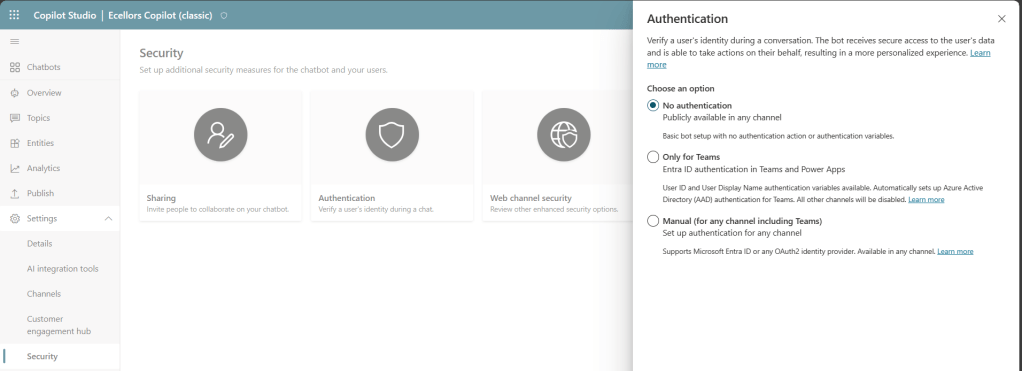
b. Verify if the channels are enabled:
If not enabled, make sure you set the authentication for your Copilot properly for the respective channel to embed your bot. For simplicity, I have chosen No authentication.
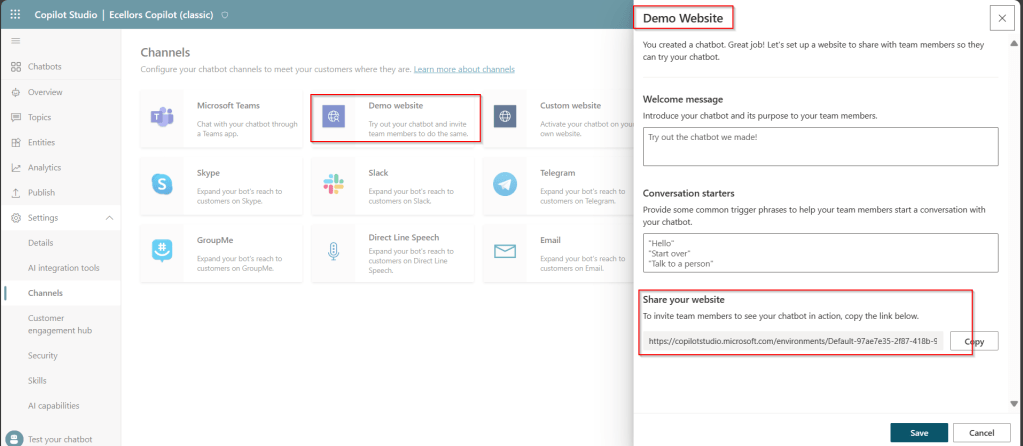
c. Find the embed code:
As shown above, you can find the embed code under Share your website.
d. Copy the embed code in browser:
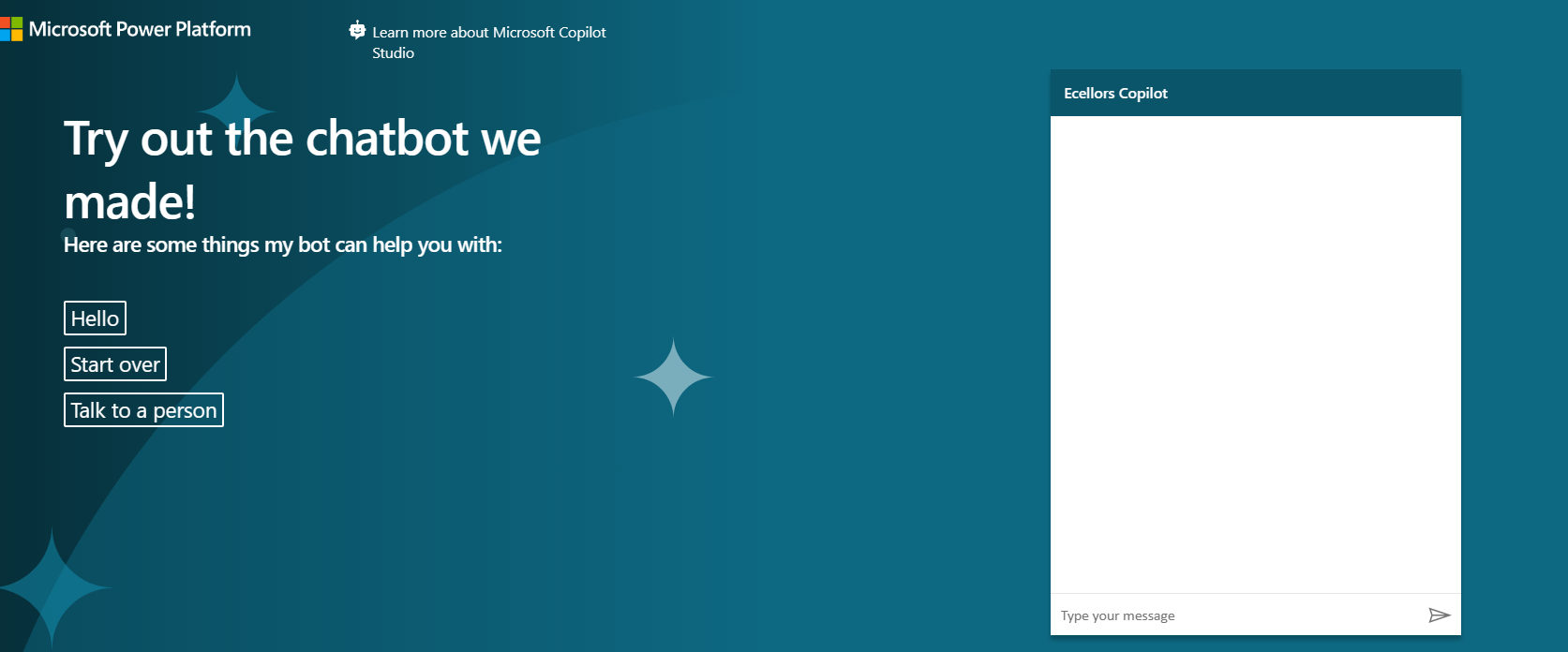
You can test out your Copilot in your browser by pasting your embed code and it should look something like below.
Step 5: Bot analytics
a. Do note that there might be one hour of delay between when the conversations occur and when the statistics for those conversations appear in the analytics views
b. All the channels’ analytics will be logged here.
c. You can find the Summary on how your bot is performing, understand how your topics defined are performing and come up with CSAT Scores out of this.
Now that we have learnt how to build a simple Copilot, in the next blog post, I will cover about the Variable Management and Topic Management in Copilots which would help to design your desired topic conversation path for your Chatbot.
In the next few blog posts in this series, I will be talking all about Microsoft Copilot aka Power Virtual Agent from beginner to advanced topics, you might see longer posts but you don’t require any prerequisite knowledge on Copilot to follow.
So, lets’ get started and learn with me in this blog series, let’s dive into the capabilities of Generative AI using #copilot.
Actually, Copilots empowers teams to quickly and easily create powerful bots using a guided, no-code graphical experience.
In this blog post, we will see how you can create a simple Chatbot. Excited? so let’s get started.
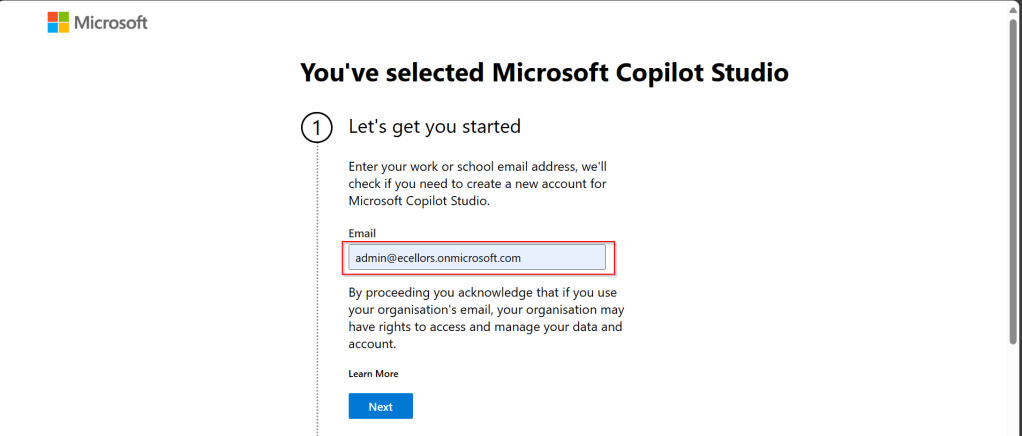
Step 3: Enter your email address and click on Next.
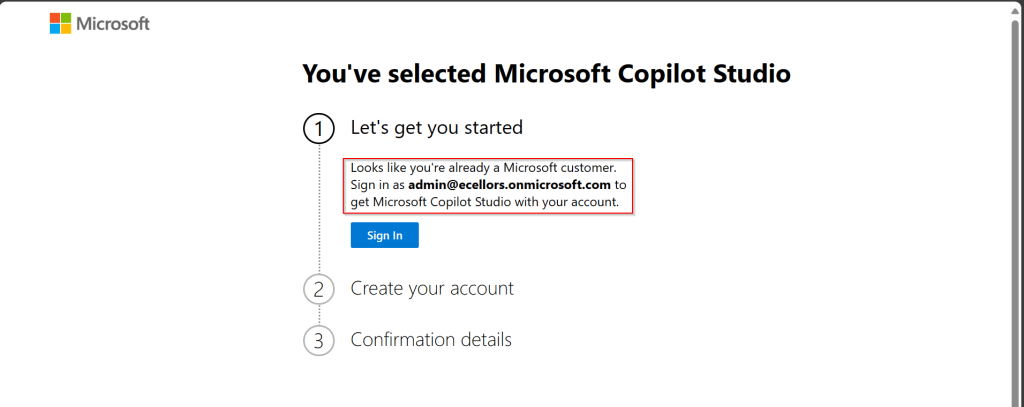
Step 4: In case you have an existing Microsoft 365 Subscription, you will be shown something below.
Step 5: Click on SignIn, I have already had an account in Copilot Studio, in case you don’t have, one will be created.
Step 6:
a. Once you click on Get Started, Copilot Studio opens in a new tab and you will be asked to login once, enter your Signin details.
b. In case you previously logged created a Copilot Studio trial, you can continue using it, else extend it to 30 days if requested. Click on Done at the bottom.
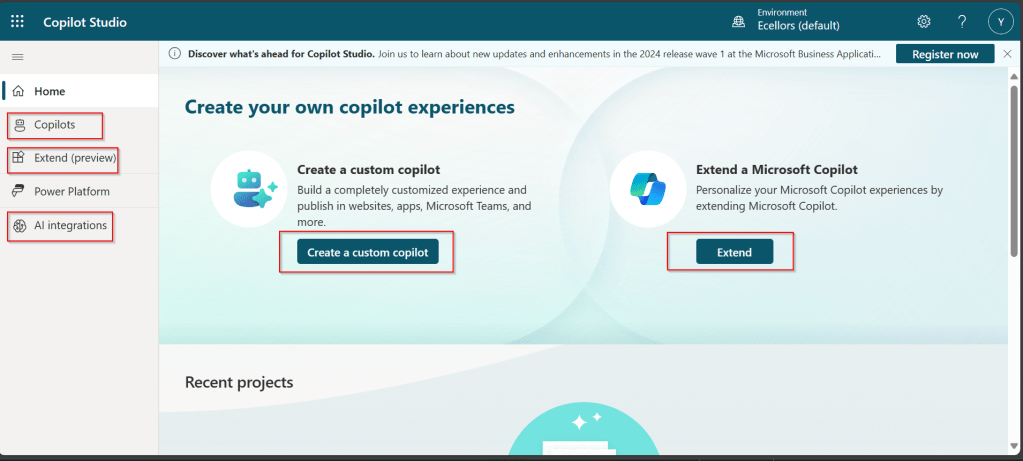
Step 7: Below is the home page of Copilot Studio.
I will be talking about each of the highlighted topics in great detail in the upcoming posts.
Note: Copilots are supported only in certain locations listed in the supported data locations, with data stored in respective data centers. If your company is located outside of the supported data locations, you need to create a custom environment with Region set to a supported data location before you can create your chatbot.
Step 8:In this step, we will create a Copilot, so click on New Copilot
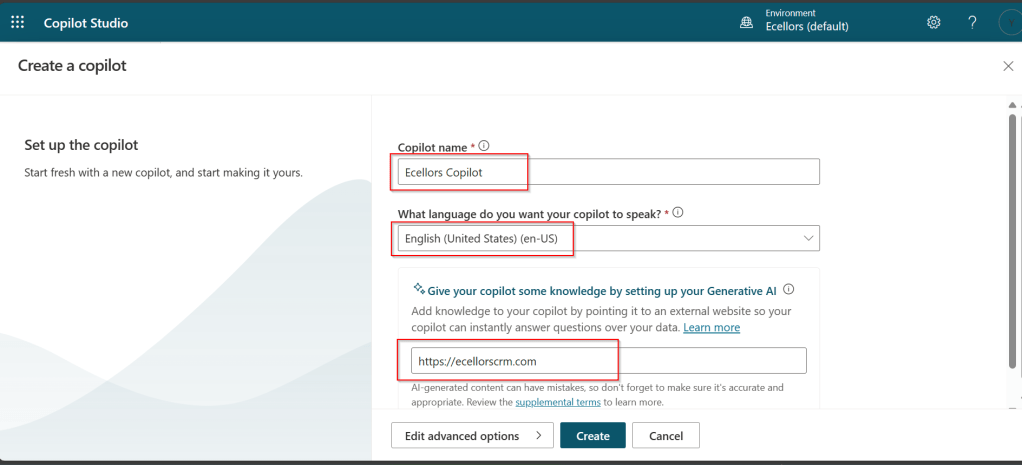
Step 9: I have provided a name; chosen a language and we can provide an existing website to utilize the Generative AI Capabilities built in Copilot Studio.
So, here I have provided my blog address. By using this, Copilot can generate suggested topics which you have option to add to your existing topics.
Step 10:
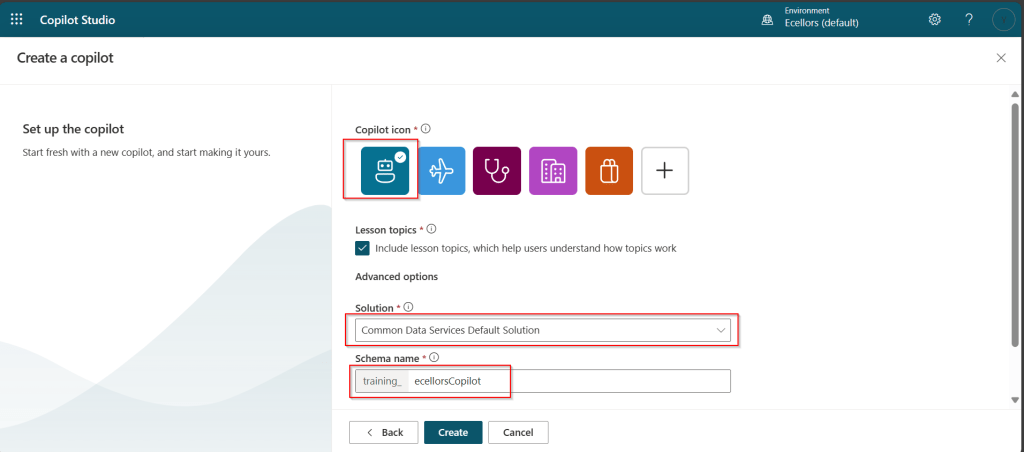
a. Click on advanced options; you will be able to choose an icon for the Copilot
b. You can optionally include Lesson Topics
c. Choose an existing solution you wish to add this Copilot to
d. Choose appropriate Schema name.
e. You can optionally enable voice capabilities by choosing the language in which your copilot wants to speak to.
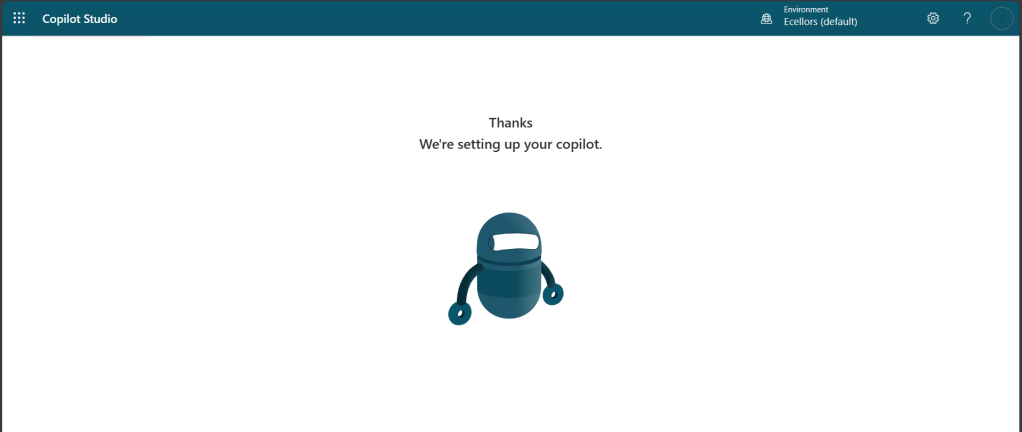
Step 11: You will be shown the below screen and within a few seconds, your Copilot will be ready.
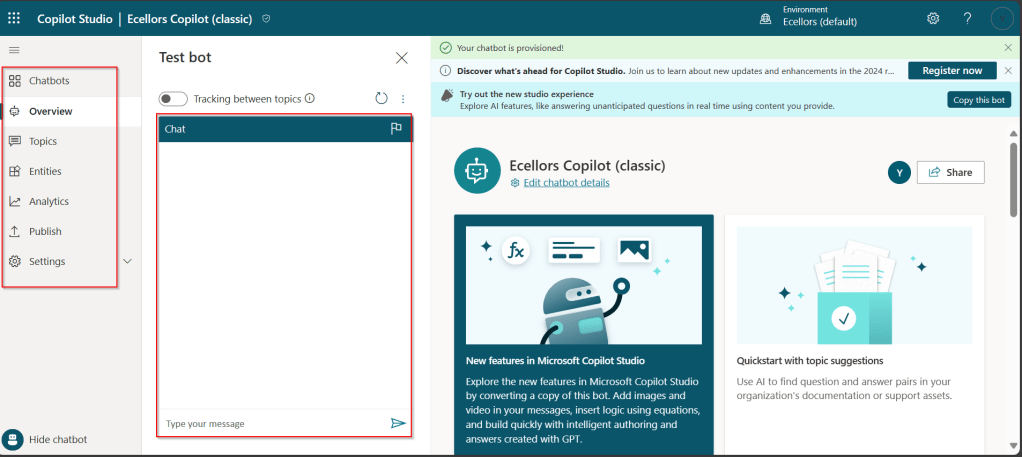
Step 12: This is the main page of your Copilot; you will also be able to add additional Copilots or delete the Copilot.
Step 13: Now, let’s understand Topics what one of the building blocks of Copilot which are nothing but predefined categories or subjects which can help to classify and organize the KB/Support articles.
The topics shown on the right are prebuilt topics for the Copilot you have just created. Here you may wish to create new topics as necessary.
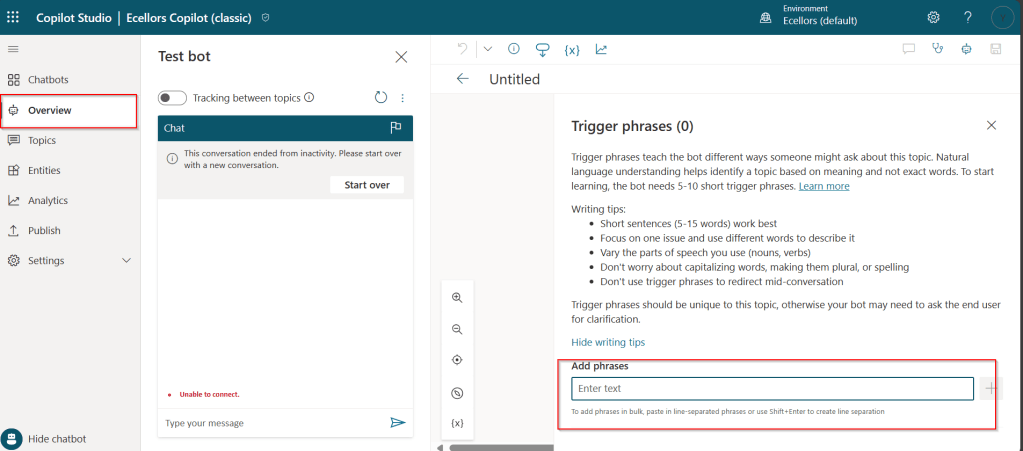
Step 14: Trigger phrases are those which customer enters in the chat window to start the conversation which then calls the relevant topics. There can be multiple trigger phrases for a single topic.
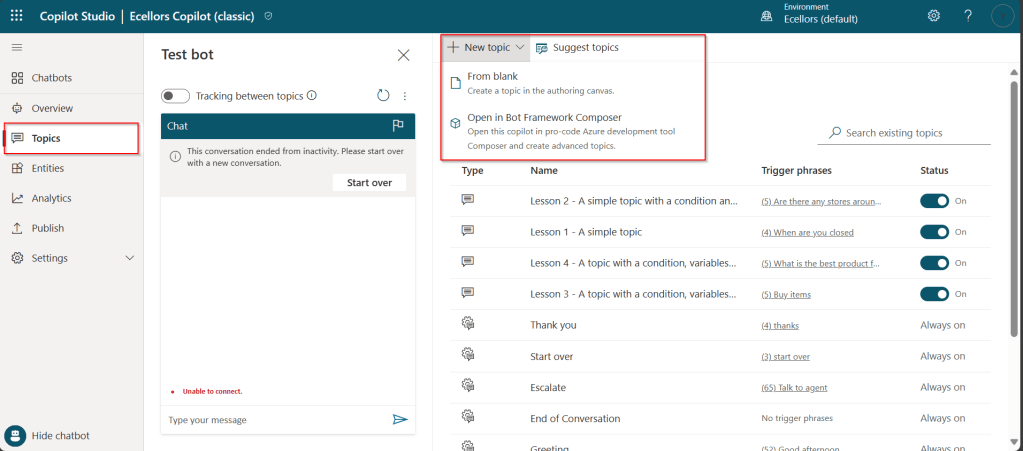
You may click to create a topic which then asks you to provide the trigger phrases, when you click to add a topic, the Trigger phrases node and a blank Message node are inserted for you.
Copilot opens the topic in the authoring canvas and displays the topic’s trigger phrases. You can add up to 1000 topics in a Copilot.
Step 15: You can add additional nodes by selecting the Plus (+) icon on the line or branch between or after a node.
Step 16: When you were adding a new node, you can choose from the below options available.
You can either use any of the available options as above..
a. Ask a question
If you want to ask a question and get response from end user, you may do so by adding a node, click on Ask a question.
For example, I choose Multiple choice options.
Based on what you enter in the Identify field, you can enter what options user may have. You can nodes further to create branching logic
b. Add a condition
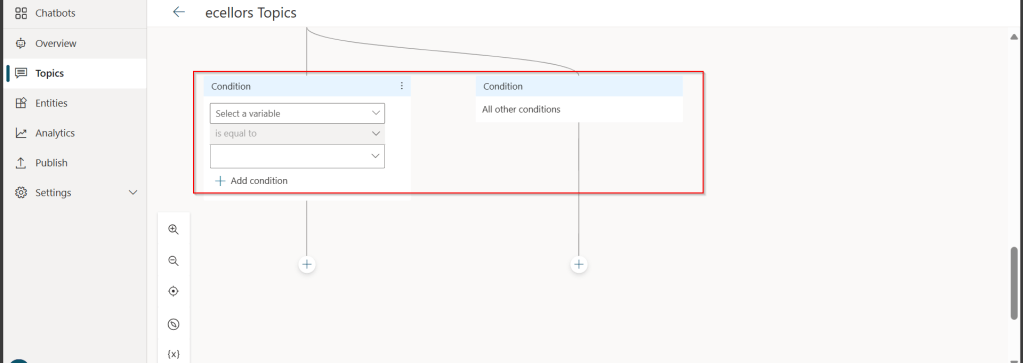
You can add a condition in the canvas as below to take your Copilot branch out conditionally.
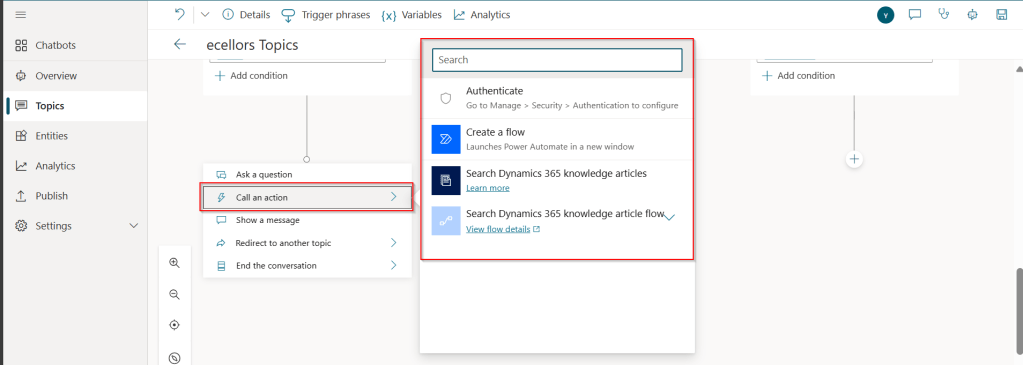
c.Call an action: The options shown below are self explanatory. You can branch out with the possible options.
d. Show a message
You may choose to show a message to the user by entering your message in the text box available.
d. Goto another topic
f. End the conversation:
Finally, you can end the conversation by choosing to end the conversation with the available options or you can transfer to an agent to take the user queries further.
Step 17:
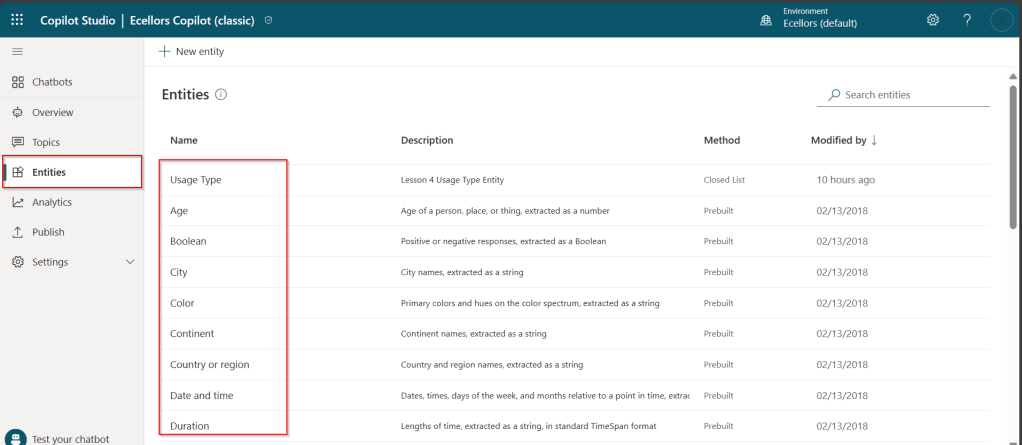
Copilot conversations are all about natural language understanding. Entity is the fundamental aspect which can be recognized from user’s input.
It can be simply can be thought real world subject like Person name, Phone number, Postal Code etc. We have system as well as custom entities while building.
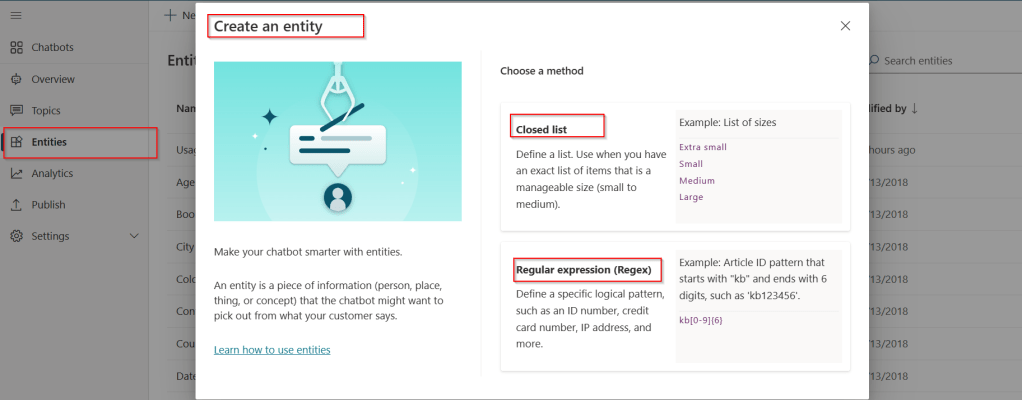
You can also build custom entities you can choose from the options available.
Now that you have seen what are the building blocks of Copilot, in the upcoming blog posts let’s see on how to test and publish your copilots.
Well, this could be a very interesting post as we talk about optimizing the Dataverse performance using bulk operation messages and too using Dataverse plugin customizations but wait, this post is not complete because of an issue which I will talk later in the blog. First let’s dig into this feature by actually trying out. Generally, every business wants improved performance for any logic tagged out to out of box messages and so developers try to optimize their code in various ways when using Dataverse messages.
Firstly, before diving deeper into this article, let’s first understand the differences between Standard and Elastic tables, if you want to know a bit of introduction to elastic tables which were newly introduced last year, you can refer to my previous post on elastic tables here.
The type of table you choose to store your data has the greatest impact on how much throughput you can expect with bulk operations. You can choose out of two types of tables in Dataverse, below are some key differences you can refer to:
Standard Tables
Elastic Tables
Data Structure
Defined Schema
Flexible Schema
Stores data in Azure SQL
Stores data in Azure Cosmos DB
Data Integrity
Ensured
Less Strict
Relationship model
Supported
Limited
Performance
Predictable
Variable, preferred for unpredictable and spiky workloads
Agility
Limited
High
Personalization
Limited
Extensive
Standard and Elastic Table Differences
Plugins:
With Bulk Operation messages, the APIs being introduced are Create Multiple, UpdateMultiple,DeleteMultiple (only for Elastic tables), Upsert Request(preview). As of now you’re not required to migrate your plug-ins to use CreateMultiple and Update Multiple instead of Create and Update messages. Your logic for Create and Update continues to be applied when applications use CreateMultiple or UpdateMultiple.
This is mainly done to prevent two separate business logics for short running and long duration activities. So, it means Microsoft have merged the message processing pipelines for these messages (Create, Create Multiple; Update, Update Multiple) that means Create, Update messages continue to trigger for your existing implemented scenarios, when you update to use Create Multiple, Update Multiple still the Create, Update will behave.
Few points for consideration:
While I have tested and still could see IPluginExecutionContext only provides the information and still I have noted Microsoft Documentation suggests using IPluginExecutionContext4 for Bulk Messages in Plugins where it is being shown as null yet.
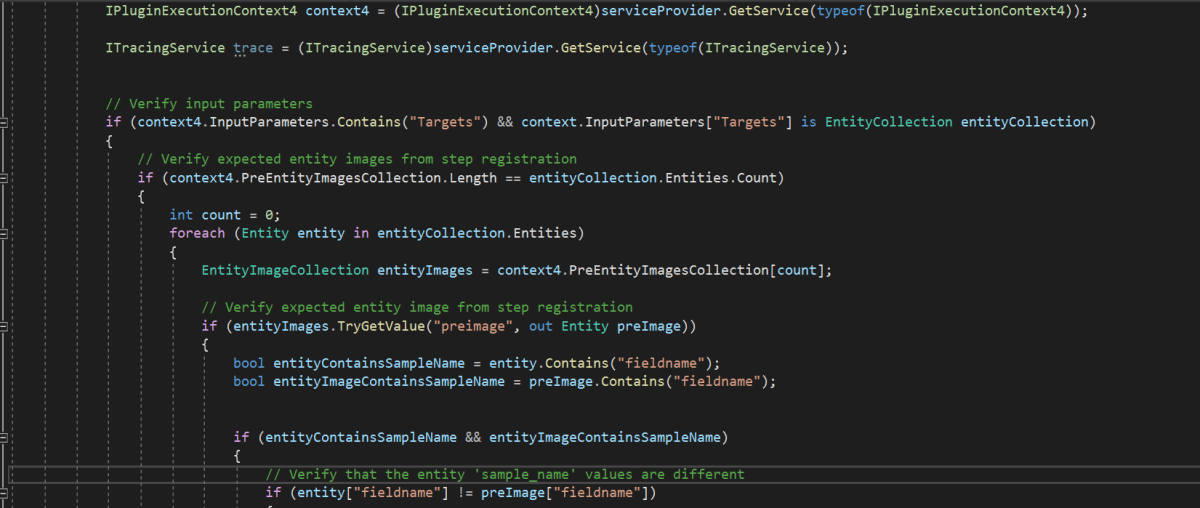
While you were working with Create, Update, Delete, you could have used Target property to get the input parameters collection, while working with Bulk Operation messages, you need to use Targets instead of Target.
Instead of checking whether the target is Entity you need to use Entity Collection, we need to loop through and perform our desired business logic
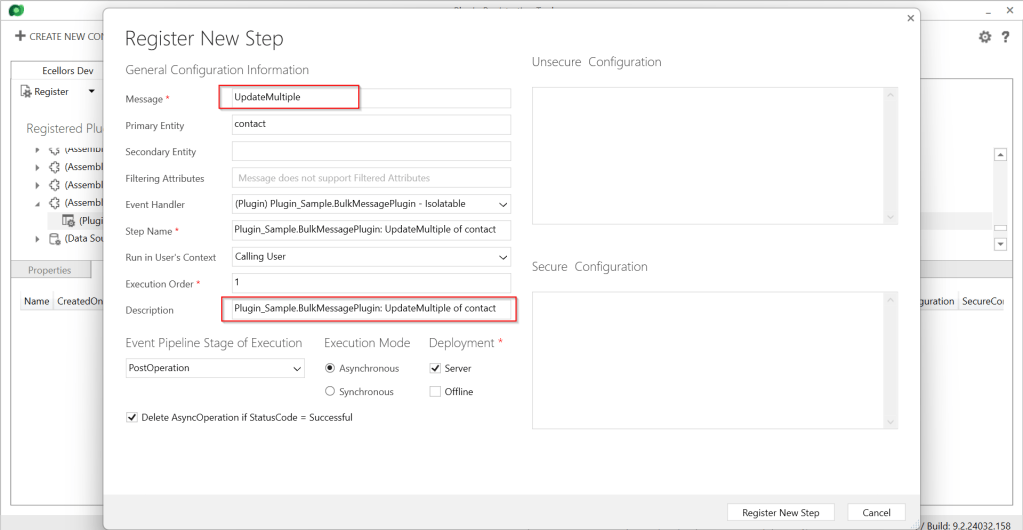
Coming to Images in plugin, these will be retrieved only when you have used IPluginExecutionContext4.
Below is the image from Plugin Registration Tool to refer(e.g. I have taken UpdateMultiple as reference, you can utilize any of the bulk operation messages)
Sample:
Below is the sample, how your Bulk operation message plugin can look like…you don’t need to use all the contexts, I have used to just check that out.
This file contains hidden or bidirectional Unicode text that may be interpreted or compiled differently than what appears below. To review, open the file in an editor that reveals hidden Unicode characters.
Learn more about bidirectional Unicode characters
I have posted this question to Microsoft regarding the same to know more details on this why the IPluginExecutionContext4 is null , while still I am not sure if this is not deployed to my region, my environment is in India.
Recommendations for Plugins:
Don’t try to introduce CreateMultiple, UpdateMultiple, UpsertMultiple in a separate step as it would trigger the logic to be fired twice one for Create operation and another for CreateMultiple.
Don’t use batch request types such as ExecuteMultipleRequest, ExecuteTransactionRequest, CreateMultipleRequest, UpdateMultipleRequest, UpsertMultipleRequest in Plugins as user experiences are degraded and timeout errors can occur.
Instead use Bulk operation messages like CreateMultipleRequest, UpdateMultipleRequest, UpsertMultipleRequest
No need to use ExecuteTransactionRequest in Synchronous Plugins as already they will be executed in the transaction.
Hope this guidance will help someone trying to customize their Power Platform solutions using Plugins.
I will write another blog post on using Bulk operation messages for Client Applications…
This post is a tip which I have implemented in my one of my projects which can help to improve your Power BI Reports accessibility.
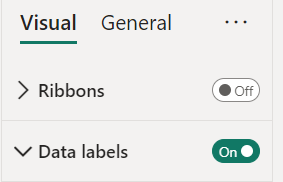
Enabling data labels is a great way to show the numbers in the visual
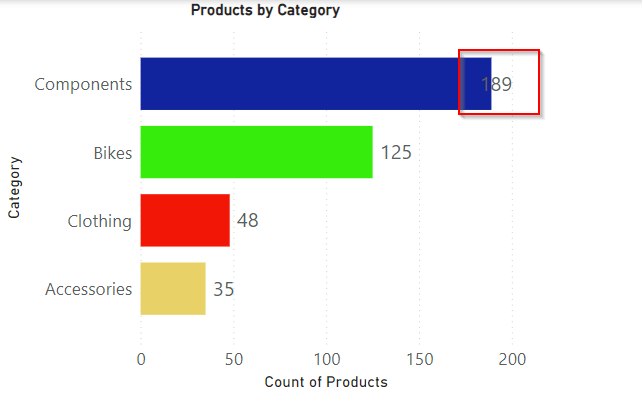
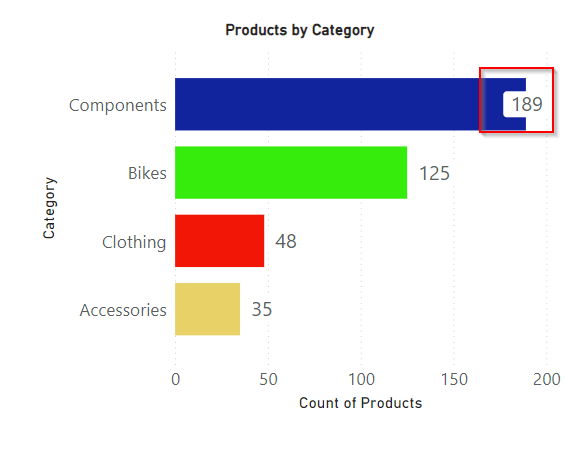
But what if they keep overlapping even though you ensured optimal size and Data labels to be displayed at the Outside end like below. It decreases the report accessibility.
There were two options for you…
Changing the colors in the theme color
You can change the themes by going to View option if you would like to install the ones available with Power BI, else if you want to install custom themes, you can download them from https://powerbi.tips/ and install.
After changing the theme color, the data label is clear and readable and thereby increasing accessibility.
2. Enable background color and set the transparency
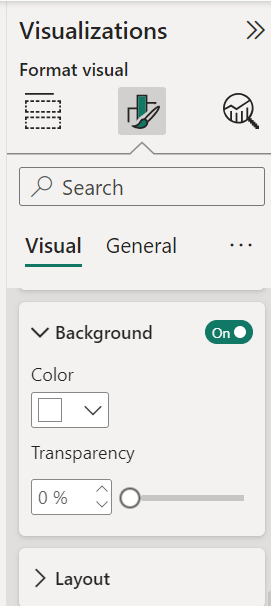
This is the other option where you can enable the background for the data labels and set the transparency based on your requirement, it is good to set that to a low number as below.
There it is, now your report looks a lot better for users to read the data labels
Hope this helps someone trying to improve the readability and accessibility of the Power BI Report using the tooltips..


















 ECELLORS CRM Blog