Maximizing Your Power Platform Solution’s Reach: Essential Performance Considerations for Optimal Efficiency

Hi Folks,

This blog post is all about performance considerations for your Power Platform CE Projects and how you can plan to optimize application performance for your Power Apps. So I just want to take you through them…

Are you tired of creating solutions for longer durations and while at the end of the project or during UAT you end up facing performance issues for the solutions you have developed, one of the most important non-functional requirements for a project’s success is Performance. Satisfying performance requirements for your users can be a challenge. Poor performance may cause failures in user adoption of the system and lead to project failure, so you might need to be careful for every decision you take while you design your solutions in the below stages.
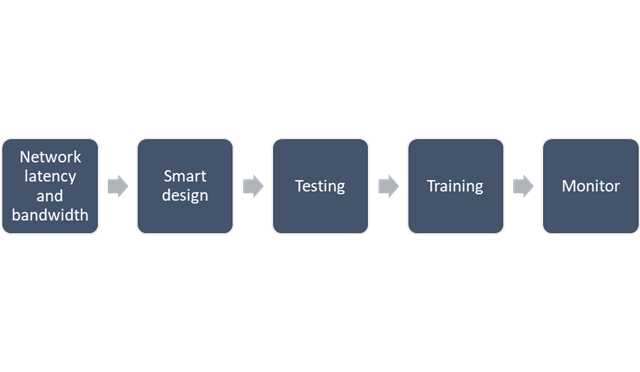
Let’s talk about them one by one..

1. Network Latency and bandwidth

A main cause of poor performance of Dynamics 365 apps is the latency of the network over which the clients connect to the organization. 

  • Bandwidth is the width or capacity of a specific communications channel.
  • Latency is the time required for a signal to travel from one point on a network to another and is a fixed cost between two points. And usually many of these “signals” travel for a single request.

Lower latencies (measured in milliseconds) generally provide better levels of performance. Even if the latency of a network connection is low, bandwidth can become a performance degradation factor if there are many resources sharing the network connection, for example, to download large files or send and receive email.

Dynamics 365 apps are designed to work best over networks that have the following elements: 

  • Bandwidth greater than 50 KBps (400 kbps)
  • Latency under 150 ms

These values are recommendations and don’t guarantee satisfactory performance. The recommended values are based on systems using out-of-the box forms that aren’t customized.

If you significantly customize the out-of-box forms, it is recommend that you test the form response to understand bandwidth needs.   

You can use the diagnostics tool to determine the latency and bandwidth:

  1. On your computer or device, start a web browser, and sign in to an organization.
  2. Enter the following URL, https://myorg.crm.dynamics.com/tools/diagnostics/diag.aspx, where crm.dynamics.com is the URL of your organization.
  3. Click Run.

Also, to mitigate higher natural latency for global rollouts, customers should leverage Dynamics 365 Apps successfully by having smart design for their applications. 

2.Smart Design for your application
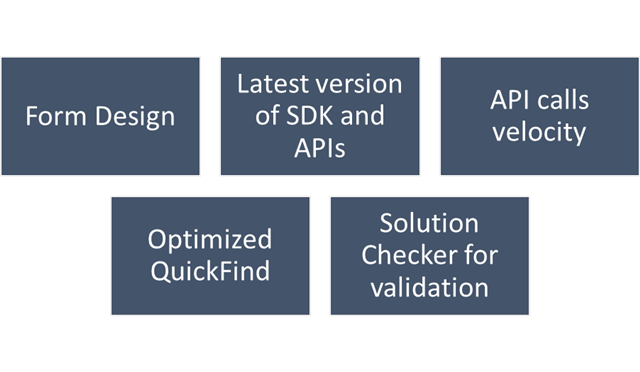
Form design 

  • Keep the number of fields to a minimumThe more fields you have in a form, the more data that needs to be transferred over the internet or intranet to view each record. Think about the interaction the user will have with the form and the amount of data that must be displayed within it.
  • Avoid including unnecessary JavaScript web resource librariesThe more scripts you add to the form, the more time it will take to download them. Usually, scripts are cached in your browser after they are loaded the first time, but the performance the first time a form is viewed often creates a significant impression.
  • Avoid loading all scripts in the Onload eventIf you have code that only supports OnChange events for fields or the OnSave event, make sure to set the script library with the event handler for those events instead of the OnLoad event. This way loading those libraries can be deferred and increase performance when the form loads.
  • Use tab events to defer loading web resourcesAny code that is required to support web resources or IFRAMEs within collapsed tabs can use event handlers for the TabStateChange event and reduce code that might otherwise have to occur in the OnLoad event.
  • Set default visibility optionsAvoid using form scripts in the OnLoad event that hide form elements. Instead set the default visibility options for form elements that might be hidden to not be visible by default when the form loads. Then, use scripts in the OnLoad event to show those form elements you want to display. If the form elements are never made visible, they should be removed from the form rather than hidden.
  • Watch out for synchronous web requests as they can cause severe performance issues. Consider moving to asynchronous for some of these web requests. Also, choose WebApi over of creating Xml HTTP Requests (XHR) on your own. 
  • Avoid opening a new tab or window and do open the window in the main form dialog. 
  • For Command Bar, keep the number of controls to a minimumWithin the command bar or the ribbon for the form, evaluate what controls are necessary and hide any that you don’t need. Every control that is displayed increases resources that need to be downloaded to the browser. Use asynchronous network requests in Custom Rules When using custom rules that make network requests in Unified Interface, use asynchronous rule evaluation.

Learn more Design forms for performance in model-driven apps – Power Apps | Microsoft Learn

Latest version of SDK and APIs 

The latest version of SDK, Form API and WebAPI endpoints should be used to support latest product features, roadmap alignment and security. 

APIs calls and custom FetchXML call velocity 

Only the columns required for information or action should be included in API calls

  • Retrieving all columns (*) creates significant overhead on the database engine when distributed across significant user load. Optimization of call velocity is key to avoid “chatty” forms that unnecessarily make repeated calls for the same information in a single interaction.
  • You should avoid retrieving all columns in a query result because of the impact on a subsequent update of records. In an update, this will set all field values, even if they are unchanged, and often triggers cascaded updates to child records. Leverage the most efficient connection mechanism (WebAPI vs SDK) and reference this doc site for guidance on the appropriate approach.

Consider reviewing periodically the Best practices and guidance when coding for Microsoft Dataverse – Power Apps | Microsoft Learn and ColumnSet.AllColumns Property (Microsoft.Xrm.Sdk.Query) | Microsoft Learn.

Error handling across all code-based events 

You should continue to use the ITracingService.Trace to write to the Plug-in Trace Log table when needed. If your plug-in code uses the ILogger interface and the organization does not have Application Insights integration enabled, nothing will be written. So, it is important to continue to use the ITracingService Trace method in your plug-ins. Plug-in trace logs continue to be an important way to capture data while developing and debugging plug-ins, but they were never intended to provide telemetry data.  

For organizations using Application Insights, you should use ILogger because it will allow for telemetry about what happens within a plug-in to be integrated with the larger scope of data captured with the Application Insights integration. The Application Insights integration will tell you when a plug-in executes, how long it takes to run and whether it makes any external http requests. Learn more about tracing in plugins Logging and tracing (Microsoft Dataverse) – Power Apps | Microsoft Learn.   

Use Solution Checker to analyze solution components 

Best practice is to run Solution Checker for all application code and include it as mandatory step while you design solutions or check when you complete developing your custom logic.

Quick Find 

For an optimal search experience for your users consider the next:

  • All columns you expect to return results in a quick find search need to be included in the view or your results will not load as expected.
  • It is recommended to not use option sets in quick find columns. Try using the view filtering for these. 
  • Minimize the number of fields used and avoid using composite fields as searchable columns. E.g., use first and last name as searchable vs full name.
  • Avoid using multiple lines of text fields as search or find columns.
  • Evaluate Dataverse search vs using leading wildcard search

3. Training
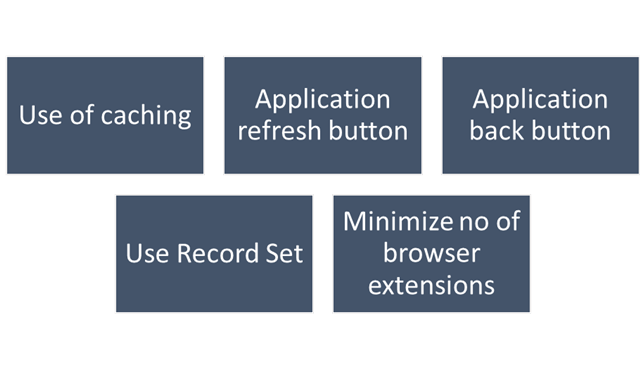
This step should be done during user training or during UAT. To ensure optimal performance of Dynamics 365, ensure that users are properly leveraging browser caching. Without caching, users can experience cold loads which have lower performance than partially (or fully) warm loads.

 Make sure to train users to: 

  • Use application inline refresh over browser refresh (should not use F5)
  • Use application inline back button instead browser’s back button.
  • Avoid InPrivate/Incognito modes in browser which causes cold loads.
  • Make users aware that running applications which consumes lot of bandwidth (like video streaming) may affect performance.
  • Do not install browser extensions unless they are necessary (this might be also blocked via policy)
  • Do use ‘Record Set’ to navigate records quickly without switching from form back to the list. 

4. Testing

For business processes where performance is critical or processes having complex customizations with very high volumes, it is strongly recommended to plan for performance testing. Consider reviewing the below technical talk series describing important performance considerations, as well as sharing practical examples of how to set up and execute performance testing, and analyze and mitigate performance issues. Reference: Performance Testing in Microsoft Dynamics 365 TechTalk Series – Microsoft Dynamics Blog

5. Monitoring

You should define a monitoring strategy and might consider using any of the below tools based on your convenience.

  1. Monitor Dynamic 365 connectivity from remote locations continuously using network monitoring tools like Azure Network Performance Monitor or 3rd party tools. These tools help identify any network related problems proactively and drastically reduce troubleshooting time of any potential issue. 
  2. Application Insights, a feature of Azure Monitoris widely used within the enterprise landscape for monitoring and diagnostics. Data that has already been collected from a specific tenant or environment is pushed to your own Application Insights environment. The data is stored in Azure Monitor logs by Application Insights, and visualized in Performance and Failures panels under Investigate on the left pane. The data is exported to your Application Insights environment in the standard schema defined by Application Insights. The support, developer, and admin personas can use this feature to triage and resolve Telemetry events for Microsoft Dataverse – Power Platform | Microsoft Learn
  3. Dataverse and PowerApps analytics in the Power Platform Admin Centre. Through the Plug-in dashboard in the Power Platform Admin Center you can view metrics such as average execution time, failures, most active plug-ins, and more.
  4. Dynamics 365 apps include a basic diagnostic tool that analyzes the client-to-organization connectivity and produces a report.
  5. Monitor is a tool that offers makers the ability to view a stream of events from a user’s session to diagnose and troubleshoot problems. Works both for model driven apps and canvas apps. 

I hope this blog post had helped you learn or know something new…thank you for reading…

Cheers,

PMDY
Why Microsoft Support Asks for a HAR File …?

Hello Microsoft Folks,

Everyone in their career will reach a point. At this stage, the next step is to raise a Microsoft Support ticket to report any product issue — particularly for Power Apps implementations, as we did recently.

Microsoft Support generally asks to send a HAR File to escalate issues to the Product team. In this blog post today, let’s understand what a HAR File is and why the MS Product team needs it.

A HAR file (HTTP Archive) is a diagnostic capture of everything your browser does during a web session. It includes network calls, payloads, headers, and timings. It also encompasses redirects, failures, and more.

You raise a ticket for Power Apps, Power Automate, or Power BI Service. The product team often needs more than just screenshots. They need detailed information. They can’t reproduce the issue with just images. They need to see exactly what your browser saw.

What a HAR File Includes.. and why Microsoft Product team needs it??

  • Think of it as a flight recorder for your browser:
  • Network requests Every API call your browser makes
  • Failing endpoints or throttling
  • Ask/response headers Auth tokens, cookies, metadata To check authentication, region routing, tenant context
  • Payloads JSON bodies sent/received To see malformed data, schema mismatches, or server errors
  • Timings DNS, SSL, wait time, download time To diagnose latency, timeouts, or CDN issues
  • Errors 4xx/5xx responses To pinpoint backend failures

This is the only way the engineering team can see the real sequence of events that caused your issue.

 Why It’s Critical for Power Platform Issues

Especially in Power Platform, a HAR file helps diagnose:

• Connector calls failing due to throttling
• Canvas app load failures
• Dataverse API errors
• Authentication loops (AAD, MSAL, cookies)
• Portal/Power Pages rendering issues
• Power BI embedded or service-side failures
• Browser-specific regressions
• Region misrouting or CDN cache issues

You’ve probably seen cases where the UI shows a generic message like Something went wrong.

The HAR file reveals the actual error behind it.

 Is It Safe?

A HAR file can contain sensitive data (tokens, cookies, request bodies).
That’s why Microsoft always asks you to:

• Reproduce the issue in a test environment if possible
• Scrub sensitive fields if needed
• Upload via the secure support portal

Microsoft support uses it only for debugging and deletes it after the case is resolved.

 With a HAR file, MS Engineers can:

• Reproduce the issue in their internal environment
• Identify whether the problem is client-side, network-side, or server-side
• Trace the exact failing API
• Confirm whether it’s a regression, configuration issue, or tenant-specific problem
• Escalate to the product group with concrete evidence

Now you have understood the purpose of the HAR file, use the below link to generate the same

https://learn.microsoft.com/en-us/azure/azure-portal/capture-browser-trace

Cheers,

PMDY

Python + Dataverse Series – #05: Remove PII

Hi Folks,

This is in continuation in the Python + Dataverse series, it is worth checking out from the start of this series here.

At times, there will be a need to remove PII(Personally Identifiable Information) present in the Dataverse Environments, for this one time task, you can easily run Python script below, let’s take example of removing PII from Contact fields in the below example.

from azure.identity import InteractiveBrowserCredential
from PowerPlatform.Dataverse.client import DataverseClient
# Connect to Dataverse
credential = InteractiveBrowserCredential()
client = DataverseClient("https://ecellorsdev.crm8.dynamics.com", credential)
#use AI to remove PII data from the dataverse records, let's say contact records
def remove_pii_from_contact(contact):
pii_fields = ['emailaddress1', 'telephone1', 'mobilephone', 'address1_line1', 'address1_city', 'address1_postalcode']
for field in pii_fields:
if field in contact:
contact[field] = '[REDACTED]'
return contact
# Fetch contacts with PII (Dataverse client returns paged batches)
contact_batches = client.get(
"contact",
select=[
"contactid",
"fullname",
"emailaddress1",
"telephone1",
"mobilephone",
"address1_line1",
"address1_city",
"address1_postalcode",
],
top=10,
)
# Remove PII and update contacts
for batch in contact_batches:
for contact in batch:
contact_id = contact.get("contactid")
sanitized_contact = remove_pii_from_contact(contact)
# Prepare update data (exclude contactid)
update_data = {key: value for key, value in sanitized_contact.items() if key != "contactid"}
# Update the contact in Dataverse
client.update("contact", contact_id, update_data)
print(f"Contact {contact_id} updated with sanitized data: {sanitized_contact}")

If you want to work on this, download the Python Notebook to use in VS Code…

https://github.com/pavanmanideep/DataverseSDK_PythonSamples/blob/main/Python-DataverseSDK-RemovePII.ipynb

Cheers,

PMDY
Understanding MIME Types in Power Platform – Quick Review

While many people doesn’t know the significance of MIME Type, this post is to give brief knowledge about the same before moving to understand security concepts in Power Platform in my upcoming articles.

In the Microsoft Power Platform, MIME types (Multipurpose Internet Mail Extensions) are standardized labels used to identify the format of data files. They are critical for ensuring that applications like Power Apps, Power Automate, and Power Pages can correctly process, display, or transmit files. 

Core Functions in Power Platform

  • Dataverse Storage: Tables such as ActivityMimeAttachment and Annotation (Notes) use a dedicated MimeType column to store the format of attached files alongside their Base64-encoded content.
  • Security & Governance: Administrators can use the Power Platform Admin Center to block specific “dangerous” MIME types (e.g., executables) from being uploaded as attachments to protect the environment.
  • Power Automate Approvals: You can configure approval flows to fail if they contain blocked file types, providing an extra layer of security for email notifications.
  • Power Pages (Web Templates): When creating custom web templates, the MIME type field controls how the server responds to a browser. For example, templates generating JSON must be set to application/json to be parsed correctly.
  • Email Operations: When using connectors like Office 365 Outlook, you must specify the MIME type for attachments (e.g., application/pdf for PDFs) so the recipient’s client can open them properly. 

Common MIME Types Used

File Extension MIME Type
.pdfapplication/pdf
.docxapplication/vnd.openxmlformats-officedocument.wordprocessingml.document
.xlsxapplication/vnd.openxmlformats-officedocument.spreadsheetml.sheet
.png / .jpgimage/png / image/jpeg
.jsonapplication/json
Unknownapplication/octet-stream (used for generic binary files)

Implementing MIME type handling and file restrictions ensures your Power Platform solutions are both functional and secure.

1. Programmatically Setting MIME Types in Power Automate 

When working with file content in Power Automate, you often need to define the MIME type within a JSON object so connectors (like Outlook or HTTP) understand how to process the data. 

  • Structure: Use a Compose action to build a file object with the $content-type (MIME type) and $content (Base64 data).json
  • Dynamic Mapping: If you don’t know the file type in advance, you can use an expression to map extensions to MIME types or use connectors like Cloudmersive to automatically detect document type information. 

2. Restricting File Types in Power Apps

The Attachment control in Power Apps does not have a built-in “allowed types” property, so you must use Power Fx formulas to validate files after they are added. 

  • Validation on Add: Use the OnAddFile property of the attachment control to check the extension and notify the user if it’s invalid in PowerApps
  • Submit Button Logic: For added security, set the DisplayMode of your Submit button to Disabled if any attachment in the list doesn’t match your criteria. 

3. Global Restrictions (Admin Center)

To enforce security across the entire environment, administrators can navigate to the Power Platform Admin Center to manage blocked MIME types. Adding an extension to the blocked file extensions list prevents users from uploading those file types to Dataverse tables like Notes or email attachments. 

Hope this helps…in next post, I will be talking about Content Security Policy and how Power Platform can be secured using different sets of configuration.

Cheers,

PMDY
Agentic AI Business Solutions Architect Exam -AB 100 Experience

Hi Folks,

On 14 November, 2025, I took the AB 100 Exam, this post is to share my experience about this exam.

The exam doesn’t look difficult or tricky to me, it feels like a lot to read in short amount of time. Most of the questions revolved around Copilot Studio, Azure AI Foundry, Azure Services for tracking telemetry, Copilot, Dynamics 365 Customer Engagement, Finance and Operations, Supply Chain Management.

While there is nitty-gritty on using Prebuilt agents and Custom Agents using Azure AI Foundry and Agent Governance, choosing right agent for the need but note that no question came up from AI Builder, Licensing as well.

However there were also scenario based questions on strategy using right tool for the need to build agent e.x. Azure Cloud Adoption Framework, Power Platform Well Architected Framework.

As per Exam NDA, exact exam questions may not be shared publicly, I am sharing my experience so that someone preparing for this exam can use this while preparing for taking this exam.

If you want to learn further, you can go through the below link which was recently created by Microsoft….go take a look…

AB 100 Collection

Hope it helps..

Cheers,

PMDY

Python + Dataverse Series – #04: Create records in batch using Execute Multiple

Hi Folks,

This is continuation in this Python with Dataverse Series, in this blog post, we will see how can we create multiple records in a single batch using ExecuteMultiple in Python.

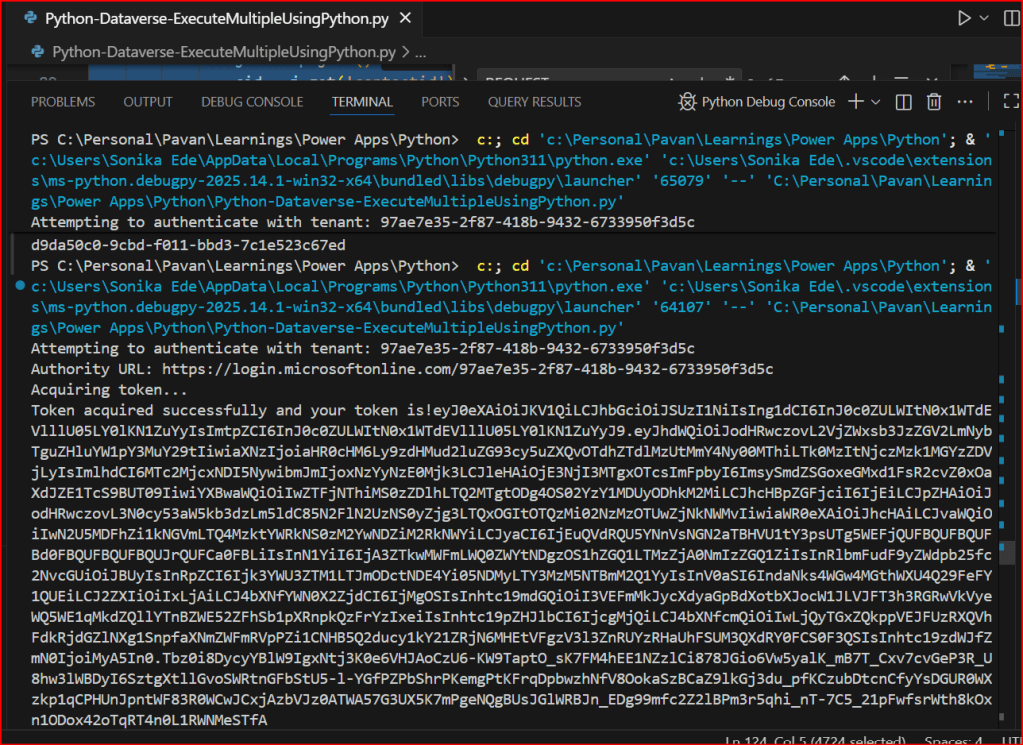
Please use the below code for the same…to make any calls using ExecuteMultiple…

import pyodbc
import msal
import requests
import json
import re
import time
# Azure AD details
client_id = '0e1c58b1-3d9a-4618-8889-6c6505288d3c'
client_secret = 'qlU8Q~dmhKFfdL1ph2YsLK9URbhIPn~qWmfr1ceL'
tenant_id = '97ae7e35-2f87-418b-9432-6733950f3d5c'
authority = f'https://login.microsoftonline.com/{tenant_id}'
resource = 'https://ecellorsdev.crm8.dynamics.com'
# SQL endpoint
sql_server = 'ecellorsdev.crm8.dynamics.com'
database = 'ecellorsdev'
# Get token with error handling
try:
print(f"Attempting to authenticate with tenant: {tenant_id}")
print(f"Authority URL: {authority}")
app = msal.ConfidentialClientApplication(client_id, authority=authority, client_credential=client_secret)
print("Acquiring token…")
token_response = app.acquire_token_for_client(scopes=[f'{resource}/.default'])
if 'error' in token_response:
print(f"Token acquisition failed: {token_response['error']}")
print(f"Error description: {token_response.get('error_description', 'No description available')}")
else:
access_token = token_response['access_token']
print("Token acquired successfully and your token is!"+access_token)
print(f"Token length: {len(access_token)} characters")
except ValueError as e:
print(f"Configuration Error: {e}")
except Exception as e:
print(f"Unexpected error: {e}")
#Get 5 contacts from Dataverse using Web API
import requests
import json
try:
#Full CRUD Operations – Create, Read, Update, Delete a contact in Dataverse
print("Making Web API request to perform CRUD operations on contacts…")
# Dataverse Web API endpoint for contacts
web_api_url = f"{resource}/api/data/v9.2/contacts"
# Base headers with authorization token
headers = {
'Authorization': f'Bearer {access_token}',
'OData-MaxVersion': '4.0',
'OData-Version': '4.0',
'Accept': 'application/json',
'Content-Type': 'application/json'
}
# Simple approach: create multiple contacts sequentially
# generate 100 contacts with different last names
contacts_to_create = [
{"firstname": "Ecellors", "lastname": f"Test{str(i).zfill(3)}"}
for i in range(1, 101)
]
create_headers = headers.copy()
create_headers['Prefer'] = 'return=representation'
created_ids = []
print("Creating contacts sequentially…")
for i, body in enumerate(contacts_to_create, start=1):
try:
resp = requests.post(web_api_url, headers=create_headers, json=body, timeout=15)
except requests.exceptions.RequestException as e:
print(f"Request error creating contact #{i}: {e}")
continue
if resp.status_code in (200, 201):
try:
j = resp.json()
cid = j.get('contactid')
except ValueError:
cid = None
if cid:
created_ids.append(cid)
print(f"Created contact #{i} with id: {cid}")
else:
print(f"Created contact #{i} but response body missing id. Response headers: {resp.headers}")
elif resp.status_code == 204:
# try to extract id from headers
entity_url = resp.headers.get('OData-EntityId') or resp.headers.get('Location')
if entity_url:
m = re.search(r"([0-9a-fA-F\-]{36})", entity_url)
if m:
cid = m.group(1)
created_ids.append(cid)
print(f"Created contact #{i} (204) with id: {cid}")
else:
print(f"Created contact #{i} (204) but couldn't parse id from headers: {resp.headers}")
else:
print(f"Created contact #{i} (204) but no entity header present: {resp.headers}")
else:
print(f"Failed to create contact #{i}. Status code: {resp.status_code}, Response: {resp.text}")
# small pause to reduce chance of throttling/rate limits
time.sleep(0.2)
if created_ids:
print("Created contact ids:")
for cid in created_ids:
print(cid)
except Exception as e:
print(f"Unexpected error during Execute Multiple: {e}")
print("Failed to extract Contact ID from headers.")

Please download this Jupyter notebook to work on it easily using VS Code.

https://github.com/pavanmanideep/DataverseSDK_PythonSamples/blob/main/Python-Dataverse-ExecuteMultipleUsingPython.ipynb

If you want to continue reading this series, follow along

Hope this helps..

Cheers,

PMDY

Want to check if you have added metadata to the entity in Power Apps – Table Segmentation properties?

Hi Folks,

After a break, I am back with my next blog post, this is a very short one.

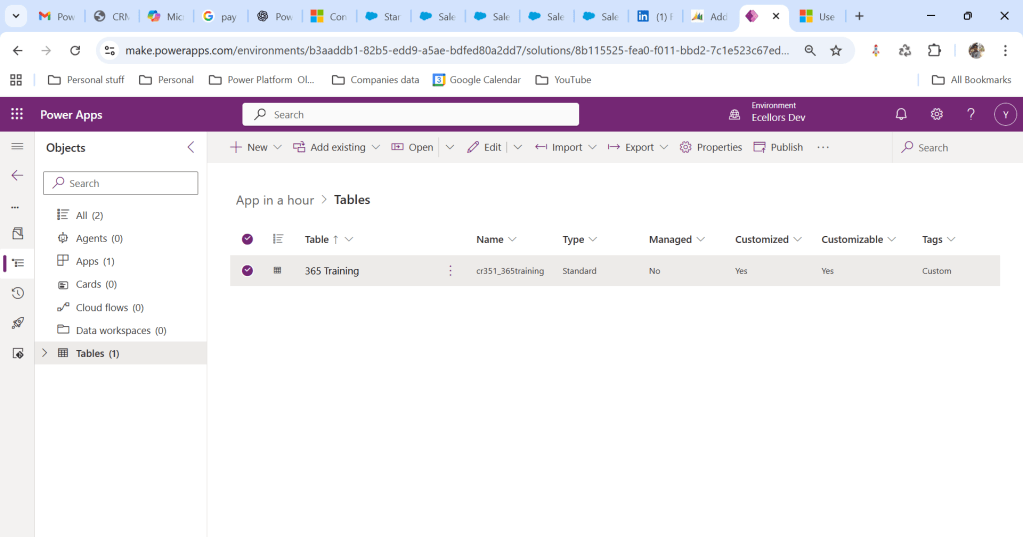
Whenever you were working on any implementation, you could have added entity assets to the solution, many people miss adding metadata for the entity, since they don’t have a way to check properly, folks end up removing and readding the entity with metadata toggle on.

But don’t worry, here is a simple way to check this..

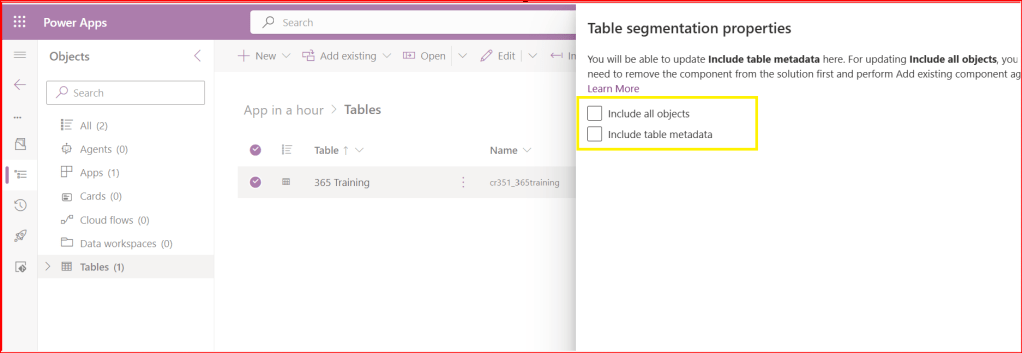
Let’s say you have added a table to the form like below

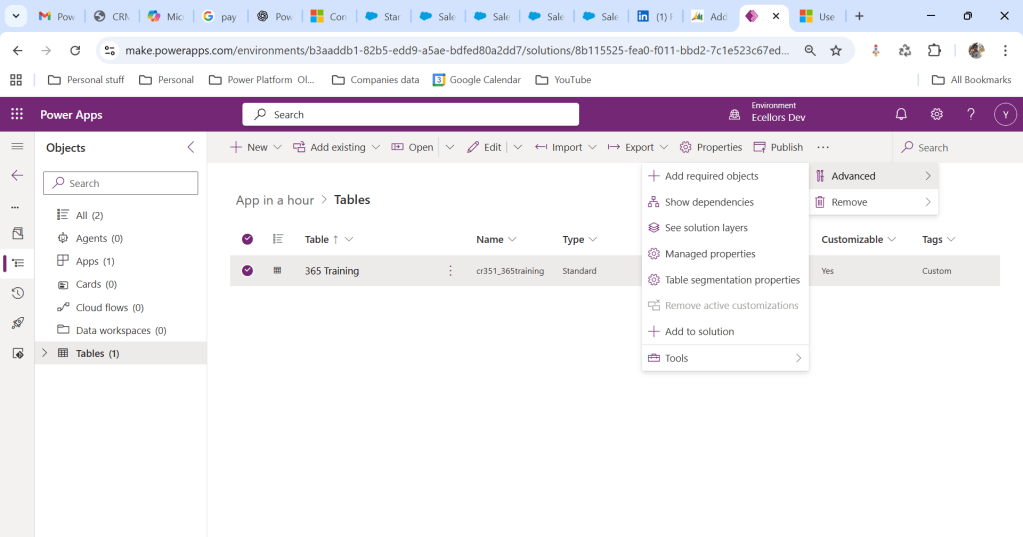
Now you want to add the metadata for this, click on the table name below

Click on Elipses…

Choose table segmentation as shown above

So as highlighted above, you can include all the objects or include table metadata.

Hope this small tip helps…so even if you miss adding metadata, you can safely add it later at any point of time.

Cheers,

PMDY

Hands-On Learning at Power Platform Classmates 2025- Birla Institute of Technology and Science, Pilani- Dubai

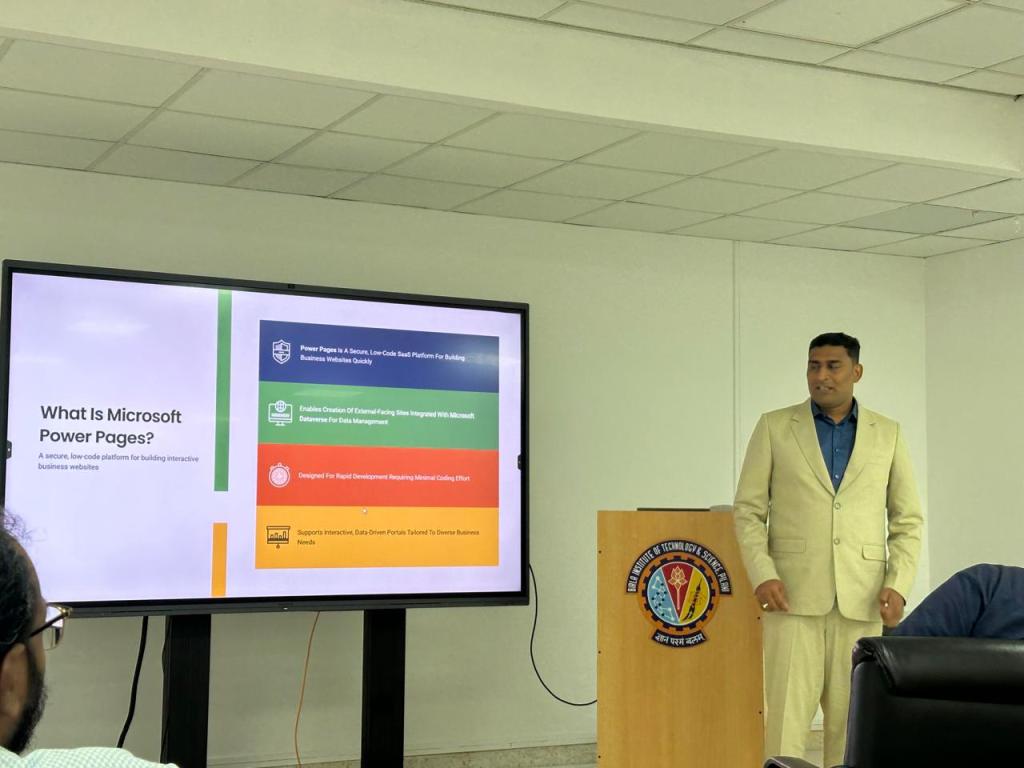
Thank you everyone for making Power Platform Classmates 2025 organized at Birla Institute of Technology and Sciences, Dubai a resounding success.

The event was full of hands-on learning, real-world scenarios, and interactive sessions as we explored the power of Microsoft Power Platform!!!

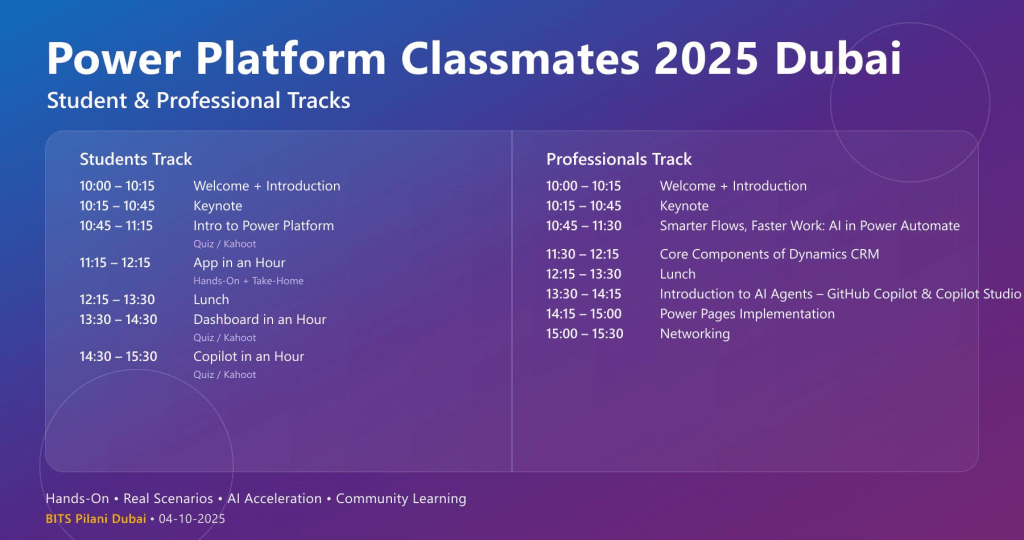
This event featured two learning tracks – one for Students and one for Professionals, each designed to deliver impactful experiences.

Thank you for all the support.

Here sample certificate issued to students and speakers by the event organizers.

Cheers,

Pavan Mani Deep Y & Ahmad Uzair

Simplifying File Security in Power Apps with C# and GnuPG

Hi Folks,

Thank you for visiting my blog today…this is post is mainly for Pro developers. Encryption is crucial to maintain the confidentiality in this digital age for the security of our sensitive information. So here is a blog about it. This is in continuation to my previous blog post on encrypting files using GnuPG.

In this blog post, I will give you sample how you can encrypt/decrypt using GnuPG with command line scripts from C# code.

If you didn’t go through my previous article, I strongly recommend you go through that article below first to understand the background.

Next, in order to encrypt/decrypt a given csv file (taken for simplicity), we can use the following C# codes. For illustration purpose, I have just provided you the logic in the form of a Console.

Encryption:

using System;
using System.Collections.Generic;
using System.Linq;
using System.Text;
using System.Threading.Tasks;
using System.Diagnostics;
namespace eHintsBatchDecryptionTest
{
class Program
{
static void Main(string[] args)
{
string gpgPath = @"D:\Softwares\Kleo Patra\GnuPG\bin\gpg.exe"; //This is the place where you have installed GnuPG Software
string inputFile = "location of input file";
string outputFile = "location of output file";
string passphrase = "passPhrase";
DecryptGPGFile(gpgPath, inputFile, outputFile, passphrase);
}
static void DecryptGPGFile(string gpgPath, string inputFile, string outputFile, string passphrase)
{
using (Process process = new Process())
{
process.StartInfo.FileName = gpgPath;
process.StartInfo.Arguments = $"–batch –yes –pinentry-mode=loopback –passphrase {passphrase} -d -o \"{outputFile}\" \"{inputFile}\"";
process.StartInfo.UseShellExecute = false;
process.StartInfo.RedirectStandardOutput = true;
process.StartInfo.RedirectStandardError = true;
process.StartInfo.RedirectStandardInput = true;
process.StartInfo.CreateNoWindow = true;
process.Start();
string output = process.StandardOutput.ReadToEnd();
string error = process.StandardError.ReadToEnd();
process.WaitForExit();
if (process.ExitCode == 0)
{
Console.WriteLine("Decryption successful.");
}
else
{
Console.WriteLine("Decryption failed. Error: " + error);
}
}
}
}
}

Decryption:

using System;
using System.Collections.Generic;
using System.Linq;
using System.Text;
using System.Threading.Tasks;
using System.Diagnostics;
namespace BatchDecryptionTest
{
class Program
{
static void Main(string[] args)
{
string gpgPath = @"D:\Softwares\Kleo patra\GnuPG\bin\gpg.exe";//Once GPG installed, you can look for gpg.exe in the bin folder of the installation
string inputFile = "Input encrypted file";//Replace with your gpg encrypted file location
string outputFile = "Decrypted CSV file"; //give it a name for the decrypted file and location, output file path doesnt exists yet, you may give a sample name
string passphrase = "passPhrase";
DecryptGPGFile(gpgPath, inputFile, outputFile, passphrase);
}
static void DecryptGPGFile(string gpgPath, string inputFile, string outputFile, string passphrase)
{
using (Process process = new Process())
{
process.StartInfo.FileName = gpgPath;
process.StartInfo.Arguments = $"–batch –yes –pinentry-mode=loopback –passphrase {passphrase} -d -o \"{outputFile}\" \"{inputFile}\""; //Pass the PassPhrase, Input and Output file paths as parameters
process.StartInfo.UseShellExecute = false;
process.StartInfo.RedirectStandardOutput = true;
process.StartInfo.RedirectStandardError = true;
process.StartInfo.RedirectStandardInput = true;
process.StartInfo.CreateNoWindow = true;
process.Start();
string output = process.StandardOutput.ReadToEnd();
string error = process.StandardError.ReadToEnd();
process.WaitForExit();
if (process.ExitCode == 0)
{
Console.WriteLine("Decryption successful.");
}
else
{
Console.WriteLine("Decryption failed. Error: " + error);
}
}
}
}
}

All you need is to copy and replace the file locations in the code. Sit back and enjoy encrypting and decrypting with GnuPG. I should say once known, this is the easiest way to encrypt/decrypt from C# code, no strings attached.

If you need any other information, please do let me know in comments.

Cheers,

PMDY

Enhancing Dataverse Plugins with Bulk Message Operations

Well, this could be a very interesting post as we talk about optimizing the Dataverse performance using bulk operation messages and too using Dataverse plugin customizations but wait, this post is not complete because of an issue which I will talk later in the blog. First let’s dig into this feature by actually trying out. Generally, every business wants improved performance for any logic tagged out to out of box messages and so developers try to optimize their code in various ways when using Dataverse messages.

Firstly, before diving deeper into this article, let’s first understand the differences between Standard and Elastic tables, if you want to know a bit of introduction to elastic tables which were newly introduced last year, you can refer to my previous post on elastic tables here.

The type of table you choose to store your data has the greatest impact on how much throughput you can expect with bulk operations. You can choose out of two types of tables in Dataverse, below are some key differences you can refer to: 

 Standard TablesElastic Tables
Data StructureDefined SchemaFlexible Schema
Stores data in Azure SQLStores data in Azure Cosmos DB
Data IntegrityEnsuredLess Strict
Relationship modelSupportedLimited
PerformancePredictableVariable, preferred for unpredictable and spiky workloads
AgilityLimitedHigh
PersonalizationLimitedExtensive
Standard and Elastic Table Differences

Plugins:

With Bulk Operation messages, the APIs being introduced are Create MultipleUpdateMultiple,DeleteMultiple (only for Elastic tables), Upsert Request(preview). As of now you’re not required to migrate your plug-ins to use CreateMultiple and Update Multiple instead of Create and Update messages. Your logic for Create and Update continues to be applied when applications use CreateMultiple or UpdateMultiple

This is mainly done to prevent two separate business logics for short running and long duration activities. So, it means Microsoft have merged the message processing pipelines for these messages (Create, Create Multiple; Update, Update Multiple) that means Create, Update messages continue to trigger for your existing implemented scenarios, when you update to use Create Multiple, Update Multiple still the Create, Update will behave.

Few points for consideration:

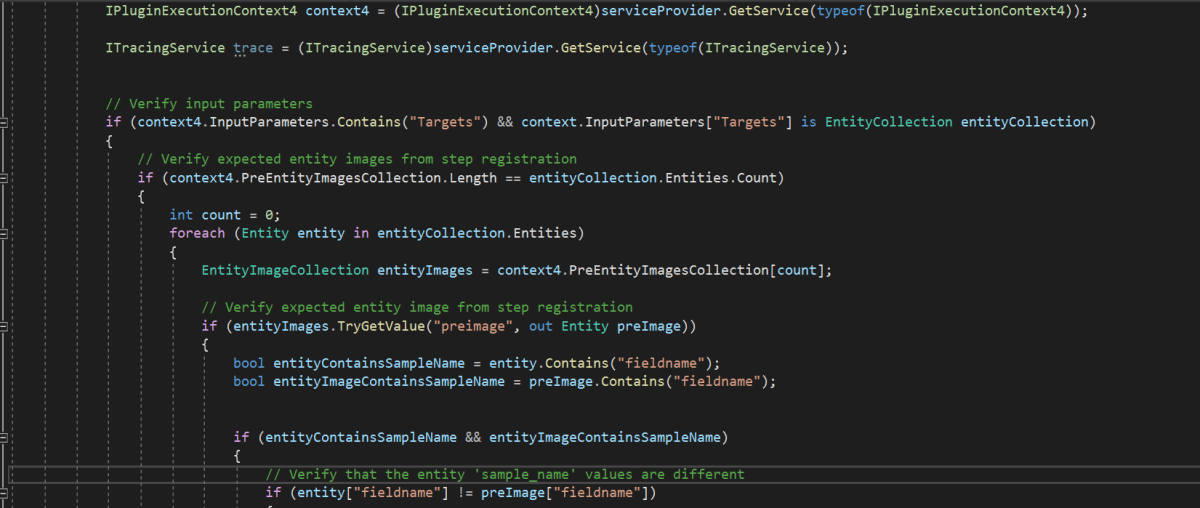
  1. While I have tested and still could see IPluginExecutionContext only provides the information and still I have noted Microsoft Documentation suggests using IPluginExecutionContext4 for Bulk Messages in Plugins where it is being shown as null yet.
  2. While you were working with Create, Update, Delete, you could have used Target property to get the input parameters collection, while working with Bulk Operation messages, you need to use Targets instead of Target.
  3. Instead of checking whether the target is Entity you need to use Entity Collection, we need to loop through and perform our desired business logic
  4. Coming to Images in plugin, these will be retrieved only when you have used IPluginExecutionContext4.

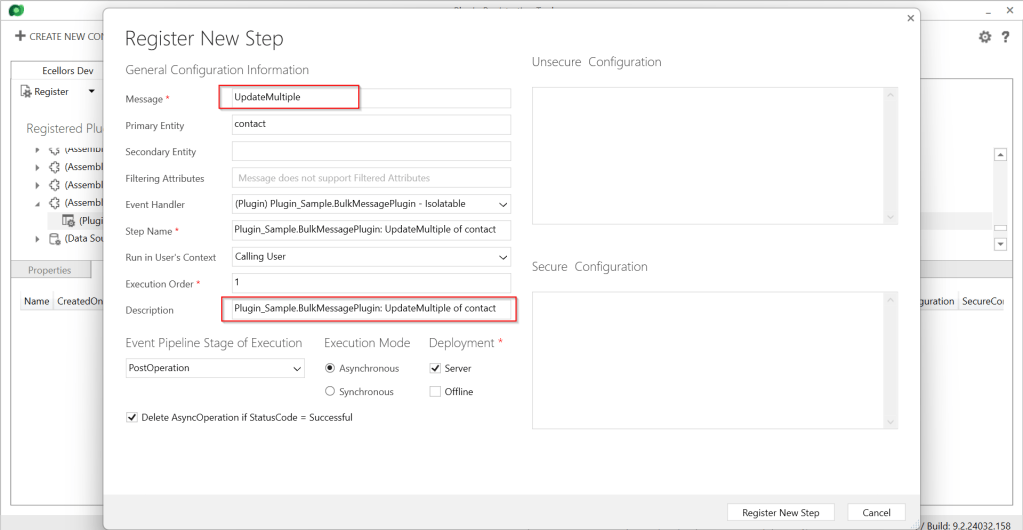
Below is the image from Plugin Registration Tool to refer(e.g. I have taken UpdateMultiple as reference, you can utilize any of the bulk operation messages)

Sample:

Below is the sample, how your Bulk operation message plugin can look like…you don’t need to use all the contexts, I have used to just check that out.

using System;
using System.Collections.Generic;
using System.Linq;
using System.Text;
using System.Threading.Tasks;
using Microsoft.Crm.Sdk;
using Microsoft.Xrm.Sdk;
using Microsoft.Xrm.Sdk.Query;
namespace Plugin_Sample
{
public class BulkMessagePlugin : IPlugin
{
public void Execute(IServiceProvider serviceProvider)
{
IPluginExecutionContext context = (IPluginExecutionContext)serviceProvider.GetService(typeof(IPluginExecutionContext));
IPluginExecutionContext2 context2 = (IPluginExecutionContext2)serviceProvider.GetService(typeof(IPluginExecutionContext2));
IPluginExecutionContext3 context3 = (IPluginExecutionContext4)serviceProvider.GetService(typeof(IPluginExecutionContext3));
IPluginExecutionContext4 context4 = (IPluginExecutionContext4)serviceProvider.GetService(typeof(IPluginExecutionContext4));
ITracingService trace = (ITracingService)serviceProvider.GetService(typeof(ITracingService));
// Verify input parameters
if (context4.InputParameters.Contains("Targets") && context.InputParameters["Targets"] is EntityCollection entityCollection)
{
// Verify expected entity images from step registration
if (context4.PreEntityImagesCollection.Length == entityCollection.Entities.Count)
{
int count = 0;
foreach (Entity entity in entityCollection.Entities)
{
EntityImageCollection entityImages = context4.PreEntityImagesCollection[count];
// Verify expected entity image from step registration
if (entityImages.TryGetValue("preimage", out Entity preImage))
{
bool entityContainsSampleName = entity.Contains("fieldname");
bool entityImageContainsSampleName = preImage.Contains("fieldname");
if (entityContainsSampleName && entityImageContainsSampleName)
{
// Verify that the entity 'sample_name' values are different
if (entity["fieldname"] != preImage["fieldname"])
{
string newName = (string)entity["fieldname"];
string oldName = (string)preImage["fieldname"];
string message = $"\\r\\n – 'sample_name' changed from '{oldName}' to '{newName}'.";
// If the 'sample_description' is included in the update, do not overwrite it, just append to it.
if (entity.Contains("sample_description"))
{
entity["sample_description"] = entity["sample_description"] += message;
}
else // The sample description is not included in the update, overwrite with current value + addition.
{
entity["sample_description"] = preImage["sample_description"] += message;
}
}
}
}
}
}
}
}
}
}

I have posted this question to Microsoft regarding the same to know more details on this why the IPluginExecutionContext4 is null , while still I am not sure if this is not deployed to my region, my environment is in India.

Recommendations for Plugins:

  • Don’t try to introduce CreateMultiple, UpdateMultiple, UpsertMultiple in a separate step as it would trigger the logic to be fired twice one for Create operation and another for CreateMultiple.
  • Don’t use batch request types such as ExecuteMultipleRequest, ExecuteTransactionRequest, CreateMultipleRequest, UpdateMultipleRequest, UpsertMultipleRequest in Plugins as user experiences are degraded and timeout errors can occur.
  • Instead use Bulk operation messages like CreateMultipleRequestUpdateMultipleRequest, UpsertMultipleRequest
  • No need to use ExecuteTransactionRequest in Synchronous Plugins as already they will be executed in the transaction.

Hope this guidance will help someone trying to customize their Power Platform solutions using Plugins.

I will write another blog post on using Bulk operation messages for Client Applications…

Cheers,

PMDY