Exploring Power Platform and Beyond: Features, Experiences, Challenges, Solutions all in one place
Author: Pavan Mani Deep Y
Passionate for Power Platform. A technology geek who loves sharing the leanings, quick tips and new features on Dynamics 365 & related tools, technologies. An Azure IOT and Quantum Computing enthusiast...
Well, this post will show you how you can work with multi option sets from Dynamics 365 in Power BI. First of all, you need some basic understanding of Power BI Desktop to follow. However, I made it clear for people with little background to follow and relate to. I scanned through the internet, but I couldn’t find a similar post, hence I am blogging this if it might help someone. I have faced this issue and here is the solution, you don’t need to use XrmToolBox nor Postman nor complex Power Query as many out in internet would suggest.
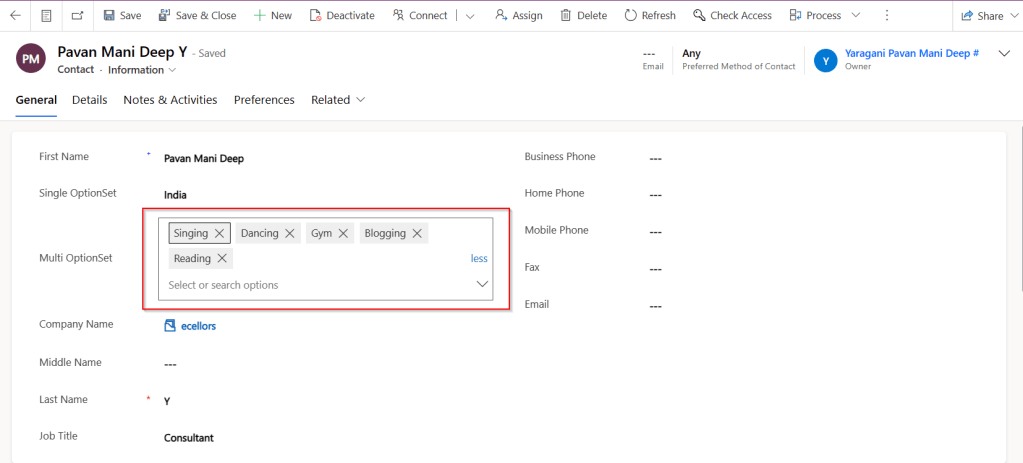
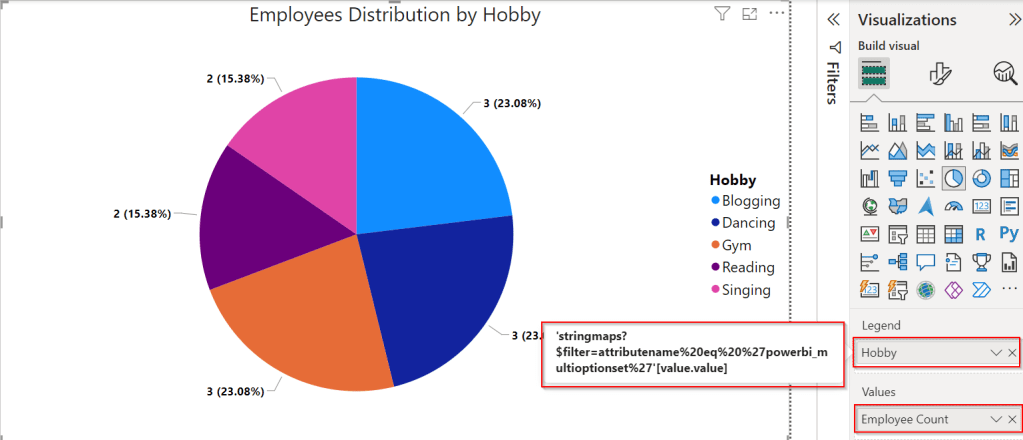
So, follow with me along, if you were trying show the values in Multi OptionSet from Model Driven Apps in Power BI as below, then this post is absolutely for you.
Practically if we retrieve the value of Multi OptionSet field as shown in the above image. You get something like below in comma separated values.
Now based on use case and the requirement, we need to transform our data, i.e. Split the values into rows or columns using a delimiter, in this case, we use comma as delimiter. Here I am splitting into multiple rows as I need to show the contacts for different option values selected in the record.
Select on the respective field and choose Split Column option available in the ribbon.
Next, you will be presented with Split Column Delimiter Dialog box, you may select the options as below and click on Ok.
Next in the Split Column by Delimiter, choose as below.
Once clicked on Ok, now the Multi OptionSet was changed to Single OptionSet and showing the values in different rows.
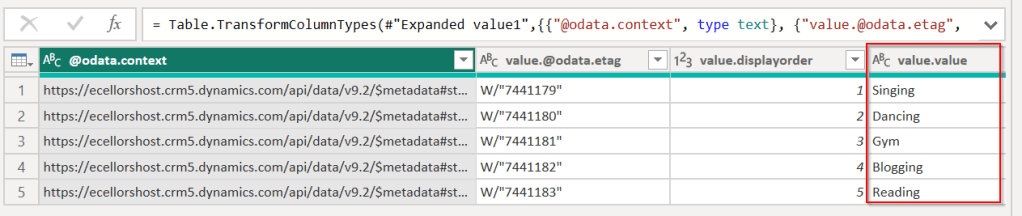
We can use Dataverse REST API to get the OptionSet values as below in Power BI, click on Get Data –> Web, enter the below in the URL to get the MultiSelect OptionSet Values –> Load. You can refer here some reference.
So, now click on Close and Apply the transformation to be saved in the model, later create the data model relationships by going to the model view as below between the multiselect OptionSet field in the contact table and string map table.
Once the relationship is established, we can proceed with plotting the visuals in visuals of your choice. For simplicity, used.
Hope this helps someone looking out for such requirement which at least could save couple of seconds.
Power Platform solutions often rely on dynamic configuration data, like Power BI workspace IDs, report URLs, or API endpoints. Environment variables make it easier to manage such configurations, especially in managed solutions, without hard coding values. This blog will walk you through the steps to update a Power BI environment variable in managed solutions, focusing on the task of switching the workspace to the correct one directly within Power BI integration when working on different environments.
What are Environment Variables in Power Platform?
Before we dive into the steps, let’s quickly cover what environment variables are and their role in solutions:
Environment Variables are settings defined at the environment level and can be used across apps, flows, and other resources in Power Platform.
They store values like URLs, credentials, or workspace IDs that can be dynamically referenced.
In managed solutions, these variables allow for configuration across multiple environments (e.g., development, testing, production).
Why Update Power BI Environment Variables in Managed Solutions?
Updating environment variables for Power BI in managed solutions ensures:
Simplified Management: You don’t need to hardcode workspace or report IDs; you can simply update the values as needed.
Better Configuration: The values can be adjusted depending on which environment the solution is deployed in, making it easier to scale and maintain.
Dynamic Reporting: Ensures that Power BI reports or dashboards are correctly linked to the right workspace and data sources.
Best and Recommended: Changing the environment variables and pointing to right workspace is the correct and is best way to point your Power BI Report to respective workspace and recommended by Microsoft.
Prerequisites
Before proceeding with the update, ensure you meet these prerequisites:
You have the necessary permissions to edit environment variables and manage solutions.
The Power BI integration is already set up within your Power Platform environment.
You have a managed solution where the Power BI environment variable is defined.
Steps to Update a Power BI Environment Variable in Managed Solutions
Step 1: Navigate to the Power Platform Admin Center
Choose the target Environment where you want to update the environment variable.
Step 2: Open the Solution in Which the Environment Variable is Defined
Go to Solutions in the left navigation menu.
Select the Managed Solution that contains the Power BI environment variable you need to update.
Step 3: Find the Environment Variable
In the solution, locate Environment Variables under the Components section.
Identify the Power BI environment variable (such as API URL or workspace ID) that you need to modify.
Step 4: Click on Dashboards to Update the Workspace
To update the Power BI environment variable related to the workspace, click on Dashboards.
Find the existing environment variable tied to the workspace and click to edit it.
Here, you’ll see the current workspace configuration for the Power BI resource.
Step 5: Update the Workspace ID
In the environment variable settings, you will now change the workspace to the new one.
Select the appropriate workspace from the list or manually enter the new workspace ID, ensuring it aligns with the target environment (development, production, etc.).
If necessary, update other properties like report or dataset IDs based on your environment needs.
Step 6: Save and Apply Changes
After updating the workspace and any other relevant properties, click Save.
The environment variable will now reflect the new workspace or configuration.
Step 7: Publish the Solution
If you’re using a managed solution, ensure that the updated environment variable is properly published to apply the changes across environments.
You may need to export the solution to other environments (like test or production) if applicable.
Step 8: Test the Changes
After saving and publishing, test the Power BI integration to ensure that the updated workspace is correctly applied.
Check the relevant Power BI reports, dashboards, or flows to confirm that the new workspace is being used.
Best Practices
Document Changes: Always document the updates to environment variables, including what changes were made and why.
Use Descriptive Names: When defining environment variables, use clear and descriptive names to make it easy to understand their purpose.
Cross-Environment Testing: After updating environment variables, test them in different environments (dev, test, prod) to ensure consistency and reliability.
Security Considerations: If the environment variable includes sensitive information (like API keys), make sure it’s properly secured.
Conclusion
Updating Power BI environment variables in managed solutions allows you to maintain flexibility while keeping your configurations centralized and dynamic. By following the steps outlined in this blog post, you can efficiently manage workspace IDs and other key configuration data across multiple environments. This approach reduces the need for hardcoded values and simplifies solution deployment in Power Platform.
This post is about Dataverse and Git Integration which is the most sought after feature in the todays automation Era. This is a preview feature, you would need to create a new environment with Early Access enabled to test this feature or you can use an existing US Preview environment for testing this out.
While every MDA(Model Driven Application) and it’s components can be safely and moved across the environments using Solutions with the help of Azure DevOps Pipelines. However when coming to integrating Power Platform Solutions to Azure DevOps, we had to manually export the solution and download them each and every time when we would like to commit the Solution Artifacts to Azure DevOps Repo.
With this new Preview feature we can directly integrate the Power Platform Solutions to Azure DevOps.
Let’s see this action…wait a moment, there were some prerequisites to be considered…
Environment should be a Managed Environment to start using this and you need to be an Admin for the environment
Azure DevOps subscription and license should be available to set this up, also permission to read source files and commits(should be a member of contributor group in Azure DevOps) from a Repo
Your email address used for Azure DevOps and Power Platform Solutions should be the same
Setup:
Connecting Dataverse with Azure DevOps is easy but requires a bit of understanding of the Binding options available.
Well, there were two types of Binding options
Environment Binding – Single root folder binds to all the unmanaged solutions in the environment
Solution Binding – Different solutions uses a different root folder in Azure DevOps for binding
Note: Once the binding is setup, there isn’t away to change, so set this up carefully, else you may need to delete the folder and create a new one in Azure DevOps.
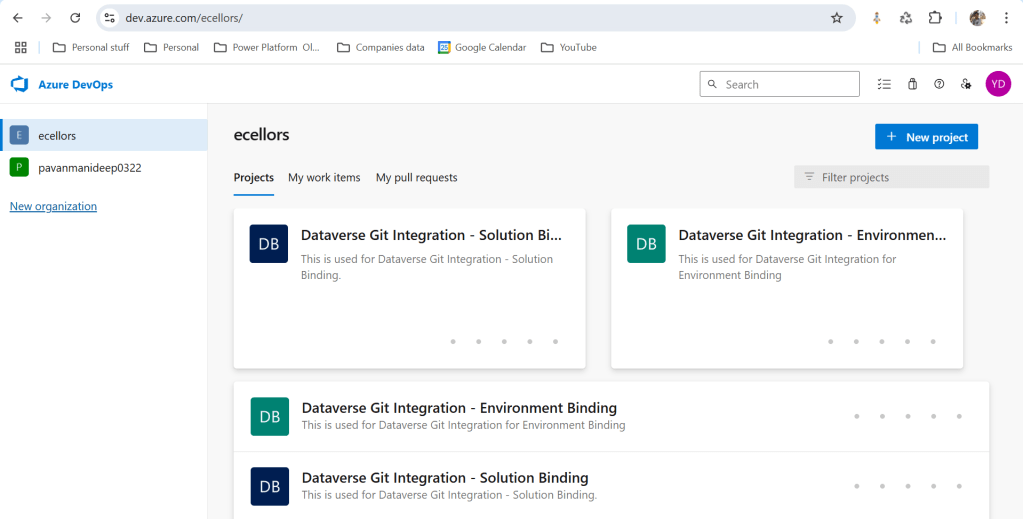
Let’s see one by one…for demoing purpose, I have created two projects in Azure DevOps Instance
Solution Binding: When we use this, all the components will be available as pending changes
Environment Binding: When we use this, all the unmanaged solution components will be mapped to one Azure DevOps root folder. Let’s set this up.
We are currently able to use only Solution binding, as Environment Binding doesn’t show up any changes to be committed, but there is a catch here.
We can set up for Environment binding and verify if the Solution components are getting marked as pending changes or not. Do note that Setting up the Binding is a one time activity for environment, once setup, it can’t be changed from one type to another.
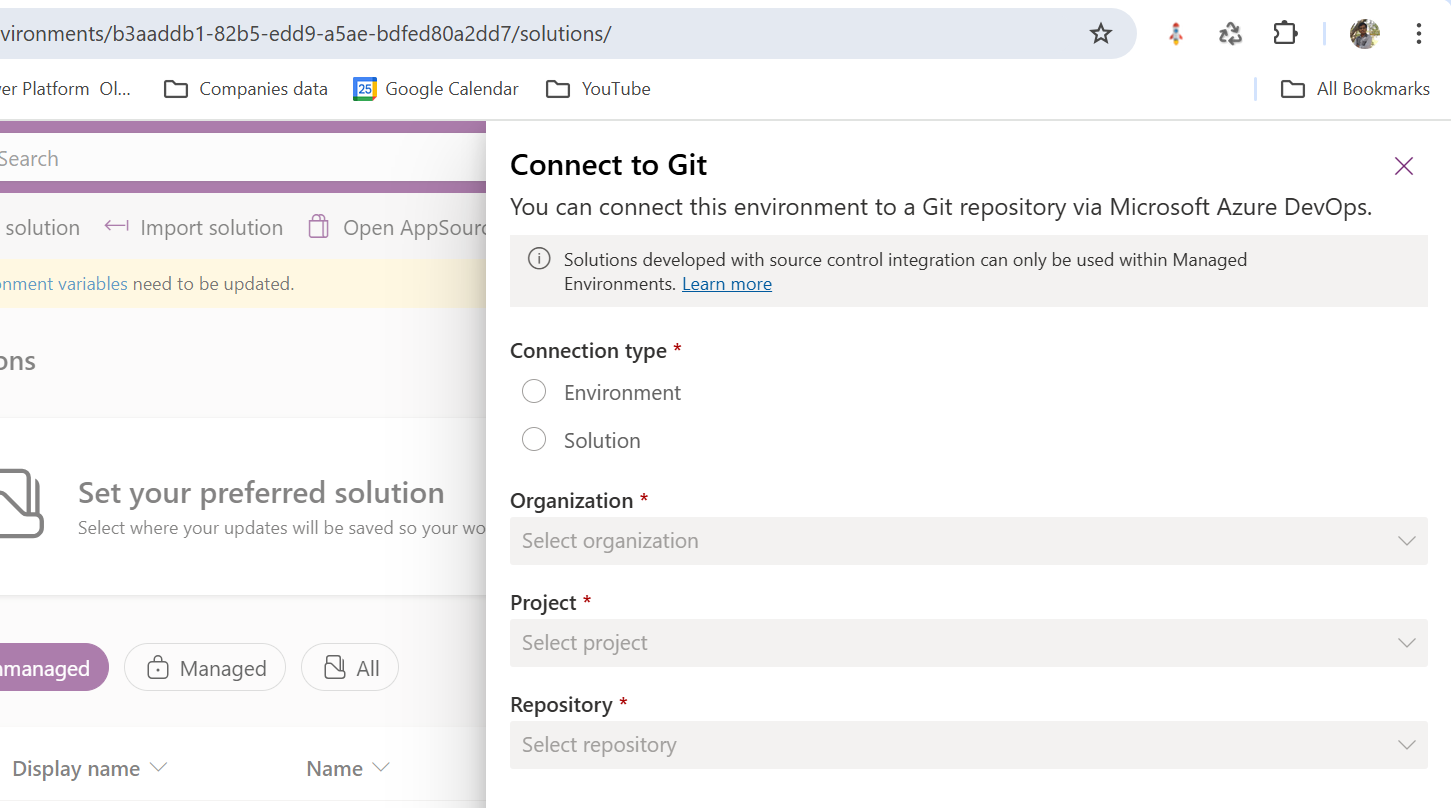
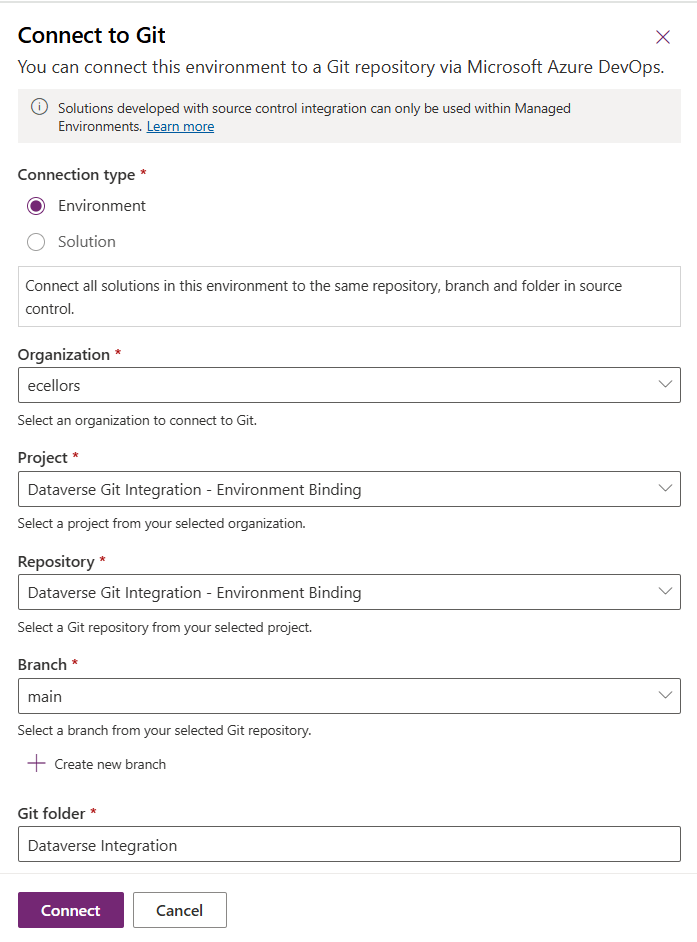
Since we were currently using Environment binding, let’s select the Connection Type as Environment
Then click on Connect, once connected, you should a alert message in power apps maker portal at the top.
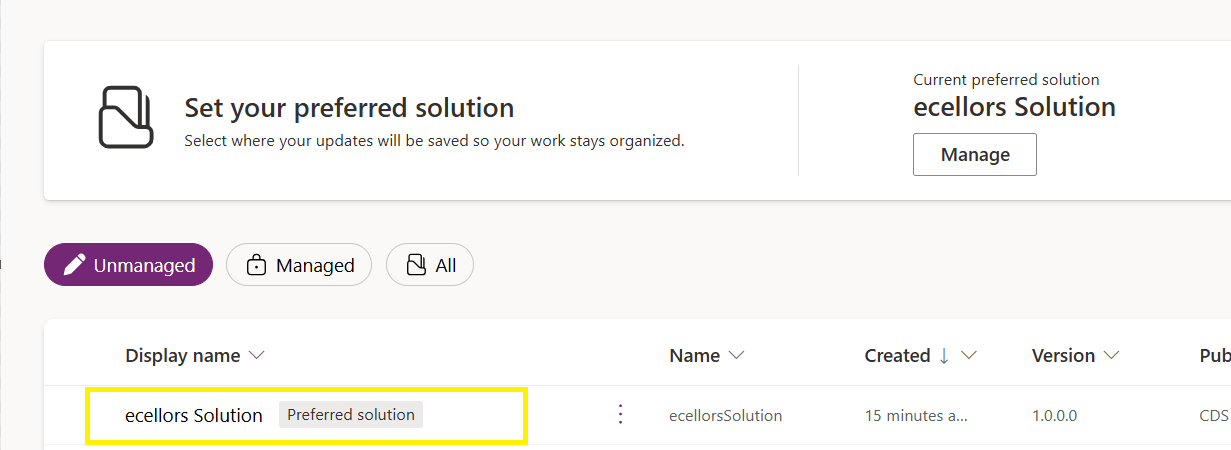
Now create a new solution as below named ecellors Solution
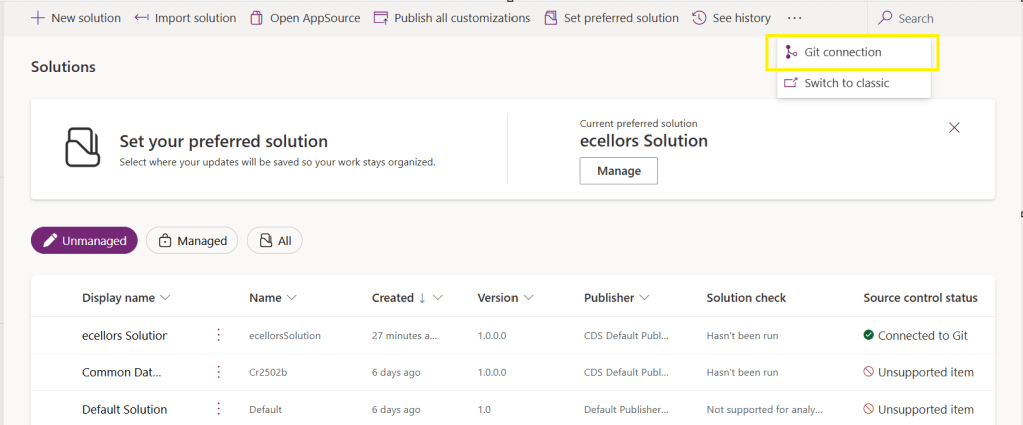
Verify the integration by clicking on Git Integration as below
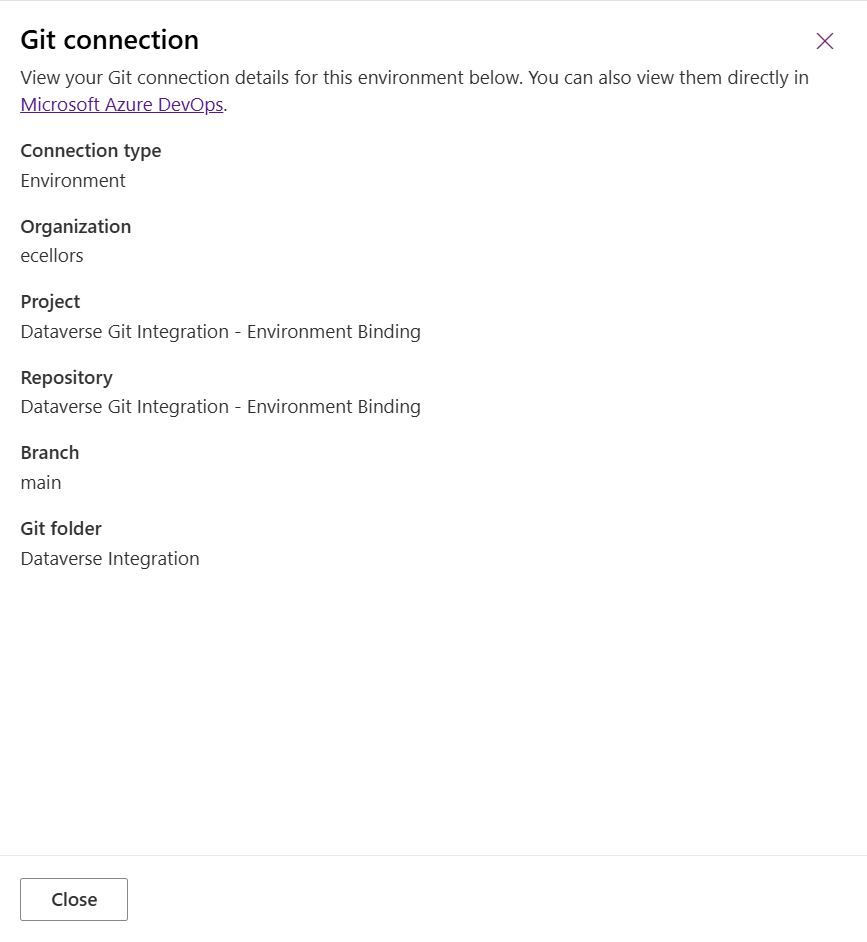
It should show as below
Now let’s add few components to the solution we created
Once added, let’s publish the unmanaged solution and verify it..
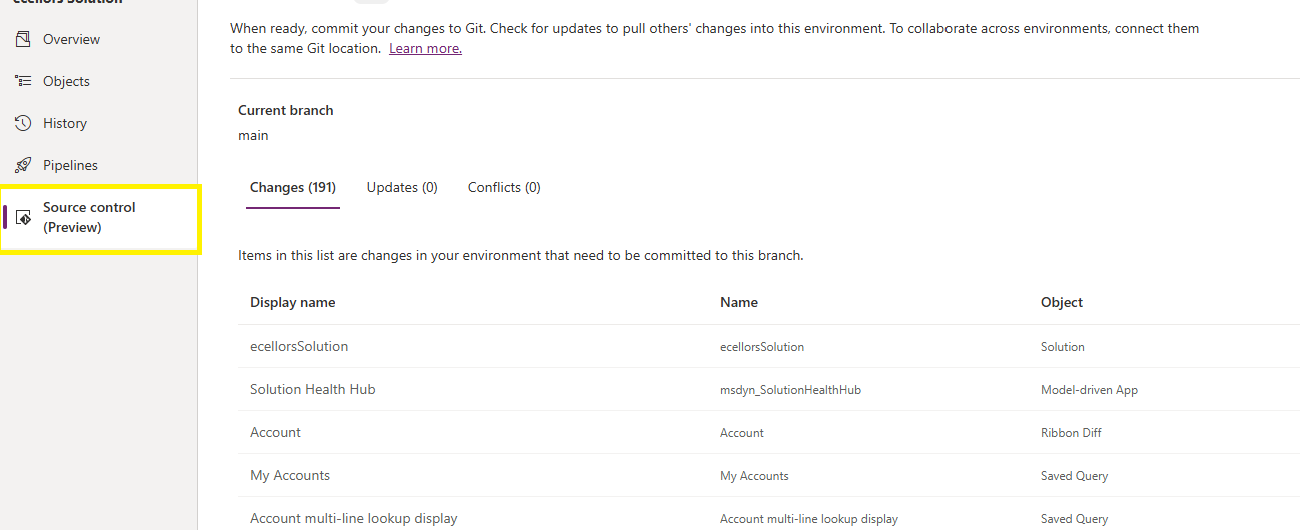
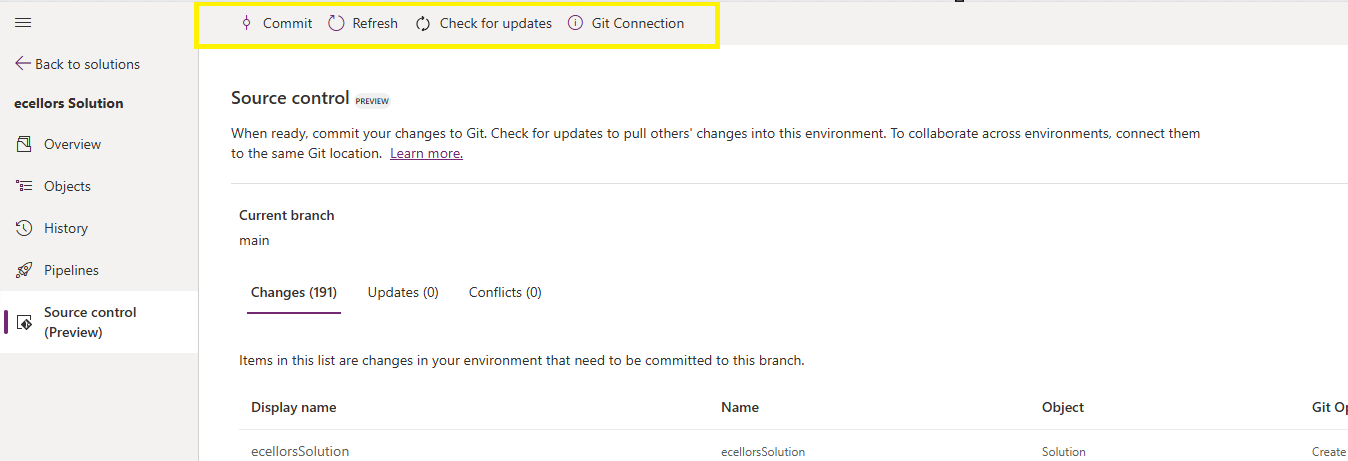
Do look closely, you should see a Source Control icon highlighted in yellow color for illustration.
Also, you should see a commit option available at the top
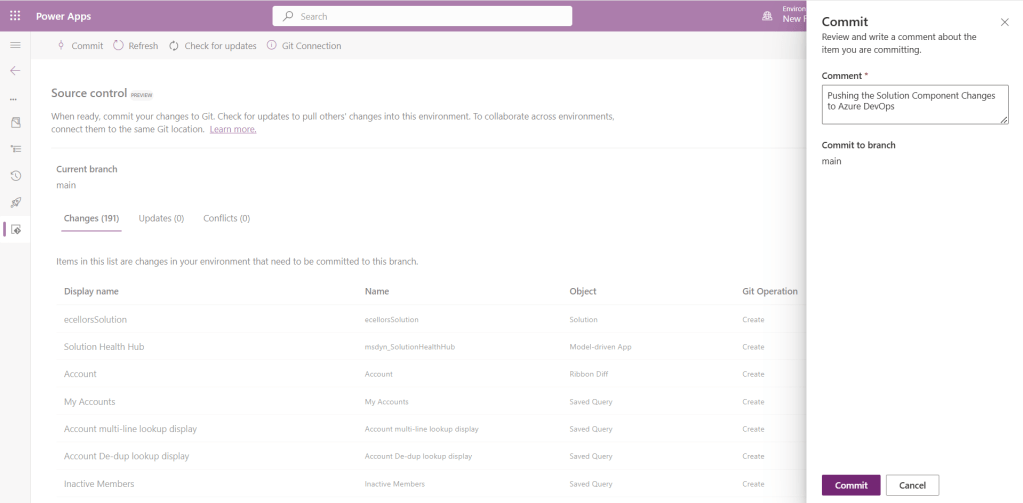
You should now be able to commit the solution components as if you are committing the code changes.
It also specifies the branch to which we were commiting…
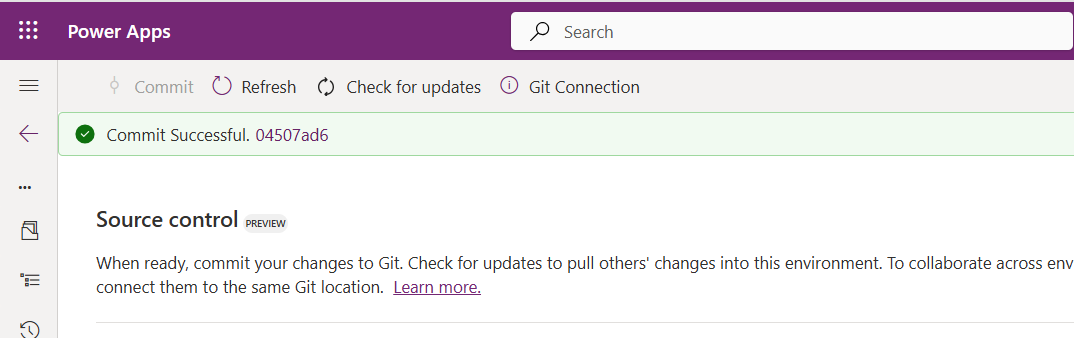
While it takes few minutes unlike pushing the code to Azure DevOps to push the changes, however this would depend based on the number of solution components you were pushing..once it is done, it will show a commit message like below…
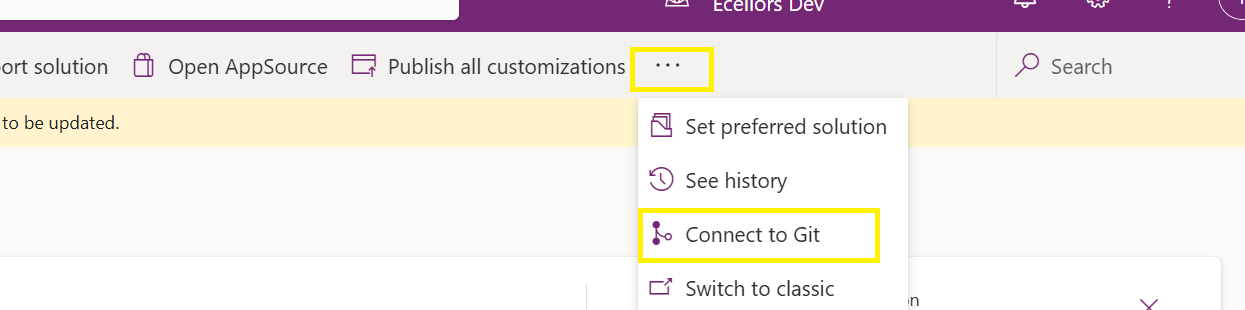
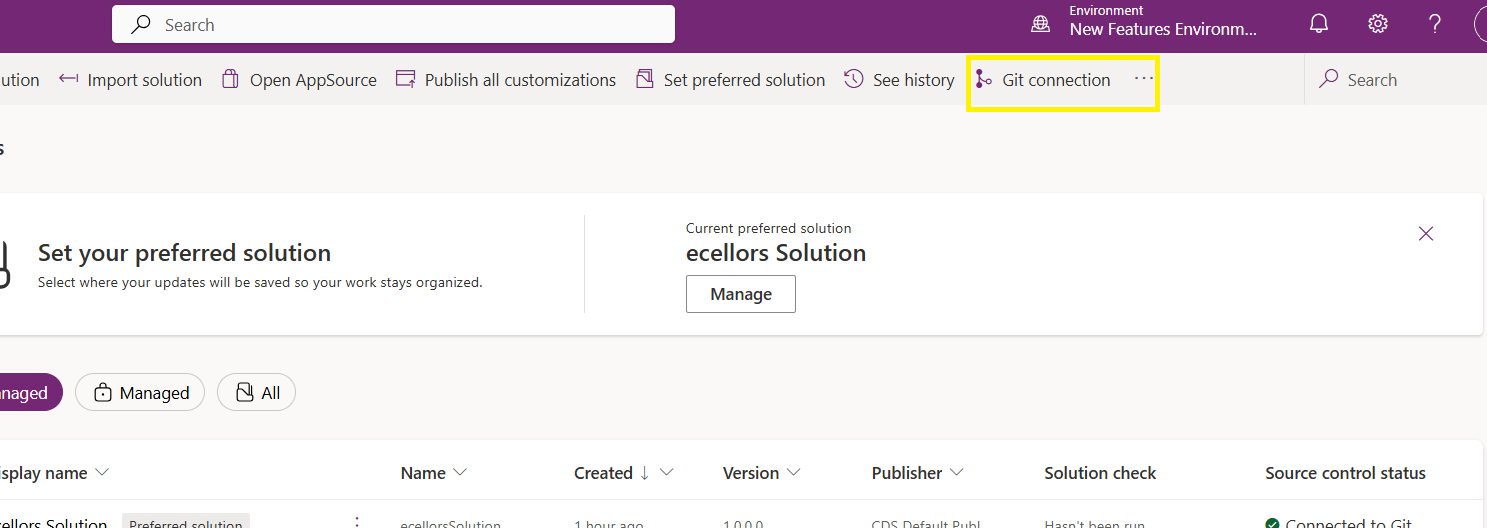
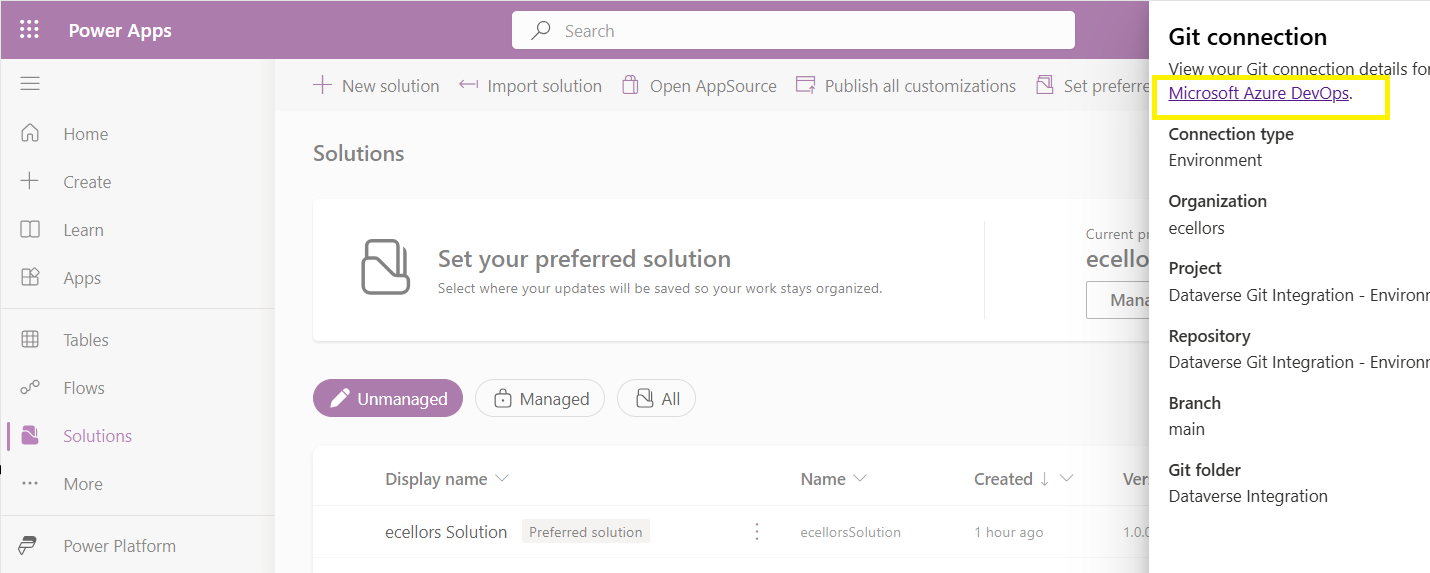
Now let’s verify our Azure DevOps Repo..for this you can go back to the main solutions page, click on Git Connection at the top..
After clicking on Git Connection, click on the link to Microsoft Azure DevOps as below
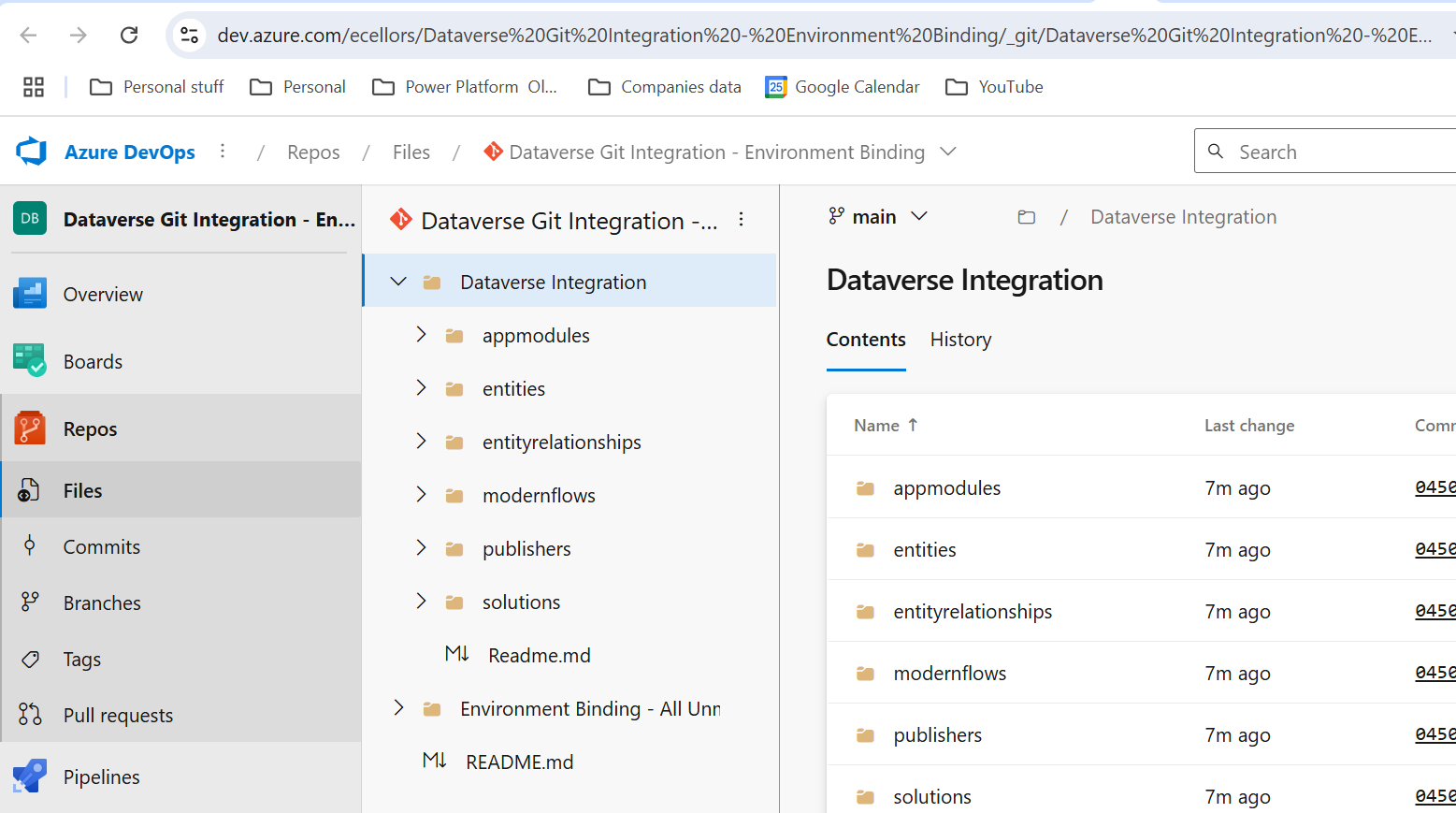
Then you should be navigated to Azure DevOps folder as below where all the solution files will be tracked component wise.
Now we will move back to Power Apps maker portal and make some changes to any of the components inside the solution…
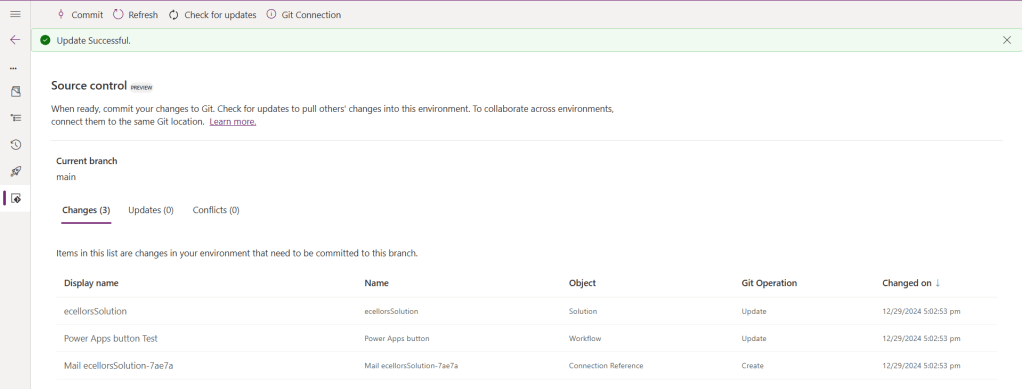
Let’s say, I just edited the flow name and created a new connection reference, saved and published the customizations.
If you did some changes at the Azure DevOps repo level, you can come back and click on Check for updates, if there were any conflicts between changes done in Azure DevOps and component in solution, it will be shown as conflict.
We now have 3 component changes and all were listed here…you can click on Commit.
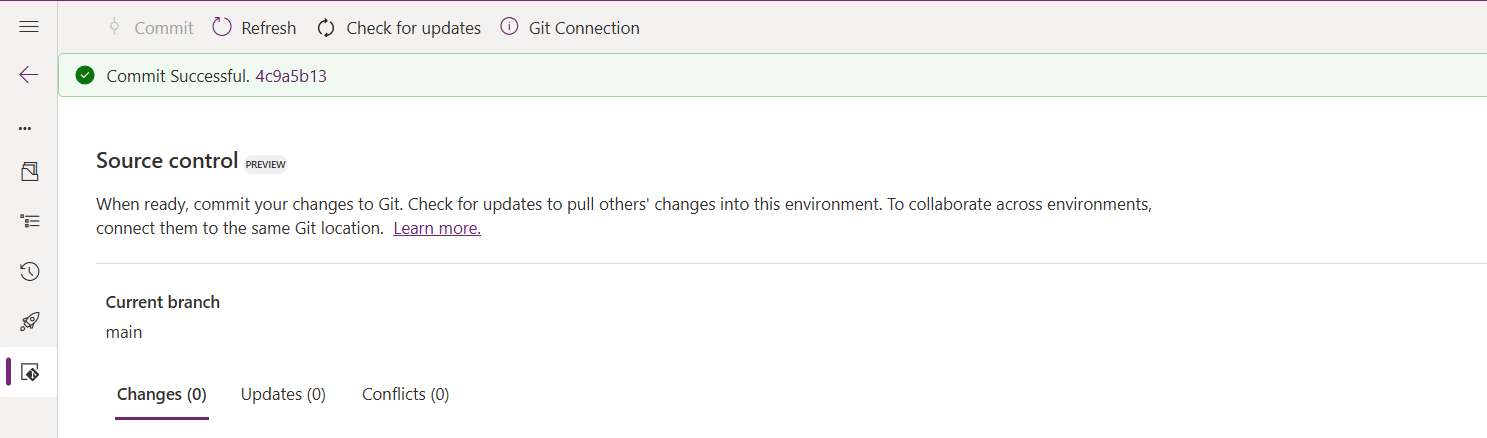
As soon as the changes are committed, you should see a message saying Commit Successful and 0 Changes, 0 Updates, 0 Conflicts.
Now you successfully integrated Dataverse Solution components with Azure DevOps without any manual intervention required while deploying solutions using Azure DevOps Pipelines.
Hope you learned something new today…while feature is still in Preview and only available for early release, while couple of issues still need to fixed by Microsoft.
I have tested this feature by creating an environment in US Preview region and this feature will be a good value to projects using Automation and this solution repository can be further deployed to other environments using Azure DevOps Pipelines.
This will be rolled out soon next year, hope you learned something new today…
This is an introductory post, but it’s worth going through where I will be sharing basics about using Centre of Excellence(COE) in Power Platform. Let’s get started.
So, what’s Center of Excellence? COE plays a key role in deriving strategy and move forward in this fast-paced world to keep up with the innovation. Firstly, we may need to ask ourselves few questions…Do your organization have lot of flows, apps and copilots aka power virtual agents? Do you want to effective manage them? Then how you want to move forward…using COE Starter kit is a great choice. It is absolutely free to download, the starter kit is a collection of components and tools which will help to oversee and adopt Power Platform Solutions. The assets part of the CoE Starter Kit should be seen as a template from which you inherit your individual solution or can serve as inspiration for implementing your own apps and flows.
There were some prerequisites before you can install your COE Starter Kit. Many of the medium to large scale enterprise Power Platform implementations should be possessing in their tenant.
Microsoft Power Platform Service Admin, global tenant admin, or Dynamics 365 service admin role.
Dataverse is the foundation for the kit.
Power Apps Per User license (non-trial) and Microsoft 365 license.
Power Automate Per User license, or Per Flow licenses (non-trial).
The identity must have access to an Office 365 mailbox that has the REST API enabled meeting the requirements of Outlook connector.
Make sure you enable the Power Apps Code Components in Power Platform Admin Center
If you want to track unique users and app launches, you need to have Azure App Registration having access to Microsoft 365 audit log.
If you would like to share the reports in Power BI, minimally you require a Power BI pro license.
Setting up communication groups to talk between Admins, Makers and Users.
Create 2 environments, 1 for test and 1 for production use of Starter Kit
Install Creator Kit in your environment by downloading the components from here
The following connectors should be allowed to effectively use data loss prevention policies(DLP)
Once you were done checking the requirements, you can download from the starter kit here.
You can optionally install from App Source here or using Power Platform CLI here.
The kit provides some automation and tooling to help teams build monitoring and automation necessary to support a CoE.
While we saw what advantages are of having COE in your organization and other prerequisites. In the upcoming blog post, we will see how you can install COE starter kit in your Power Platform tenant and set it up to effectively plan your organization resources for highest advantage.
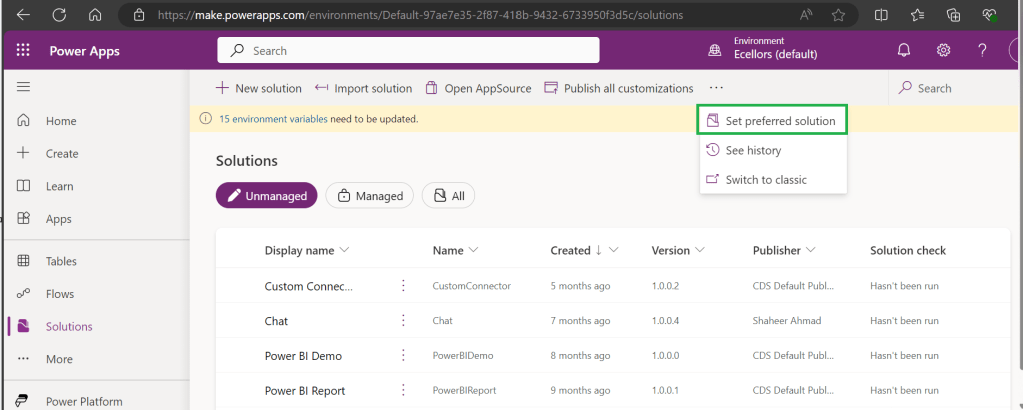
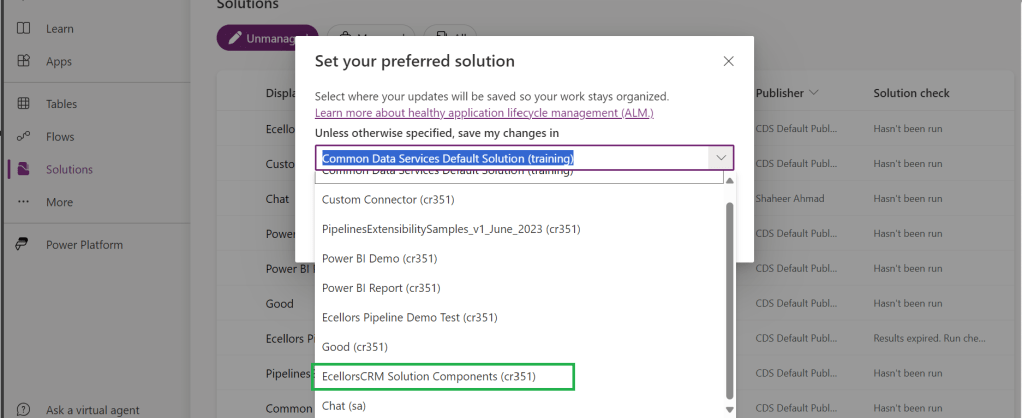
Today, I will be pointing out the advantages of using Preferred Solution and it’s consequences of using or removing it…while the feature is out there from quite few months, yet many of the Power Platform Projects are not utilizing this feature, it can reduce your hassles when many people are working together in a team and you can make sure everyone’s changes go to this solution.
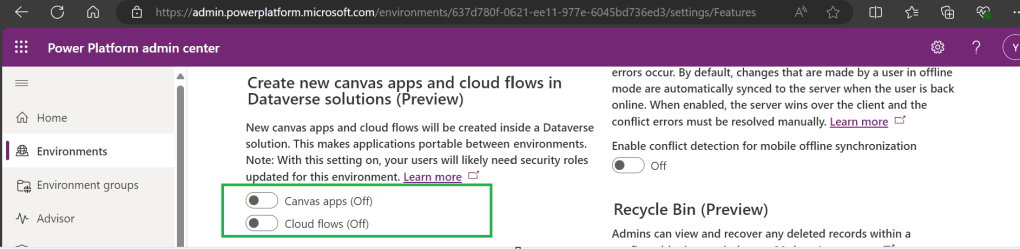
Here we understand what Preferred Solution means to the makers, firstly in order to use this affectively, let’s turn the feature to create Canvas Apps & Cloud Flows in Solutions by enabling this preview feature as suggested below from https://admin.powerplatform.com, this is not mandatory step but would be better as you can add Power Automate flows and Canvas Apps in the Solution and click Save.
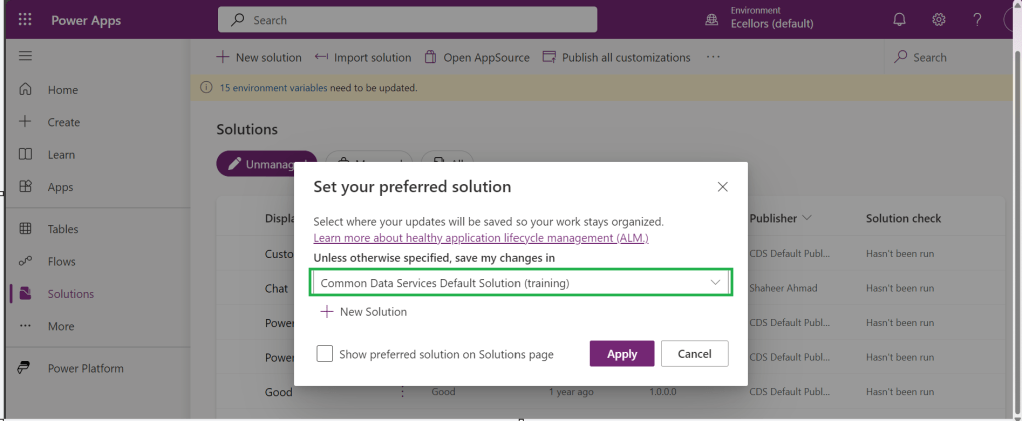
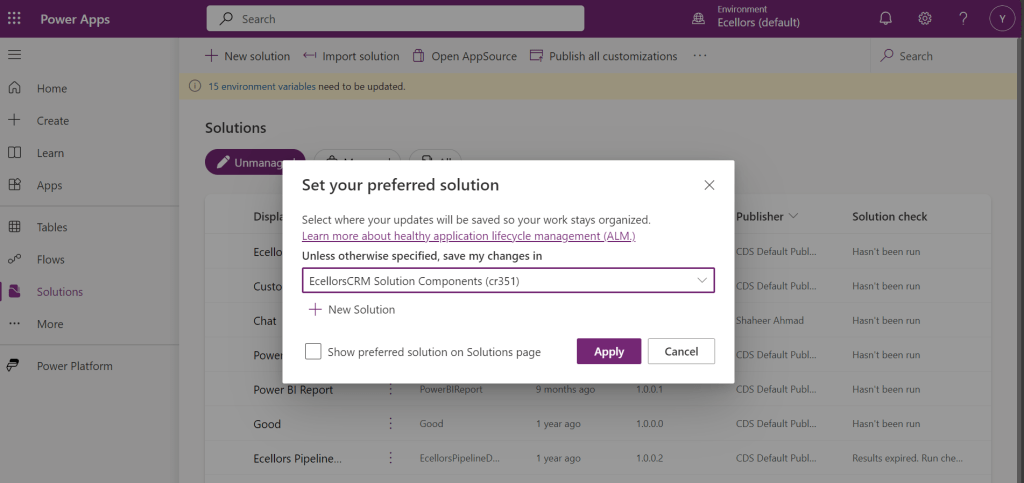
If no preferred solution is set, by default, it will show the Common Data Service Default Solution to set as Default Solution, if you wish to set another Solution, you can select the respective Solution from the drop down.
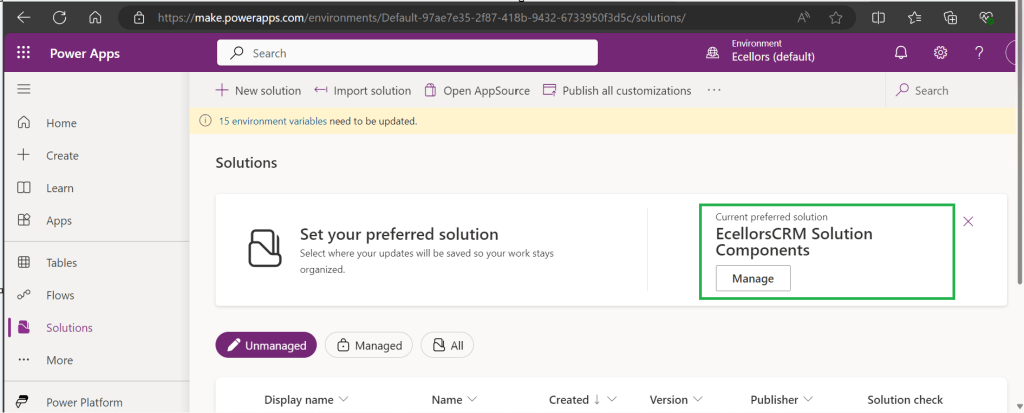
Enable/Disable the toggle to show Preferred Solution option in the Solutions Page.
Just click on Apply.
Advantages:
Once preferred Solution is set, any components added by the makers would by default go the Preferred Solution, so makers need not worry about choosing right Solution while creating Power Platform Components.
No need to worry if the solution components will be added in the default solution as the new components will be added to the preferred solution automatically.
Limitations:
Preferred Solutions can be only set in Modern Designer
Components created in Classic Designer won’t go to Preferred Solutions
Custom Connector, Connections, DataFlows, Canvas Apps created from Image or Figma Design, Copilots/Agents, Gateways
You can always delete your preferred solution so that other makers can set their preferred solution, but do this with caution so that none of your team members or your works gets impacted.
Hope this saves few seconds of your valuable time…
Well this post is not related to Power Platform, but I want to bring it on here to specify the significance of using NOLOCK in Power Platform Implementations using SQL Server.
Recently during our Deployment activity, we had a SSIS job which is writing a lot of data into SQL Server, at the same time, we were trying to read the data from the same table. I received never ending Executing query … message. It is when I had arguments on this, hence I would like to share the significance of NOLOCK.
The default behaviour in SQL Server is for every query to acquire its own shared lock prior to reading data from a given table. This behaviour ensures that you are only reading committed data. However, the NOLOCK table hint allows you to instruct the query optimizer to read a given table without obtaining an exclusive or shared lock. The benefits of querying data using the NOLOCK table hint is that it requires less memory and prevents deadlocks from occurring with any other queries that may be reading similar data.
In SQL Server, the NOLOCK hint, also known as the READUNCOMMITTED isolation level, allows a SELECT statement to read data from a table without acquiring shared locks on the data. This means it can potentially read uncommitted changes made by other transactions, which can lead to what’s called dirty reads.
Here’s an example:
Let’s say you have a table named Employee with columns EmployeeID and EmployeeName.
Now, if two transactions are happening concurrently:
Transaction 1:
BEGIN TRANSACTION
UPDATE Employee
SET EmployeeName = 'David'
WHERE EmployeeID = 1;
Transaction 2:
SELECT EmployeeName
FROM Employee WITH (NOLOCK)
WHERE EmployeeID = 1;
If Transaction 2 uses WITH (NOLOCK) when reading the Employee table, it might read the uncommitted change made by Transaction 1 and retrieve 'David' as the EmployeeName for EmployeeID 1. However, if Transaction 1 rolled back the update, Transaction 2 would have obtained inaccurate or non-existent data, resulting in a dirty read.
Key takeaways about NOLOCK:
✅ Pros: Reduces memory use, avoids blocking, speeds up reads.
❌ Cons: May read uncommitted or inconsistent data.
Using NOLOCK can be helpful in scenarios where you prioritize reading data speed over strict consistency. So, in my case as I want to just view the data, using NOLOCK is good without locking the query. However, it’s essential to be cautious since it can lead to inconsistent or inaccurate results, especially in critical transactional systems.
Other considerations like potential data inconsistencies, increased chance of reading uncommitted data, and potential performance implications should be weighed before using NOLOCK.
Conclusion:
There are benefits and drawbacks to specifying NOLOCK table hint as a result they should not just be included in every T-SQL script without a clear understanding of what they do. Nevertheless, should a decision be made to use NOLOCK table hint, it is recommended that you include the WITHkeyword. Using NOLOCK without WITH Statement is deprecated. Always use a COMMIT keyword at the end of the transaction.
I have been encountering a strange error since past few weeks now. If you search for this error in Internet you find nothing…the detailed error message obtained from the Plugin Trace Log is as below
System.ServiceModel.FaultException`1[Microsoft.Xrm.Sdk.OrganizationServiceFault]: Exception occured ... at Microsoft.Xrm.RemotePlugin.Grpc.SandboxFabricGrpcClient.ExecutePluginInternal(IRemotePluginRequest pluginRequest, ExecuteRequest executeRequest, Guid executionId, ISandboxFabricDuplexCommunicationHandler communicationHandler, Boolean returnTraceInfo, Guid organizationId, SandboxFabricCallTracker sandboxFabricCallTracker) +0x5d0
at Microsoft.Xrm.RemotePlugin.Grpc.SandboxFabricGrpcClient.ExecutePlugin(IRemotePluginRequest pluginRequest, IPluginExecutionContext executionContext, IPluginTracingService pluginTracingService, ISandboxFabricDuplexCommunicationHandler communicationHandler, ISet`1 earlySerializedPropertiesList, SandboxFabricCallTracker sandboxFabricCallTracker, ISandboxMemoryStreamProvider memoryStreamProvider) +0x2cd
at Microsoft.Xrm.RemotePlugin.Grpc.SandboxFabricCodeUnit.Execute(ILifetimeScope scope, IExecutionContext context, SandboxFabricCallTracker& sandboxFabricCallTracker, ISandboxMemoryStreamProvider memoryStreamProvider) +0x6e
at Castle.Proxies.Invocations.ISandboxFabricCodeUnit_Execute.InvokeMethodOnTarget() +0x13
at Castle.DynamicProxy.AbstractInvocation.Proceed() +0x2d
at Microsoft.Xrm.RemotePlugin.Client.Interceptors.SandboxFabricPluginTraceInterceptor.Intercept(IInvocation invocation, IExecutionContext context, SandboxFabricCallTracker sandboxFabricCallTracker) +0x1f
The error message looked so strange to me and I couldn’t get any idea on what is happening, I thought some problem with the Plugin Code and it was executing more than 2 mins and hence causing error related to Sandbox service of Dynamics 365. I was executing this logic placed inside an action from Power Automate…this took couple of hours to figure out what was happening…
With no clue, I had started to change Plugin Code in the following ways…
Change the Synchronous Plugin to Asynchronous Plugin
It doesn’t show any error in Power Automate now, but in the Plugin Trace Log, it still throws the error
Add Try – Catch Block
Add try catch block made me understood that Plugin was causing an exception due to type casting issue in my logic. This worked…
FYI, I have removed some sensitive information from the below error message.
Microsoft recommends us to use Try – Catch block for efficient error handling, in the first place, so always use proper error handling while developing Plugins, Actions or Custom Workflows in Dynamics 365 to avoid such errors.
If you face this kind of error, this is some issue within your code and nothing to do with Microsoft Services, no need to raise a Microsoft Support Ticket for resolving this.
In App notifications are trending these days where many customers are showing interest in implementing these for their businesses.
So, in this blog post, I am going to show you the easiest way to generate In App notification using XrmToolBox in few clicks. Use the below tool to generate one.
So, let me walk you through step by step
Step 1: Open In App Notification Builder in XrmToolBox
Step 2: In App notification is a setting that should be enabled at App level, so meaning if you have developed few Model Driven Apps, you will be able to enable the In App notification individually for each one of them.
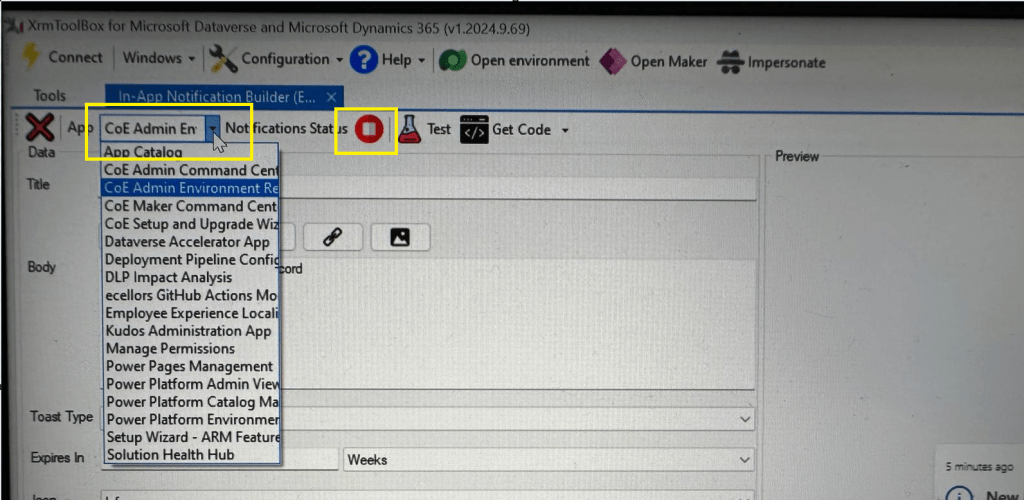
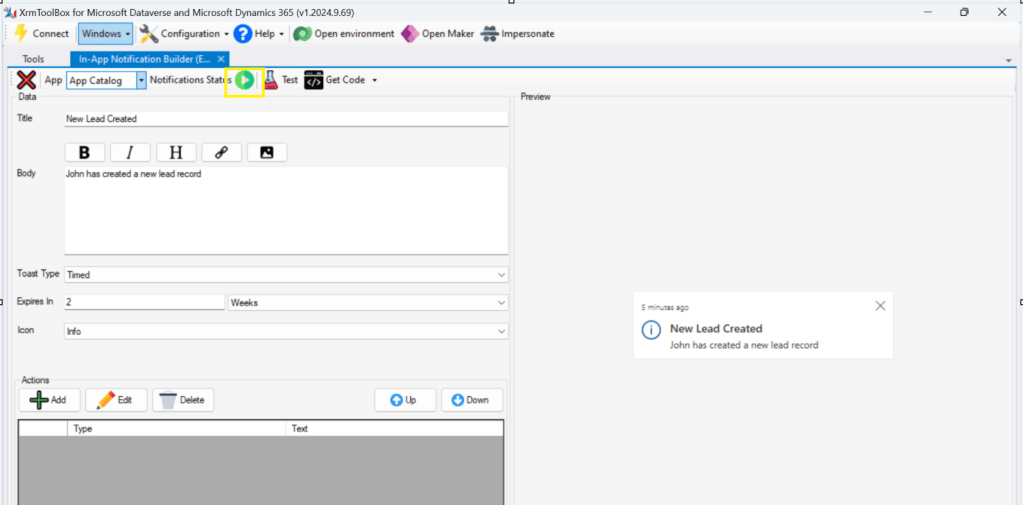
Step 3: In the above snapshot, we should be able to select the respective App for which we want to enable the In App Notification. Red bubble besides indicate that the In App notification is not enabled for this App.
So, we need to enable it by clicking on the red icon itself, you should then be able to get this prompt as below.
Step 5: Upon confirming the confirmation dialog box, the In App notification will be enabled for that App and you the red button turns to green as below saying that In App Notification is enabled.
Now that the In App notification is enabled in the App, we will proceed with the remaining setup.
Step 6: You can proceed to give a meaningful title, body for you In App Notification. Also mention the required toast type and specify the expiry duration, Icon. Also Click on Add icon and choose the action required to be performed when In App notification is clicked.
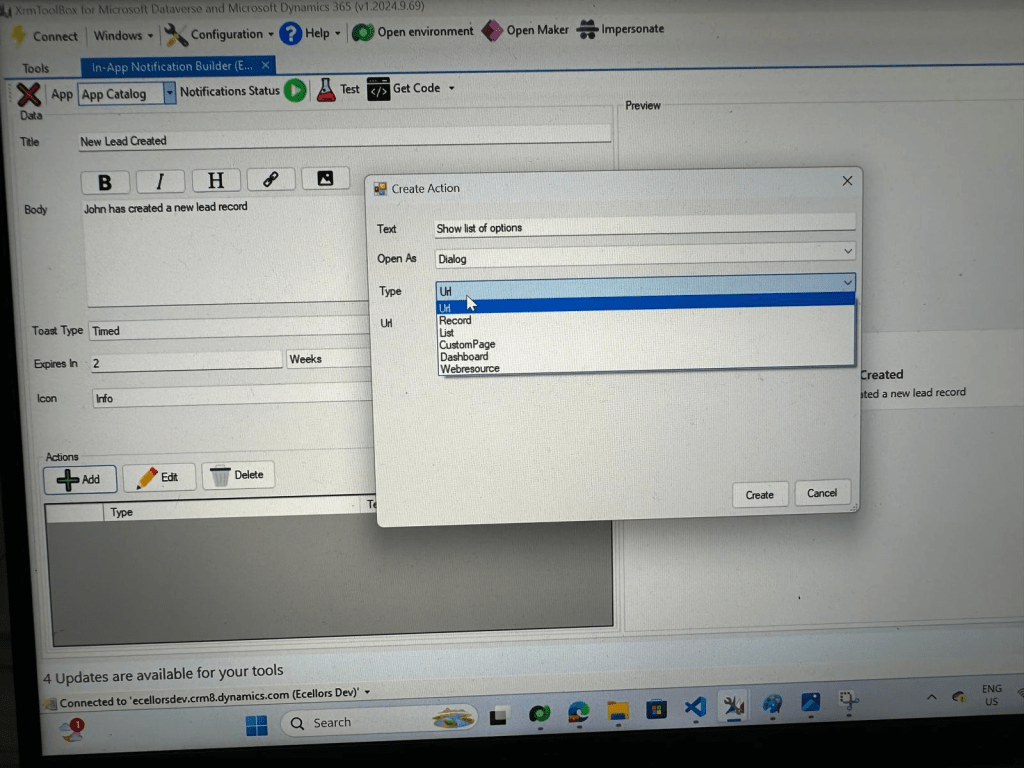
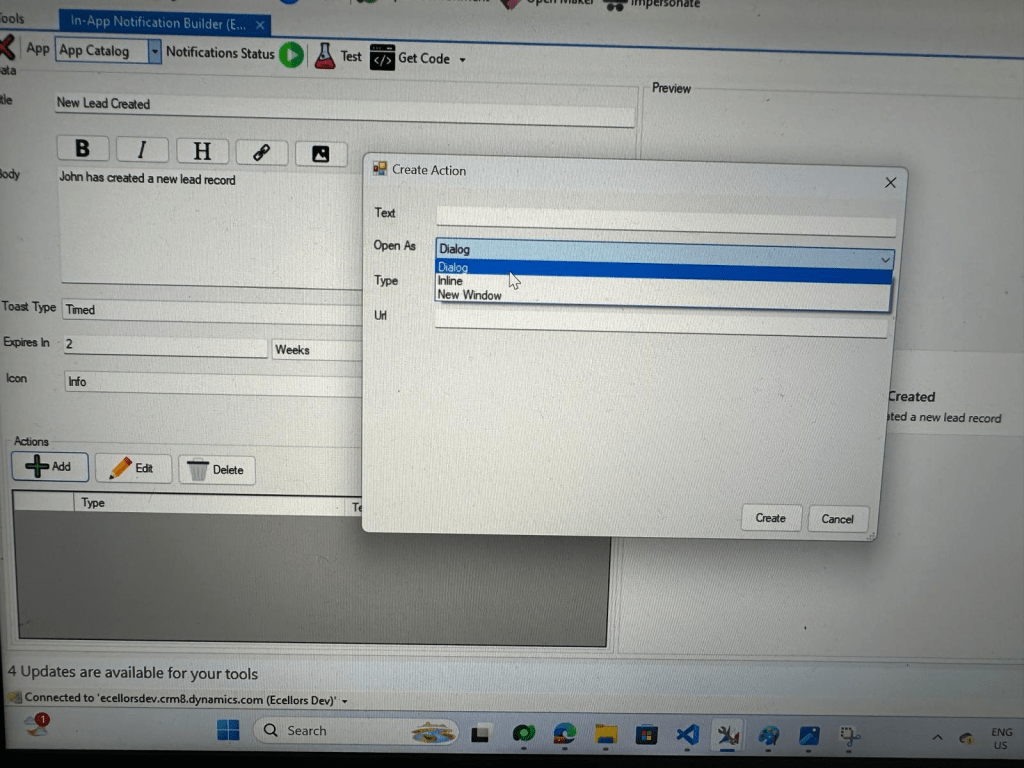
Step 9: You can even choose the type of action to be performed…
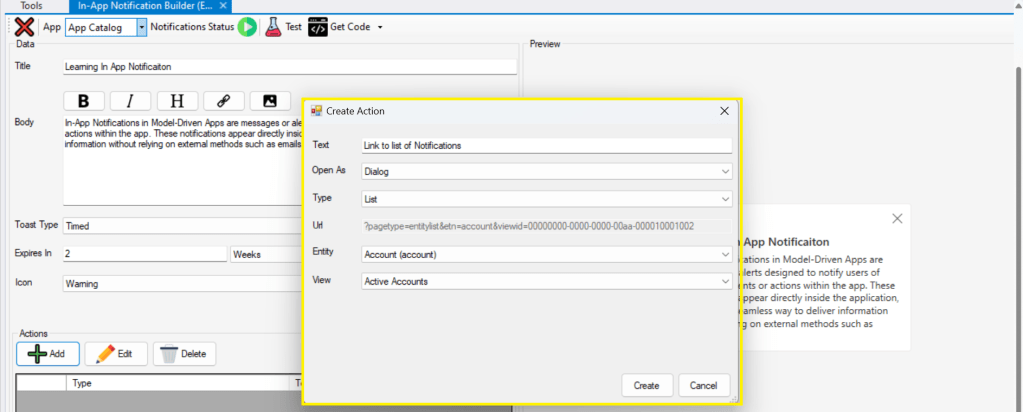
For example, let’s use to open as dialog and show list view
Your screen should look something like below
Step 10: Once done, you can click on create and that’s it you have now created In App Notification. Now let’s test this for the user who have priveleges to access this App.
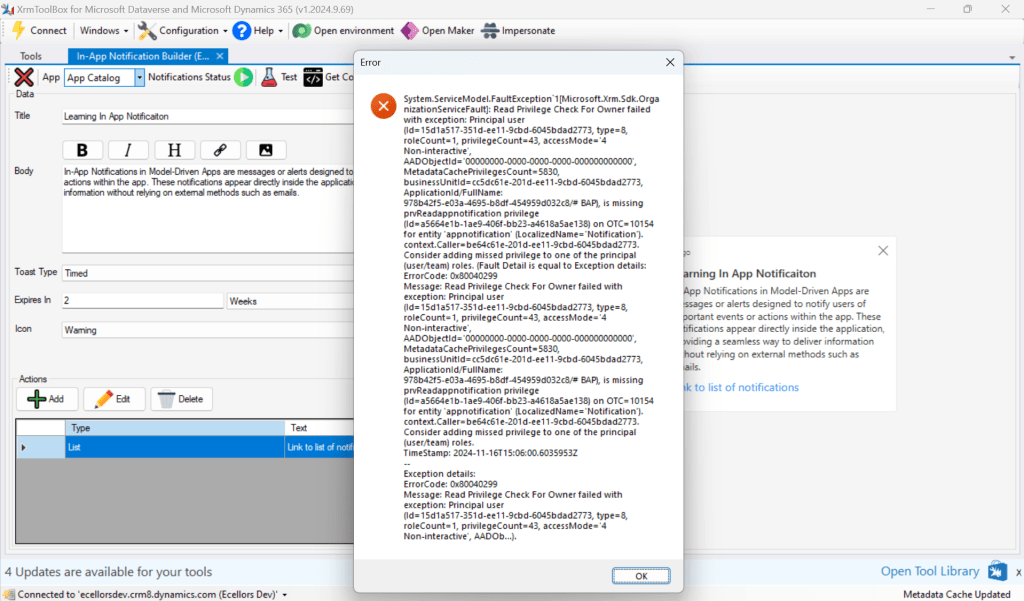
If not, you will face this error..
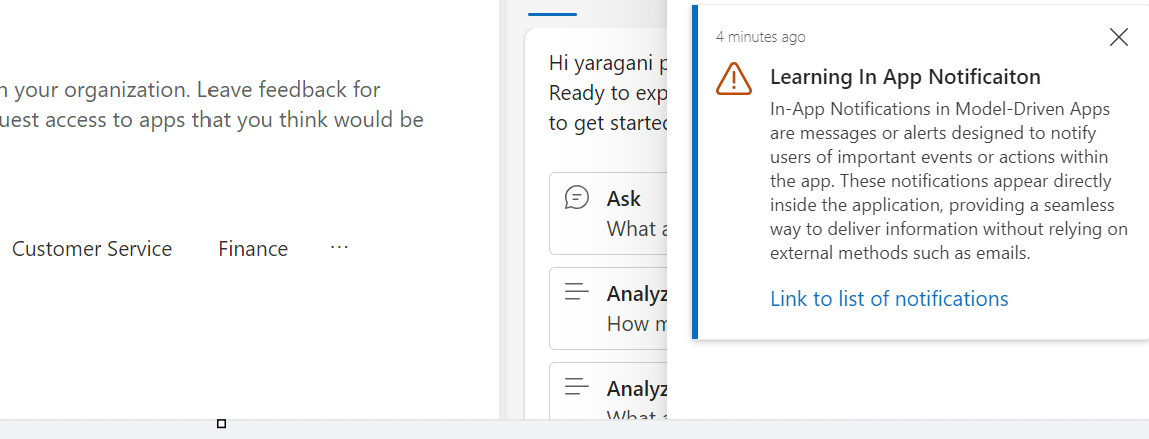
Log in with user account for which the In App Notification is triggered.
Hurray!!!! That’s it, how easy it was to create In App Notification in Low Code manner.
You can even get the code behind this as well…
However, there were other ways to trigger the In App Notification from a Pro Code angle, let’s discuss those as well.
In this case you need to manually turn the In App Notification feature on by going to settings for the Model Driven App as below first.
Notifications can be sent using the SendAppNotification message using SDK.
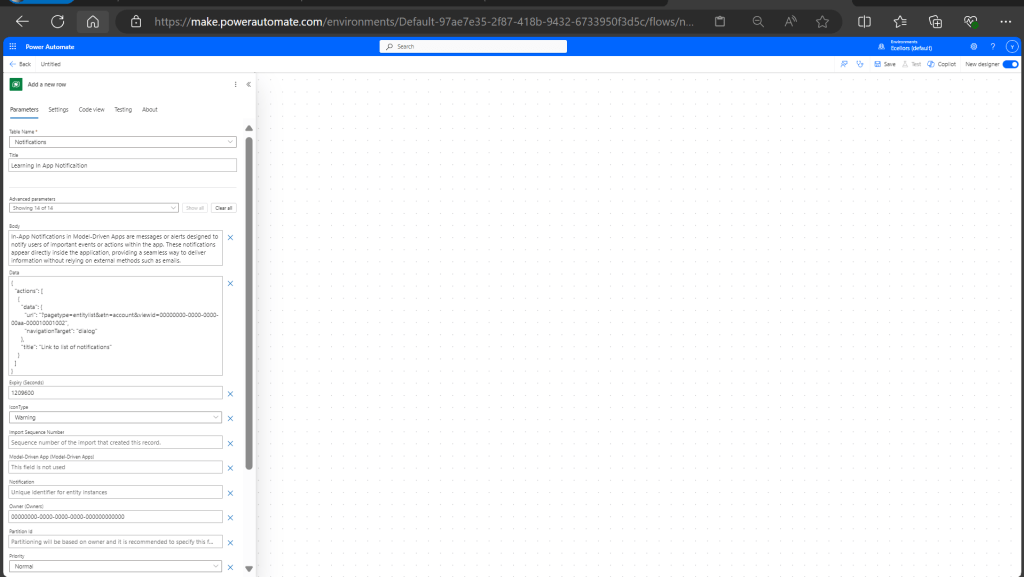
You can either trigger from and can choose based on your convenience to trigger a similar notification.
Client Scripting
This file contains hidden or bidirectional Unicode text that may be interpreted or compiled differently than what appears below. To review, open the file in an editor that reveals hidden Unicode characters.
Learn more about bidirectional Unicode characters
'body': `In-App Notifications in Model-Driven Apps are messages or alerts designed to notify users of important events or actions within the app. These notifications appear directly inside the application, providing a seamless way to deliver information without relying on external methods such as emails.`,
This file contains hidden or bidirectional Unicode text that may be interpreted or compiled differently than what appears below. To review, open the file in an editor that reveals hidden Unicode characters.
Learn more about bidirectional Unicode characters
["body"] = @"In-App Notifications in Model-Driven Apps are messages or alerts designed to notify users of important events or actions within the app. These notifications appear directly inside the application, providing a seamless way to deliver information without relying on external methods such as emails.",
["ownerid"] = new EntityReference("systemuser", new Guid("00000000-0000-0000-0000-000000000000")),
["icontype"] = new OptionSetValue(100000003), // Warning
["toasttype"] = new OptionSetValue(200000000), // Timed
This blog post is all about the latest features released in Power BI Desktop for DAX(Data Analysis Expressions) using DAX Query View.
Do you have the requirement any time to document your DAX functions used in your Power BI Report, then use the DAX query view which introduced new DAX functions to get metadata about your semantic model with the INFO DAX functions.
Firstly, if you were not aware, DAX Query view is the recent addition where we can query the model similar to how the analysts and developers used Power BI Desktop or other 3rd party tools to get the same information earlier. You can access DAX Query view as below in green.
When you navigate to the DAX Query view, key points to note are as below
DAX Queries will be directly saved to your Model when saved from DAX Query View
DAX Query View will not be visible when the Power BI Report is published to the Power BI Service
The results of the DAX will be visible at the bottom of the page as shown below
IntelliSense is provided by default
There were 4 DAX INFO.VIEW Functions introduced as below
List all your Measures using INFO.VIEW.MEASURES() This lists down all the measures in your Semantic Model, it also provides the Expression used for the Measure along with which table it was created.
I have selected the whole results of the measures and Copy the results you see see in the table below
Just go to Model View and click Enter Data
You will be shown a screen like this
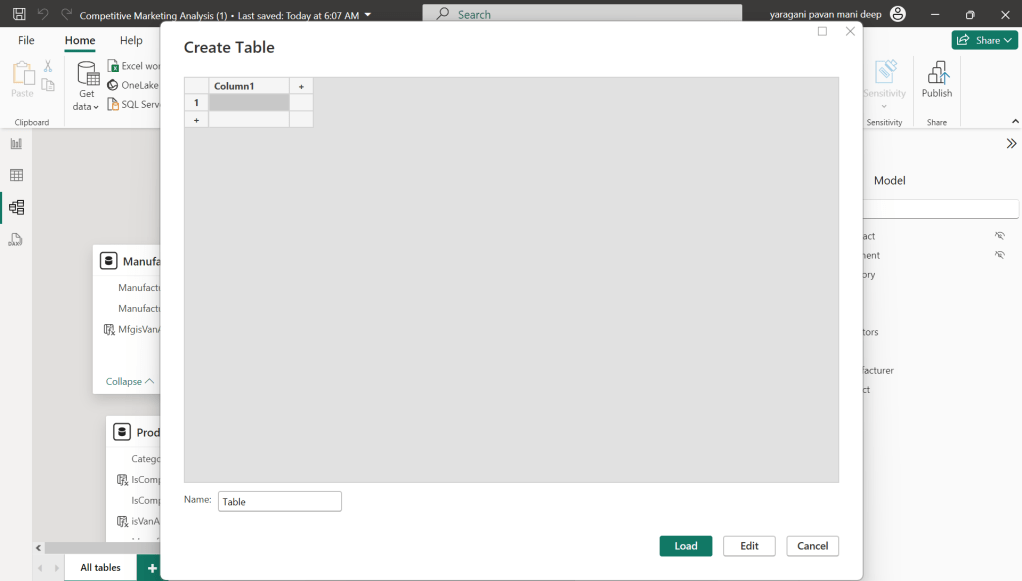
Just do a Cntrl + V as you have previously copied the table information
That’s it, how easy it was to document all the Measures, similarly you can document all the Meta Data available for the Power BI Report.
That’s it for today, hope you learned a new feature in Power BI Desktop…
Last week Microsoft Power CAT Team had released a white paper on Power Automate Best Practices which is mainly for Power Automate Developers who want to scale up their Power Automate Flows in enterprise implementations.
It has been extremely useful and insightful, so I thought of sharing with everyone again.





















 ECELLORS CRM Blog