Establishing tenant hygiene with the CoE Starter Kit – Learn COE #04

Hi Folks,

In this blog post, I am going to talk about establishing tenant hygiene using COE Stater kit, in today’s world where there increasing Power Platform demand. Organizations have become mature, that every implementation is now looking for having some kind of governance being established.

If you were some one who want to get some knowledge of implementing governance, you were at right place.

In order to efficiently implement governance, we need to understand the environment strategy, your current implementation has used. Of course if you were looking for some guidance, there were examples of tooling available in the CoE Starter Kit and out-of-the-box capabilities to help CoE teams effectively manage and optimize their Power Platform solutions.

Few key steps to be considered for maintaing this in your environment, so let’s get started…

  1. Define Environment Strategy
  • Assign your admins the Power Platform service admin or Dynamics 365 service admin role.
  • Restrict the creation of net-new trial and production environments to admins
  • Rename the default environment to ‘Personal Productivity’
  • Provision a new Production environment for non-personal apps/flows
  • Define and implement your DLP policies for your environments
  • When establishing a DLP strategy, you may need multiple environments for the same department
  • When establishing your Power Platform environment strategy, based upon your licensing, you may find that you need to provision environments without a Dataverse (previously called Common Data Service) database and also use DLP policies to restrict the use of premium connectors.
  • Establish a process for requesting access or creation of environments
  • Dev/Test/Production environments for specific business groups or application
  • Individual-use environments for Proof of Concepts and training workshops
  • Use a service account to deploy production solutions
  • Reduce the number of shared development environments
  • Share resources with Microsoft Entra Security Groups.

2. Compliance and Adoption:

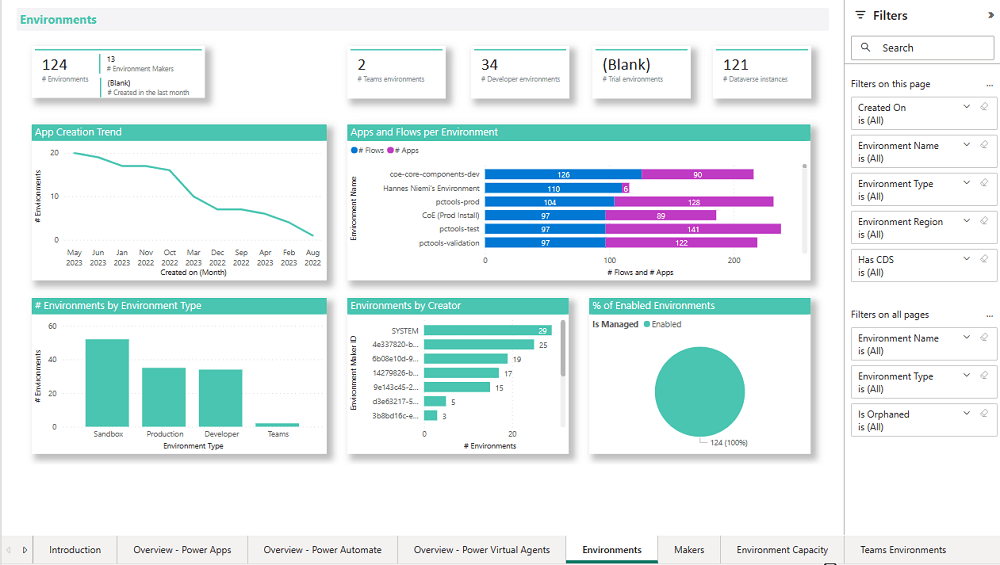
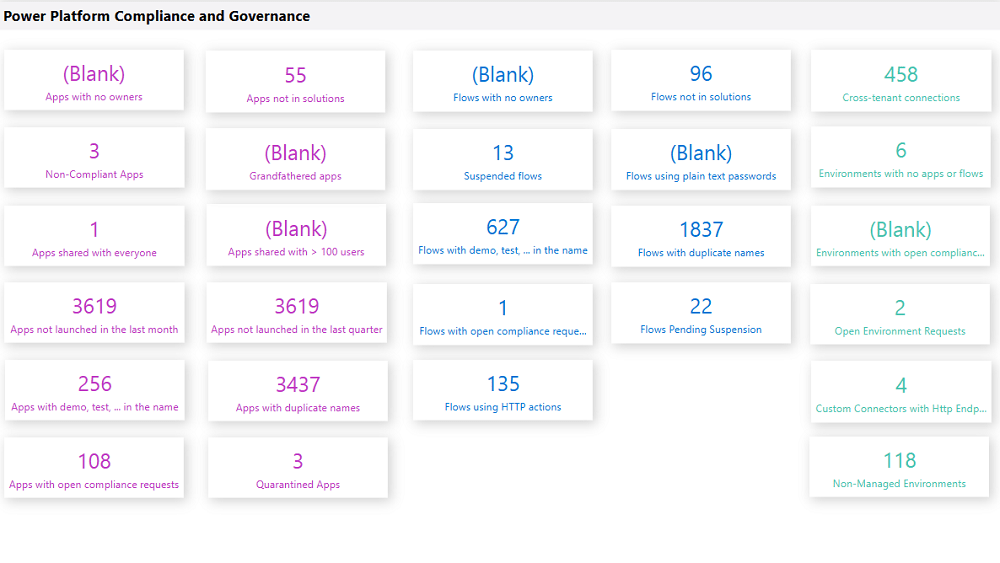
The Compliance page in the CoE Starter Kit’s Compliance and adoption dashboard can help you identify apps and flows with no owners, noncompliant apps, and suspended flows.
  • Rename and secure the default environment
  • Identify unused apps, pending suspension, suspended cloud flows and not without an owner or not in solutions
  • Quarantined noncompliant apps and clean up orphaned resources
  • Enable Managed Environments and establish a data loss prevention policy
  • Apply cross tenant isolation
  • Assign Administrator roles appropriately
  • Apps and flows with duplicate names not compliant with DLP policies or billing policies
  • Apps shared with everyone and apps shared with more than 100 users and Apps not launched in the last month and in the last quarter
  • Flows using plain text passwords and using HTTP actions
  • Cross-tenant connections
  • Environments with no apps or flows
  • Custom connectors using HTTP environments

3. Managing Dataverse for Teams environments

If you were not using Dataverse for Teams, you can safely skip this step, else please review

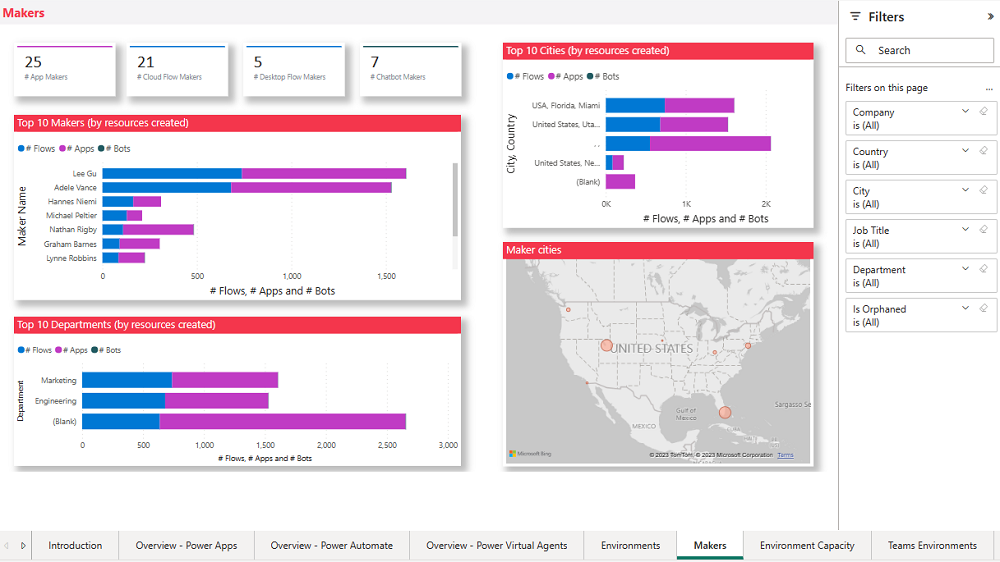
The Microsoft Teams environments page in the CoE Starter Kits dashboard provides you with an overview of your existing Teams environments, apps and flows in those environments, and the last launched date of apps.
Screenshot of a Microsoft Teams Environments overview.

By checking for new Dataverse for Teams environments daily, organizations can ensure they’re aware of all environments in use. 

State of Dataverse for TeamsPower Platform action
83 days after no user activitySend a warning that the environment will be disabled. Update the environment state on the Environments list page and the Environment page.
87 days after no user activitySend a warning that the environment will be disabled. Update the inactive environment state on the Environments list page and the Environment page.
90 days after no user activityDisable the environment. Send a notice that the environment has been disabled. Update the disabled environment state on the Environments list page and the Environment page.
113 days after no user activitySend a warning that the environment will be deleted. Update the disabled environment state on the Environments list page and the Environment page.
117 days after no user activitySend a warning that the environment will be deleted. Update the disabled environment state on the Environments list page and the Environment page.
120 days after no user activityDelete the environment. Send a notice that the environment has been deleted.

Please note a warning is displayed only if the Dataverse for Teams environment is <= 7 days until disablement.

4. Highly used apps

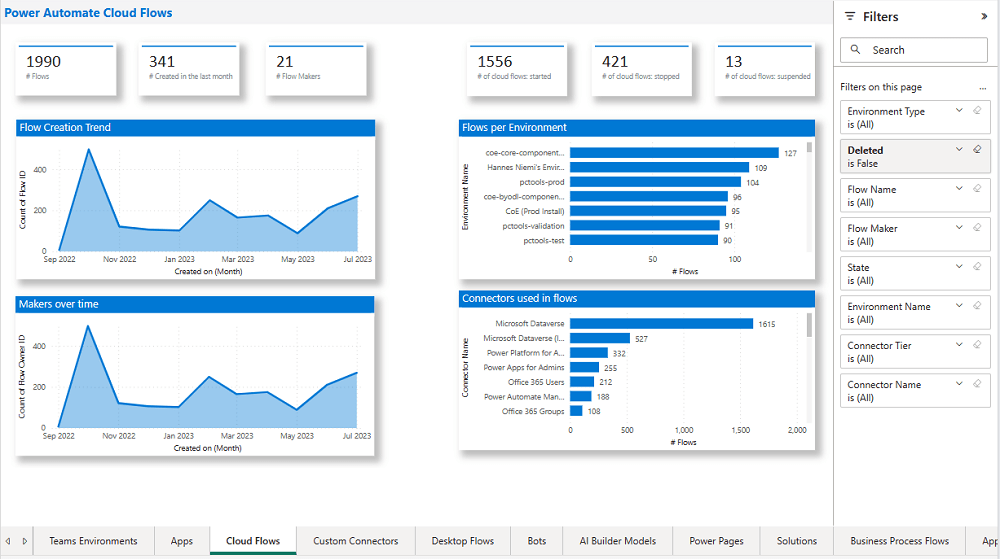
The Power BI Dashboard available out of the box with COE Starter Kit will provide you the necessary guidance over high performing apps and also your most active users.
5. Communicating governance to your makers

This is one of the important step while setting up COE and governance guidelines, follow the below approaches

  • Clearly communicate the purpose and benefits of governance policies:Explain how governance policies protect organizational data
  • Make governance policies and guidelines easily accessible:Place the policies and guidelines in a central location that is easily accessible to all makers
  • Provide training and support:Offer training sessions and resources to help makers understand and comply with governance policies.
  • Encourage open communication: Foster culture where makers can ask questions and raise concerns about governance policies.
  • Incorporate governance into the development process:For example, you can require a compliance review before deploying a solution.

6. Administration of the platform

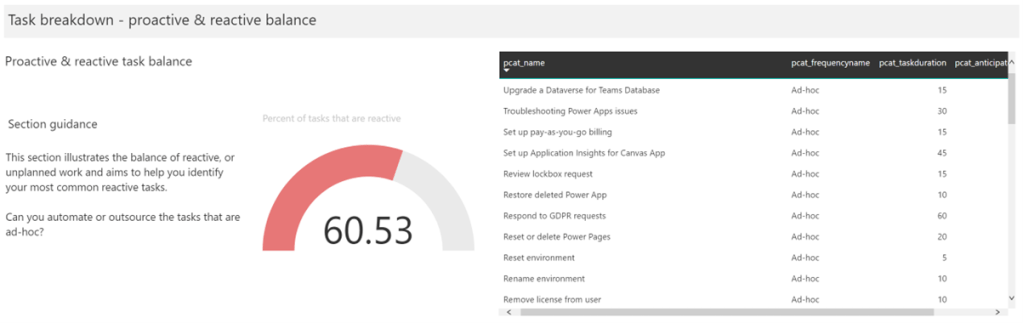
Power Platform Administrator Planning Tool which comes with COE Strater Kit provides guidance and best practices for administration. Also the planning tool can optimize environments, security, data loss prevention, monitoring and reporting.
6. Securing the environments

It is critical to establish a Data Loss Prevention (DLP) strategy to control connector availability.
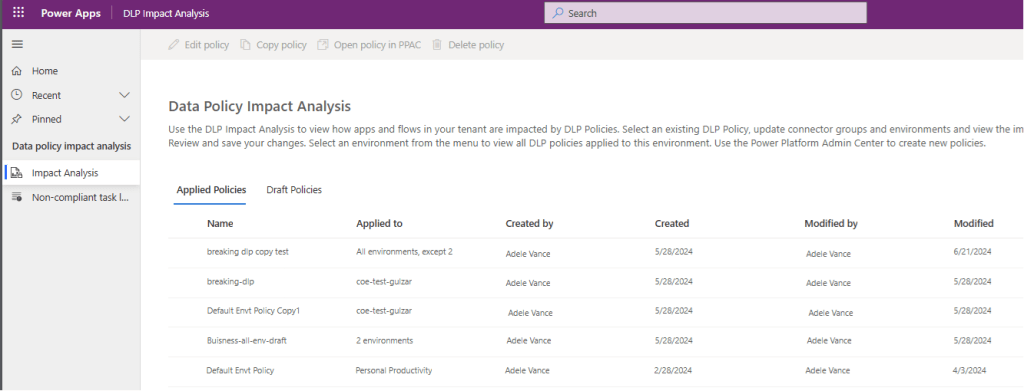
The DLP editor (impact analysis) tool is available for use before making changes to existing policies or creating new DLP policies. It reveals the impact of changes on existing apps and cloud flows and helps you make informed decisions.

Reference: COE Starter Kit Documentation

If you face issues using the COE Starter Kit, you can always report them at https://aka.ms/coe-starter-kit-issues

Hope this helps…. someone maintaining tenant governance with COE starter kit…. if you have any feedback or questions, do let me know in comments….

Cheers,

PMDY

Call Custom Actions in Dataverse using Web API – Quick Recap

Hi Folks,

Here is how you can quickly call action using Web API, with this method you can execute a single action, function, or CRUD operation. In the below example, let’s see how you can call an action. Here is function…to achieve this..

var formContext = executionContext.getFormContext();
var message = "Please enter a valid NRIC Number";
var uniqueId = "nric_valid";
var NRIC = formContext.getAttribute("new_nric").getValue();
if(NRIC !== null)
{
var execute_ValidateNRIC = {
NRIC: NRIC, // Call this function only when NRIC value which is non-null
getMetadata: function () {
return {
boundParameter: null,
parameterTypes: {
NRIC: { typeName: "Edm.String", structuralProperty: 1 }
},
operationType: 0,
operationName: "new_ValidateNRIC",
outputParameterTypes: {
IsValid: { typeName: "Edm.Boolean" }
}
};
}
};
Xrm.WebApi.execute(execute_new_ValidateNRIC).then(
function success(response) {
if (response.ok) {
response.json().then(function (data) {
if (!data.IsValid) {
formContext.getControl("new_nric").setNotification(message, uniqueId);
} else {
formContext.getControl("new_nric").clearNotification(uniqueId);
}
}).catch(function (error) {
Xrm.Navigation.openAlertDialog("Error occured from Validate NRIC "+error);
});
}
}
).catch(function (error) {
Xrm.Navigation.openAlertDialog(error.message);
}).catch(function (error) {
Xrm.Navigation.openAlertDialog(error.message);
});
}
}

This example details with Unbound action, which is not tagged to any entity, however if in case on Bound action, you will specify the entity name for bound parameter instead of null. You need to specify the Metadata accordingly for your Action. Let’s understand it’s syntax first…

Xrm.WebApi.online.execute(request).then(successCallback, errorCallback);

Parameters

Entity not visible in Kingswaysoft CDS/CRM Destination component editor – Quick Fix

Hi Folks,

I got a requirement do develop integration between Dynamics 365 and 3rd party data warehouse. Here I have to use SSIS for Integration. Obviously when you want to write data to Dynamics from SSIS, we need to use Kingswaysoft SSIS Components. So, I have retrieved the data from the files coming from 3rd party warehouse and writing the data in to Dynamics using Kingswaysoft Destination component.

During the implementation, I had to create a new entity in Dynamics 365 CE as below and configure it in Kingswaysoft adapter.

But I was unable to select the newly created entity in Destination Entity inside the destination component editor as below. I tried refreshing metadata, rebuild the solution, closed visual studio multiple times, cleared the cache but none of them helped. As shown below. I was not able to select the respective newly created entity.

I was unable to get that even after 2 days…I tried to create another package and set the Kingswaysoft SSIS Destination editor, so here I am able to see the newly created entity. There comes the fix.

So here are the two ways how you can do it using the same SSIS Package itself without using another.

  1. Step: If your connection manager uses SOAP 2011 (Dynamics 365 CE, Dataverse, CRM 2016, 2015, 2013, 2011) …then you can create one more connection with the same configuration.

Then you should see something like below in your connection manager’s section.

Just delete the old connection and rename the new connection to old connection manager name and update the lost references at all places in your package.

2. Step: Change your service end point to Web API as highlighted below

Just update any missing references…that’s it….

Thank you for reading…if you have any issue on the same, please let me know..

Cheers,

PMDY

Cloning feature branch from Azure DevOps repository doesn’t get you the latest changes..?

Hi Folks,

This blog post is just an observation from my experiences of getting the latest version of code from a remote development feature branch cloned from the main branch. I didn’t observe this my first sight and because of couple of other issues, I had overseen this, spent over a half an hour and I had to giggle after knowing this.

If you were aware, as of my last update in September 2021, Azure DevOps and Visual Studio have been integrated to support seamless code collaboration and version control.

So usually in day-to-day activities of any Developer working Microsoft Technology stack, Pull, Push, Clone, Merge of Azure DevOps repository directly from Visual Studio is quite common.

Usually, to clone a repository from Azure DevOps, you follow the below steps.

Step 1: Open Visual Studio of any
version, preferably after VS 2017
Step 2: Click on Clone the repository.

Step 3: Enter the Azure DevOps
Repository URL and provide the path in the prompt.

Step 4: Select your respective
repository and click on Sign in

Step 5: Once you are done click on
Clone, all your source code is now available in your IDE (Visual Studio)

There might be cases when you check and see you were not able to get the latest changes from your feature branch, those were present in the repo but not in your Visual Studio. Closing the Visual Studio and redoing the Cloning process didn’t help. Then I thought it could be because of Cache of Visual Studio in my PC, so I tried clearing cache following my favorite blog post written earlier in this blog. Even this didn’t help either, thanks to my buddy Mallikarjun C who gave me the clue and here it goes.

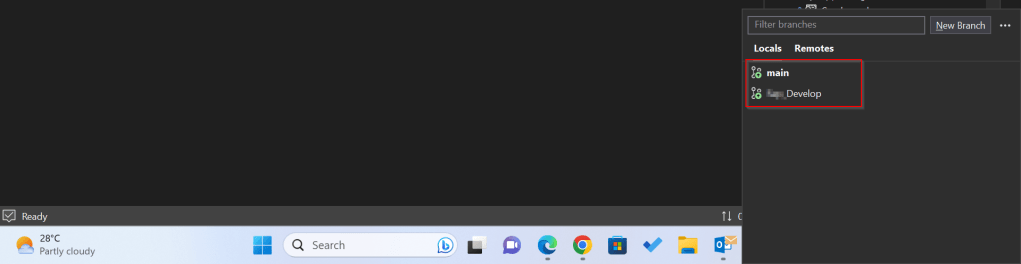
Whenever you were cloning a solution using above approach, ideally you will be checked out to the Main branch and not the feature branch which you were expecting to be checked out to, as Main is set as Default branch.

If you just see below, it wasn’t checked out to Develop, instead it was main. By default, with this approach, you will by default checked out to main branch.

Hence you were seeing the changes of the main branch itself and not the Develop branch.

Instead of this, as I learned I suggest you clone directly to your favorite IDE from Azure DevOps itself in few clicks.

Step 1: While you are in your respective branch in Azure DevOps, click on Clone option as highlighted below.

Step 2: It will then ask you to choose the IDE to which you can download the source code.

Hope this helps someone figuring this out..

Cheers,

PMDY

Show last refreshed time for your Power BI Reports in Import Mode – Quick Tip

Hi Folks,

If you are working on Power BI, this is a good to know tip.

In case you were using Import mode which is by default suggested by Microsoft for medium or small-scale datasets as it uses Vertipaq engine for improved performance and compression, this post is definitely for you.

Did your user ever asked why they were not able to see latest data in the report. Possibly you could have said it is because of refresh frequency.

Then you could have thought if there was a nice way to show when the dataset was last refreshed. This definitely help your users to have a clear idea of what’s going on.

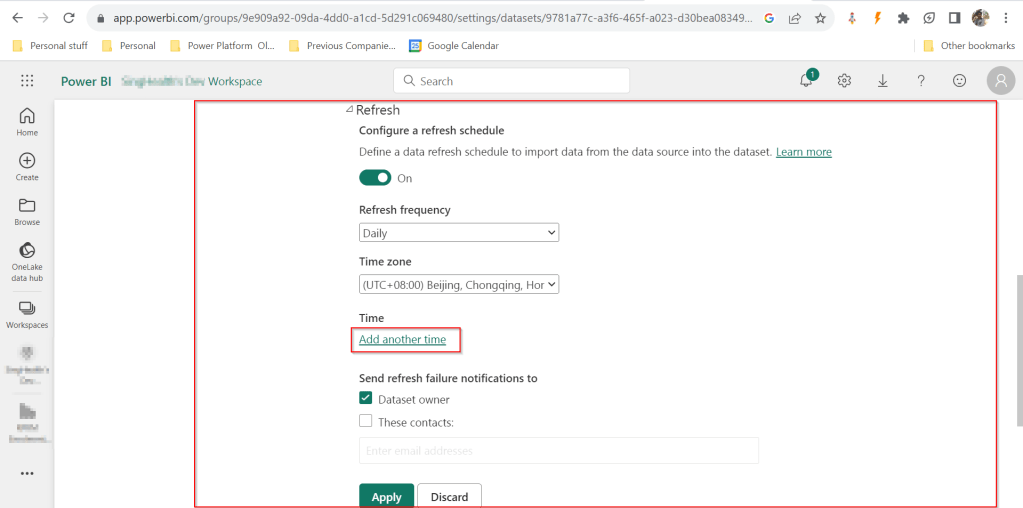
FYI, the refresh frequency could be set in Power BI service as below for import mode.

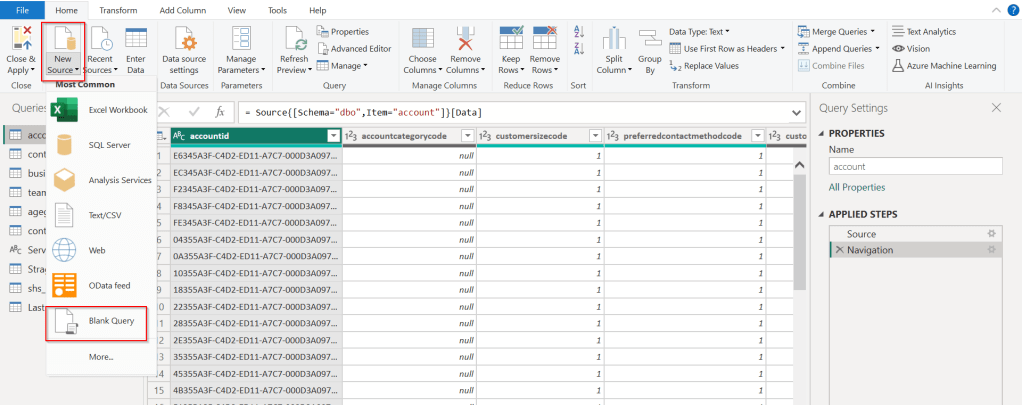
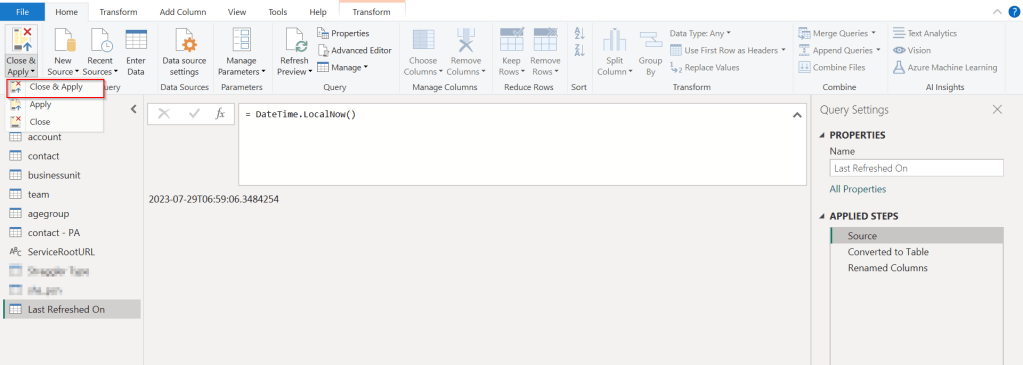
In your Power BI report, click on Transform data.

Click on New Source –> Blank Query as below.

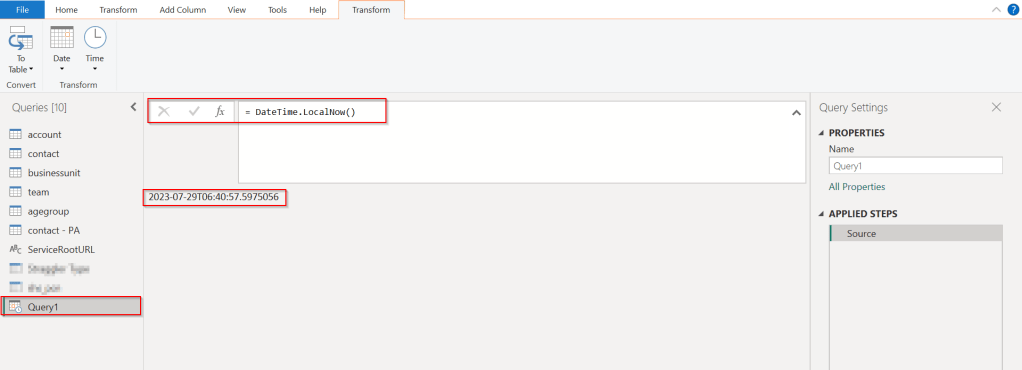
In the Query Fx expression…. enter the below expression to get the last refresh time and click on Tick symbol.

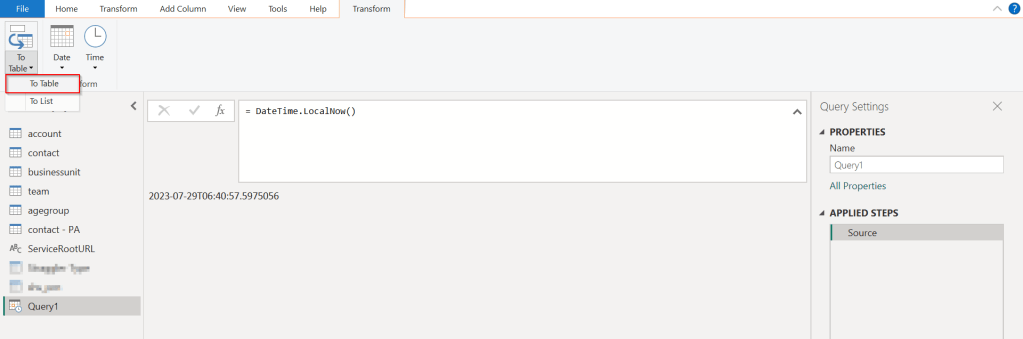
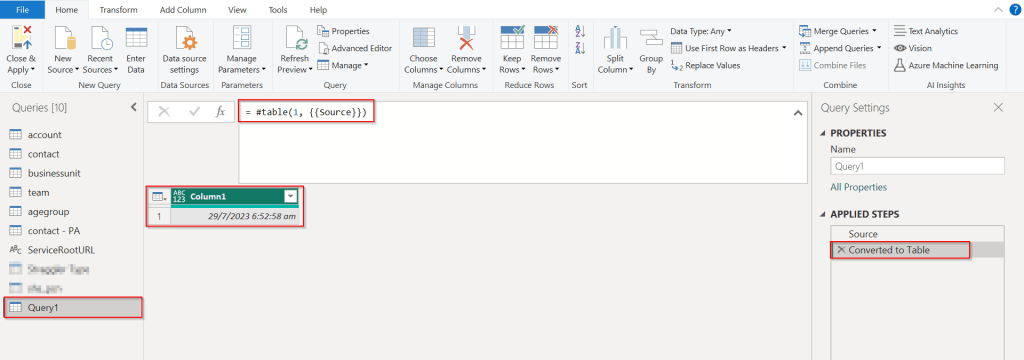
Next, click on To Table to create a table from this data as below.

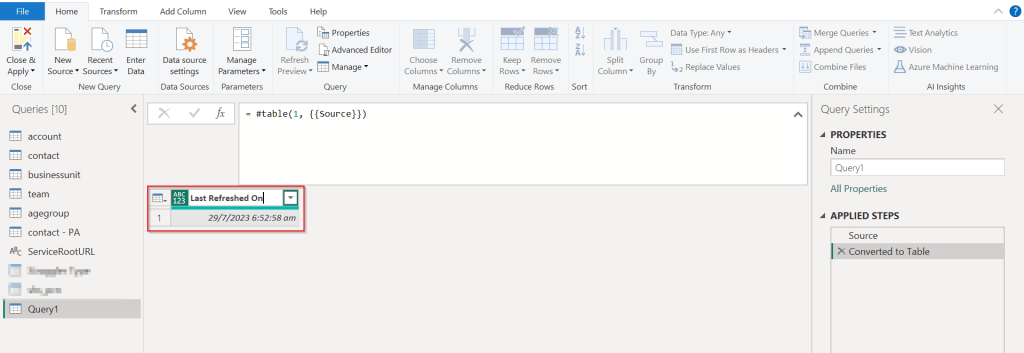
Rename it to something meaningful like below.

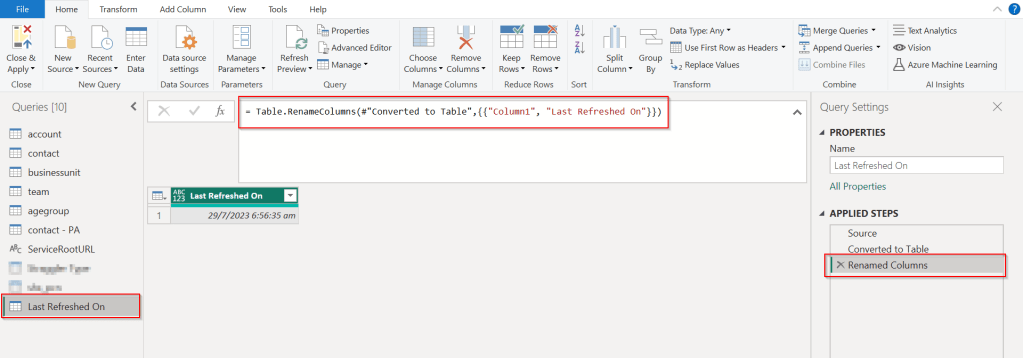
Rename the Query1 variable as below..you should see the applied steps getting added for each operation you performed.

DateTime.LocalNow() gets the last refresh frequency of your dataset in your local time.

Click on Close & Apply

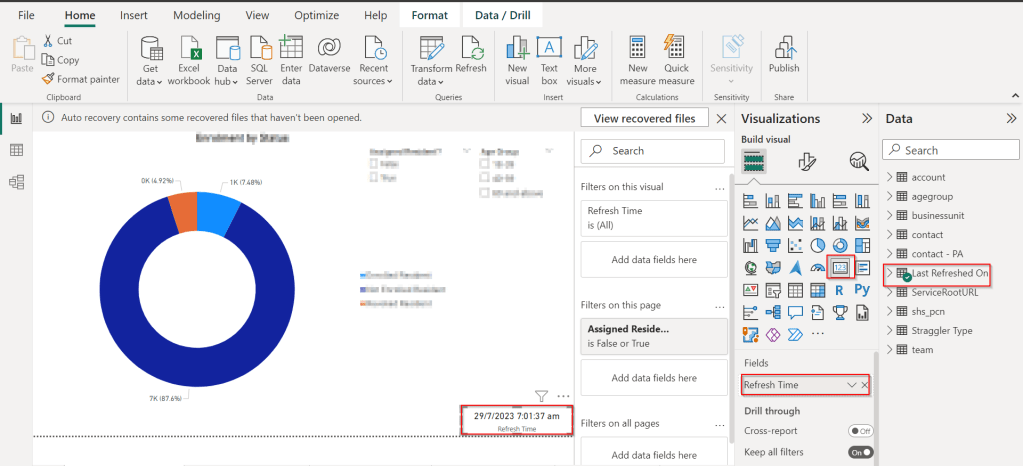
Now in your report, just add a card visual at the bottom right corner and drag the Last Refreshed On query.

That’s it, next time onwards, you should see the date and time when the refresh had occurred.

Cheers,

PMDY
Update your Model Driven App User personal settings in an easier way – Quick Tip

Hi Folks,

Did u ever been asked in your project to update the User Personal Settings….possibly you could have resorted to User Settings Utility in XrmToolBox…may be you could have updated the settings manually for each user in list provided to you…

Do you know you could update them in bulk at one shot in a much easier way, so you don’t need to update it manually one by one. I could see many blog posts talking about updating through this tool, but this was missed in those.

Scenario:

You have newly added users to your Azure Active Directory, now you need to set up the user personal settings for them so see proper time zone in Dynamics.

There were two ways:

  1. Use a view
  2. Choose users from FXB(Fetch XML Builder)

The first approach is easiest of course…

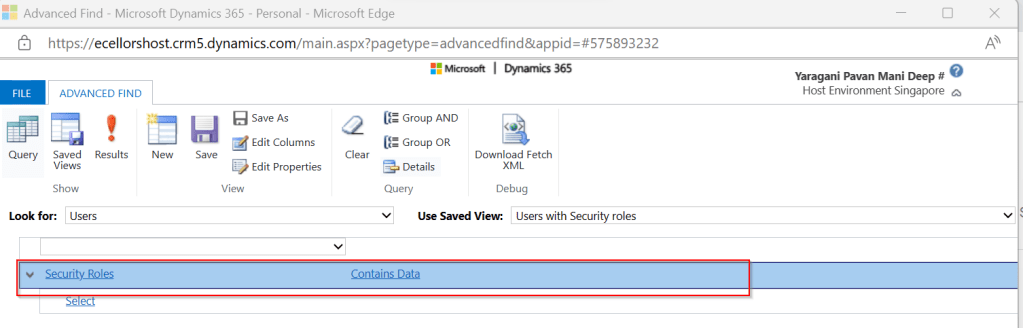
For this, lets create a view Users with Security in user entity as below…you know that you could only update settings for those who were having security role.

Mainly the user need prvReadUserSettings privilege to update the personal settings, the tool doesn’t allow if not.

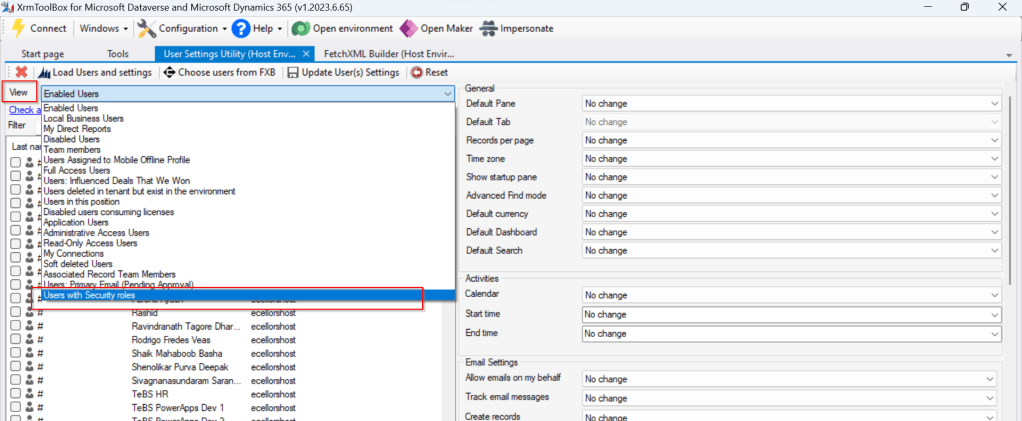
Once you have connected to the environment, click on Load Users and settings. Now just select the view which have created before…upon selecting the tool will list down all the active users satisfying the view criteria.

All you need is to click on Check all and there by selecting all the users satisfying your filter criteria, change the settings as per your needs on the right-hand side of the tool and click on Update User(s) Settings in one go.

Here I have 3 users in the view, all were updated in one shot…

Isn’t it easy, this trick will save you a lot of time if your user list grows…

Cheers,

PMDY
Cannot connect to SQL Server from SSMS – Quick Tip

Hi Folks,

I will keep this blog post short…the few days back I have installed local SQL Server from this link in my laptop, I was able to connect to it then.

But later in less than a week, I was unable to connect to the same SQL Server from SSMS and gives me the below error.

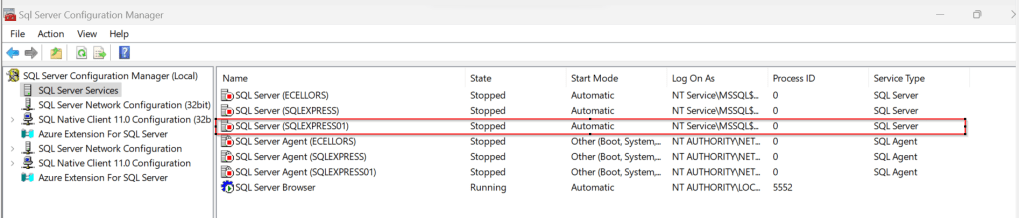
To check this, firstly you need to see if such SQL Server is uninstalled and then check if it was running.

In my case, as I could already see the name of the Server in the SSMS, the next step is to check whether it is in running state. So, for this all you need to do was, just open the SQL Server Configuration Manager in your machine whenever you want to configure the network protocols which gets installed by default whenever you try to install the SQL Server and it actually shows up all the SQL Related Configurations.

Just locate the SQL Server you were trying to connect and restart the same by right clicking on it…

Then try connecting to SQL Server, you should be able to connect to it…

That’s it…in the upcoming blog posts, we will see how we can work with On-premises Data Gateway to work with Dataflows in order to push the data to cloud and how you can show the data in Power BI.

Cheers,

PMDY

Changing Data Type of Primary Column now allowed in Model Driven Apps

Hi Folks,

Do you know you can change the Data type of an Primary column between Single Line of Text and Autonumber even after creation of your entity specifying a defined Primary Name Column. There is a catch….

So let’s see…

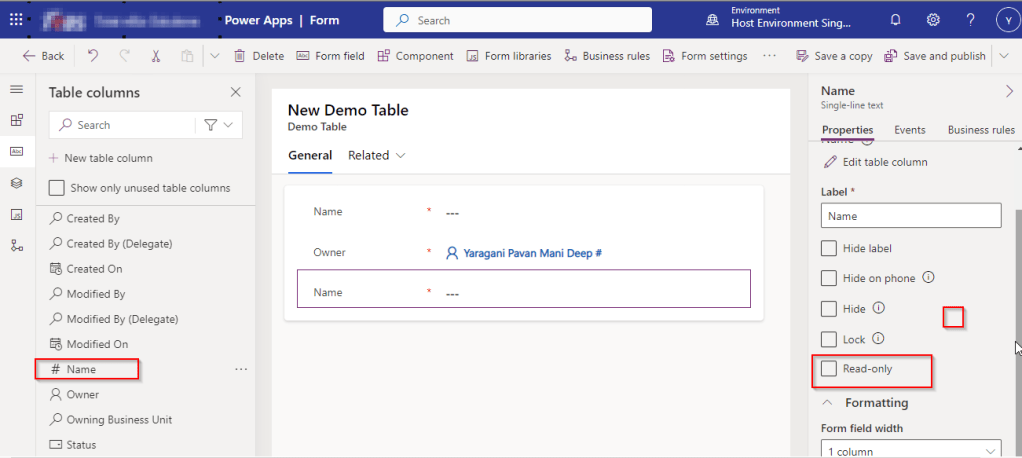
I first created a brand new Table called Demo Table and kept the Primary Column as Single Line of text. Earlier once the table is created, you will not be able to change the Primary name column if you wish to, the only way was to delete the table and re-create it with the correct type. But now you can change the type of the column at least to a unique autonumbering.

I want the Primary Name column to be unique, but when I look at the data in my table captured, I see many duplicates.

So let’s change the data type of the primary column data type to Autonumber.

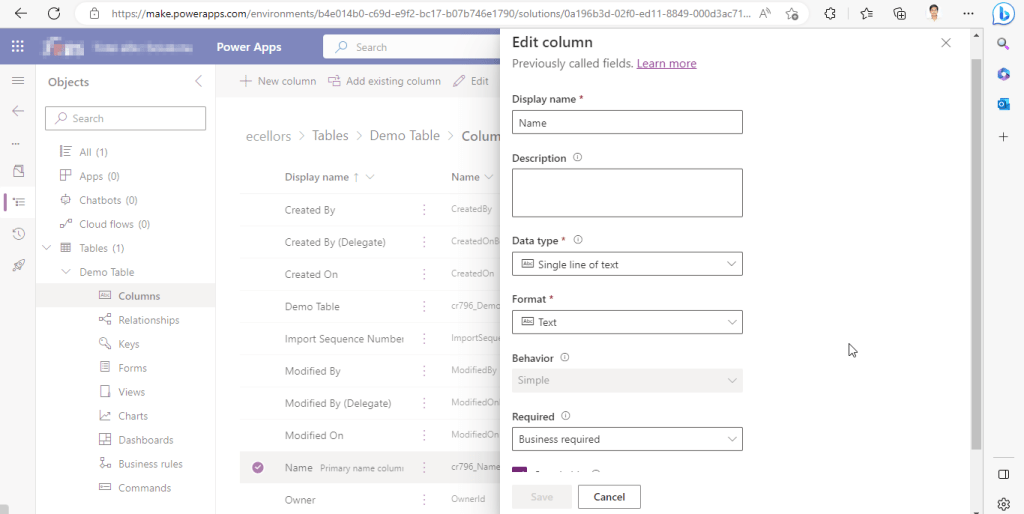
The primary field look as below initially…

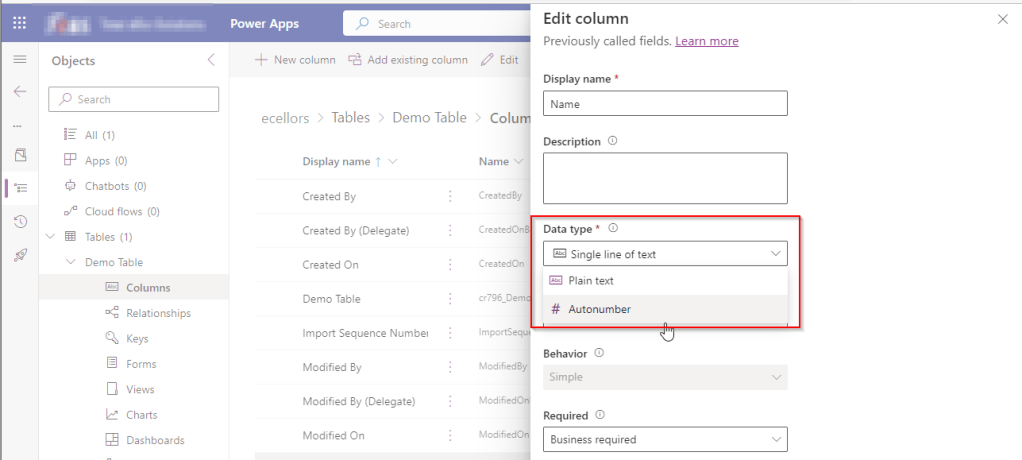
Select the Data Type available…

Now Select the Autonumber from the drop down available…you can optionally specify any custom prefix which you want for your Autonumber…and click Save and publish the customizations.

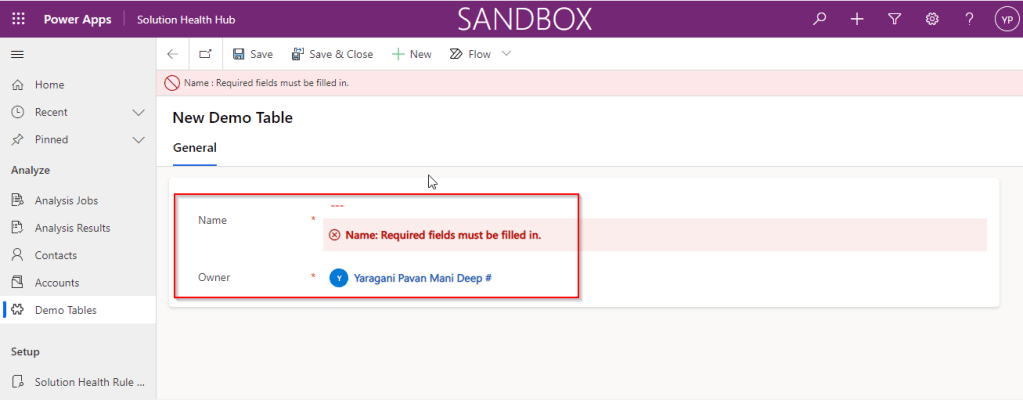
Now go back to your model driven app and then try creating a new record for the respective entity.

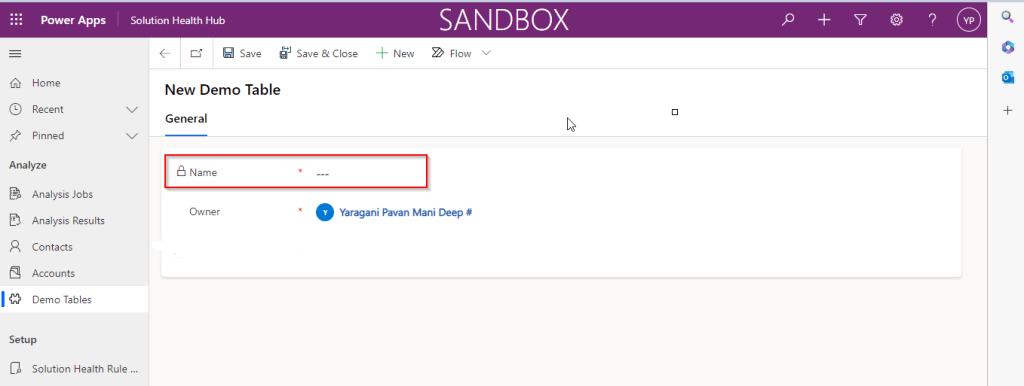
Since it was a primary field column, it is by default made mandatory…what’s up…the Autonumber column data type change is not reflecting….this is the same even if you check and publish the solution multiple times. Neither you can’t specify the field value because you already choose this to be an Autonumber and system should create it by itself.

If you were scratching your head, then this simple tip will help…

Just make the field read-only from the form where this field is being referred, so you don’t need to really enter value for it…then publish the customizations.

Once you have done…

Now try to save the record..

There you go, you can see an Autonumber being populated in the primary field…

Cheers,

PMDY
Power Platform Requests usage…check it out in a no code way now in Admin Center(Preview)

Hi Folks,

As a Power Platform Admin/Consultant…did you often worry about your Power Platform Request Limits and usage left…? Do you receive warning messages from Microsoft regarding the usage of your database exceeded..? Want to see what are Custom Plugin Errors encountered while using your Model Driven App targeting Dataverse….then want to consolidate them and forward to your team to look into the issues without much efforts….then you were in the right place…

Just login with your credentials to admin page https://admin.powerplatform.microsoft.com/.

Expand Resources to the left…to find the Capacity menu

If you just want to know only the data usage, then you can ahead and click on Download as shown above to get one.

Want to get in depth analysis…then click on Details as highlighted in the same snap above.

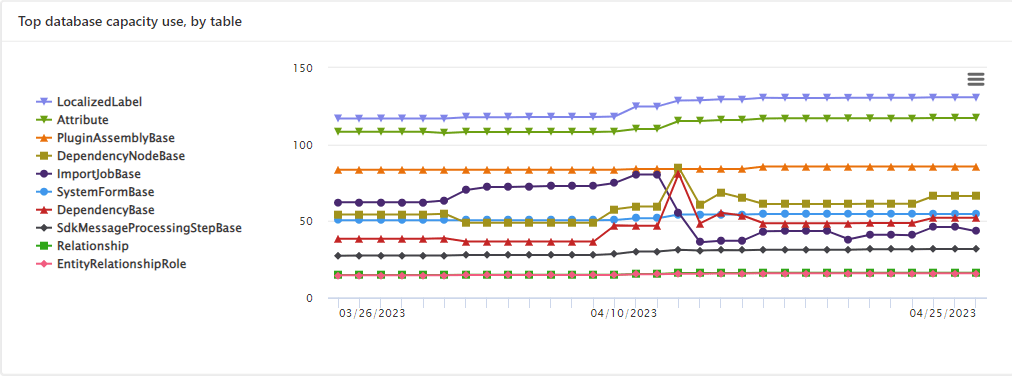
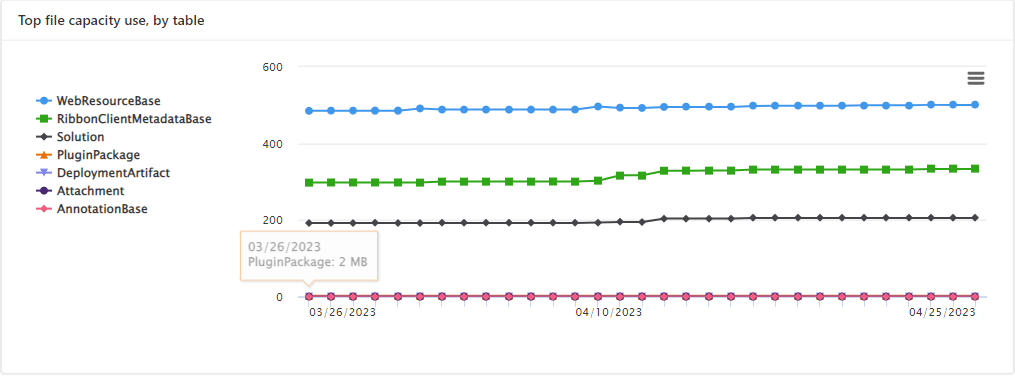
This page shows your Database usage/File usage and respective categorizations by table as below..

These are reports which I was able to extract from my trial environment, however all the reports were not available currently in my region. Yes, this is expected as this feature is still in preview and not recommended for Production Projects as of now. Definitely in the future…

Note:

  1. Many people including me till now thought that Plugins or at least any operation performed within Model Driven app will not be counted for the API request limits. But…
  2. If the requests are making CRUD, assign, or share–type requests, they’ll count except internal requests. For classic workflows, this includes actions such as checking conditions, starting child workflows, or stopping workflows.
  3. You should never use any third party tools for Integration whenever you were facing any request limit issues.
  4. Request limits are applied differently for licensed users and Non-licensed users.
  5. You can add more capacity to any of your products by assigning your environment in the manage addons page.

Hope you found this post helpful…

Cheers,

PMDY
Plugin Error – Security accessibility of the overriding method must match the security accessibility of the method being overridden – Quick Fix

Hi Folks,

I recently came across the above error for one of my Dynamics 365 Plugins…this blog talks about applying a quick fix.

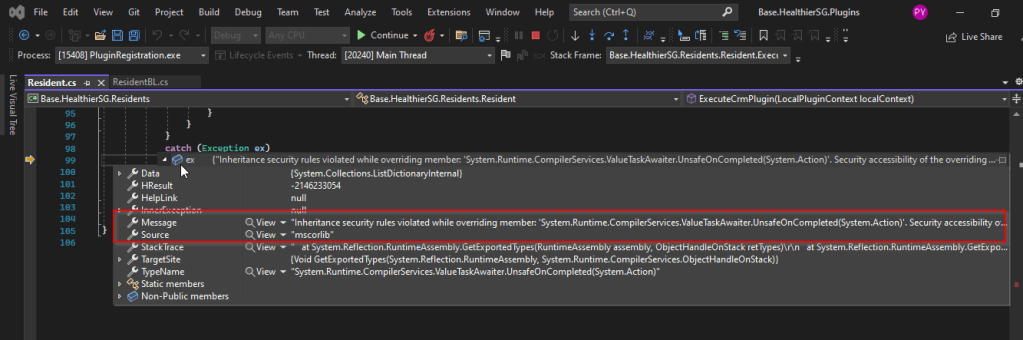
While debugging our Plugin logic line by line to understand why it’s not working, observed this error for messages like RetrieveMultiple, Retrieve when I use any Organization Service call.

This was a .Net version downgrade issue caused by ILMerge as I downgraded one of the DLL to 4.6.2 version from 4.7.1. If you see this issue even without downgrading your DLL, you can use this fix.

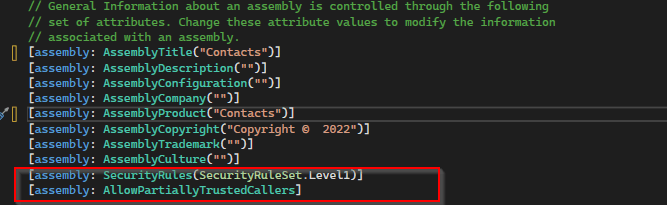
After some research I came across this article and applied the same to my assembly which fixed the issue. Added these lines to my AssemblyInfo.cs class file..

[assembly: AllowPartiallyTrustedCallers]
[assembly: SecurityRules(SecurityRuleSet.Level1)]

Hope this helps someone who is facing the same issue down the line in their Plugin Development, Debugging…

Thank you for reading…

Cheers,

PMDY