Changing Data Type of Primary Column now allowed in Model Driven Apps

Hi Folks,

Do you know you can change the Data type of an Primary column between Single Line of Text and Autonumber even after creation of your entity specifying a defined Primary Name Column. There is a catch….

So let’s see…

I first created a brand new Table called Demo Table and kept the Primary Column as Single Line of text. Earlier once the table is created, you will not be able to change the Primary name column if you wish to, the only way was to delete the table and re-create it with the correct type. But now you can change the type of the column at least to a unique autonumbering.

I want the Primary Name column to be unique, but when I look at the data in my table captured, I see many duplicates.

So let’s change the data type of the primary column data type to Autonumber.

The primary field look as below initially…
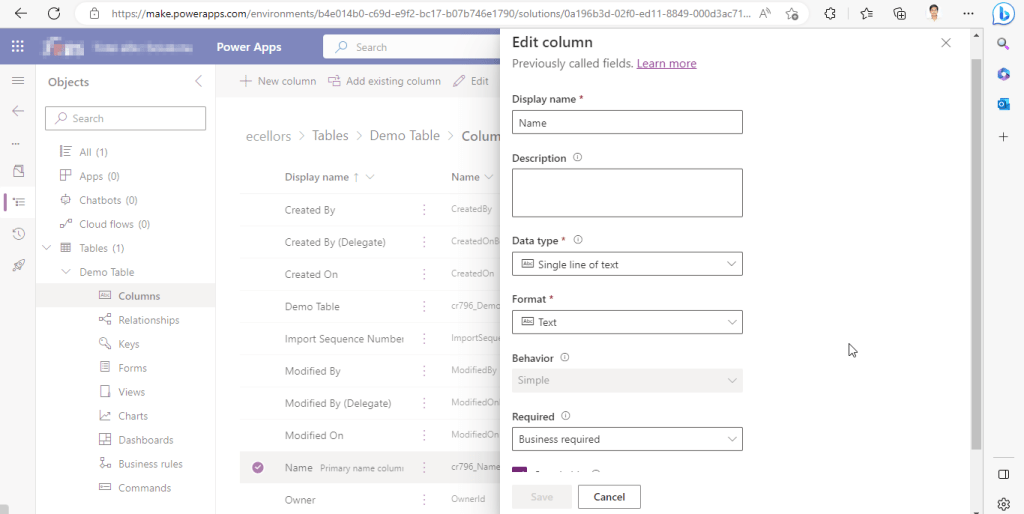
Select the Data Type available…
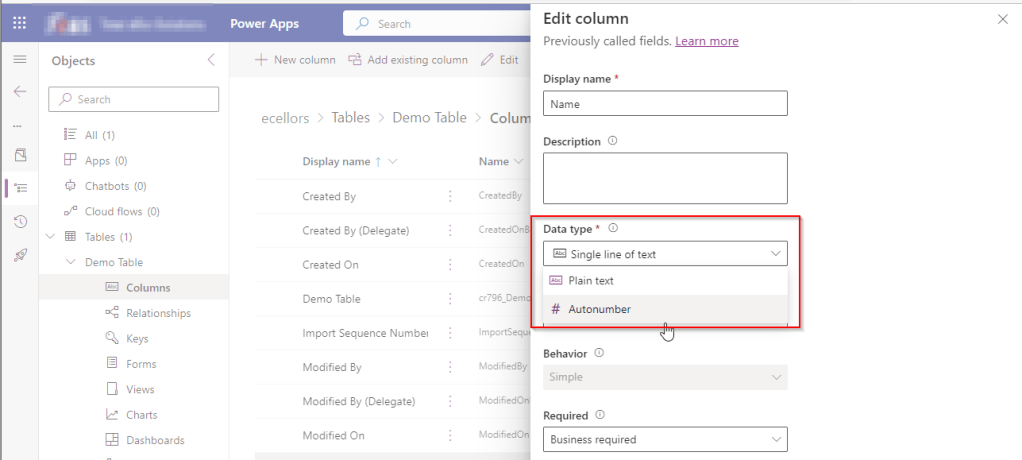
Now Select the Autonumber from the drop down available…you can optionally specify any custom prefix which you want for your Autonumber…and click Save and publish the customizations.

Now go back to your model driven app and then try creating a new record for the respective entity.

Since it was a primary field column, it is by default made mandatory…what’s up…the Autonumber column data type change is not reflecting….this is the same even if you check and publish the solution multiple times. Neither you can’t specify the field value because you already choose this to be an Autonumber and system should create it by itself.
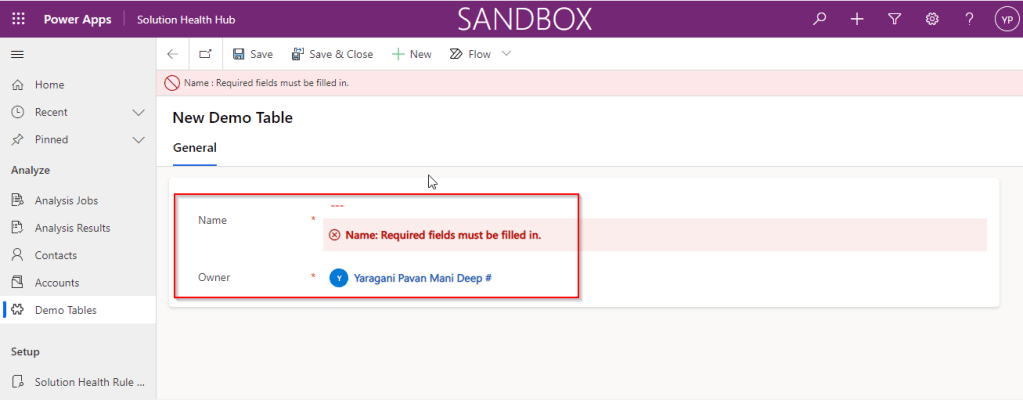
If you were scratching your head, then this simple tip will help…

Just make the field read-only from the form where this field is being referred, so you don’t need to really enter value for it…then publish the customizations.
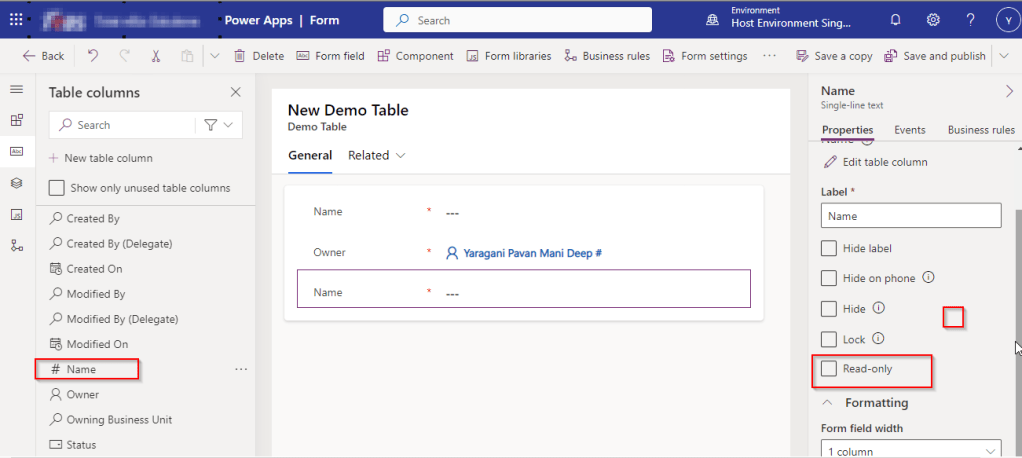
Once you have done…
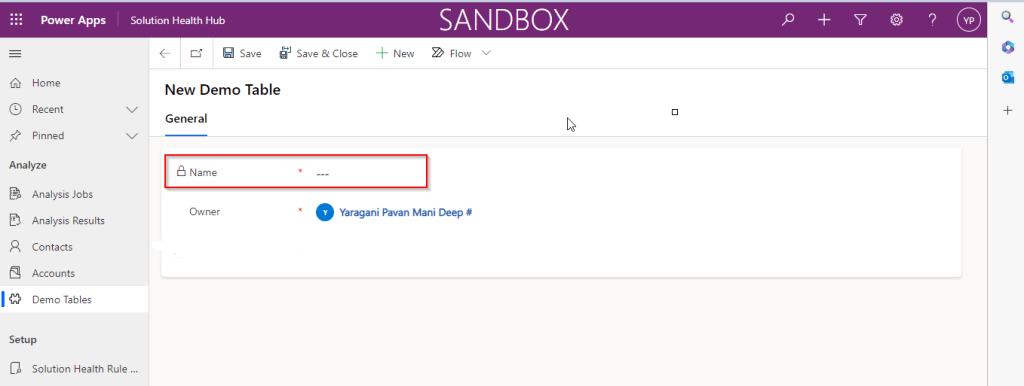
Now try to save the record..

There you go, you can see an Autonumber being populated in the primary field…

Cheers,

PMDY

Power Platform Requests usage…check it out in a no code way now in Admin Center(Preview)

Hi Folks,

As a Power Platform Admin/Consultant…did you often worry about your Power Platform Request Limits and usage left…? Do you receive warning messages from Microsoft regarding the usage of your database exceeded..? Want to see what are Custom Plugin Errors encountered while using your Model Driven App targeting Dataverse….then want to consolidate them and forward to your team to look into the issues without much efforts….then you were in the right place…

Just login with your credentials to admin page https://admin.powerplatform.microsoft.com/.

Expand Resources to the left…to find the Capacity menu

If you just want to know only the data usage, then you can ahead and click on Download as shown above to get one.

Want to get in depth analysis…then click on Details as highlighted in the same snap above.

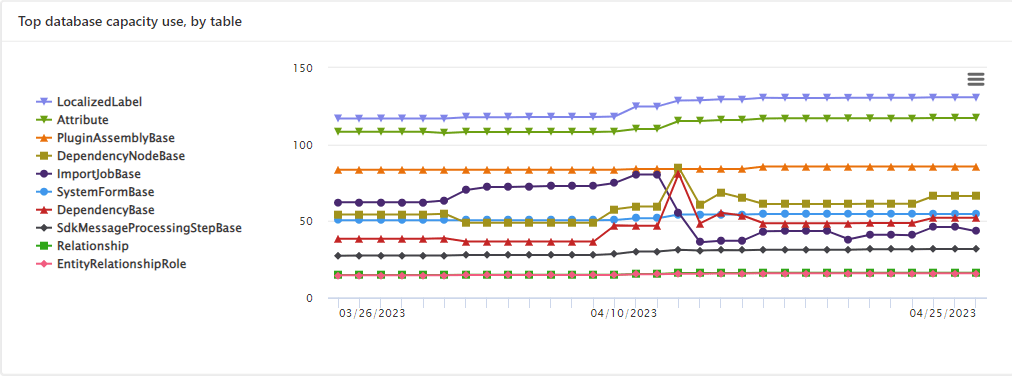
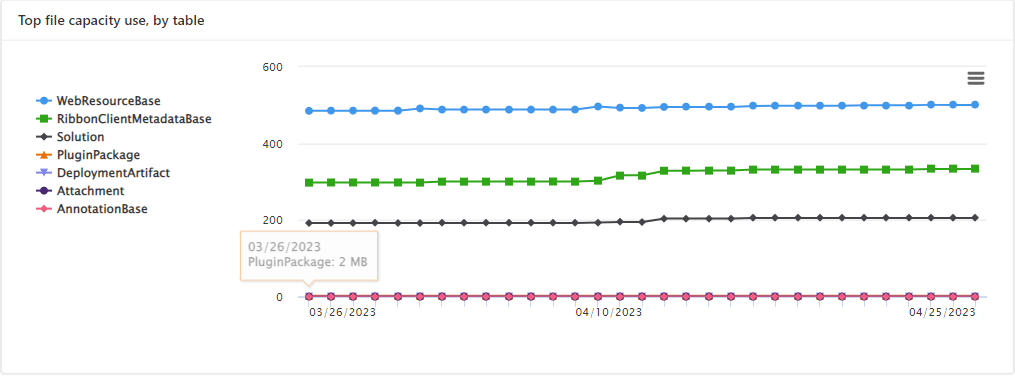
This page shows your Database usage/File usage and respective categorizations by table as below..

These are reports which I was able to extract from my trial environment, however all the reports were not available currently in my region. Yes, this is expected as this feature is still in preview and not recommended for Production Projects as of now. Definitely in the future…

Note:

  1. Many people including me till now thought that Plugins or at least any operation performed within Model Driven app will not be counted for the API request limits. But…
  2. If the requests are making CRUD, assign, or share–type requests, they’ll count except internal requests. For classic workflows, this includes actions such as checking conditions, starting child workflows, or stopping workflows.
  3. You should never use any third party tools for Integration whenever you were facing any request limit issues.
  4. Request limits are applied differently for licensed users and Non-licensed users.
  5. You can add more capacity to any of your products by assigning your environment in the manage addons page.

Hope you found this post helpful…

Cheers,

PMDY