Adding intelligence to Dataverse using Dataverse AI functions

Hi Folks,

While intelligence with the use of AI is being embedded into each and every part of the Microsoft ecosystem, it is good to know the features coming in the Power Platform space.

In this blog post, let’s see how we can use Dataverse AI Functions, their usage, advantages which can greatly ease summarizing, classifying, extracting, translating, assessing sentiment, or drafting a reply for common business scenarios.

To illustrate it better, I used a different AI Function for Canvas App, Model Driven App and Power Automate, hope you can follow the same for others as well.

What are Dataverse AI Functions?

Think of Dataverse AI Functions as prebuilt AI Functions which will add intelligence in your Apps and Flows without need to collect, build and train the models. They can be used in many places such as AI Builder, Power Automate, Power Apps, Low Code Plugins. Following are the AI Functions available…

  1. AIReply – Drafts a reply to the message you provide.
  2. AISentiment – Detects sentiment for the text you provide
  3. AISummarize – Summarizes the text you provide
  4. AIClassify – Classifies the text into one or more categories, you can use this from custom copilot
  5. AIExtract – Extracts specified entities like Names of people, phone numbers, places etc.
  6. AITranslate – Translate text from another language

Let’s see their usage in our favorite Canvas Apps first as illustration is easy and later in the post, I will mention how you can call the Dataverse AI Functions from Model Driven Apps, Power Automate so that you can get the real essence of it….

Utilizing ‘Dataverse AI Functions’ in a Canvas App

Create a new Canvas App and add ‘Environment’ Datasource as shown below.

All the ‘Dataverse AI functions’ can be accessed by ‘Environment‘ as shown below.

Let’s try the AIReply function in Canvas Apps

Add a textbox for storing the prompt or input string and a button control.

On the ‘OnSelect‘ event of the button, use the following formula to store the response in the AIResponse context variable, make sure you name the variables appropriately in your formula as per your naming defined in canvas apps.

UpdateContext({AIReplyResponse:Environment.AIReply({Text:AIInput.Text})})

Now create one more text variable to store the response and change the Default value to AIReplyResponse.PreparedResponse.

Try testing the app by providing inputs as below…

You should get a response from AIReply in the response field, you can try out other functions providing the necessary parameters required.

Utilizing ‘Dataverse AI Functions’ in a Power Automate

In Power Automate, all you can do to call Dataverse AI Functions is call the Unbound Action as below.

Passing the relevant input parameters is enough to get the output from these functions.

Let’s try AISentiment

Click on test, you should a response from Power Automate with the sentiment

Utilizing ‘Dataverse AI Functions’ in a Model Driven Apps

Do you want to utilize the similar capabilities of Dataverse AI Functions inside your custom code like in Plugins, Actions etc..

Let’s try AIClassify

var request = new OrganizationRequest("AIClassify")
{
["AllowMultipleCategories"] = false,
["Categories"] = titles,
["Text"] = classifyText
};
var result = service.Execute(request);

It was pretty much similar in AIBuilder as well…

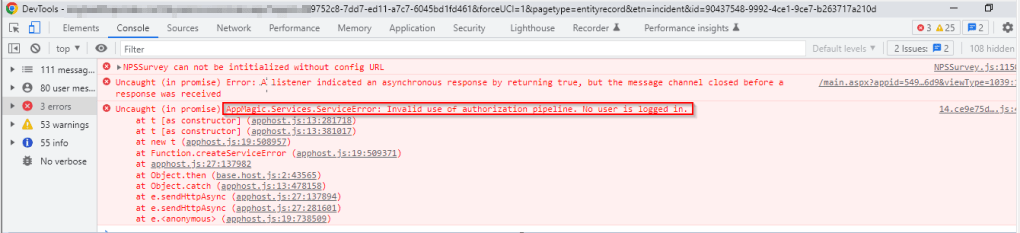
Please do note that there are quotas to use these AI Functions at tenant level, else you might get similar error like below, while I didn’t get any information regarding this from Microsoft, so I am unsure about this as of writing this post, I will keep this updated if I get to know.

Using Dataverse AI functions needs a bit of Prompt Engineering knowledge, you were looking to learn more about Prompt engineering, then check it out here.

References:

https://learn.microsoft.com/en-us/power-platform/power-fx/reference/function-ai

Cheers,

PMDY

Simplify Power BI Management with Environment Variables

Introduction

Power Platform solutions often rely on dynamic configuration data, like Power BI workspace IDs, report URLs, or API endpoints. Environment variables make it easier to manage such configurations, especially in managed solutions, without hard coding values. This blog will walk you through the steps to update a Power BI environment variable in managed solutions, focusing on the task of switching the workspace to the correct one directly within Power BI integration when working on different environments.

What are Environment Variables in Power Platform?

Before we dive into the steps, let’s quickly cover what environment variables are and their role in solutions:

  • Environment Variables are settings defined at the environment level and can be used across apps, flows, and other resources in Power Platform.
  • They store values like URLs, credentials, or workspace IDs that can be dynamically referenced.
  • In managed solutions, these variables allow for configuration across multiple environments (e.g., development, testing, production).

Why Update Power BI Environment Variables in Managed Solutions?

Updating environment variables for Power BI in managed solutions ensures:

  • Simplified Management: You don’t need to hardcode workspace or report IDs; you can simply update the values as needed.
  • Better Configuration: The values can be adjusted depending on which environment the solution is deployed in, making it easier to scale and maintain.
  • Dynamic Reporting: Ensures that Power BI reports or dashboards are correctly linked to the right workspace and data sources.
  • Best and Recommended: Changing the environment variables and pointing to right workspace is the correct and is best way to point your Power BI Report to respective workspace and recommended by Microsoft.

Prerequisites

Before proceeding with the update, ensure you meet these prerequisites:

  1. You have the necessary permissions to edit environment variables and manage solutions.
  2. The Power BI integration is already set up within your Power Platform environment.
  3. You have a managed solution where the Power BI environment variable is defined.

Steps to Update a Power BI Environment Variable in Managed Solutions

Step 1: Navigate to the Power Platform Admin Center
Step 2: Open the Solution in Which the Environment Variable is Defined
  • Go to Solutions in the left navigation menu.
  • Select the Managed Solution that contains the Power BI environment variable you need to update.
Step 3: Find the Environment Variable
  • In the solution, locate Environment Variables under the Components section.
  • Identify the Power BI environment variable (such as API URL or workspace ID) that you need to modify.
Step 4: Click on Dashboards to Update the Workspace
  • To update the Power BI environment variable related to the workspace, click on Dashboards.
  • Find the existing environment variable tied to the workspace and click to edit it.
  • Here, you’ll see the current workspace configuration for the Power BI resource.
Step 5: Update the Workspace ID
  • In the environment variable settings, you will now change the workspace to the new one.
  • Select the appropriate workspace from the list or manually enter the new workspace ID, ensuring it aligns with the target environment (development, production, etc.).
  • If necessary, update other properties like report or dataset IDs based on your environment needs.
Step 6: Save and Apply Changes
  • After updating the workspace and any other relevant properties, click Save.
  • The environment variable will now reflect the new workspace or configuration.
Step 7: Publish the Solution
  • If you’re using a managed solution, ensure that the updated environment variable is properly published to apply the changes across environments.
  • You may need to export the solution to other environments (like test or production) if applicable.
Step 8: Test the Changes
  • After saving and publishing, test the Power BI integration to ensure that the updated workspace is correctly applied.
  • Check the relevant Power BI reports, dashboards, or flows to confirm that the new workspace is being used.

Best Practices

  • Document Changes: Always document the updates to environment variables, including what changes were made and why.
  • Use Descriptive Names: When defining environment variables, use clear and descriptive names to make it easy to understand their purpose.
  • Cross-Environment Testing: After updating environment variables, test them in different environments (dev, test, prod) to ensure consistency and reliability.
  • Security Considerations: If the environment variable includes sensitive information (like API keys), make sure it’s properly secured.

Conclusion

Updating Power BI environment variables in managed solutions allows you to maintain flexibility while keeping your configurations centralized and dynamic. By following the steps outlined in this blog post, you can efficiently manage workspace IDs and other key configuration data across multiple environments. This approach reduces the need for hardcoded values and simplifies solution deployment in Power Platform.

Cheers,

PMDY