While I was working with Power Automate, I encountered this error, FYI, I was using Old Designer UI, hope the fix I found was an easy one but could help someone else without digging deeper and troubleshooting by changing the flow. I tried refreshing the page couple of times as suggested in error message but still the issue remains.
To solve this, just grab the Power Automate URL from your browser search bar…you should see something like below.
Just replace it to
While this could be an intermittent issue, but it persists for few mins or so. So, this tip can help someone.
While everything is being automated, we will learn how effective you can handle the errors while you automate the process. Ideally when a failure happens in a Power Automate cloud flow, the default behavior is to stop processing. You might want to handle errors and roll back earlier steps in case of failure. Here are 3 basic first hand rules to consider implementing without second thought.
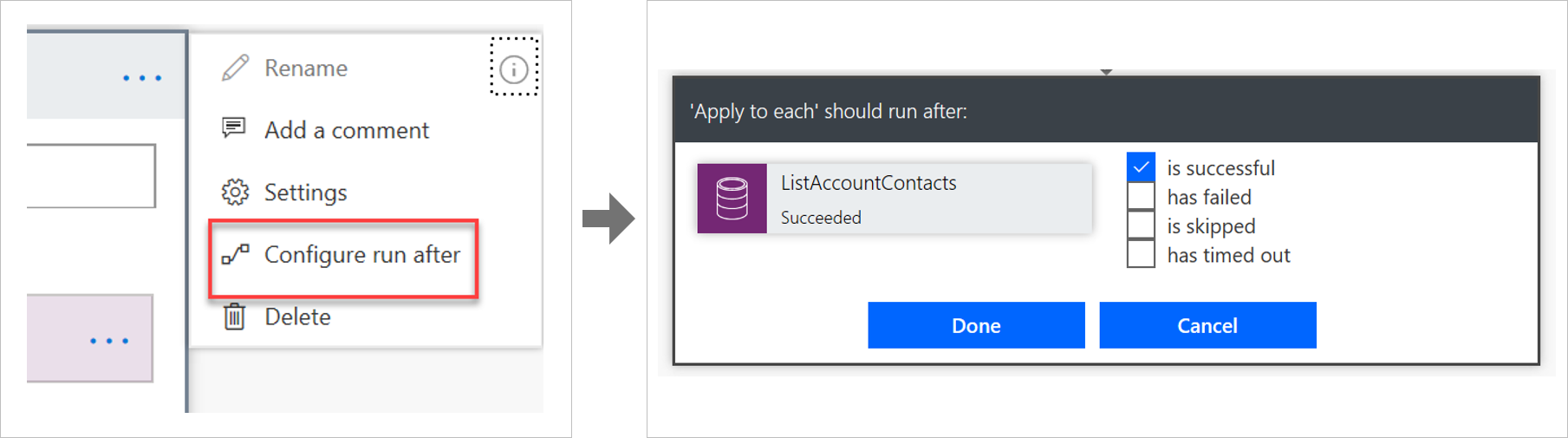
Run after
The way that errors are handled is by changing the run after settings in the steps in the flow, as shown in the following image.
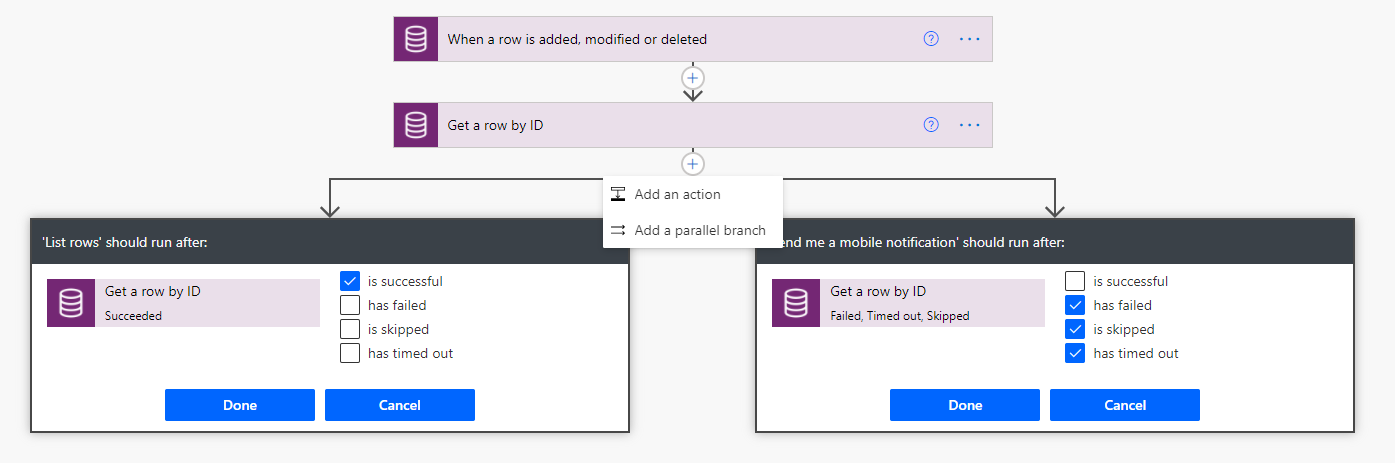
Parallel branches
When using the run after settings, you can have different actions for success and failure by using parallel branches.
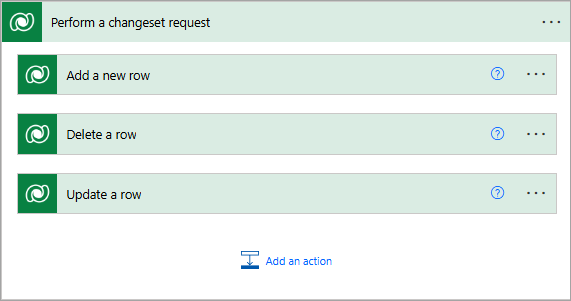
Changesets
If your flow needs to perform a series of actions on Dataverse data, and you must ensure that all steps work or none of them work, then you should use a changeset.
If you define a changeset, the operations will run in a single transaction. If any of the step’s error, the changes that were made by the prior steps will be rolled back.
Special mentions:
Using Scopes – Try, Catch, Finally
Retry policies – Specify how a request should be handled incase failed.
Have you or some one in your team accidentally deleted some your flows and want them to be back..? Then this post is for you…
There are the two ways you can restore deleted flows up to 20 days in either way…once after 20 days, even Microsoft Support couldn’t recover your flows.
In this blog post, we will see how you can recover your flows using first approach using Power Automate Management connector which is much simpler.
All you need is a button flow with two Power Automate management connector actions—List Flows as Admin and Restore Deleted Flows as Admin.
So let’s see…
I have a very simple flow as below…
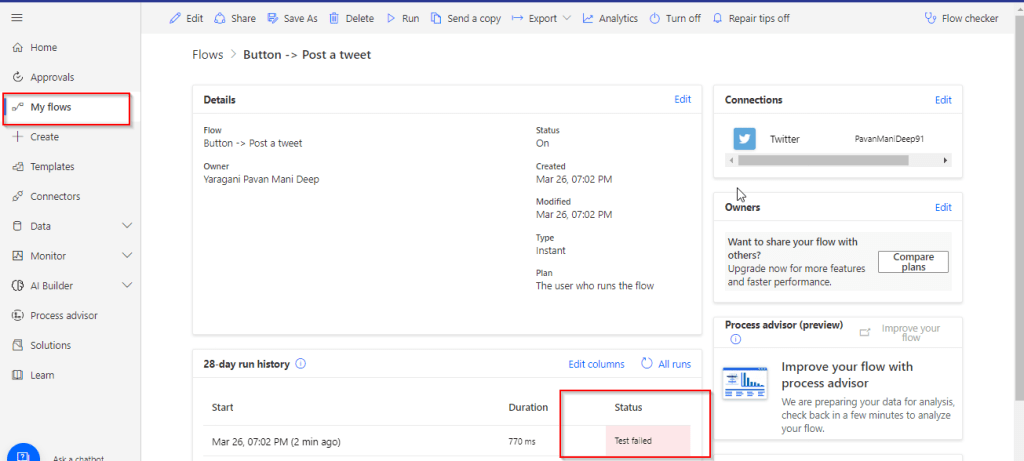
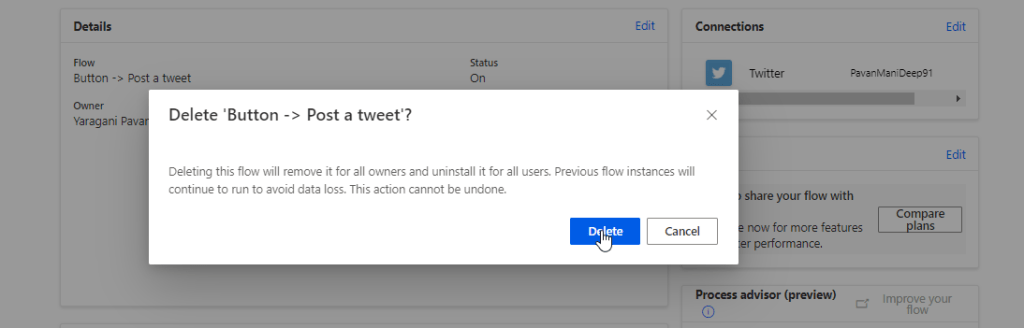
But is has been failing due to some authentication issue, so I have deleted it…
Later I understood the root cause for the authentication issue, I want the flow created to be back. But no problem, you can recover your flow as below…So follow these steps to quickly get your deleted flow back…using an another flow…
Choose a manual trigger…
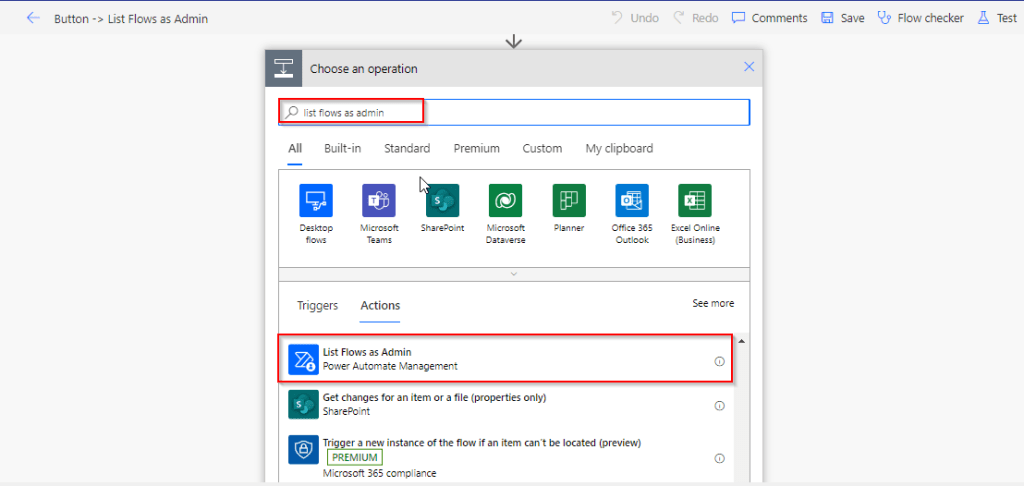
Next add an action, and choose an operation by searching list flows as admin.
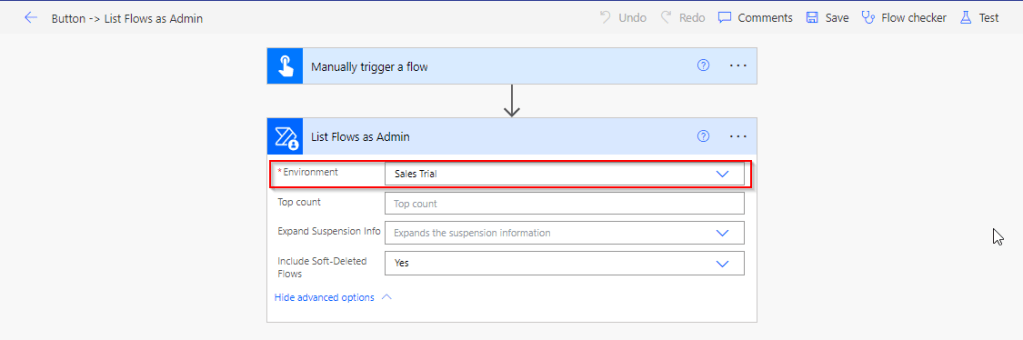
Select your environment in the connector
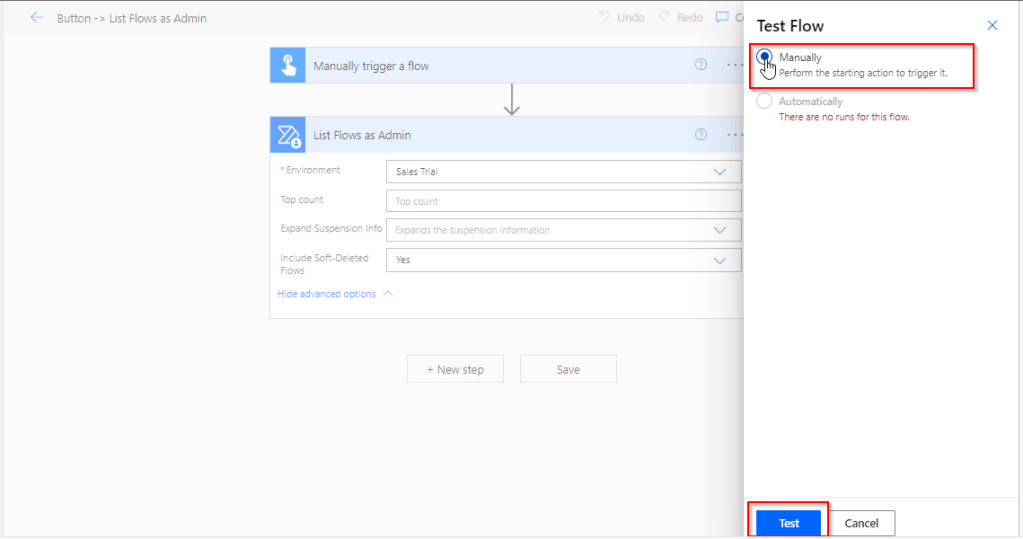
Save your flow and test it…
Once your flow is successful, verify the outputs..scroll to find out the flow, check for the display name and note down the name associated.
This connector will list down all the flows created in your tenant…when you expand the raw OUTPUTS/value. Note the name which is nothing but the Guid of your flow.
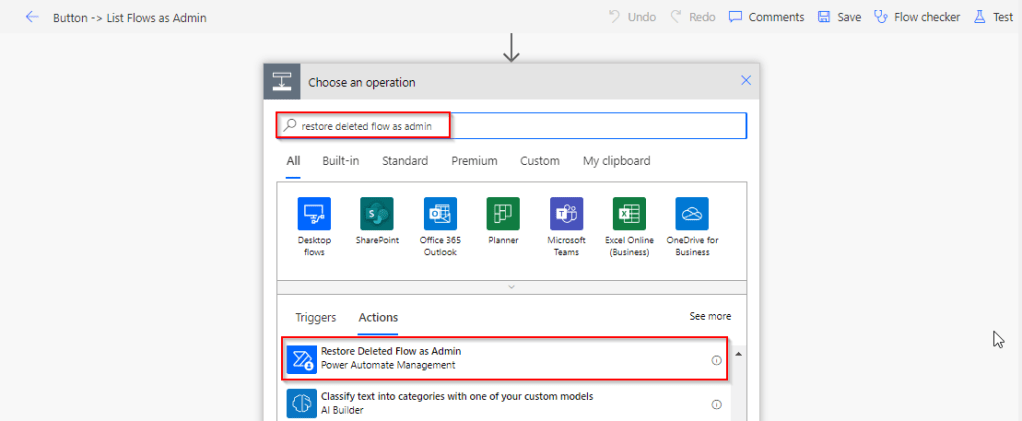
Add Restore Deleted Flows as Admin action and run the flow by searching for the same as below.
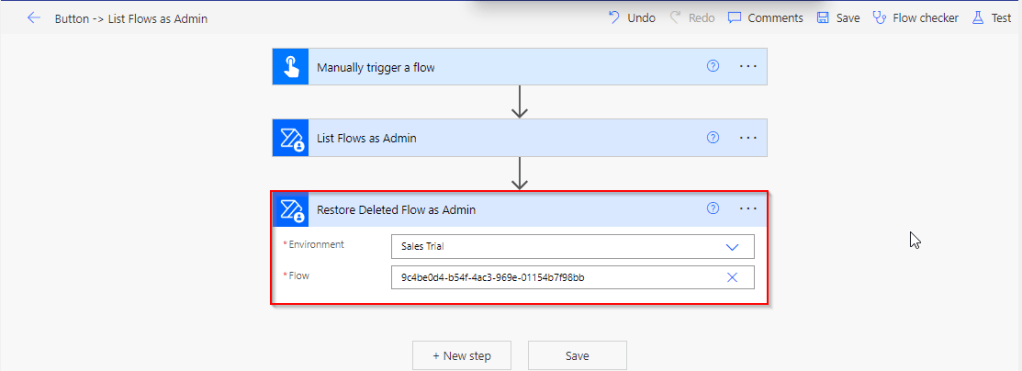
Add the Restore Deleted Flows as Admin action from the Power Automate Management Connector.
In the Flow field, enter the name value ie. Guid noted from previous step ie.
9c4be0d4-b54f-4ac3-969e-01154b7f98bb
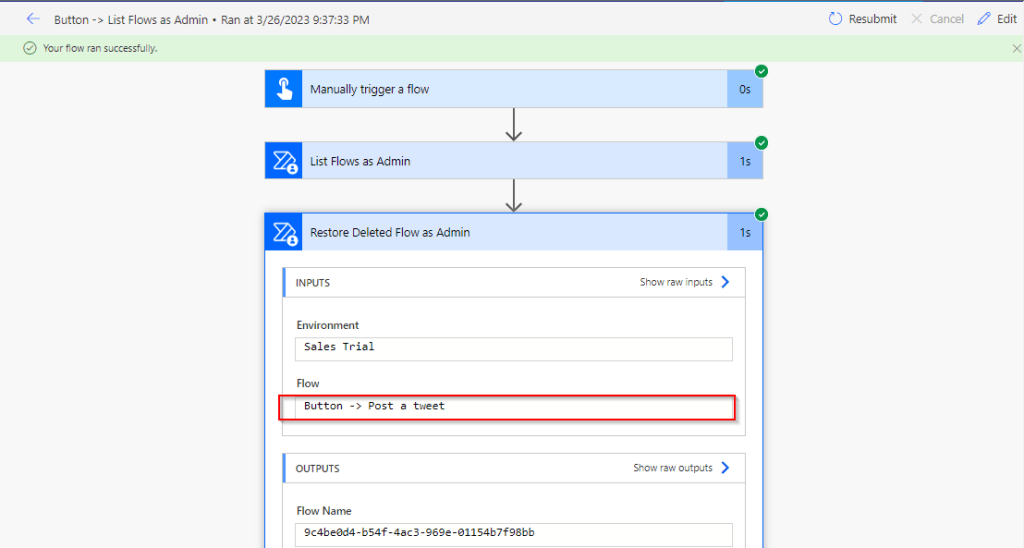
Save the flow, and test/run it.
You can note your flow is back, you can find out under My Flows but it’s disabled state.
Note:
The steps in this article apply to both non-solution and solution flows.
Flows that were deleted more than 20 days ago can’t be recovered. Both restore methods (PowerShell script and Power Automate Management connector), as well as Microsoft Support can’t help to restore them.
After you restore a flow, it defaults to the disabled state. You must manually enable the flow, per your requirements.
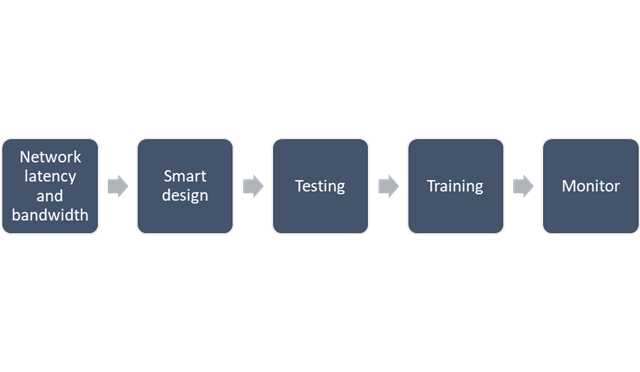
This blog post is all about performance considerations for your Power Platform CE Projects and how you can plan to optimize application performance for your Power Apps. So I just want to take you through them…
Are you tired of creating solutions for longer durations and while at the end of the project or during UAT you end up facing performance issues for the solutions you have developed, one of the most important non-functional requirements for a project’s success is Performance. Satisfying performance requirements for your users can be a challenge. Poor performance may cause failures in user adoption of the system and lead to project failure, so you might need to be careful for every decision you take while you design your solutions in the below stages.
Let’s talk about them one by one..
1. Network Latency and bandwidth
A main cause of poor performance of Dynamics 365 apps is the latency of the network over which the clients connect to the organization.
Bandwidth is the width or capacity of a specific communications channel.
Latency is the time required for a signal to travel from one point on a network to another and is a fixed cost between two points. And usually many of these “signals” travel for a single request.
Lower latencies (measured in milliseconds) generally provide better levels of performance. Even if the latency of a network connection is low, bandwidth can become a performance degradation factor if there are many resources sharing the network connection, for example, to download large files or send and receive email.
Dynamics 365 apps are designed to work best over networks that have the following elements:
Bandwidth greater than 50 KBps (400 kbps)
Latency under 150 ms
These values are recommendations and don’t guarantee satisfactory performance. The recommended values are based on systems using out-of-the box forms that aren’t customized.
If you significantly customize the out-of-box forms, it is recommend that you test the form response to understand bandwidth needs.
You can use the diagnostics tool to determine the latency and bandwidth:
On your computer or device, start a web browser, and sign in to an organization.
Also, to mitigate higher natural latency for global rollouts, customers should leverage Dynamics 365 Apps successfully by having smart design for their applications.
2.Smart Design for your application
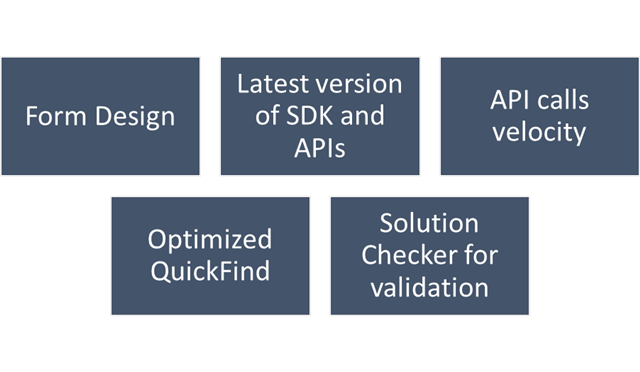
Form design
Keep the number of fields to a minimum. The more fields you have in a form, the more data that needs to be transferred over the internet or intranet to view each record. Think about the interaction the user will have with the form and the amount of data that must be displayed within it.
Avoid including unnecessary JavaScript web resource libraries. The more scripts you add to the form, the more time it will take to download them. Usually, scripts are cached in your browser after they are loaded the first time, but the performance the first time a form is viewed often creates a significant impression.
Avoid loading all scripts in the Onload event. If you have code that only supports OnChange events for fields or the OnSave event, make sure to set the script library with the event handler for those events instead of the OnLoad event. This way loading those libraries can be deferred and increase performance when the form loads.
Use tab events to defer loading web resources. Any code that is required to support web resources or IFRAMEs within collapsed tabs can use event handlers for the TabStateChange event and reduce code that might otherwise have to occur in the OnLoad event.
Set default visibility options. Avoid using form scripts in the OnLoad event that hide form elements. Instead set the default visibility options for form elements that might be hidden to not be visible by default when the form loads. Then, use scripts in the OnLoad event to show those form elements you want to display. If the form elements are never made visible, they should be removed from the form rather than hidden.
Avoid opening a new tab or window and do open the window in the main form dialog.
For Command Bar, keep the number of controls to a minimum. Within the command bar or the ribbon for the form, evaluate what controls are necessary and hide any that you don’t need. Every control that is displayed increases resources that need to be downloaded to the browser. Use asynchronous network requests in Custom Rules When using custom rules that make network requests in Unified Interface, use asynchronous rule evaluation.
Only the columns required for information or action should be included in API calls:
Retrieving all columns (*) creates significant overhead on the database engine when distributed across significant user load. Optimization of call velocity is key to avoid “chatty” forms that unnecessarily make repeated calls for the same information in a single interaction.
You should avoid retrieving all columns in a query result because of the impact on a subsequent update of records. In an update, this will set all field values, even if they are unchanged, and often triggers cascaded updates to child records. Leverage the most efficient connection mechanism (WebAPI vs SDK) and reference this doc site for guidance on the appropriate approach.
You should continue to use the ITracingService.Trace to write to the Plug-in Trace Log table when needed. If your plug-in code uses the ILogger interface and the organization does not have Application Insights integration enabled, nothing will be written. So, it is important to continue to use the ITracingService Trace method in your plug-ins. Plug-in trace logs continue to be an important way to capture data while developing and debugging plug-ins, but they were never intended to provide telemetry data.
For organizations using Application Insights, you should use ILogger because it will allow for telemetry about what happens within a plug-in to be integrated with the larger scope of data captured with the Application Insights integration. The Application Insights integration will tell you when a plug-in executes, how long it takes to run and whether it makes any external http requests. Learn more about tracing in plugins Logging and tracing (Microsoft Dataverse) – Power Apps | Microsoft Learn.
Use Solution Checker to analyze solution components
Best practice is to run Solution Checker for all application code and include it as mandatory step while you design solutions or check when you complete developing your custom logic.
Quick Find
For an optimal search experience for your users consider the next:
All columns you expect to return results in a quick find search need to be included in the view or your results will not load as expected.
It is recommended to not use option sets in quick find columns. Try using the view filtering for these.
Minimize the number of fields used and avoid using composite fields as searchable columns. E.g., use first and last name as searchable vs full name.
Avoid using multiple lines of text fields as search or find columns.
Evaluate Dataverse search vs using leading wildcard search
3. Training
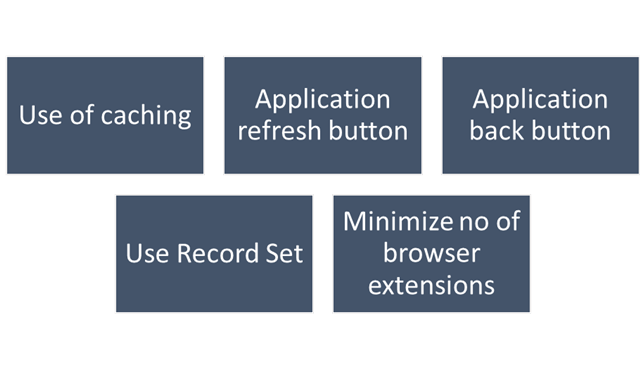
This step should be done during user training or during UAT. To ensure optimal performance of Dynamics 365, ensure that users are properly leveraging browser caching. Without caching, users can experience cold loads which have lower performance than partially (or fully) warm loads.
Train users to not clear the browser cache manually.
Check if devices have enough space allocated for browser cache.
Make sure to train users to:
Use application inline refresh over browser refresh (should not use F5)
Use application inline back button instead browser’s back button.
Avoid InPrivate/Incognito modes in browser which causes cold loads.
Make users aware that running applications which consumes lot of bandwidth (like video streaming) may affect performance.
Do not install browser extensions unless they are necessary (this might be also blocked via policy)
Do use ‘Record Set’ to navigate records quickly without switching from form back to the list.
4. Testing
For business processes where performance is critical or processes having complex customizations with very high volumes, it is strongly recommended to plan for performance testing. Consider reviewing the below technical talk series describing important performance considerations, as well as sharing practical examples of how to set up and execute performance testing, and analyze and mitigate performance issues. Reference: Performance Testing in Microsoft Dynamics 365 TechTalk Series – Microsoft Dynamics Blog
5. Monitoring
You should define a monitoring strategy and might consider using any of the below tools based on your convenience.
Monitor Dynamic 365 connectivity from remote locations continuously using network monitoring tools like Azure Network Performance Monitor or 3rd party tools. These tools help identify any network related problems proactively and drastically reduce troubleshooting time of any potential issue.
Application Insights, a feature of Azure Monitor, is widely used within the enterprise landscape formonitoring and diagnostics. Data that has already been collected from a specific tenant or environment is pushed to your own Application Insights environment. The data is stored in Azure Monitor logs by Application Insights, and visualized in Performance and Failures panels under Investigate on the left pane. The data is exported to your Application Insights environment in the standard schema defined by Application Insights. The support, developer, and admin personas can use this feature to triage and resolve Telemetry events for Microsoft Dataverse – Power Platform | Microsoft Learn
Dataverse and PowerApps analytics in the Power Platform Admin Centre. Through the Plug-in dashboard in the Power Platform Admin Center you can view metrics such as average execution time, failures, most active plug-ins, and more.
Dynamics 365 apps include a basic diagnostic tool that analyzes the client-to-organization connectivity and produces a report.
Monitor is a tool that offers makers the ability to view a stream of events from a user’s session to diagnose and troubleshoot problems. Works both for model driven apps and canvas apps.
I hope this blog post had helped you learn or know something new…thank you for reading…
Today I am writing about a simple tip about Power Automate trigger which exists from quite a while but many people might not know it…stop the suspense. Let’s get into the use case…for Power Automate flows running on a trigger..
Are you tired of making the action which triggers your flow each and every time, then you can use this tip..
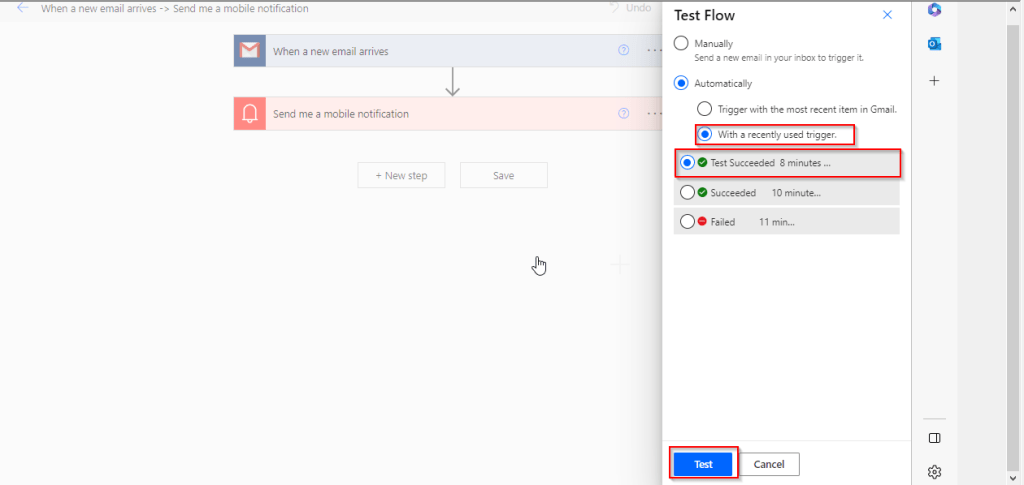
Just click on Test from top right bar as below..
Then in the pop up menu, select Automatically and check With a recently used trigger.
Later you can select any of the recently successful or failed executions to re-trigger your flow, no more hassles or manual actions to trigger your flow.
Hope this helps some one…trying to re-trigger their Automated cloud flows…without invoking their flow using an actual trigger.
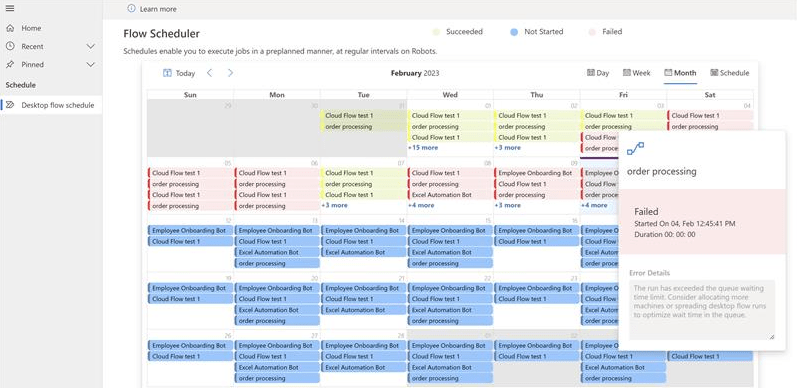
Have you ever thought of a tool where you can review all your scheduled flows at once in one dashboard, then I am glad to introduce you the latest capability from Microsoft which is none other than Automation Kit.
If we get into detail, the Automation Kit is set of tools that accelerates the use and support of Power Automate for desktop for automation projects. HEAT is guidance that’s designed to help you deploy the automation platform and manage the entire lifecycle of an automation project.
The key features of this Automation Tool Kit:
The ability to view the schedule of Recurring cloud flows
View schedule by Day, Week, Month and Schedule view
View the status of Scheduled flows (Success, Failure or Scheduled)
View the duration of a Cloud Flow run
View the details any any errors
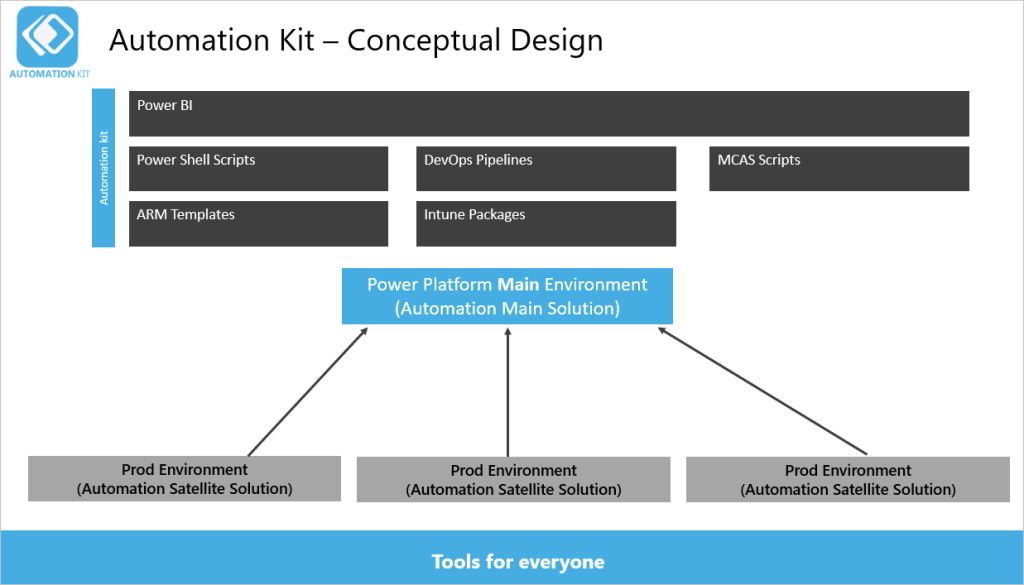
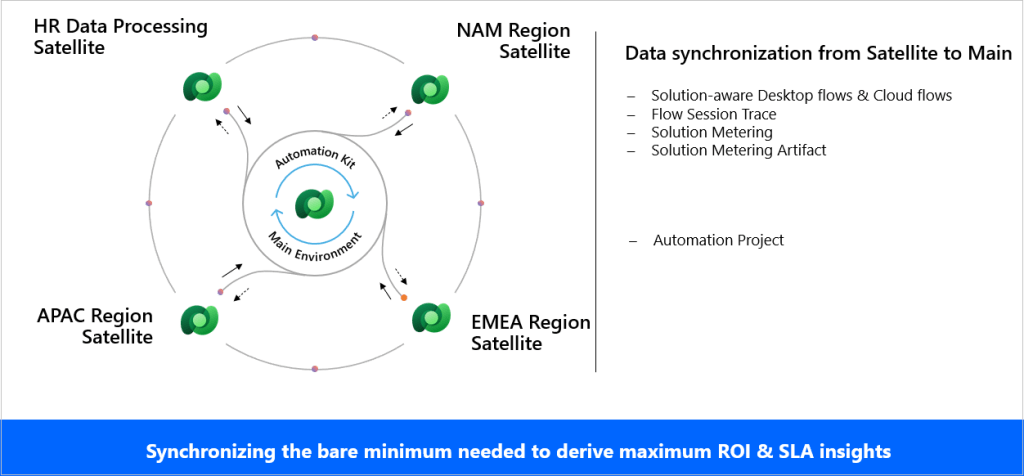
The key element of the solution is the Power Platform main environment.
There are usually several satellite production environments that run your automation projects. Depending on your environment strategy, these could also be development or test environments.
Between these environments there is a near-real-time synchronization process that includes cloud or desktop flow telemetry, machine and machine group usage, and audit logs. The Power BI dashboard for the Automation Kit displays this information.
Automation Kit components
The Automation Kit supports an automation CoE with the following components:
Automation Project: This project is a canvas app that supports requesting automation projects and submitting them for approval.
Automation Center: This is a model-driven app that organizations can use to create and maintain automation assets, such as master data records, map resources and environments, and assign roles to employees.
Automation Solution Manager: This is a canvas app in satellite environments that enables the metering of solutions and their artifacts.
Cloud flows: These cloud flows use Dataverse tables to sync data from satellite environments, in near real time, to the main environment.
A Power BI dashboard that provides insights and monitors your automation assets.
These two solutions contain the components in the kit.
The main solution, which you deploy to the main environment.
The satellite solution, which you deploy in each satellite environment.
Limitations:
Only Power Automate Desktop and Power Automate solutions contained within a solution are displayed
At least one Power Automate Desktop has been registered and executed
In this modern era where AI/ML is ruling the world and automating all the possible day to day activities done by a human, in this blog article, let’s talk about the latest buzz word since November 2022. i.e. ChatGPT.
So, what is ChatGPT, why its has become so much popular?
Officially ChatGPT stands for Generative PreTrained Transformer, it’s an AI-powered chatbot created by OpenAI. ChatGPT was fine-tuned on top of GPT-3.5 using supervised learning as well as reinforcement learning using Microsoft’s neural network technology. Open AI’s Chat GPT uses powerful machine learning algorithms to generate coherent and natural-sounding responses for user queries. To some extent, its giving a tough competition to its competitor Google Deep Mind Sparrow. The differences between the two can be found here.
The AI race between Microsoft and Google has definitely been ignited. Microsoft’s recent $10 billion investment into OpenAI, the startup behind their popular Chat GPT chatbot, has increased competition for AI supremacy.
Ok, that’s all the sleek intro. Let’s see how to work on this Chat GPT.
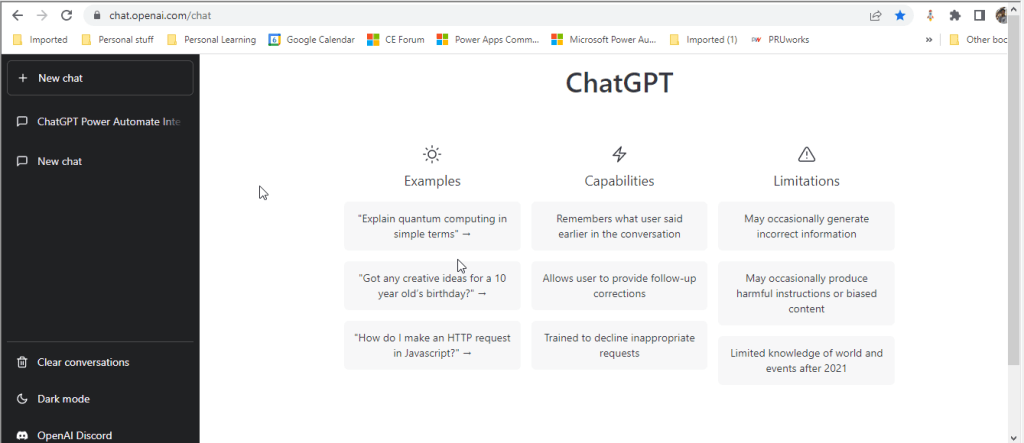
Once you click on the above link, you need login either with your Google or Microsoft credentials. You will be presented with below screen.
In the text box available at the bottom, you can enter your input for ChatGPT to search and get back the result to you.
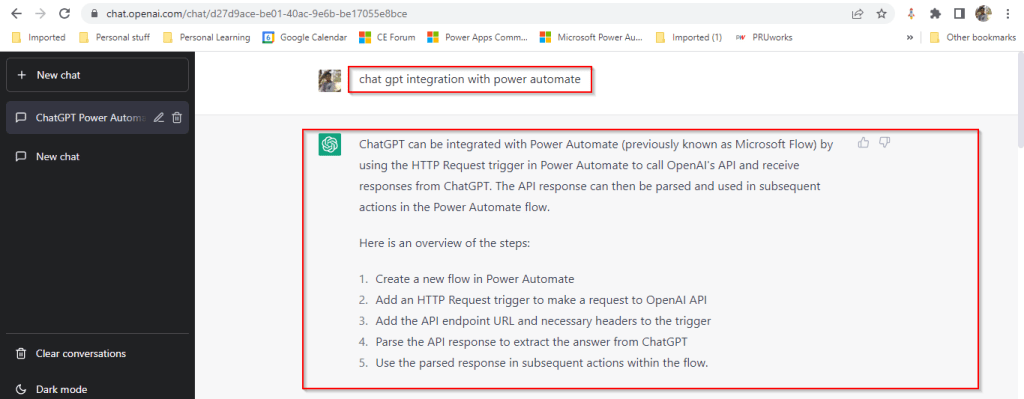
I have just tried entering how we can integrate Open AI’s ChatGPT and Power Automate and results are pretty much shown in a manner which is easier to understand as below.
The interesting part compared to Power Platform’s Power Virtual Agents is that ChatGPT has the capability to record the previous responses used under the login which is a great enhancement. So with this, the problems can be analyzed and solutions can be generated. By the way, the GPT-3 model, in particular, is 175 billion parameters in size, making it the largest language model ever trained.
In the upcoming blogs, I will try to elaborate how Chat GPT can be used for Power Platform real world scenarios and how we can integrate with Power Automate step by step…. Till then stay tuned…and keep rocking….
Thanks for visiting my blog…in this blog post, have you ever faced the situation where your flow keeps running with no output. Today I will list down the possible scenarios where you were struck with slow performance of the Flow.
Consider the below actions to make your flow execute smoothly.
Remediation steps/Actions to take to make your flow run efficiently:
Understand the throttling limits for your connectors and data sources
When coming to Power Automate, I see lots of articles regarding Pagination for retrieving more than 5000 records from Dataverse with varying complexity. It could be difficult to understand them at once if you were especially don’t much exposure on Power Automate working with functions and variables.
This post will give you a very easy way to retrieve more than 5k + records from Dataverse using PageNumber variable.
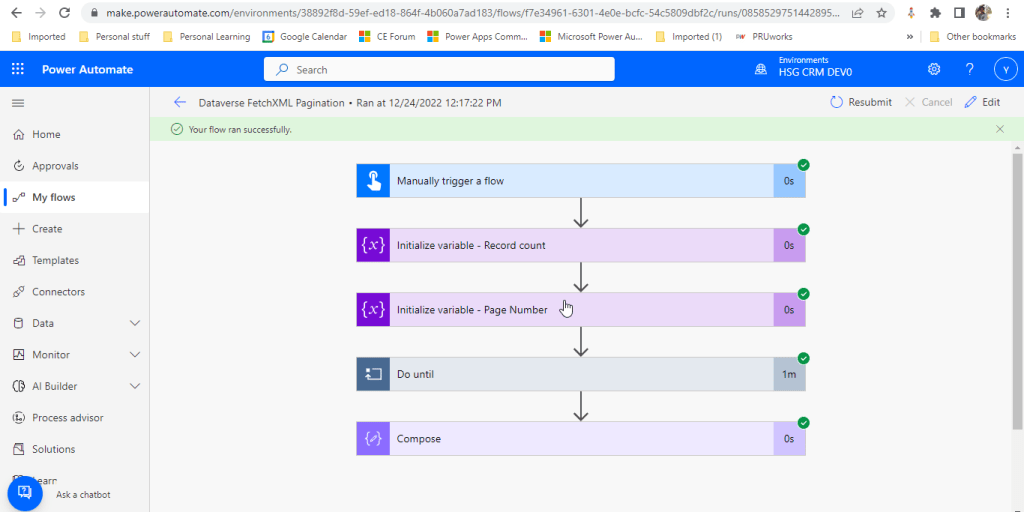
The Flow looks like below..
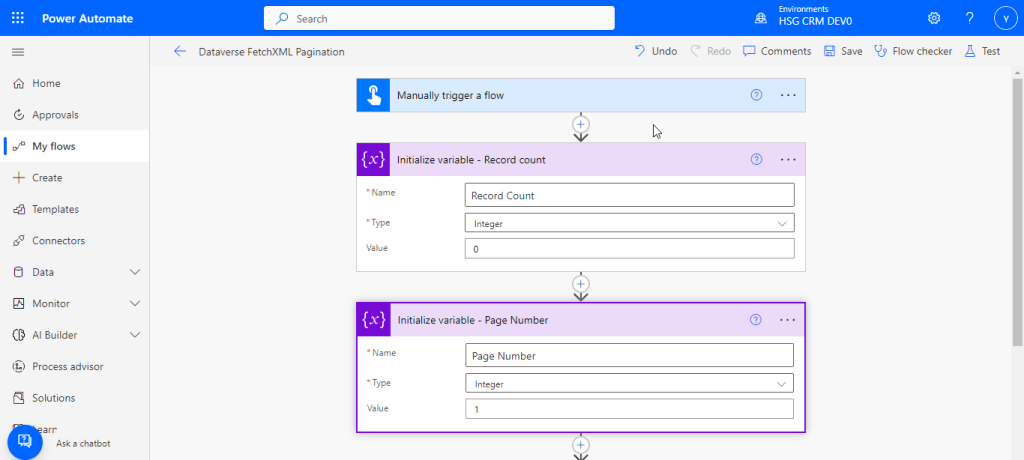
You just need two variables..
Record count
Page number
Lets create it…
For simplicity, create a manual trigger and initialize the two variables which we need.
Now create a do until loop to run until Page Number is 0.
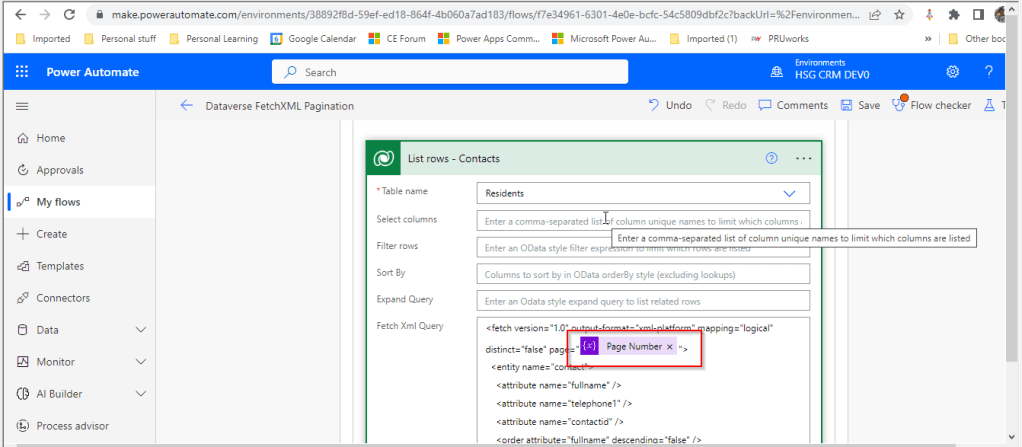
Now define a Scope action as above to define your fetch criteria to retrieve the records from dataverse with Fetch updated as below
Add the Page Number variable created
Add a condition as above to check if List Rows Length is still greater than zero.
If yes, increment the length of Page Number, else set Page Number as 0.
In each iteration, increment the length variable. Here Residents entity is nothing but contacts.
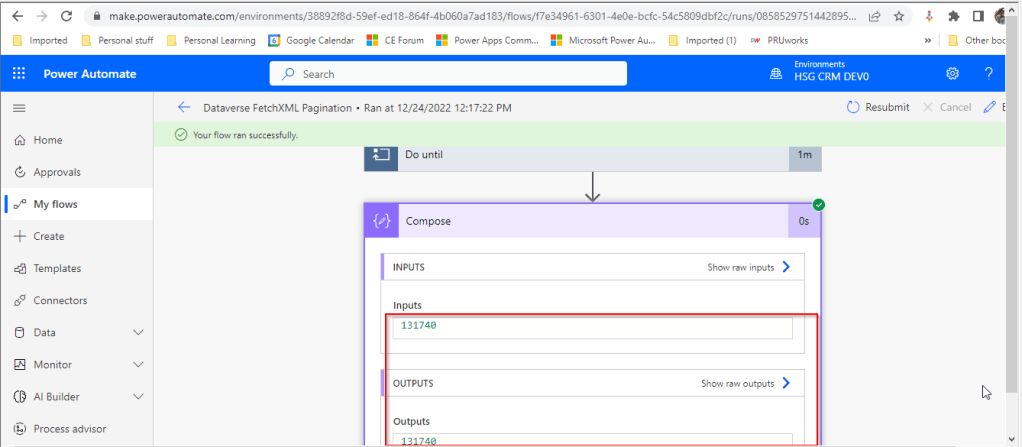
Just save the flow, run it..you will find the number of records in the table(contact/resident) as below
In today’s world, all the modern software applications use API for the front end to communicate with the backend systems, so lets see as it is very important for every developer working on Azure and API’s. Basically this is a PAAS Service from Azure. Follow along if you would like to know more details on this.
In short APIIM is a hybrid and multi cloud platform used to manage complete API life cycle. Azure API Management is made up of an API gateway, a management plane, and a developer portal.
Caching response to improve performance
Limit the number of API Calls
Security API and providing access
Interface to test API calls
API Analytics
Package related API Services
Transforms your API’s without
API Gateway is the first point of contact for any requests for your API which will route your requests to the appropriate backends. Imposes additional security restrictions with the help of JWT tokens and other certificates. Responses can be cached so that the API response could be faster.
Emits logs, metrics, and traces for monitoring, reporting, and troubleshooting
API Management are highly configurable, with control over URL mapping, query and path parameters, request and response content, and operation response caching.
Groups helps to provide conditional viewing capabilities.
Policy can help to change the behavior of an API without any code changes, this is well suited for your production API’s.
Also its easy to integrate API Management with all the other Azure Service available in the market.
Now lets go into the hands on by creating an APIIM simply from Azure.
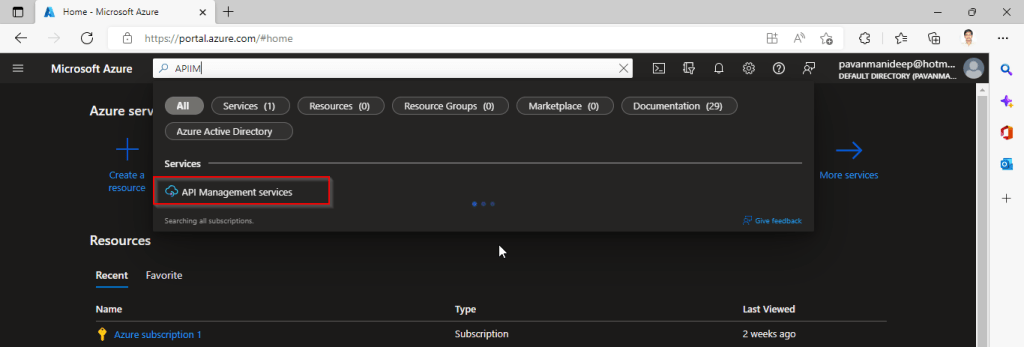
Go to Home – Microsoft Azure and search for APIIM and select API Management services and click on Create.
Input all the details, it was pretty self explanatory, coming to the pricing tier you could select based on your project needs and use case. Click on Review and Create and then Create.
It will take few minutes for the deployment to complete and you can use it.
The below Power point slide presentation is complete resource which can help you with all your queries related to Azure API Management.
I hope this gives you a bit of introduction to Azure API Management, now lets see how you can use this in your Power Platform Solutions.
For this, once your API ready, all you have do is to export your API’s from Azure API Management to your Power Platform Environment. With this the citizen developers can unleash the capabilities of Azure where the API’s are developed by professional developers. With this capability, citizen developers can use the Power Platform to create and distribute apps that are based on internal and external APIs managed by API Management.
Steps to follow would be as below:
All you need to do is to create a custom connector for your API which can be used in Power Platform like Power Apps, Power Automate etc.
Navigate to your API Management service in the Azure portal.
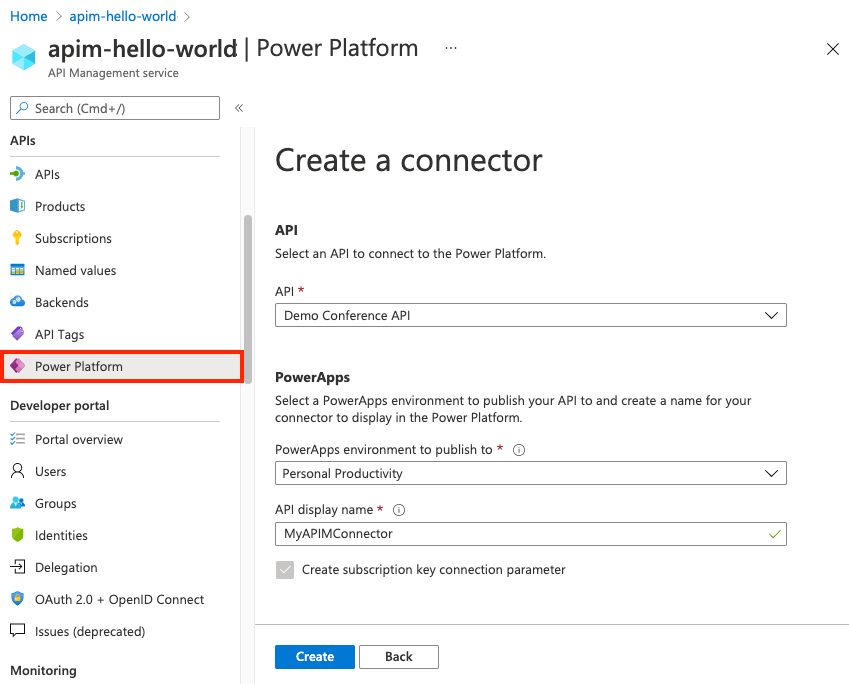
In the menu, under APIs, select Power Platform.
Select Create a connector.
In the Create a connector window, do the following:
Select an API to publish to the Power Platform.
Select a Power Platform environment to publish the API to.
Enter a display name, which will be used as the name of the custom connector.
Optionally, if the API doesn’t already require a subscription, select Create subscription key connection parameter.
Optionally, if the API is protected by an OAuth 2.0 server, provide details including Client ID, Client secret, Authorization URL, Token URL, and Refresh URL.
Select Create.
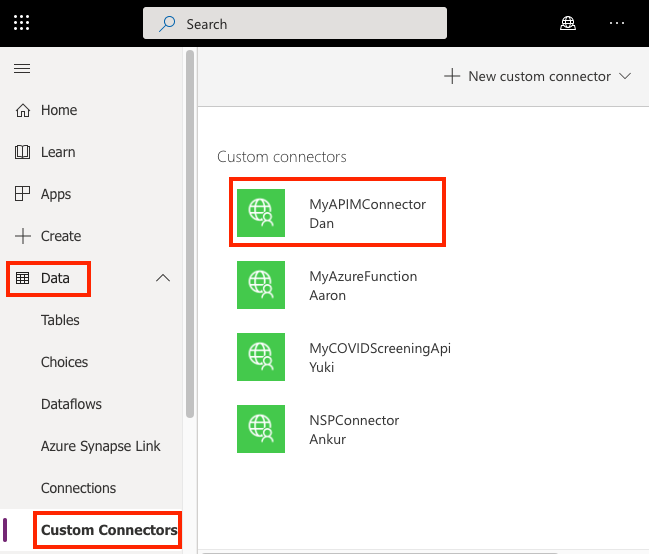
Once the connector is created, navigate to your Power Apps or Power Automate environment. You will see the API listed under Data > Custom Connectors.
I hope this will give you a complete picture about API Management in Azure…if you have any further queries, don’t hesitate to comment here…




















 ECELLORS CRM Blog