Building a Cloud-Native Power Apps ALM Pipeline with GitLab, Google Cloud Build and PAC CLI: Streamlining Solution Lifecycle Automation

A unique combination to achieve deployment automation of Power Platform Solutions

Hi Folks,

This post is about ALM in Power Platform integrating with a different ecosystem than usual, i.e. using Google Cloud, sounds interesting..? This approach is mainly intended for folks using Google Cloud or GitLab as part of their implementation.

Integrating Google Cloud Build with Power Platform for ALM (Application Lifecycle Management) using GitLab is feasible and beneficial. This integration combines GitLab as a unified DevOps platform with Google Cloud Build for executing CI/CD pipelines, enabling automated build, test, export, and deployment of Power Platform solutions efficiently. This was the core idea for my session on Friday 28 November, at New Zealand Business Applications Summit 2025.
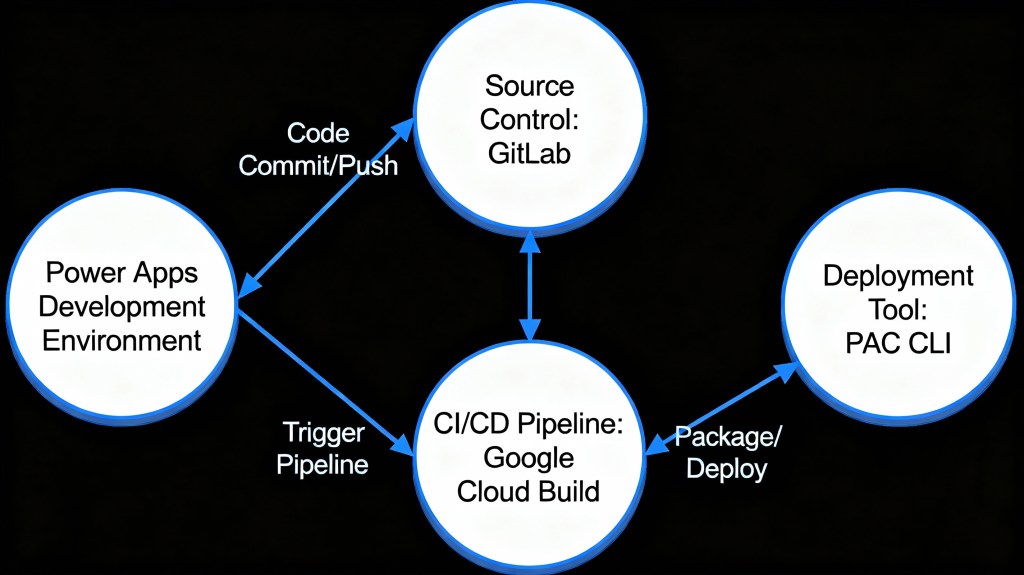
Detailed Steps for this implementation

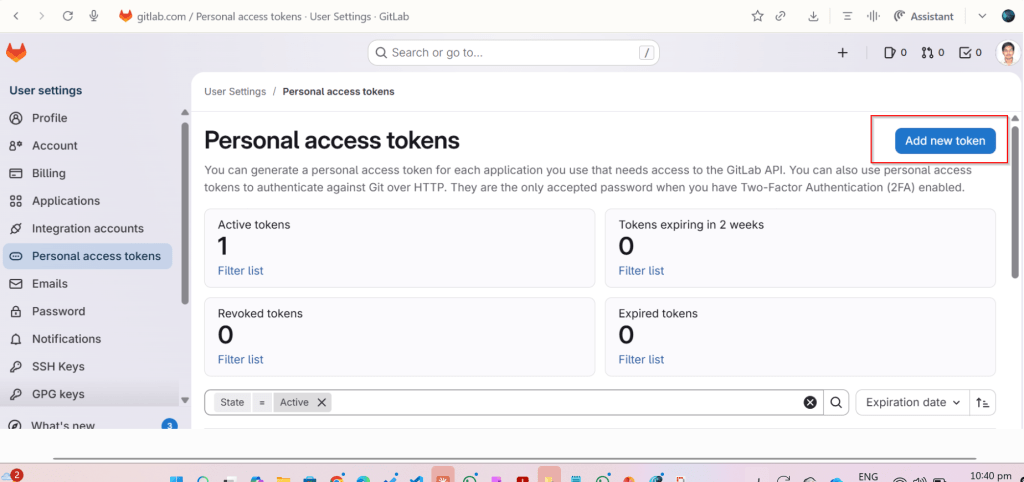
Create an access token in GitLab for API Access and Read Access

Click on Add new token, you can select at the minimum the below scopes while you were working with CI-CD using GitLab

Create a host connection for the repository in GitLab

Specify the personal access token created in the previous step

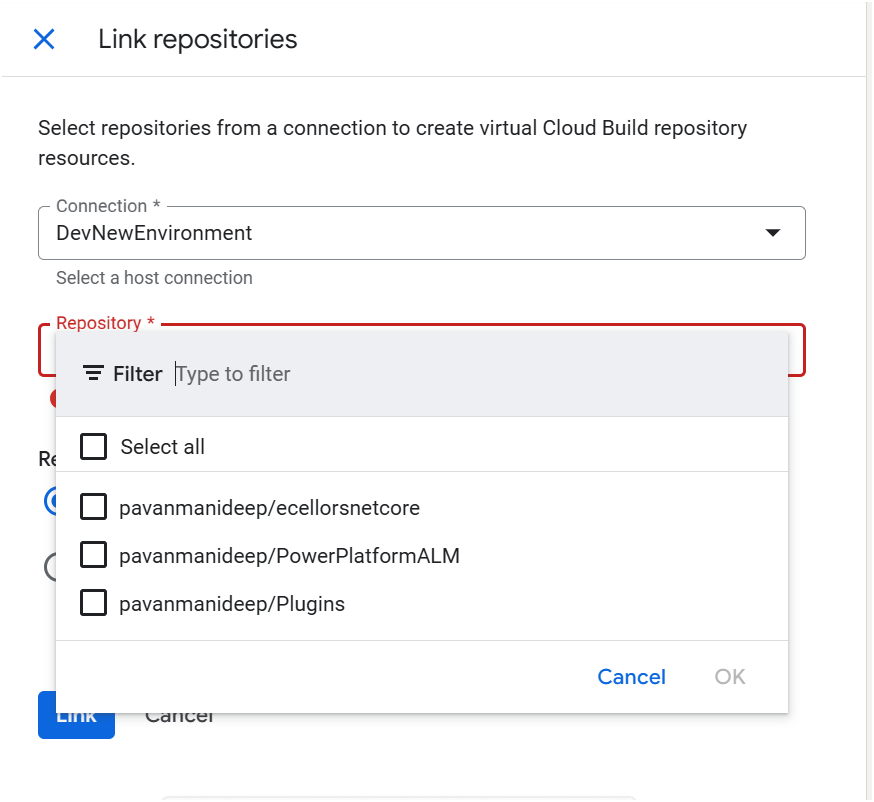
Link your repository

The created host connections in the previous step will be shown under Connec ctions drop down

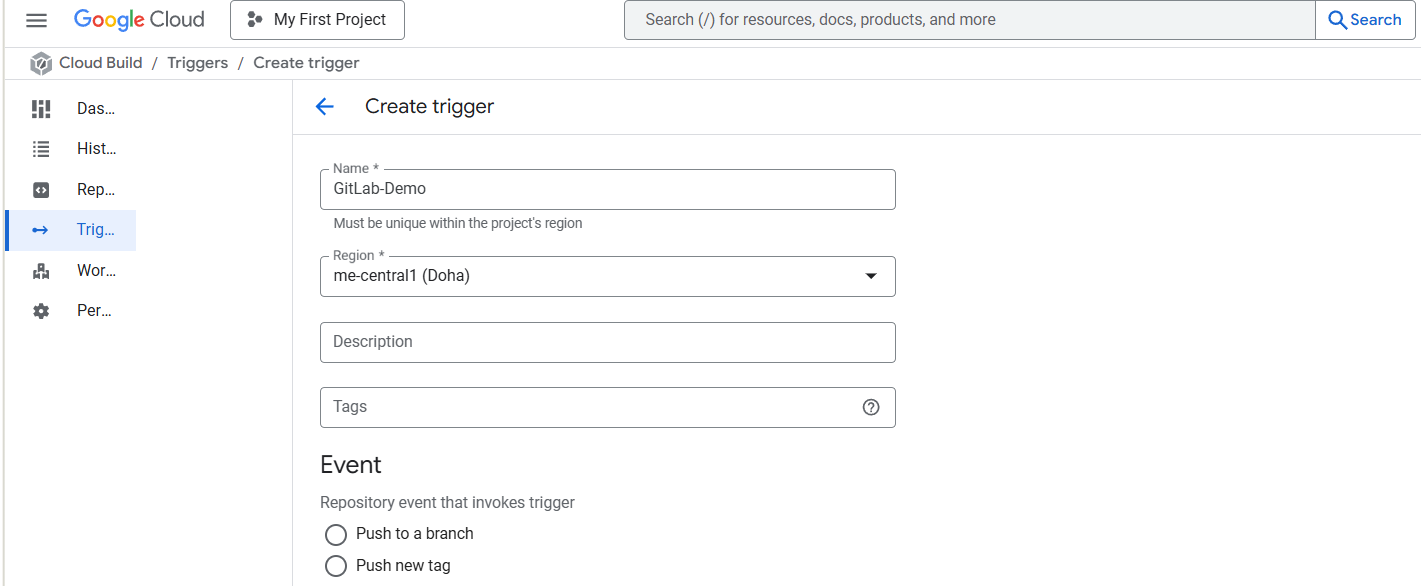
Create Trigger in Google Cloud Build

Click on Create trigger above, provide a name, select a nearest region
Event:

For now, I am choosing Manual invocation for illustration

Specify where the name of the Repository where your YAML in GitLab resides
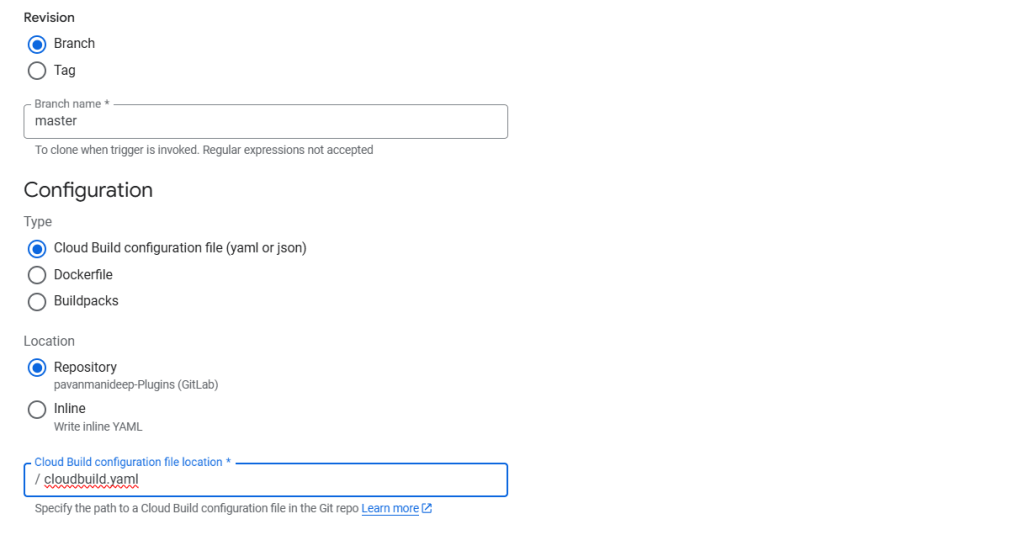
You can optionally specify the substitution variables which are nothing but parameters you can pass to your pipeline from Google Cloud Build Configuration

You can optionally give this for any approval and choose the service account tagged to your google account in the drop down.
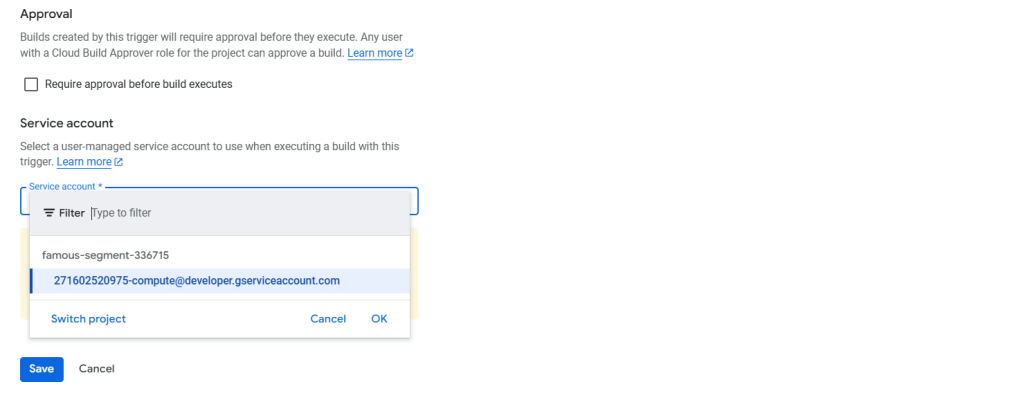
Click on Save.

Next proceed to GitLab YAML
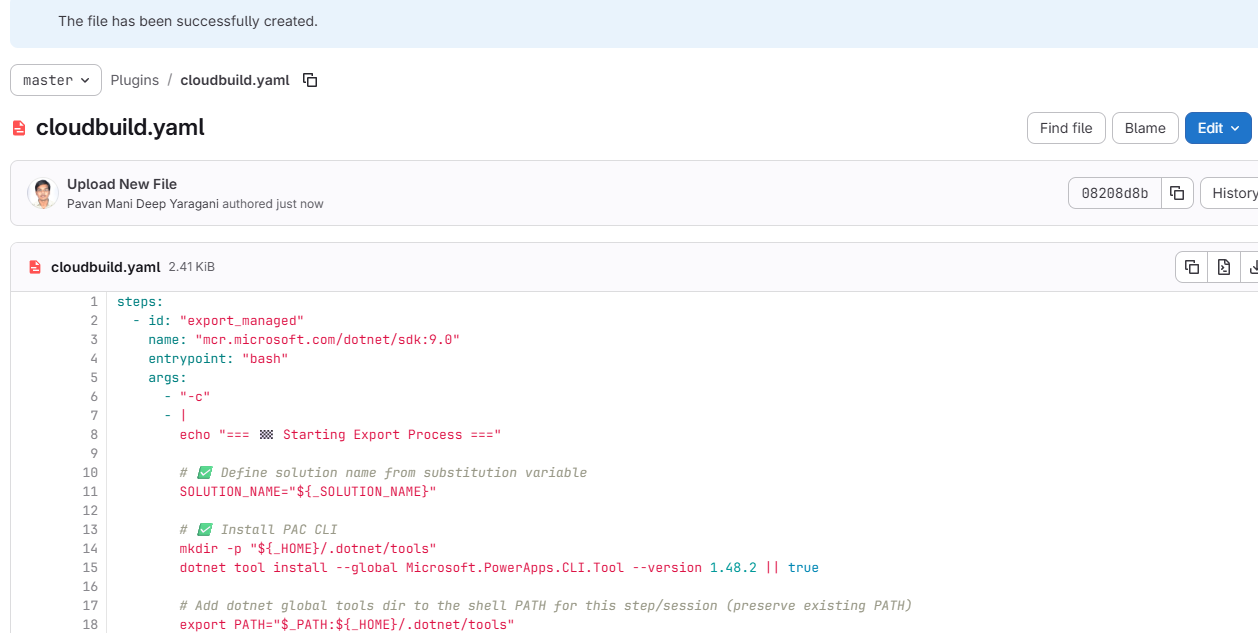
You can find the full code below

steps:
– id: "export_managed"
name: "mcr.microsoft.com/dotnet/sdk:9.0"
entrypoint: "bash"
args:
– "-c"
– |
echo "=== 🏁 Starting Export Process ==="
# ✅ Define solution name from substitution variable
SOLUTION_NAME="${_SOLUTION_NAME}"
# ✅ Install PAC CLI
mkdir -p "${_HOME}/.dotnet/tools"
dotnet tool install –global Microsoft.PowerApps.CLI.Tool –version 1.48.2 || true
# Add dotnet global tools dir to the shell PATH for this step/session (preserve existing PATH)
export PATH="$_PATH:${_HOME}/.dotnet/tools"
echo "=== 🔐 Authenticating to Power Platform Environment ==="
pac auth create –name "manual" –url "https://ecellorsdev.crm8.dynamics.com" –tenant "XXXXX-XXXX-XXXXX-XXXXXX-XXXXX" –applicationId "XXXXXXXXXXXXXX" –clientSecret "XXXXXXXXXXXXXXXX"
pac auth list
echo "=== 📦 Exporting Solution: ${_SOLUTION_NAME} ==="
pac solution export \
–name "${_SOLUTION_NAME}" \
–path "/tmp/${_SOLUTION_NAME}.zip" \
–managed true \
–environment "${_SOURCE_ENV_URL}"
echo "=== ✅ Solution exported to /tmp/${_SOLUTION_NAME}.zip ==="
echo "=== 🔐 Authenticating to Target Environment ==="
pac auth create \
–name "target" \
–url "https://org94bd5a39.crm.dynamics.com" \
–tenant "XXXXXXXXXXXXXXXXXXXXXXXX" \
–applicationId "XXXX-XXXXX-XXXXX-XXXXXX" \
–clientSecret "xxxxxxxxxxxxxxxxxxxx"
echo "=== 📥 Importing Solution to Target Environment ==="
pac solution import \
–path "/tmp/${_SOLUTION_NAME}.zip" \
–environment "${_TARGET_ENV_URL}" \
–activate-plugins \
–publish-changes
echo "=== 🎉 Solution imported successfully! ==="
options:
logging: CLOUD_LOGGING_ONLY
substitutions:
_SOLUTION_NAME: "PluginsForALM_GitLab"
_SOURCE_ENV_URL: "https://org.crm.dynamics.com"
_TARGET_ENV_URL: "https://org.crm.dynamics.com"
_TENANT_ID: "xxxxxxxx-xxxx-xxxx-xxxx-xxxxxxxxxxxx"
_CLIENT_ID: "xxxxxxxx-xxxx-xxxx-xxxx-xxxxxxxxxxxx"
_CLIENT_SECRET: "xxxxxxxxxxxxxxxxxxxxxxxxxxxx"
_SOLUTIONS_DIR: "/workspace/Plugins/08112025"
view raw GitLabDemo.yaml hosted with ❤ by GitHub

Solution from Source Environment

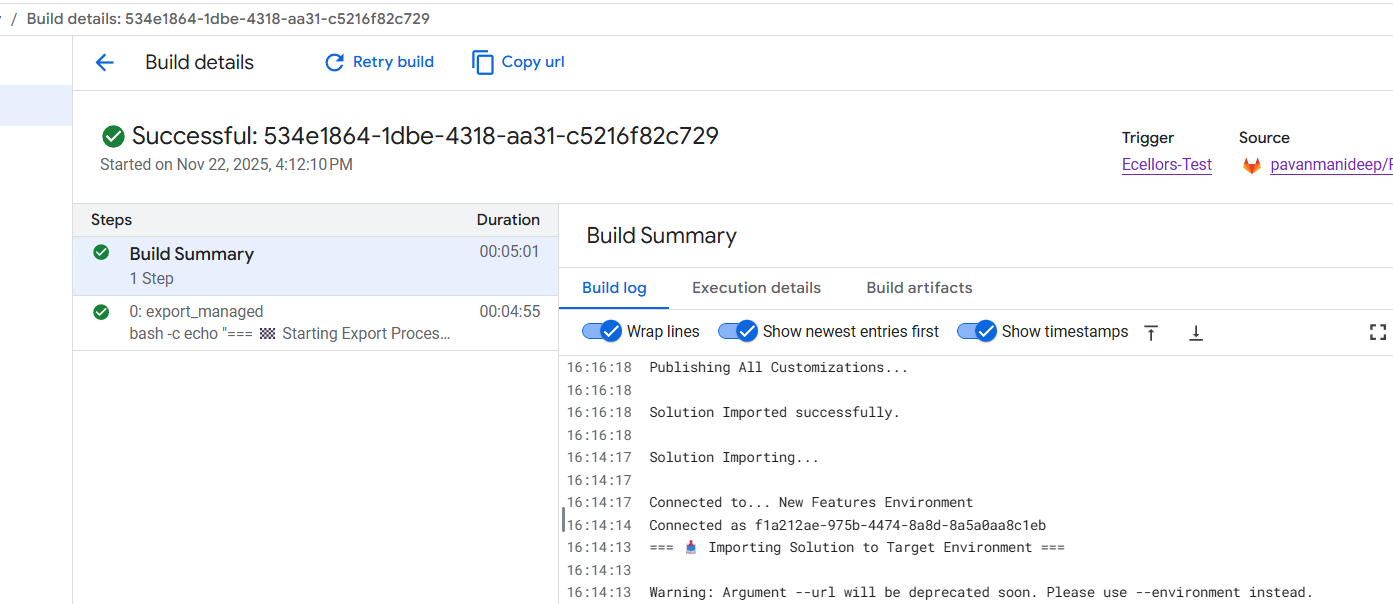
Now lets run the trigger which will export the solution from the source environment and import to the target environment….we have manual trigger, automatic trigger whenever there is an commit to the repo in GitLab etc., you may pick whatever suits your needs best.
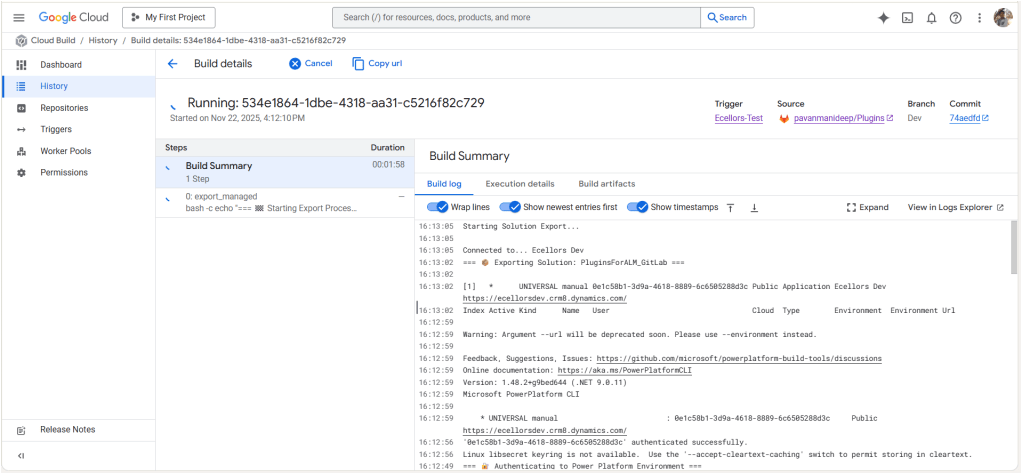
Solution imported to the target environment using Google Cloud Build
The below table illustrates key differences between Google Cloud Build and Azure Devops….

AspectGoogle Cloud BuildAzure DevOps Build Pipelines
Pricing ModelPay-as-you-go with per-second billingPer-minute billing with tiered pricing
Cost OptimizationSustained use discounts, preemptible VMsReserved capacity and enterprise agreements
Build EnvironmentServerless, container-native, managed by Google CloudRequires self-hosted or paid hosted agents
Free TierAvailable with build minutes and creditsAvailable but more limited
Operational OverheadLow, no need to manage build agentsHigher, managing agents or paying for hosted agents
Ideal ForVariable, short, or containerized workloadsLarge Microsoft-centric organizations
Integration Cost ImpactTightly integrated with Google Cloud serverless infrastructureIntegrated with Microsoft ecosystem but may incur additional licensing costs

Conclusion:

PAC CLI is a powerful command-line tool that automates authentication, environment, and solution management within Power Platform ALM, enabling consistent and repeatable deployment workflows. It integrates smoothly with DevOps tools like GitLab and Google Cloud Build, helping teams scale ALM practices efficiently while maintaining control and visibility over Power Platform environments. Just note, my intention was showcase the power of PAC CLI with wider ecosystem, not only with Microsoft.

Cheers,

PMDY

Simplify Power BI Management with Environment Variables

Introduction

Power Platform solutions often rely on dynamic configuration data, like Power BI workspace IDs, report URLs, or API endpoints. Environment variables make it easier to manage such configurations, especially in managed solutions, without hard coding values. This blog will walk you through the steps to update a Power BI environment variable in managed solutions, focusing on the task of switching the workspace to the correct one directly within Power BI integration when working on different environments.

What are Environment Variables in Power Platform?

Before we dive into the steps, let’s quickly cover what environment variables are and their role in solutions:

  • Environment Variables are settings defined at the environment level and can be used across apps, flows, and other resources in Power Platform.
  • They store values like URLs, credentials, or workspace IDs that can be dynamically referenced.
  • In managed solutions, these variables allow for configuration across multiple environments (e.g., development, testing, production).

Why Update Power BI Environment Variables in Managed Solutions?

Updating environment variables for Power BI in managed solutions ensures:

  • Simplified Management: You don’t need to hardcode workspace or report IDs; you can simply update the values as needed.
  • Better Configuration: The values can be adjusted depending on which environment the solution is deployed in, making it easier to scale and maintain.
  • Dynamic Reporting: Ensures that Power BI reports or dashboards are correctly linked to the right workspace and data sources.
  • Best and Recommended: Changing the environment variables and pointing to right workspace is the correct and is best way to point your Power BI Report to respective workspace and recommended by Microsoft.

Prerequisites

Before proceeding with the update, ensure you meet these prerequisites:

  1. You have the necessary permissions to edit environment variables and manage solutions.
  2. The Power BI integration is already set up within your Power Platform environment.
  3. You have a managed solution where the Power BI environment variable is defined.

Steps to Update a Power BI Environment Variable in Managed Solutions

Step 1: Navigate to the Power Platform Admin Center
Step 2: Open the Solution in Which the Environment Variable is Defined
  • Go to Solutions in the left navigation menu.
  • Select the Managed Solution that contains the Power BI environment variable you need to update.
Step 3: Find the Environment Variable
  • In the solution, locate Environment Variables under the Components section.
  • Identify the Power BI environment variable (such as API URL or workspace ID) that you need to modify.
Step 4: Click on Dashboards to Update the Workspace
  • To update the Power BI environment variable related to the workspace, click on Dashboards.
  • Find the existing environment variable tied to the workspace and click to edit it.
  • Here, you’ll see the current workspace configuration for the Power BI resource.
Step 5: Update the Workspace ID
  • In the environment variable settings, you will now change the workspace to the new one.
  • Select the appropriate workspace from the list or manually enter the new workspace ID, ensuring it aligns with the target environment (development, production, etc.).
  • If necessary, update other properties like report or dataset IDs based on your environment needs.
Step 6: Save and Apply Changes
  • After updating the workspace and any other relevant properties, click Save.
  • The environment variable will now reflect the new workspace or configuration.
Step 7: Publish the Solution
  • If you’re using a managed solution, ensure that the updated environment variable is properly published to apply the changes across environments.
  • You may need to export the solution to other environments (like test or production) if applicable.
Step 8: Test the Changes
  • After saving and publishing, test the Power BI integration to ensure that the updated workspace is correctly applied.
  • Check the relevant Power BI reports, dashboards, or flows to confirm that the new workspace is being used.

Best Practices

  • Document Changes: Always document the updates to environment variables, including what changes were made and why.
  • Use Descriptive Names: When defining environment variables, use clear and descriptive names to make it easy to understand their purpose.
  • Cross-Environment Testing: After updating environment variables, test them in different environments (dev, test, prod) to ensure consistency and reliability.
  • Security Considerations: If the environment variable includes sensitive information (like API keys), make sure it’s properly secured.

Conclusion

Updating Power BI environment variables in managed solutions allows you to maintain flexibility while keeping your configurations centralized and dynamic. By following the steps outlined in this blog post, you can efficiently manage workspace IDs and other key configuration data across multiple environments. This approach reduces the need for hardcoded values and simplifies solution deployment in Power Platform.

Cheers,

PMDY