Dataverse Accelerator | API playground (Preview)

Hi Folks,

In this post, I will be talking about the features of Dataverse Accelerator in brief. Actually, the Microsoft Dataverse accelerator is an application that provides access to select preview features and tooling related to Dataverse development, it is based on Microsoft Power Pages. This is totally different from Dataverse Industry Accelerator.

Dataverse accelerator app is automatically available in all new Microsoft Dataverse environments. If your environment doesn’t already have it, you can install the Dataverse accelerator by going to Power Platform Admin Center –> Environments –> Dynamics 365 Apps –> Install App –> Choose Dataverse Accelerator

You can also refer to my previous blog post on installing it here if you prefer

Once installed, you should see something like below under the Apps

On selection of the Dataverse Accelerator App, you should see something like below, do note that you must have App-level access to the Dataverse accelerator model driven app, such as system customizer or direct access from a security role.

Now let’s quickly see what are features available with Dataverse Accelerator

FeatureDescription
Low-code plug-insReusable, real-time workflows that execute a specific set of commands within Dataverse. Low-code plug-ins run server-side and are triggered by personalized event handlers, defined in Power Fx.
Plug-in monitorA modern interface to surface the existing plug-in trace log table in Dataverse environments, designed for developing and debugging Dataverse plug-ins and custom APIs.
Do you remember viewing Plugin Trace logs from customizations, now you don’t need system administrator role to view trace logs, giving access to this app will do, rest everything remains the same.
API PlaygroundA preauthenticated software testing tool which helps to quickly test and play with Dataverse API’s.

I wrote a blog post earlier on using Low Code Plugins, you may check it out here, while using Plugin Monitor is pretty straight forward.

You can find my blog post on using Postman to test Dataverse API’s here.

Now let’s see how can use the API Playground, basically you will be able to test the below from API Playground similar to Postman. All you need to open the API Playground from Dataverse accelerator. You will be preauthenticated while using API Playground.

TypeDescription
Custom APIThis includes any Dataverse Web API actionsfunctions from Microsoft, or any public user-defined custom APIs registered in the working environment.
Instant plug-inInstant plug-ins are classified as any user-defined workflows registered as a custom API in the environment with a related Power Fx Expressions.
OData requestAllows more granular control over the request inputs to send OData requests.

Custom API, Instant Plugin – You select the relevant request in the drop down available in API Playground and provide the necessary input parameters if required for your request

OData request – Select OData as your request and provide the plural name of the entity and hit send

After a request is sent, the response is displayed in the lower half of your screen which would be something like below.
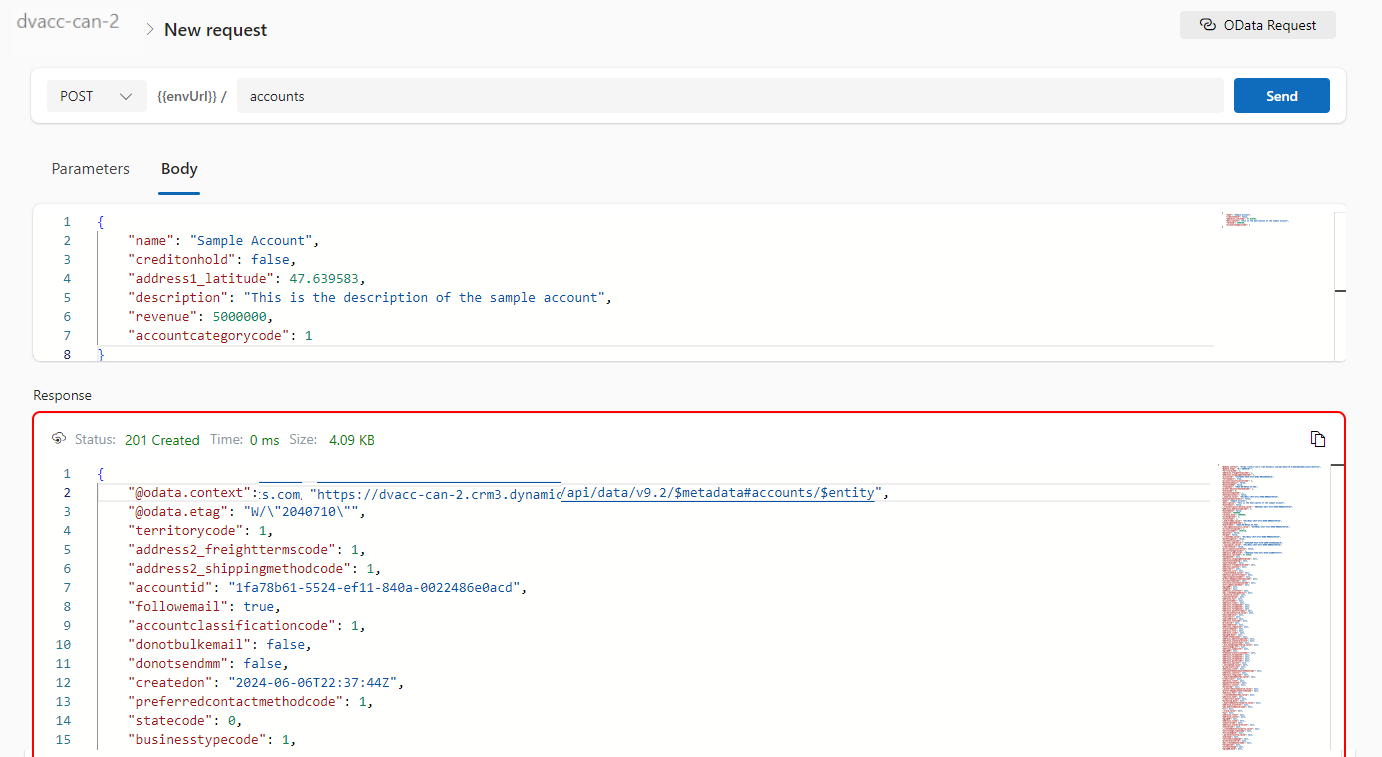
OData response

I will update this post as these features get released in my region(APAC), because at the time of writing this blog post, this API Playground feature is being rolled out globally and was still in preview.

The Dataverse accelerator isn’t available in GCC or GCC High environments.

Hope learned something about Dataverse Accelerator.

Cheers,

PMDY

Setting up Postman Environment to test the Dataverse API’s – Quick Tip

Hi Folks,

Today in this blog post, I would like to share how we can quickly set up Postman Environment to test out the Dataverse API’s right away. It’s very easy and doesn’t need any Client Id, Client Secret registration in Azure AD for Authorization if you follow these steps as the provided Client id works for all Dataverse environments, so let me take you through.

You just need to have a Dataverse environment that you can connect to and Postman desktop App in your machine(Preferably windows)

  1. Lauch the Postman desktop application
  2. Create the environment by click

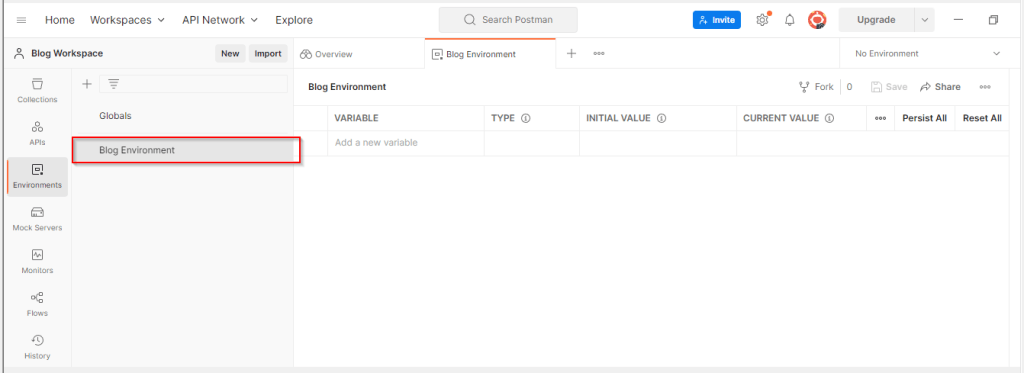
3. Enter a name for your environment, for example, Blog Environment as below

4. Get the Web API end point URL for your environment with few simple steps as below…by going to Developer resources in make.powerapps.com

Then copy the Web API endpoint URL as below…

Next step is to add following key value pairs in Postman for connecting to Dynamics..please make sure you use the same clientid(51f81489-12ee-4a9e-aaae-a2591f45987d), it is the same to connect to any Dataverse environment.

Variable Initial value

urlhttps://<your org name>.api.crm.dynamics.com
clientid51f81489-12ee-4a9e-aaae-a2591f45987d
version9.2
webapiurl{{url}}/api/data/v{{version}}/
callbackhttps://localhost
authurlhttps://login.microsoftonline.com/common/oauth2/authorize?resource={{url}}

Your updated configuration should look something as below in the Postman.

Click on save to save your newly created environment as highlighted below..

Now all you need is to generate access token in order to authenticate with your Dataverse environment to connect using OAuth 2.0

Follow the simple steps below..

Click on newly created environment, click on + symbol besides it as highlighted below

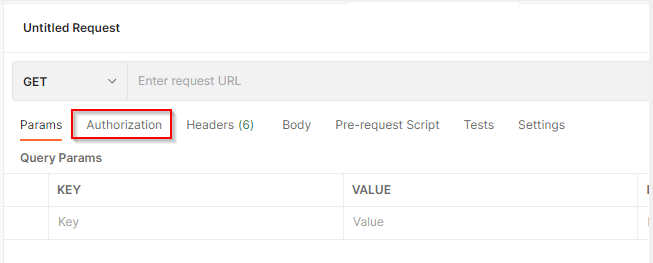
The following pane appears. Select the Authorization tab.

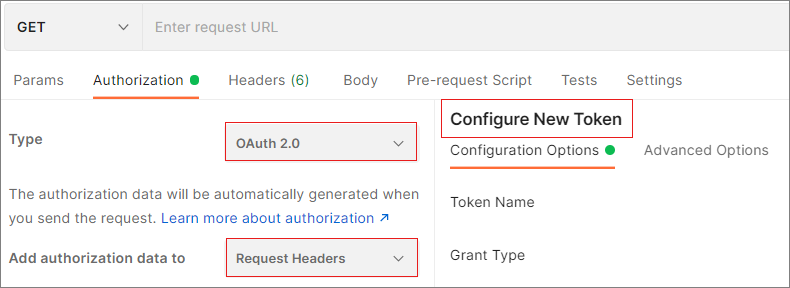
Set the Type to OAuth 2.0 and set Add authorization data to to Request Headers, if you scroll down a bit, you will be able to see Configure New Token option as below, else you wouldn’t.Auth request headers

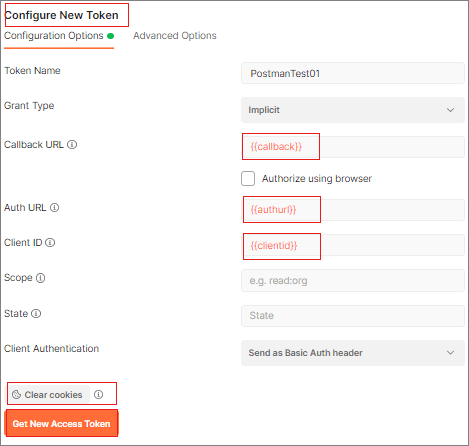
In the Configure New Token pane, set the following values:

NameValueAction
Grant TypeimplicitChoose implicit from the drop-down
Callback URL{{callback}}Copy the value
Auth URL{{authurl}}Copy the value
Client ID{{clientid}}Copy the value

The settings should appear as below

Tip: If you were using the Postman to connect to multiple dataverse instances, make sure you clear your Cookies inorder delete the cookies in Postman.

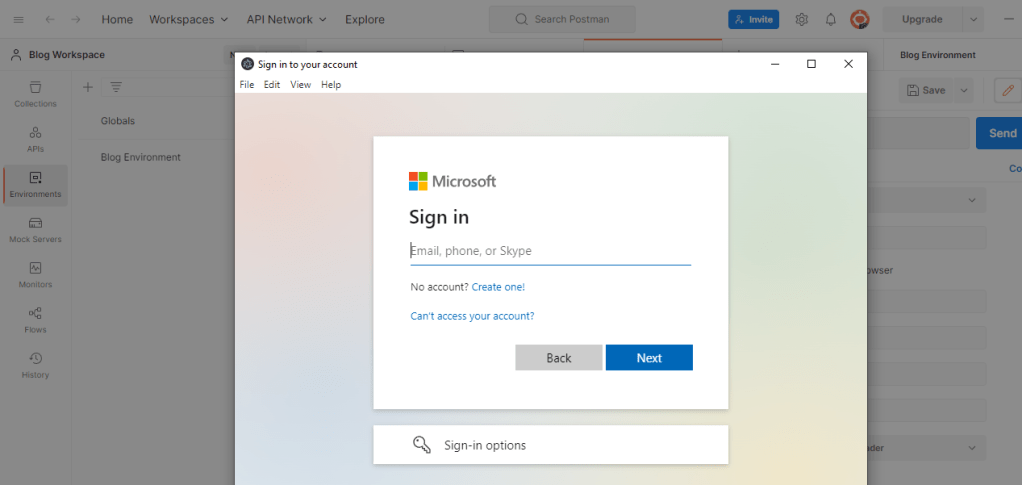
Click on Get New Access Token button, within a moment, you should see a Azure Active Directory pop up to Authenticate your login from browser.

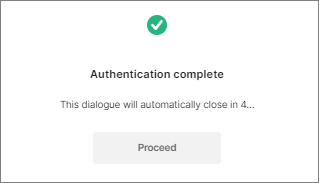
Click Get New Access Token.Once you click Get New Access Token, an Azure Active Directory sign-in dialog box appears. Enter your username and password, and then click Sign In. Once authentication completes, the following dialogue appears and just get the token with few more steps as below.

  1. Authentication completes
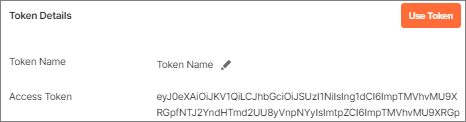
  2. After the authentication dialogue automatically closes in a few seconds, the Manage Access Tokens pane appears. Click Use Token.Access token page
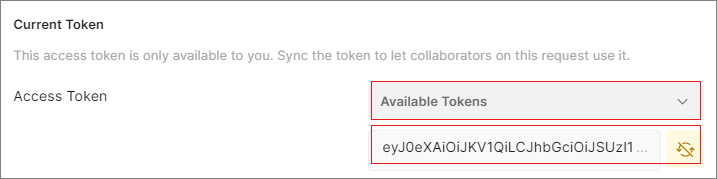
  3. The newly generated token will automatically appear in the text box below the Available Tokens drop-down.Token autopopulate

Test your connection

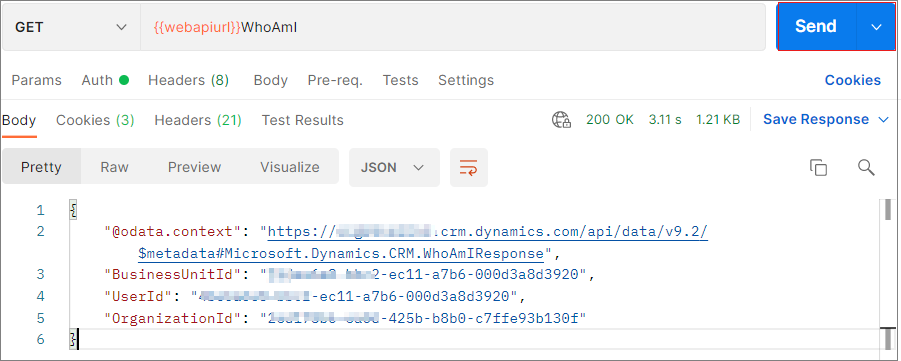
The following shows how to test your connection using WhoAmI:

  1. Select GET as the HTTP method and add {{webapiurl}}WhoAmI in the editing space.Calling WhoAmI endpoint
  2. Click Send to send this request.
  3. If your request is successful, you will see the data returning from the WhoAmI endpoint, like below:Response from WhoAmI

Hope you have found this post useful…when you were working with Dataverse API’s.

Cheers,

PMDY