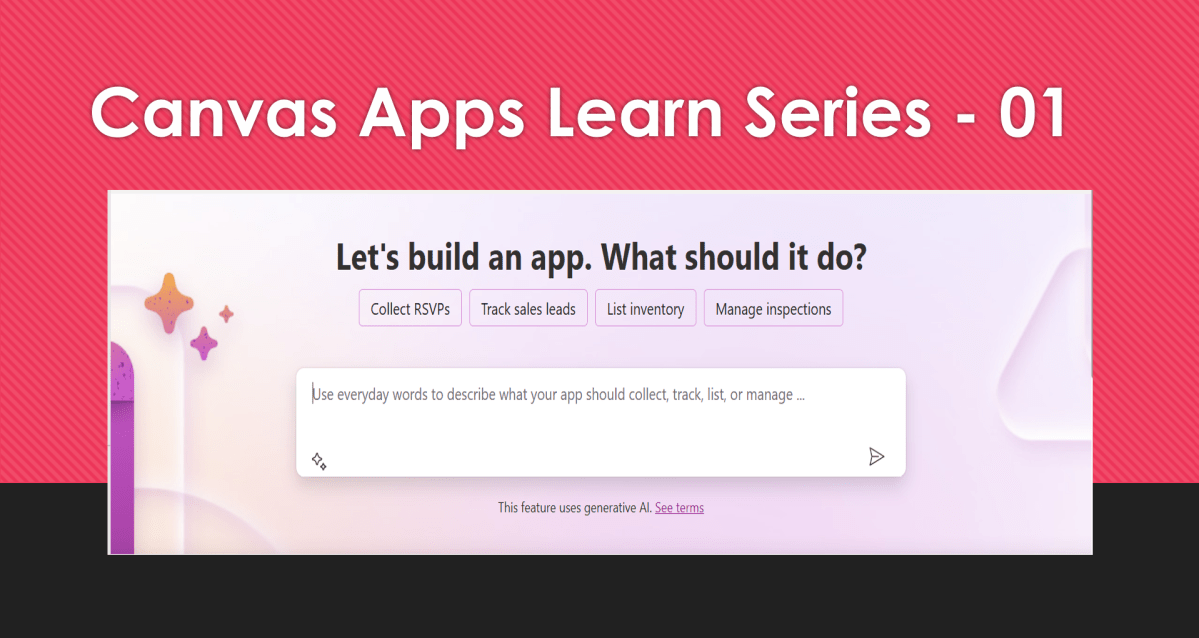
Master Canvas Power Apps – #Canvas Apps Learn Series

Hi Folks,

This is a blog post series on Canvas Apps where you can learn and grow from Zero – Hero in Canvas Power Apps…and boost your knowledge on Canvas Apps.

  1. Introduction to Canvas Apps – What they are, why they matter, and real-world use cases.
  2. Setting Up Your First Canvas App – Step-by-step guide for beginners.
  3. Understanding Screens and Navigation – How to structure an app with multiple screens.
  4. Working with Data Sources – Connecting to SharePoint, Dataverse, Excel, and other sources.
  5. Forms and Galleries – Displaying and capturing data effectively.
  6. Mastering Power Fx – Key formulas and best practices.
  7. User Experience and UI Design – Creating a responsive and user-friendly interface.
  8. Using Components for Reusability – Making apps scalable and maintainable.
  9. Working with Media and Attachments – Adding images, videos, and file uploads.
  10. Performance Optimization Tips – Best practices to make apps faster.
  11. Offline Capabilities in Canvas Apps – How to work with apps when offline.
  12. Integrating Power Automate with Canvas Apps – Automating processes.
  13. AI and Copilot Features in Canvas Apps – Adding intelligence to apps.
  14. Advanced Security and Role-Based Access – Controlling user access and permissions.
  15. Publishing and Managing Your Canvas Apps – Deployment, versioning, and governance.

Firstly, let’s start with some simple introduction for this post…

What Are Canvas Apps?

Canvas Apps are a powerful low-code development tool within Microsoft Power Platform that allows users to build custom business applications with a drag-and-drop interface. Unlike model-driven apps, which rely on structured data models, Canvas Apps provide full control over the user interface, enabling developers and business users to design highly customized applications tailored to specific business needs.

Canvas Apps can be used to create simple applications for internal business processes or sophisticated applications with multiple screens, data interactions, and integrations with other Microsoft and third-party services. Users can design these apps using Power Apps Studio, a web-based development environment that provides a range of components, such as buttons, galleries, forms, and media controls, to create intuitive and responsive applications.

Why Are Canvas Apps Important?

Canvas Apps bring significant value to businesses and developers by providing:

  1. Low-Code Development – Build applications with minimal coding, making app development accessible to both developers and non-developers. Power Fx, a formula-based language, enables business logic implementation with ease.
  2. Customization & Flexibility – Unlike model-driven apps that follow a predefined data structure, Canvas Apps allow users to freely design screens, layouts, and controls, ensuring the app meets unique business requirements.
  3. Seamless Data Integration – Connect to over 800+ data sources, including SharePoint, Dataverse, Excel, SQL Server, and third-party APIs, ensuring seamless access to enterprise data.
  4. Cross-Platform Compatibility – Run apps on web browsers, mobile devices (iOS & Android), and embedded within Microsoft Teams, SharePoint, and Dynamics 365.
  5. Integration with Power Platform – Enhance apps with Power Automate for automation workflows, Power BI for data visualization, and AI Builder for AI-driven insights and intelligent automation.
  6. Rapid Prototyping & Deployment – With the drag-and-drop interface and prebuilt templates, businesses can quickly prototype and deploy applications without long development cycles.
  7. Security & Compliance – Apps built using Canvas Apps inherit Microsoft’s security infrastructure, allowing role-based access control (RBAC) and compliance with enterprise security standards.

Real-World Use Cases

Canvas Apps can be leveraged across industries to improve efficiency and streamline operations. Some common real-world use cases include:

  • Expense Management App – Employees can submit expenses with receipts, managers can approve them, and finance teams can generate reports.
  • Inventory Management System – Track stock levels, reorder inventory, and generate reports in real-time.
  • Incident Reporting App – Employees can report workplace incidents with photos, location, and real-time status updates.
  • Customer Feedback App – Collect customer feedback through mobile-friendly forms and analyze responses with Power BI.
  • Field Service Management – Field workers can access work orders, update job statuses, and capture customer signatures through mobile devices.
  • HR Onboarding App – Manage the onboarding process for new employees with guided forms, policy documents, and task checklists.

Getting Started with Canvas Apps

To start building a Canvas App, follow these steps:

  1. Sign in to Power Apps (https://make.powerapps.com)
  2. Click on ‘Create’ and select ‘Canvas App from Blank’
  3. Choose a layout (Tablet or Mobile) based on your app’s intended use
  4. Design your app using Power Apps Studio:
    • Add Screens: Home screen, forms, galleries, etc.
    • Insert Controls: Buttons, text inputs, dropdowns, and images
    • Connect Data Sources: Link to Dataverse, SharePoint, SQL, etc.
    • Apply Business Logic: Use Power Fx formulas to create dynamic interactions
    • Test the App: Use Preview mode to validate functionality
  5. Publish and Share Your App: Deploy the app and control access using Microsoft Entra ID (Azure AD)

Best Practices for Building Canvas Apps

  1. Plan Your App Structure – Define screens, navigation, and key functionalities before starting.
  2. Optimize Performance – Reduce unnecessary data calls and use delegation-friendly queries.
  3. Use Components for Reusability – Create custom components for commonly used UI elements.
  4. Ensure Responsive Design – Design layouts that work across multiple device sizes.
  5. Leverage Power Automate for Automation – Automate approvals, notifications, and data processing.

What’s Next?

In the next post, we’ll walk through setting up your first Canvas App from scratch, covering app layout, adding controls, and connecting to a data source.

Stay tuned! Don’t forget to follow along…

Cheers,

PMDY

Dataverse Accelerator | API playground (Preview)

Hi Folks,

In this post, I will be talking about the features of Dataverse Accelerator in brief. Actually, the Microsoft Dataverse accelerator is an application that provides access to select preview features and tooling related to Dataverse development, it is based on Microsoft Power Pages. This is totally different from Dataverse Industry Accelerator.

Dataverse accelerator app is automatically available in all new Microsoft Dataverse environments. If your environment doesn’t already have it, you can install the Dataverse accelerator by going to Power Platform Admin Center –> Environments –> Dynamics 365 Apps –> Install App –> Choose Dataverse Accelerator

You can also refer to my previous blog post on installing it here if you prefer

Once installed, you should see something like below under the Apps

On selection of the Dataverse Accelerator App, you should see something like below, do note that you must have App-level access to the Dataverse accelerator model driven app, such as system customizer or direct access from a security role.

Now let’s quickly see what are features available with Dataverse Accelerator

FeatureDescription
Low-code plug-insReusable, real-time workflows that execute a specific set of commands within Dataverse. Low-code plug-ins run server-side and are triggered by personalized event handlers, defined in Power Fx.
Plug-in monitorA modern interface to surface the existing plug-in trace log table in Dataverse environments, designed for developing and debugging Dataverse plug-ins and custom APIs.
Do you remember viewing Plugin Trace logs from customizations, now you don’t need system administrator role to view trace logs, giving access to this app will do, rest everything remains the same.
API PlaygroundA preauthenticated software testing tool which helps to quickly test and play with Dataverse API’s.

I wrote a blog post earlier on using Low Code Plugins, you may check it out here, while using Plugin Monitor is pretty straight forward.

You can find my blog post on using Postman to test Dataverse API’s here.

Now let’s see how can use the API Playground, basically you will be able to test the below from API Playground similar to Postman. All you need to open the API Playground from Dataverse accelerator. You will be preauthenticated while using API Playground.

TypeDescription
Custom APIThis includes any Dataverse Web API actionsfunctions from Microsoft, or any public user-defined custom APIs registered in the working environment.
Instant plug-inInstant plug-ins are classified as any user-defined workflows registered as a custom API in the environment with a related Power Fx Expressions.
OData requestAllows more granular control over the request inputs to send OData requests.

Custom API, Instant Plugin – You select the relevant request in the drop down available in API Playground and provide the necessary input parameters if required for your request

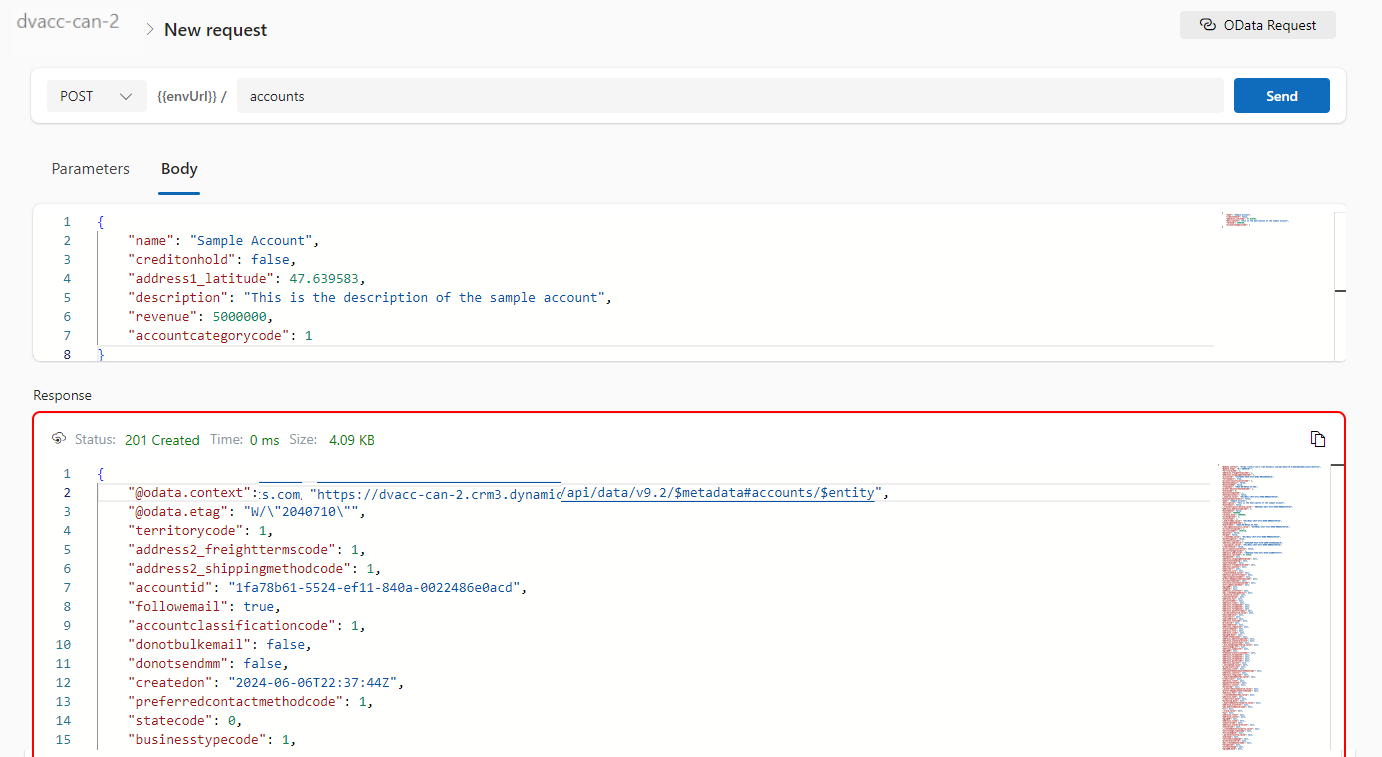
OData request – Select OData as your request and provide the plural name of the entity and hit send

After a request is sent, the response is displayed in the lower half of your screen which would be something like below.

OData response

I will update this post as these features get released in my region(APAC), because at the time of writing this blog post, this API Playground feature is being rolled out globally and was still in preview.

The Dataverse accelerator isn’t available in GCC or GCC High environments.

Hope learned something about Dataverse Accelerator.

Cheers,

PMDY

Restore deleted records in Dataverse table – Quick Review

Hi Folks,

Have you or your user ever mistakenly deleted records in Model Driven Apps..? Do you remember we can recover the deleted records from recycle bin in your PC, now similarly we can also do this in Dataverse also.

In this blog post, I will discuss about how you can retrieve a deleted record in Dataverse.

Till now, we have following tools in XRMToolBox wherein we can restore the deleted records (https://www.xrmtoolbox.com/plugins/DataRestorationTool, https://www.xrmtoolbox.com/plugins/NNH.XrmTools.RestoreDeletedRecords, https://www.xrmtoolbox.com/plugins/BDK.XrmToolBox.RecycleBin) but wait, these tools require Auditing to be enabled for the concerned table. What if you don’t have auditing enabled for that…now we have a preview feature which comes as a saviour where you don’t need any external tools anymore to restore them.

To use this, just enable this feature from Power Platform Admin Center, you can optionally set the recovery interval if you wish to.

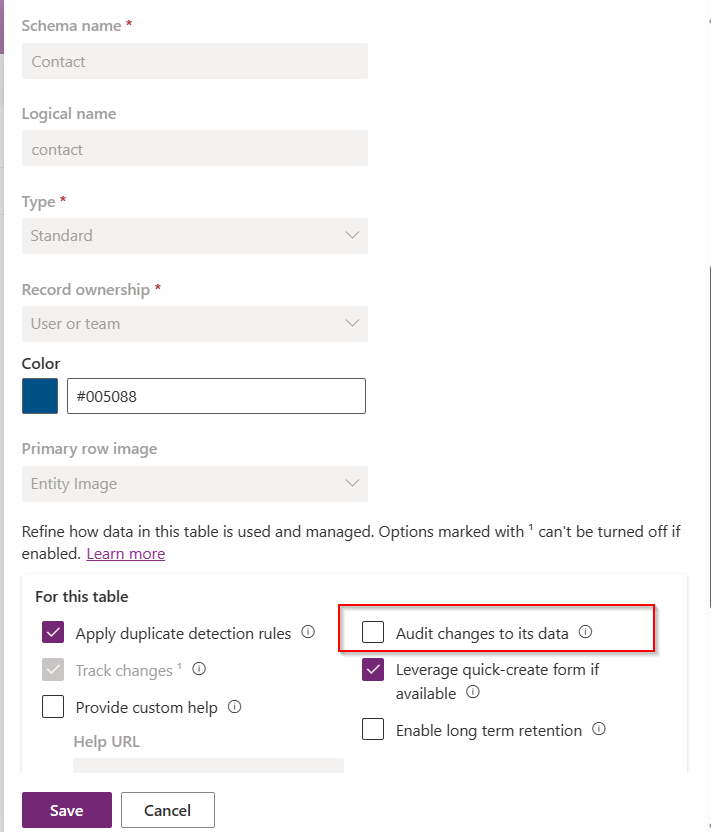
For this, we take Contact table as example, now let’s check the audit setting of the contact table..well, it’s turned off.

Even the auditing is not enabled for the contact entity, with this Recycle Bin Preview feature, we should be able to recover the records, let’s see this in action.

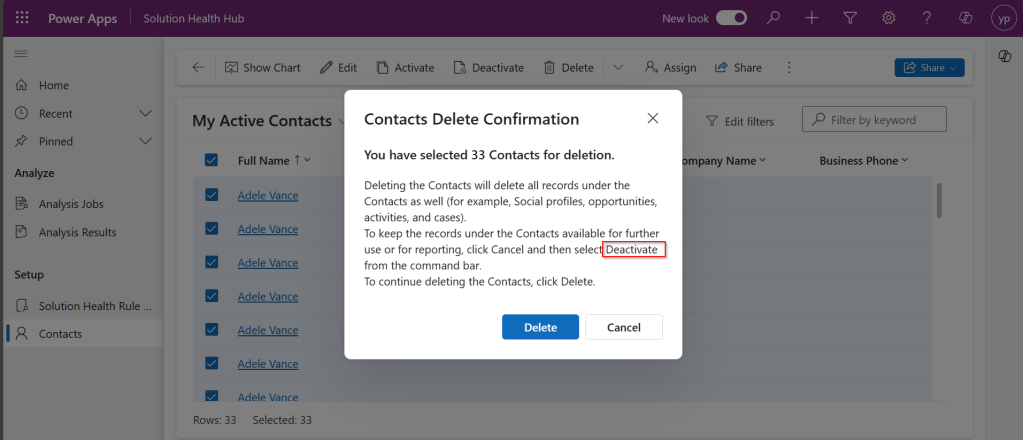
Now try deleting the contact records, I have 33 contact records in my environment, let me delete all of them.

It suggests you deactivate rather than delete, still let’s delete them.

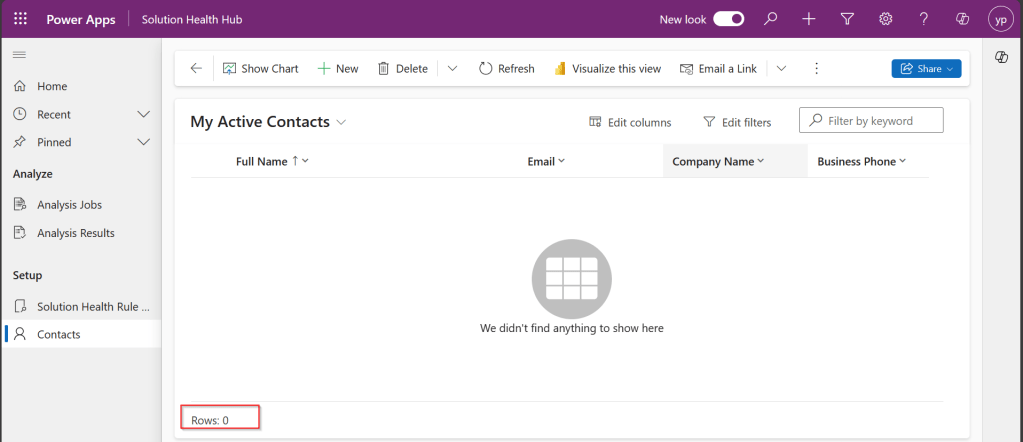
All the records are now deleted.

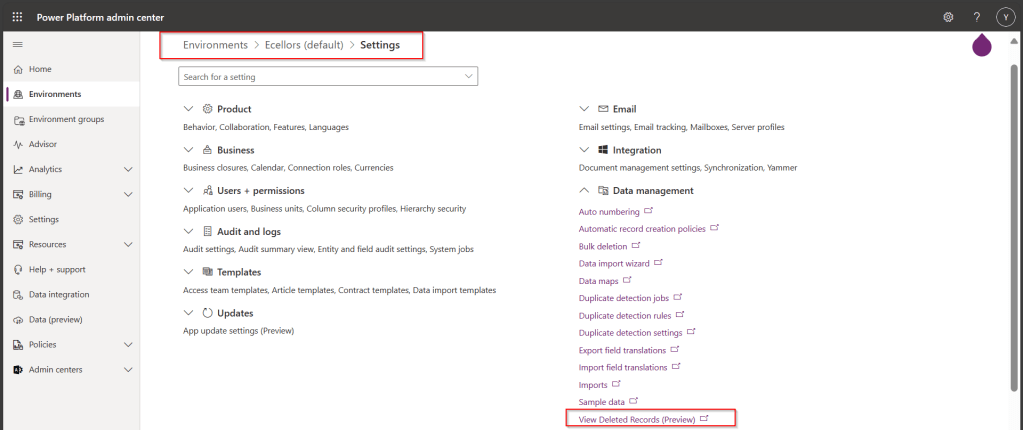
Now, let’s see how to recover them back…. just go to Power Platform Admin Center –> Environments –> Settings –> Data Management

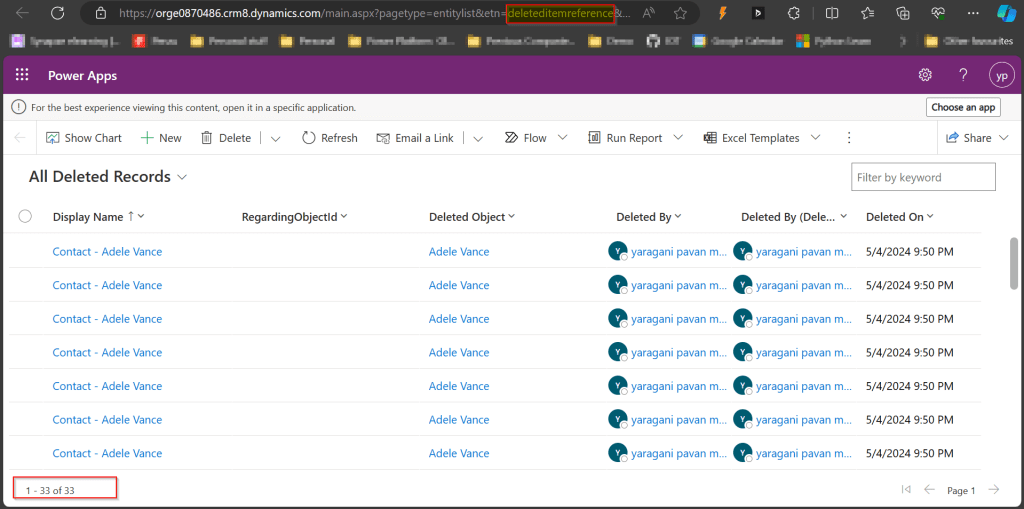
As you click on View Deleted Records, you will be navigated to a view from a new table called DeletedItemReference which stores the deleted records just like recycle bin.

Just select the records, you should see a restore button available on the command bar, here I choose All Deleted Records.

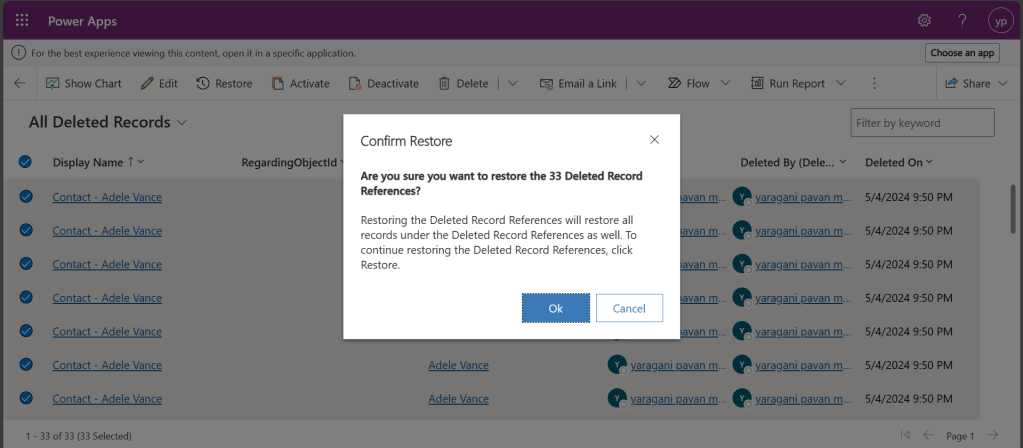
Once you click on restore, you will be shown a confirmation dialog, click on Ok.

You should see the records back in the respective table i.e. Contact here.

In this post, we saw recovering records which were deleted manually…the same thing works for records deleted using Bulk Delete jobs or whatever way you try to delete.

Note:

  1. This is a preview feature and not recommended to use in Production environments right away.
  2. You will not be able to recover the deleted records when you have custom business logic applied to delete the records from deleteditemreference table also, moreover this still a preview feature and not recommended for Production use.
  3. You will be able to recover records which were deleted by the Cascading behavior, like record Child records alone when Parent is still deleted.
  4. You can only recover up to the time frame you have set above and maximum up to 30 days from date of deletion.

Hope you learned something new…that’s it for today…

Reference:

https://learn.microsoft.com/en-us/power-platform/admin/restore-deleted-table-records

Cheers,

PMDY

Enabling TDS End Point for Dataverse (Preview Feature) from Power Platform Admin Center and its advantages

Hi Folks,

Exciting news…

Here is how you can enable TDS End Point in Dataverse…

  1. Navigate to Power Platform Admin Center…https://admin.powerplatform.microsoft.com/home
  2. Next navigate to the respective Environment to which you want to enable TDS End Point
  3. Choose your respective environment, go to Settings
  4. In the Settings windows, select the Product and then Features.
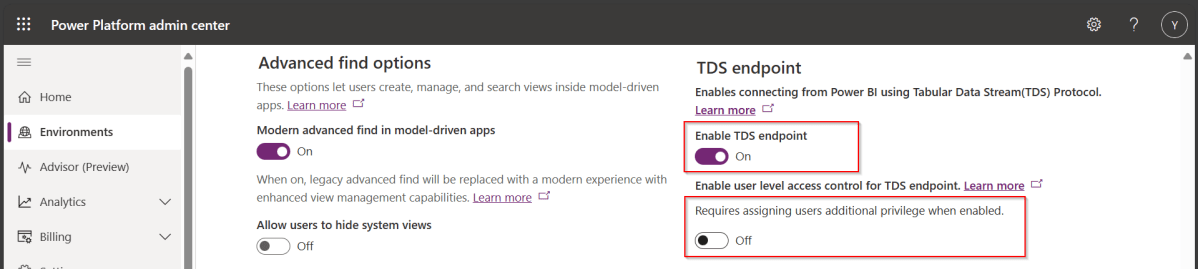
  5. Scroll down to see TDS end point, just enable the TDS end point toggle button
  6. Once this is enabled, you can also enable user level access for this TDS end point by configuring the security role as in the below step.
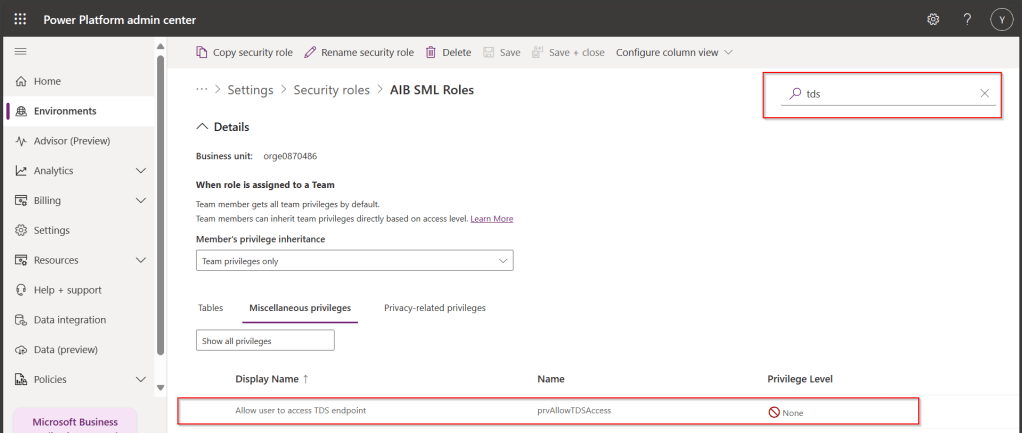
  7. Open Security from Power Platform Admin Center and navigate to the available security roles, go to Miscellaneous privileges, search for tds, you can find a privilege to Allow user to access TDS endpoint.

Advantages:

  1. With this TDS end point enabled, you can directly access the data in the Dataverse tables using SSMS(Preview) and in Power BI
  2. While the interesting part here is that Dataverse security model will be applied to the data being viewed by the user.
  3. That is whenever you were query the dataverse data using SSMS, the user role will be applied
  4. In the same way, if the Power BI report is built using the TDS(SQL end point), any user who is going to access the report will be only seeing the data he/she can access based on current security roles in Dataverse

While this is a cool feature for anyone who is trying to build Dataverse security in Power BI without using row level security as this is a mystery till now.

Hope this helps…

Cheers,

PMDY