
Email templates showing Xml – Quick Tip

Hi Folks,

We recently came across a situation where the new and existing email templates keeps showing a xml as below.
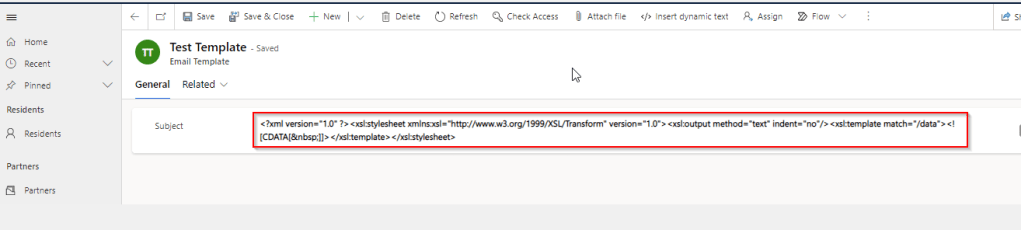
This kept us annoying as already the existing ones are created using Rich Email Template editor. At first check, we verified in our Dev and SIT, badly we saw that this is same in both the environments. We double confirmed that no changes were made to the OOB Email template form, so we doubted that there was something wrong with our environment. Luckily we have one more environment where we able to see the email templates working fine. Then we confirmed that there is related to email template form related issue. Also when we tried to open the existing email templates in new designer from https://make.powerapps.com, they opened without any issue.

Fix: Open your model driven app in your custom solution created and launch it by double clicking on it. Just verify it the forms selected for Email Template entity….
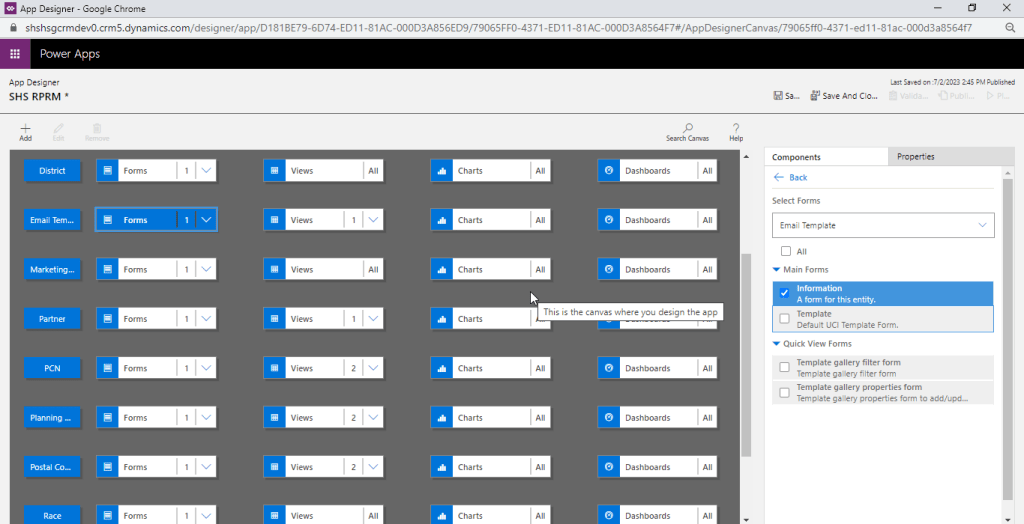
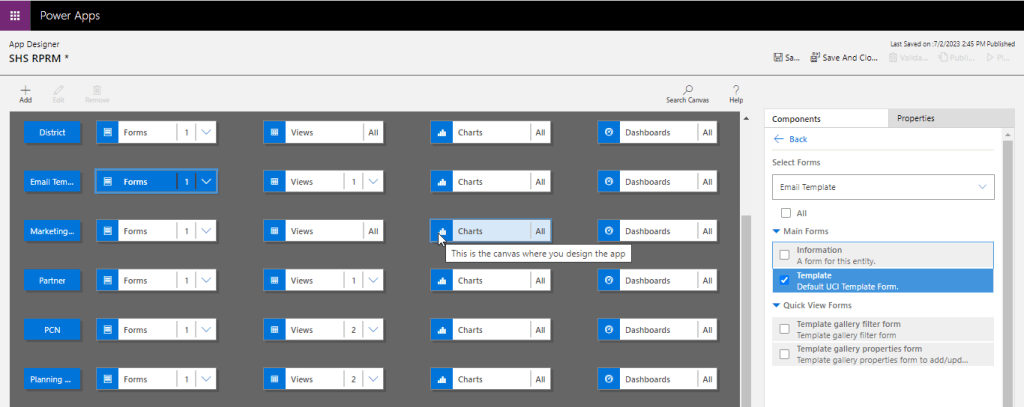
The fix is quite obvious and there you are..inorder for email template to show properly, you should select Default UCI Template type form.
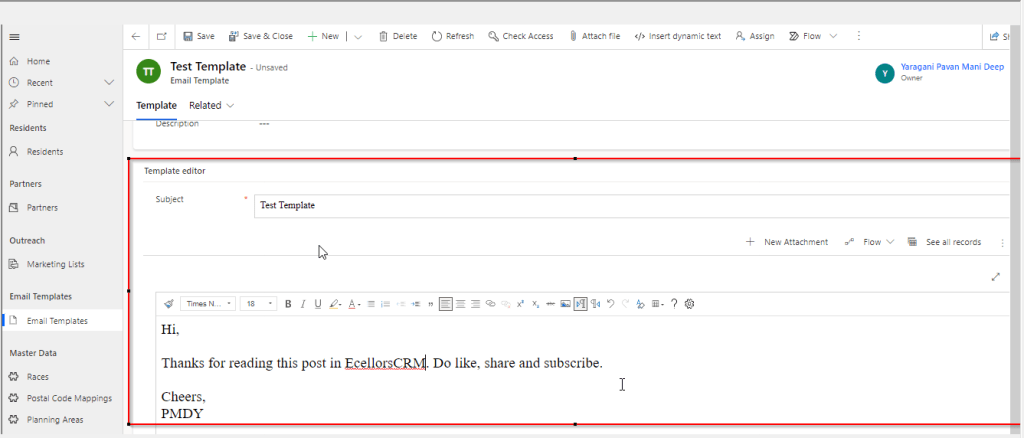
Voila, its back as below.
Hope this useful…

Cheers,

PMDY

Power Automate performance improvement considerations

Hi Folks,

Thanks for visiting my blog…in this blog post, have you ever faced the situation where your flow keeps running with no output. Today I will list down the possible scenarios where you were struck with slow performance of the Flow.

Consider the below actions to make your flow execute smoothly.

Remediation steps/Actions to take to make your flow run efficiently:

  1. Understand the throttling limits for your connectors and data sources
  2. Check for Request limits based on user licenses
  3. Cross verify the throughput limits
  4. See the minimum number of actions that the Power Automate service will allow for each plan on the Request limits and allocation page.
  5. Do verify if you were using any on premise connectors
  6. You are hitting the throttling limit in Power Automate
  7. Redesigning your flow to use fewer actions and less data.
  8. Reduce the number of loop iterations for the iteration in ‘Do Until’ and ‘For each item’
  9. Filter your data to retrieve only what is necessary Filtering with Odata
  10. Consider reducing the frequency of scheduled cloud flow
  11. Reduce the file size being accessed if possible if your flow uses them
  12. Consider using Variables for frequently accessed information in your flow
  13. Use Compose and Variable actions to view the data at any time.
  14. Purchasing a Per User or Per Flow license from the pricing page
  15. Per Flow plan may provide best performance quotas available
  16. Enable concurrency control for your ‘Apply to each’ action
  17. Consider creating custom retry policy
  18. Use Select Actions
  19. Check your System jobs in Data verse if asynchronous service performance is normal
  20. Reduce the flow complexity
  21. Consider using Process Advisor for Power Automate.
  22. Verify if you were hitting 2 minute timelimit in dataverse if you were calling Bound or Unbound action in Flow.

Hope this helps someone who’s looking to optimize their flow.

Cheers,

PMDY

Top picks for Power Automate