

Hi Folks,
Have you or your user ever mistakenly deleted records in Model Driven Apps..? Do you remember we can recover the deleted records from recycle bin in your PC, now similarly we can also do this in Dataverse also.
In this blog post, I will discuss about how you can retrieve a deleted record in Dataverse.
Till now, we have following tools in XRMToolBox wherein we can restore the deleted records (https://www.xrmtoolbox.com/plugins/DataRestorationTool, https://www.xrmtoolbox.com/plugins/NNH.XrmTools.RestoreDeletedRecords, https://www.xrmtoolbox.com/plugins/BDK.XrmToolBox.RecycleBin) but wait, these tools require Auditing to be enabled for the concerned table. What if you don’t have auditing enabled for that…now we have a preview feature which comes as a saviour where you don’t need any external tools anymore to restore them.
To use this, just enable this feature from Power Platform Admin Center, you can optionally set the recovery interval if you wish to.

For this, we take Contact table as example, now let’s check the audit setting of the contact table..well, it’s turned off.
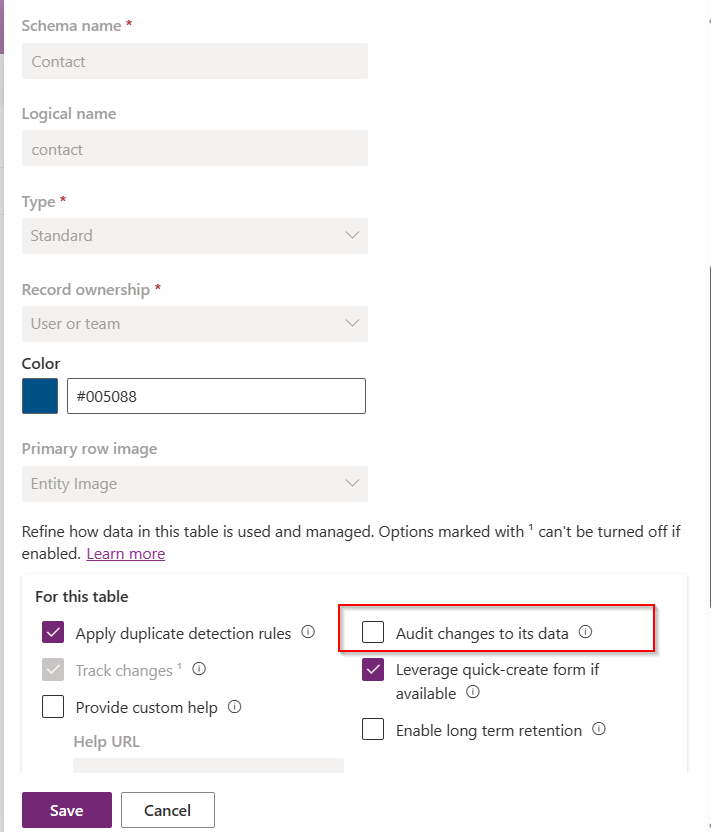
Even the auditing is not enabled for the contact entity, with this Recycle Bin Preview feature, we should be able to recover the records, let’s see this in action.
Now try deleting the contact records, I have 33 contact records in my environment, let me delete all of them.

It suggests you deactivate rather than delete, still let’s delete them.
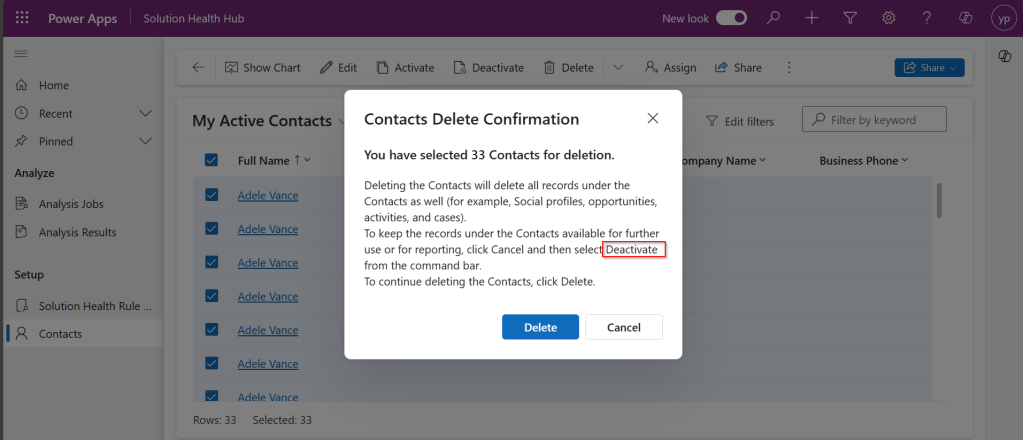
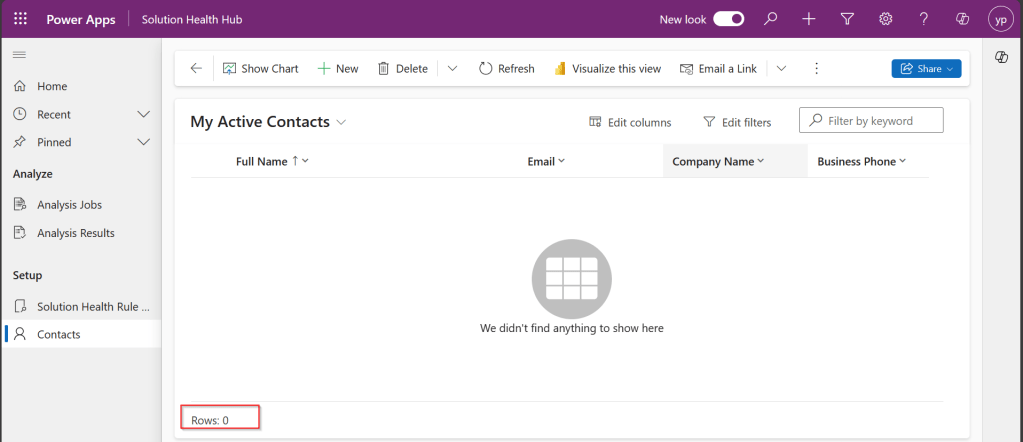
All the records are now deleted.
Now, let’s see how to recover them back…. just go to Power Platform Admin Center –> Environments –> Settings –> Data Management
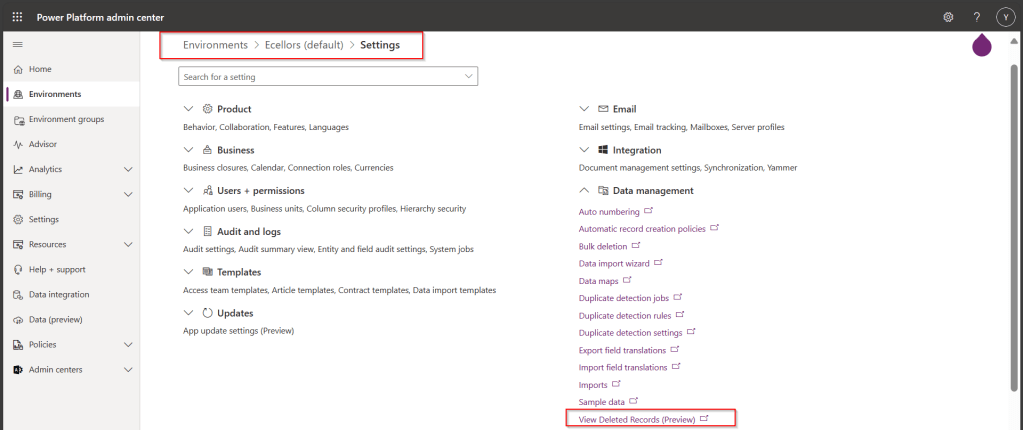
As you click on View Deleted Records, you will be navigated to a view from a new table called DeletedItemReference which stores the deleted records just like recycle bin.
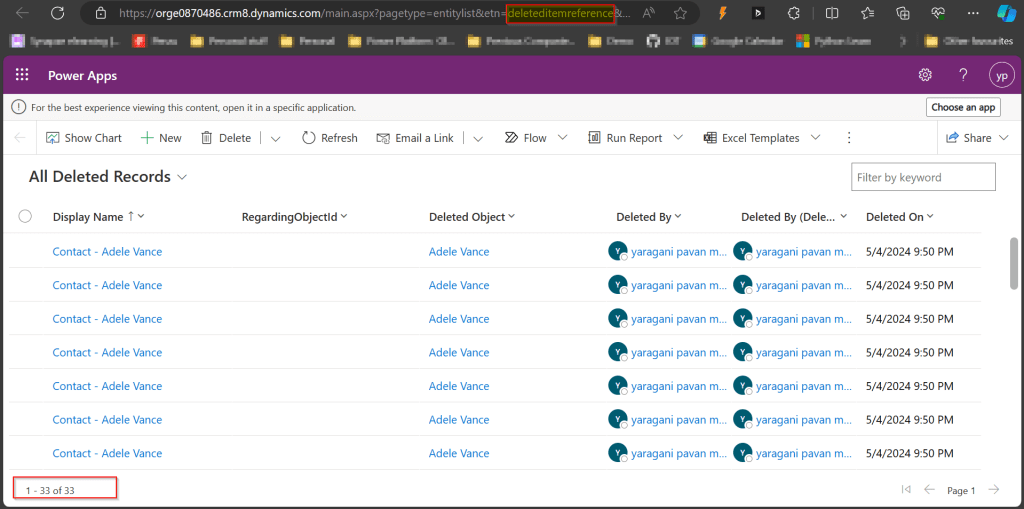
Just select the records, you should see a restore button available on the command bar, here I choose All Deleted Records.

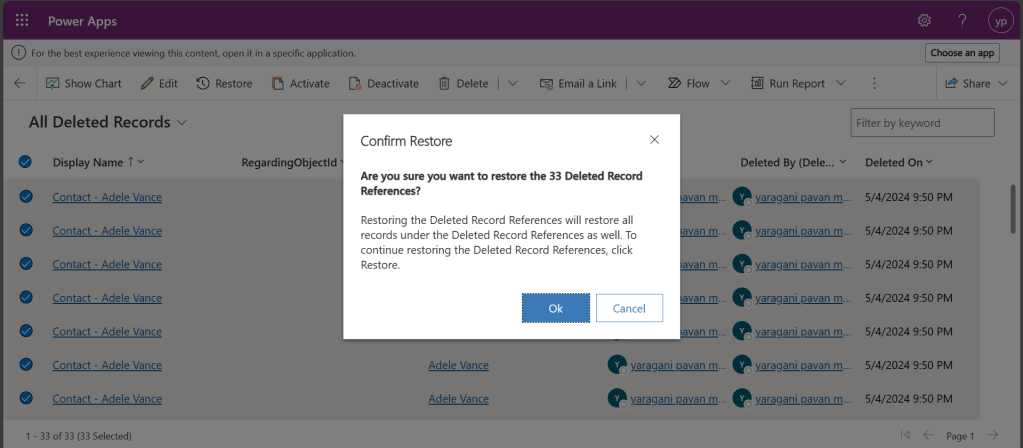
Once you click on restore, you will be shown a confirmation dialog, click on Ok.
You should see the records back in the respective table i.e. Contact here.

In this post, we saw recovering records which were deleted manually…the same thing works for records deleted using Bulk Delete jobs or whatever way you try to delete.
Note:
- This is a preview feature and not recommended to use in Production environments right away.
- You will not be able to recover the deleted records when you have custom business logic applied to delete the records from deleteditemreference table also, moreover this still a preview feature and not recommended for Production use.
- You will be able to recover records which were deleted by the Cascading behavior, like record Child records alone when Parent is still deleted.
- You can only recover up to the time frame you have set above and maximum up to 30 days from date of deletion.
Hope you learned something new…that’s it for today…
Reference:
https://learn.microsoft.com/en-us/power-platform/admin/restore-deleted-table-records
Cheers,
PMDY







 ECELLORS CRM Blog