Restore deleted records in Dataverse table – Quick Review

Hi Folks,

Have you or your user ever mistakenly deleted records in Model Driven Apps..? Do you remember we can recover the deleted records from recycle bin in your PC, now similarly we can also do this in Dataverse also.

In this blog post, I will discuss about how you can retrieve a deleted record in Dataverse.

Till now, we have following tools in XRMToolBox wherein we can restore the deleted records (https://www.xrmtoolbox.com/plugins/DataRestorationTool, https://www.xrmtoolbox.com/plugins/NNH.XrmTools.RestoreDeletedRecords, https://www.xrmtoolbox.com/plugins/BDK.XrmToolBox.RecycleBin) but wait, these tools require Auditing to be enabled for the concerned table. What if you don’t have auditing enabled for that…now we have a preview feature which comes as a saviour where you don’t need any external tools anymore to restore them.

To use this, just enable this feature from Power Platform Admin Center, you can optionally set the recovery interval if you wish to.

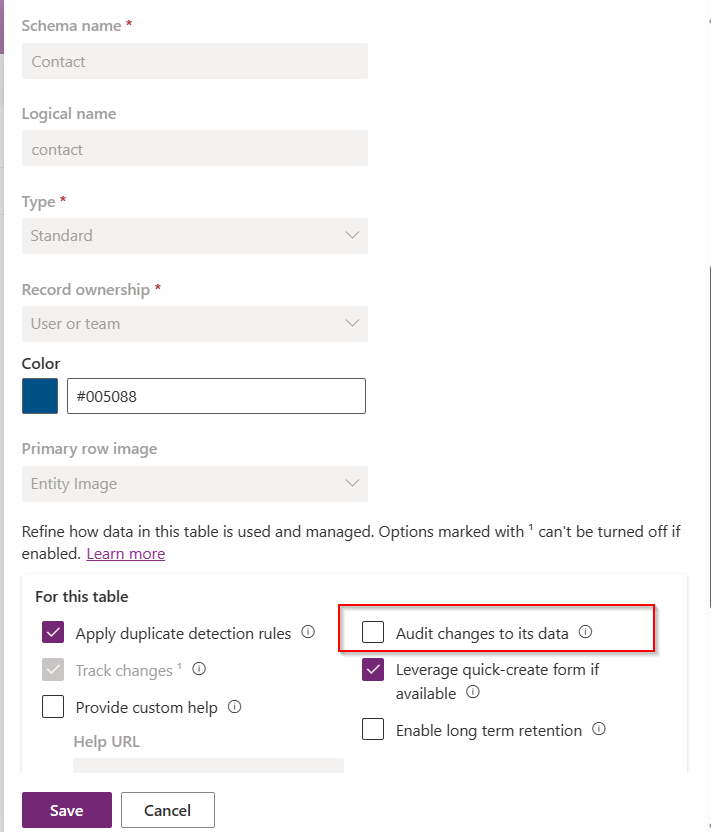
For this, we take Contact table as example, now let’s check the audit setting of the contact table..well, it’s turned off.

Even the auditing is not enabled for the contact entity, with this Recycle Bin Preview feature, we should be able to recover the records, let’s see this in action.

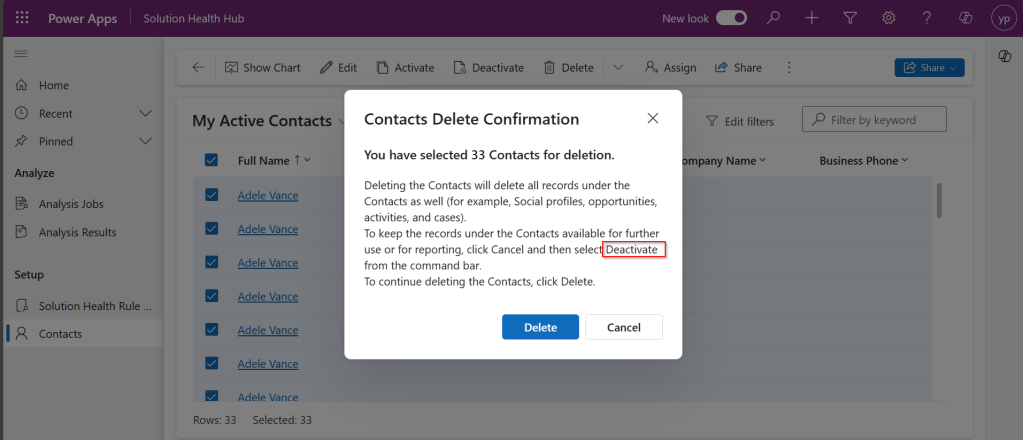
Now try deleting the contact records, I have 33 contact records in my environment, let me delete all of them.

It suggests you deactivate rather than delete, still let’s delete them.

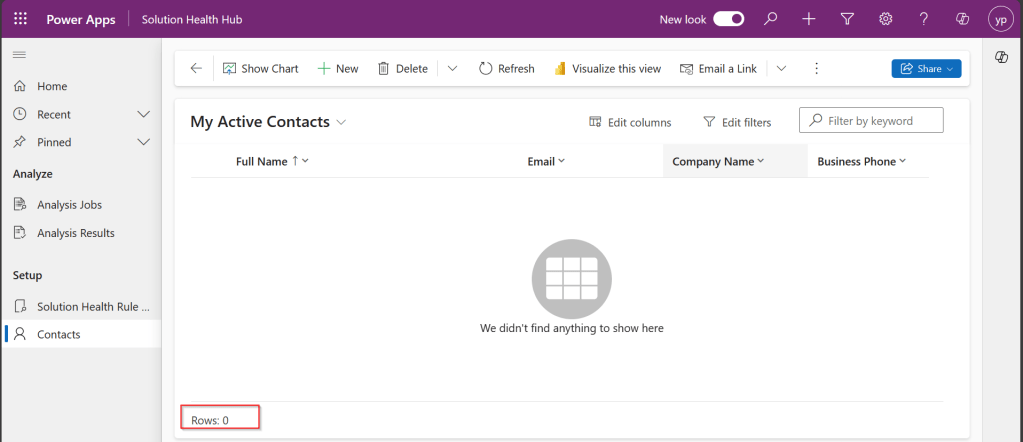
All the records are now deleted.

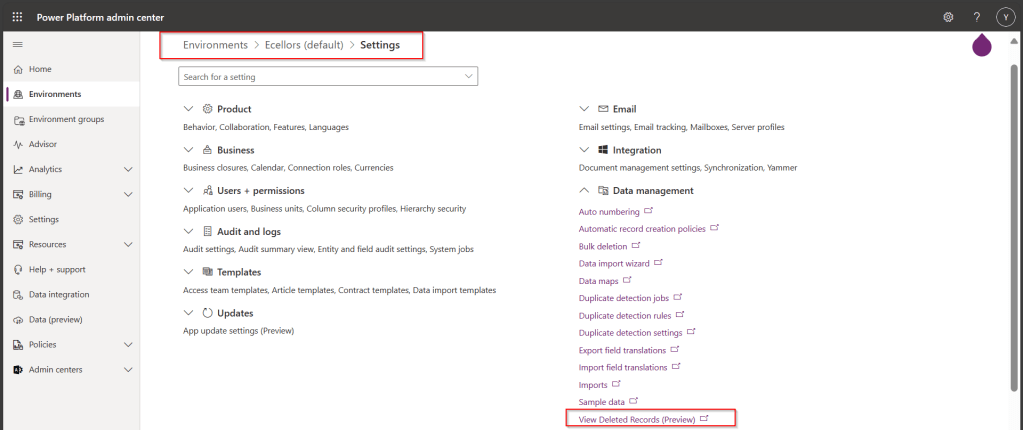
Now, let’s see how to recover them back…. just go to Power Platform Admin Center –> Environments –> Settings –> Data Management

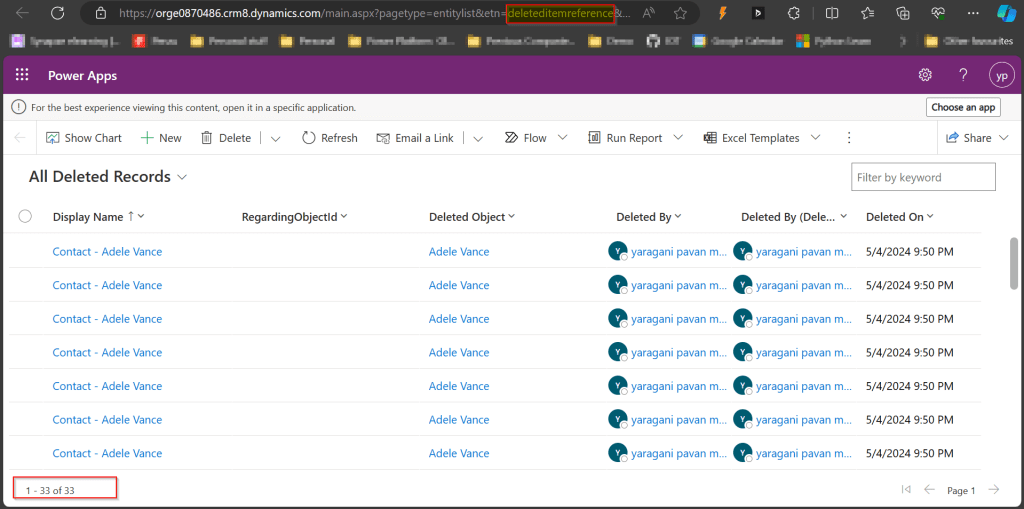
As you click on View Deleted Records, you will be navigated to a view from a new table called DeletedItemReference which stores the deleted records just like recycle bin.

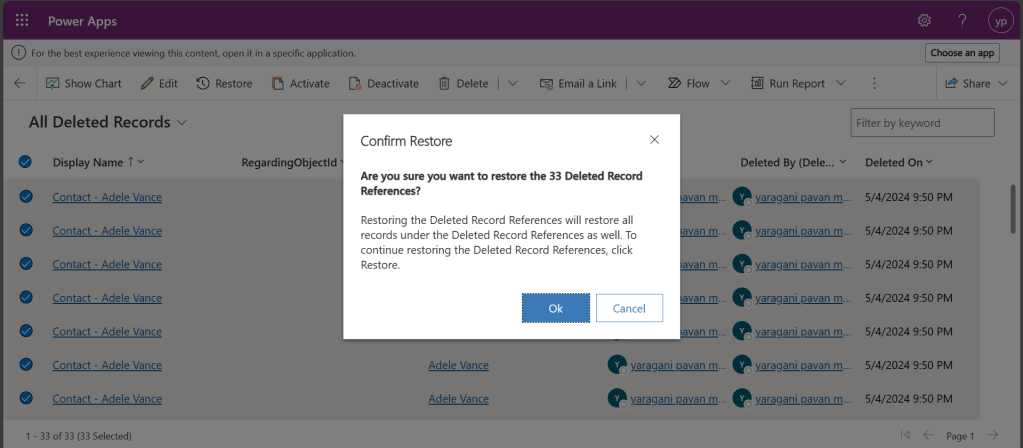
Just select the records, you should see a restore button available on the command bar, here I choose All Deleted Records.

Once you click on restore, you will be shown a confirmation dialog, click on Ok.

You should see the records back in the respective table i.e. Contact here.

In this post, we saw recovering records which were deleted manually…the same thing works for records deleted using Bulk Delete jobs or whatever way you try to delete.

Note:

  1. This is a preview feature and not recommended to use in Production environments right away.
  2. You will not be able to recover the deleted records when you have custom business logic applied to delete the records from deleteditemreference table also, moreover this still a preview feature and not recommended for Production use.
  3. You will be able to recover records which were deleted by the Cascading behavior, like record Child records alone when Parent is still deleted.
  4. You can only recover up to the time frame you have set above and maximum up to 30 days from date of deletion.

Hope you learned something new…that’s it for today…

Reference:

https://learn.microsoft.com/en-us/power-platform/admin/restore-deleted-table-records

Cheers,

PMDY

Paste JSON/XML as classes in Visual Studio – Quick Tip

Hi Folks,

With this post I will show you how you can quickly add classes for your JSON and XML in Power Platform using Visual Studio.

Sometimes, there will be requirements where you need to convert and replace your Power Automate Flows with custom code either using Plugins or Actions. In this case, you may definitely need to parse the response returned by REST API calls and you might need to create relevant classes to hold the parameters and attributes, creating these manually would be cumbersome and takes few minutes of time even for a good developer.

Here I am taking the example using JSON.

So, without further due, let’s see in this in action.

Step 1: So, just copy using Cntrl + C shortcut, this is mandatory, else you will not able to see the Paste JSON as Classes and Paste XML as classes under edit..

{
"orderId": "ORD123456",
"customerName": "John Doe",
"orderDate": "2024-04-27T08:30:00Z",
"items": [
{
"itemId": "ITEM001",
"itemName": "Product A",
"quantity": 2,
"unitPrice": 25.99
},
{
"itemId": "ITEM002",
"itemName": "Product B",
"quantity": 1,
"unitPrice": 35.50
}
],
"totalAmount": 87.48,
"shippingAddress": {
"street": "456 Elm St",
"city": "Metropolis",
"zipcode": "54321",
"country": "USA"
},
"status": "Shipped"
}

Step 2: Then open Visual Studio –> Edit –> Paste Special

Step 3: Click on Paste JSON As Classes and soon you should be able to see something as below.

That’s it, your classes are now generated from the copied JSON File, you can do pretty much the similar thing with XML.

Hope this helps someone trying to achieve a similar goal…

Cheers,
PMDY
#02 – Copilot Learn Series: Test and Publish your bot

Thanks for visiting my blog, this post is a continuation of my previous blog post on creating a Copilot, if you haven’t gone through that, I would strongly recommend checking my introductory post on this topic, you can find it here.

Well, so in this blog post, we will see how you can test and publish your bot so your bot development would be complete.

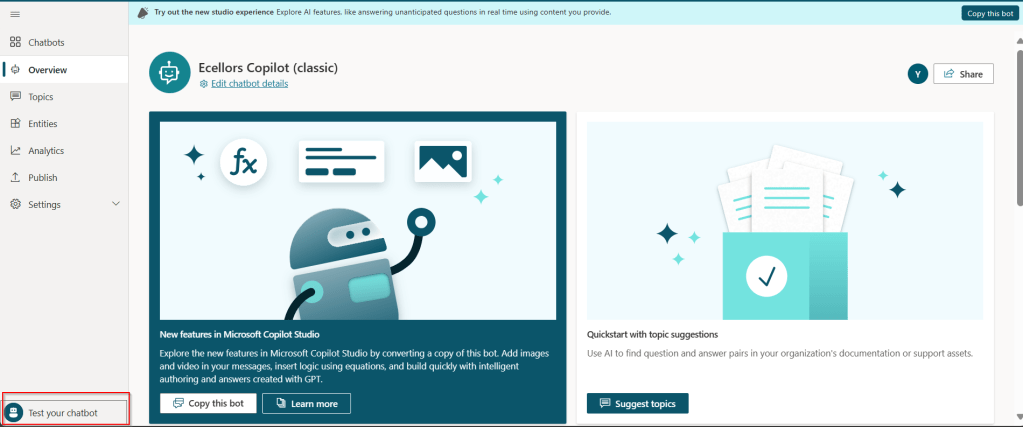
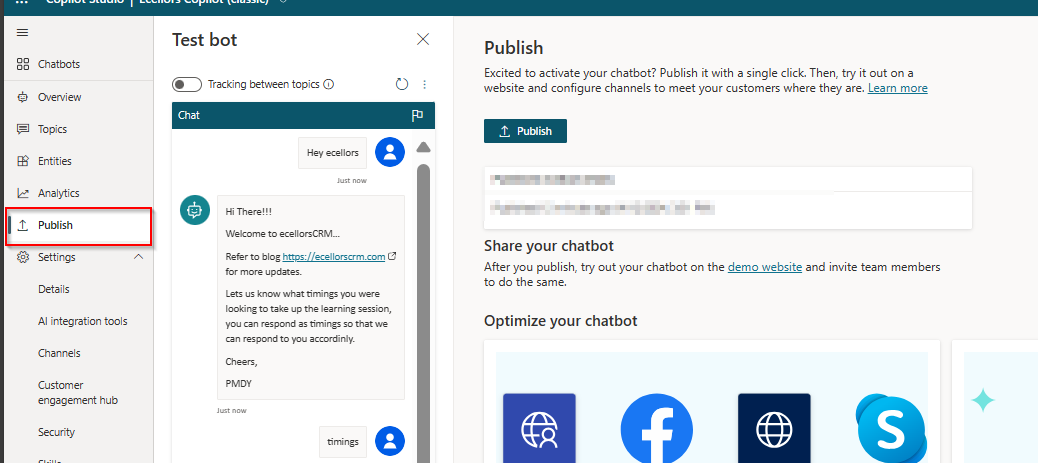
Your bot can be tested, and messages will be displayed on the chat screen.

Step 1: Test your Copilot:

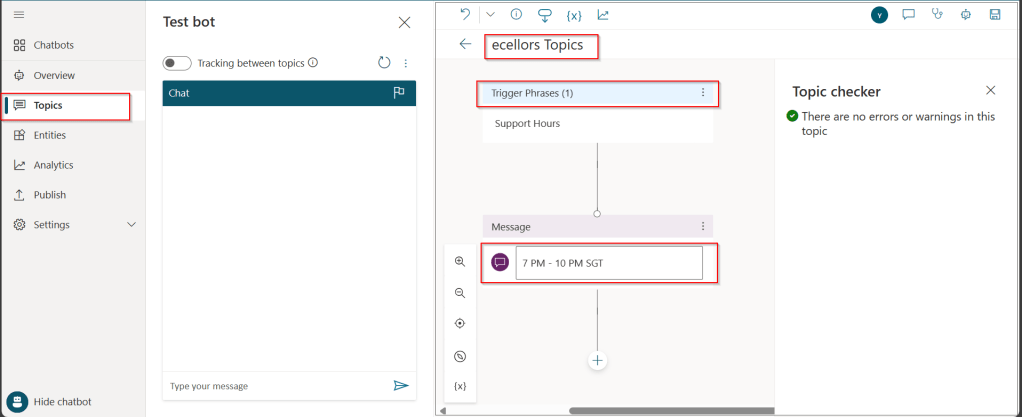
The bot calls the topics based on the trigger phrases you have entered as below.

You can return to the authoring canvas for the topic at any time to revise its conversation path. The Test chat pane will automatically refresh itself when you save changes to a topic.

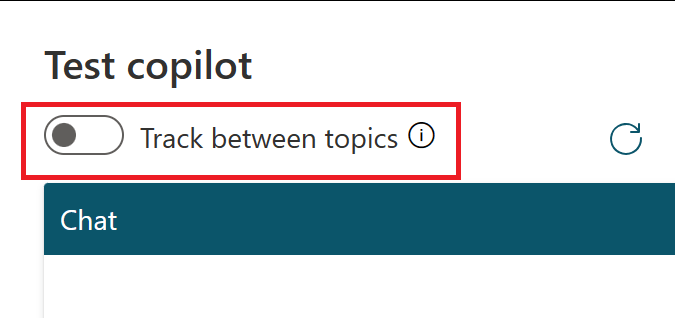
As you fine-tune your bot, it can be useful to enable tracking between topics so you can follow through the conversation path step by step.

Step 2: Publish your bot

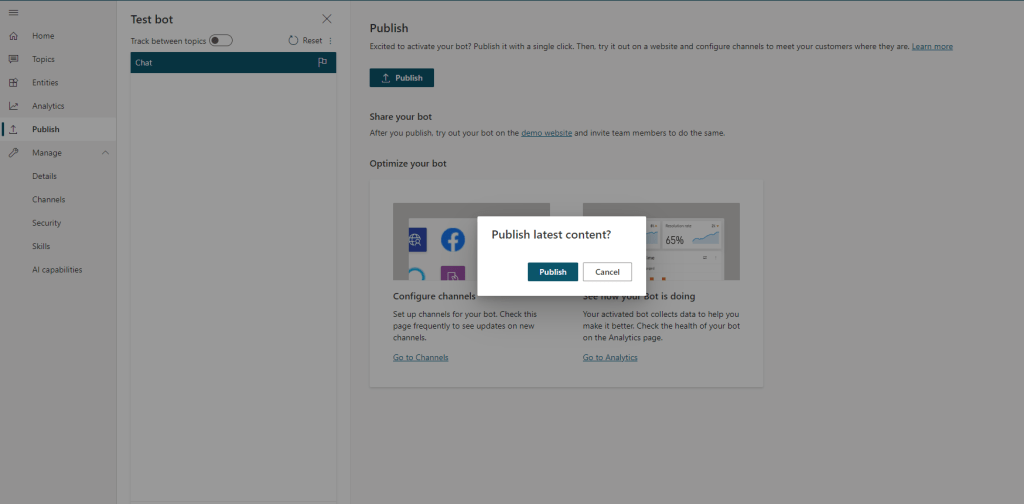
Once you confirm that everything is good and then you can publish your Copilot.

Publishing you bot helps to engage with your customers on multiple platforms or channels.

Each time an update is made, you would need to publish the bot in the Copilot Studio and this will publish the changes to all your respective configured channels. If you haven’t configured any channels, you may proceed to next step to get to know this.

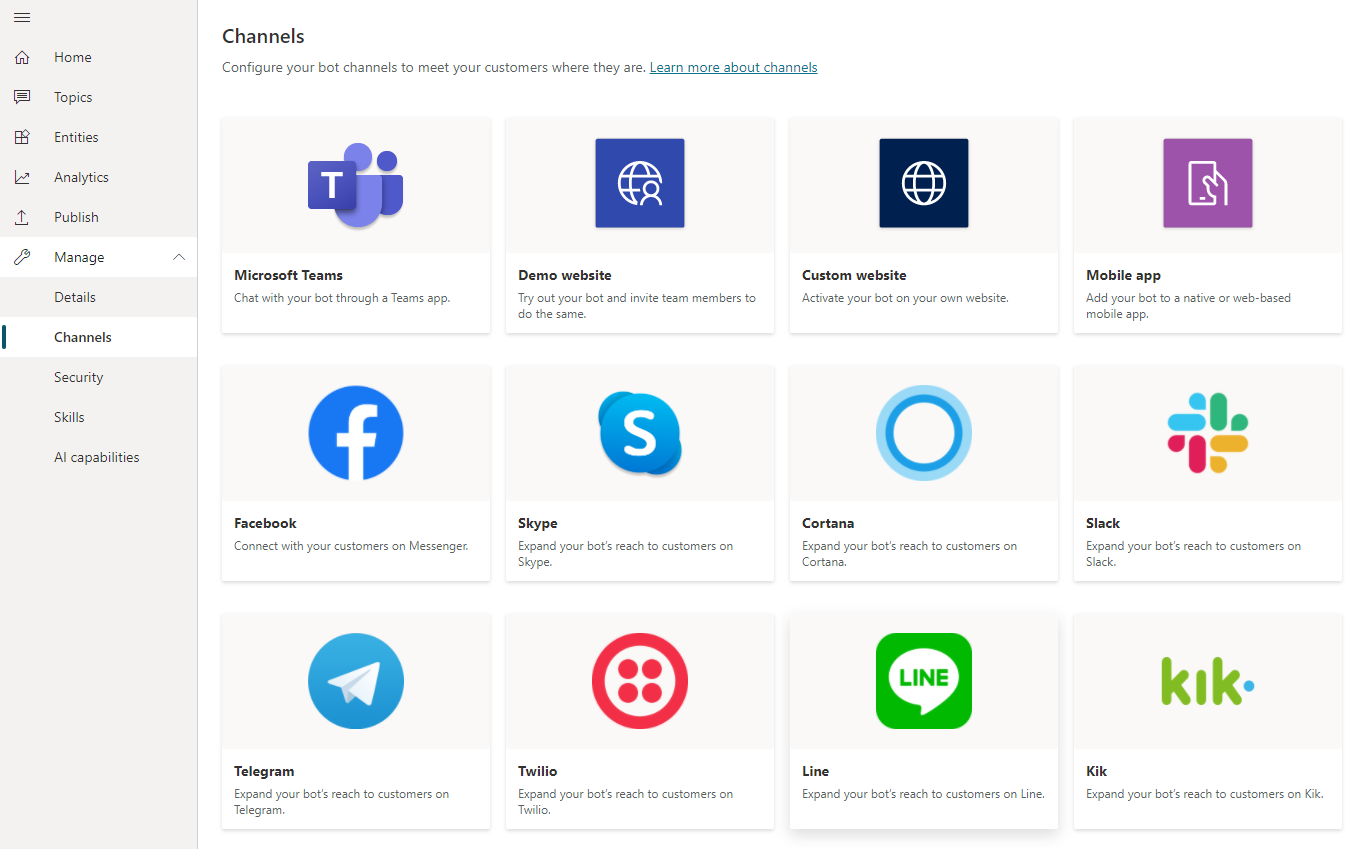
Step 3: Configure Channels

You can see what channels we currently support by selecting Manage and going to the Channels tab in the side navigation pane and each channel may require different setup and configuration.

Channel settings

Step 4: Finally let’s see how the Copilot looks like when you embed...

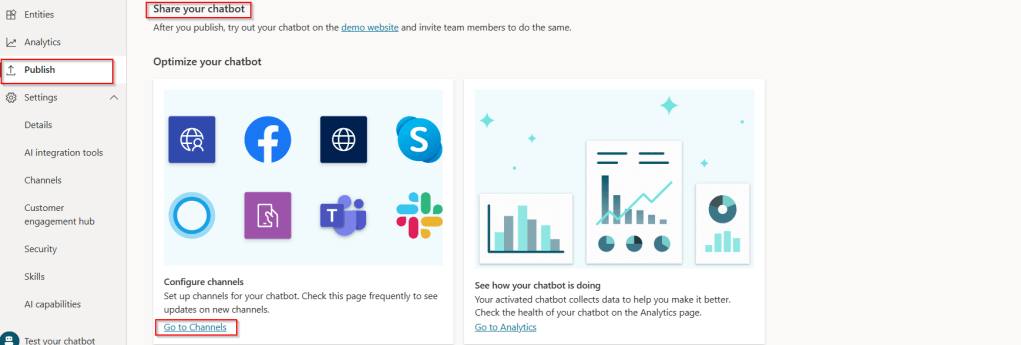
a. Navigate to channels as highlighted from publish tab:

b. Verify if the channels are enabled:

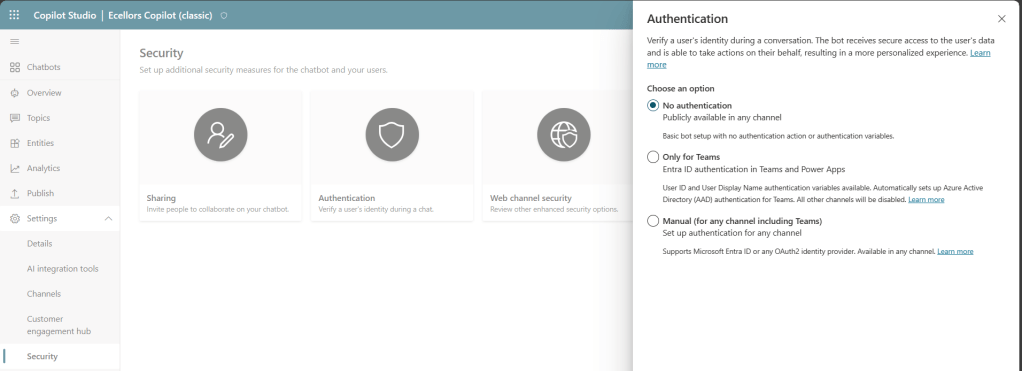
If not enabled, make sure you set the authentication for your Copilot properly for the respective channel to embed your bot. For simplicity, I have chosen No authentication.

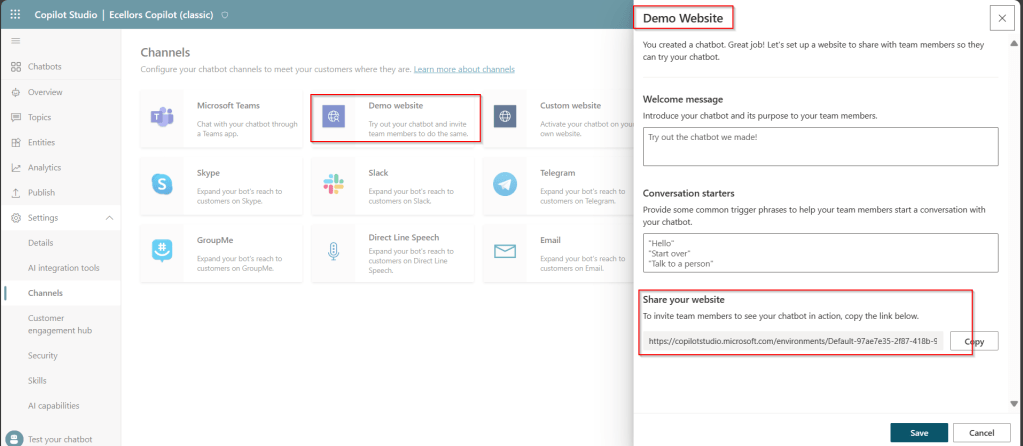
c. Find the embed code:

As shown above, you can find the embed code under Share your website.

d. Copy the embed code in browser:

You can test out your Copilot in your browser by pasting your embed code and it should look something like below.

Step 5: Bot analytics

a. Do note that there might be one hour of delay between when the conversations occur and when the statistics for those conversations appear in the analytics views

b. All the channels’ analytics will be logged here.

c. You can find the Summary on how your bot is performing, understand how your topics defined are performing and come up with CSAT Scores out of this.

Now that we have learnt how to build a simple Copilot, in the next blog post, I will cover about the Variable Management and Topic Management in Copilots which would help to design your desired topic conversation path for your Chatbot.

Hope this helps…

Cheers,

PMDY
#01 – Copilot Learn Series – Getting started with understanding Copilot Studio and basic building blocks of a Copilot (a.k.a Power Virtual agents)

In the next few blog posts in this series, I will be talking all about Microsoft Copilot aka Power Virtual Agent from beginner to advanced topics, you might see longer posts but you don’t require any prerequisite knowledge on Copilot to follow.

So, lets’ get started and learn with me in this blog series, let’s dive into the capabilities of Generative AI using #copilot.

Actually, Copilots empowers teams to quickly and easily create powerful bots using a guided, no-code graphical experience.

In this blog post, we will see how you can create a simple Chatbot. Excited? so let’s get started.

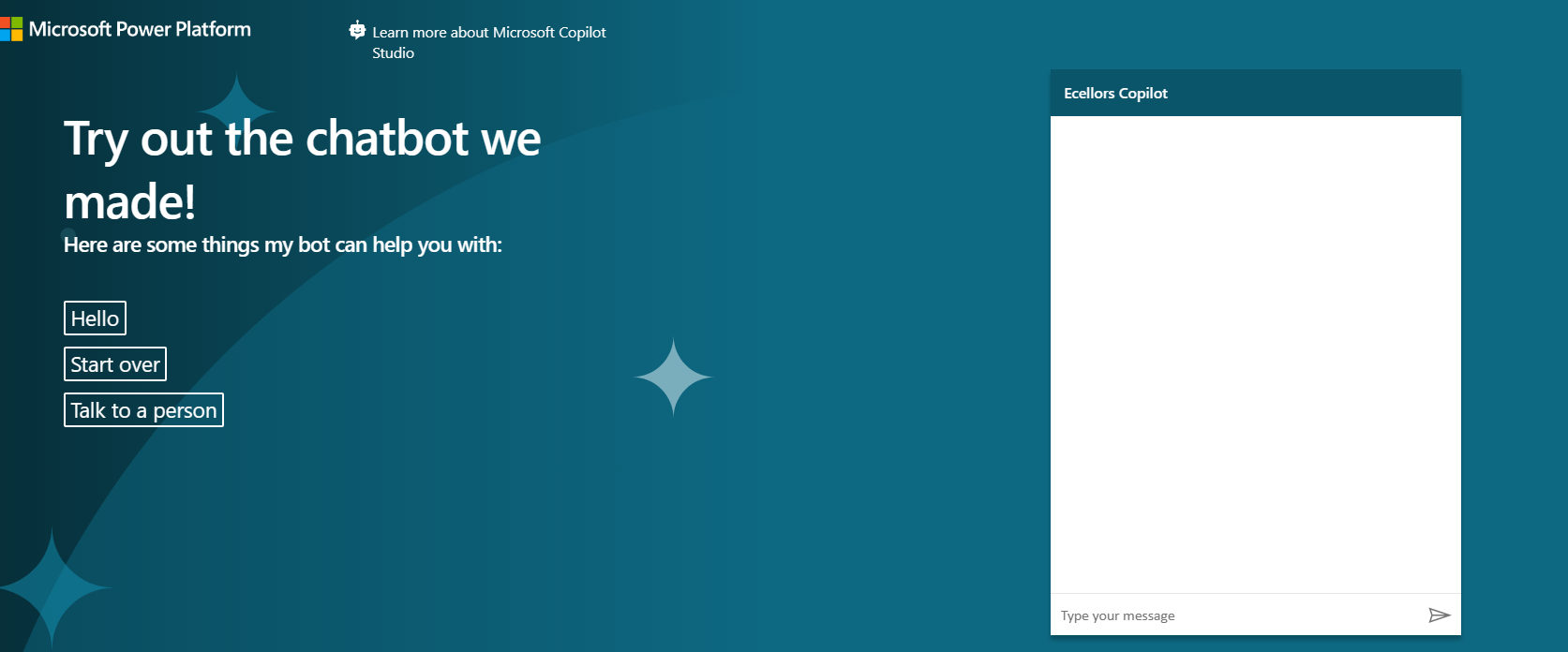
Step 1: Go to https://aka.ms/TryPVA try out.

Step 2: Click on Try free option available.

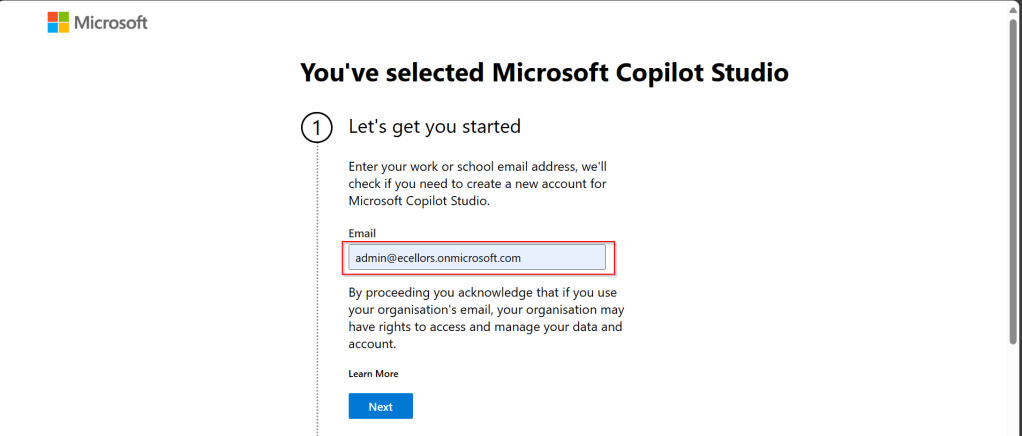
Step 3: Enter your email address and click on Next.

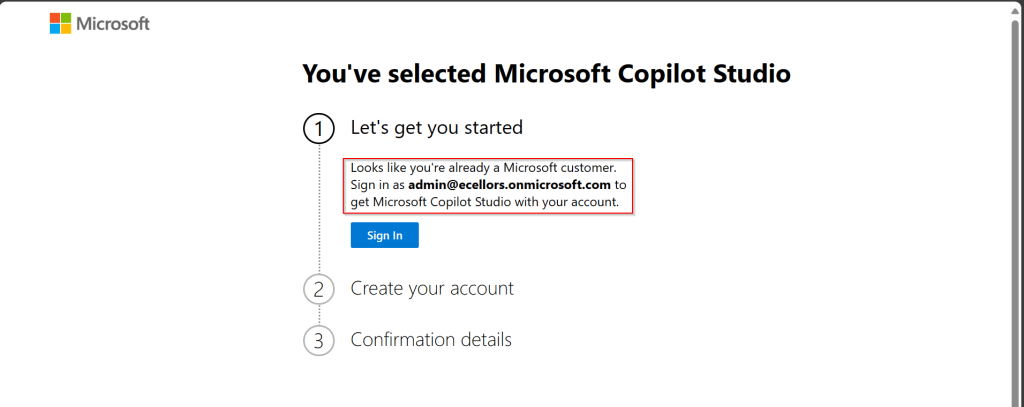
Step 4: In case you have an existing Microsoft 365 Subscription, you will be shown something below.

Step 5: Click on SignIn, I have already had an account in Copilot Studio, in case you don’t have, one will be created.

Step 6:

a. Once you click on Get Started, Copilot Studio opens in a new tab and you will be asked to login once, enter your Signin details.

b. In case you previously logged created a Copilot Studio trial, you can continue using it, else extend it to 30 days if requested. Click on Done at the bottom.

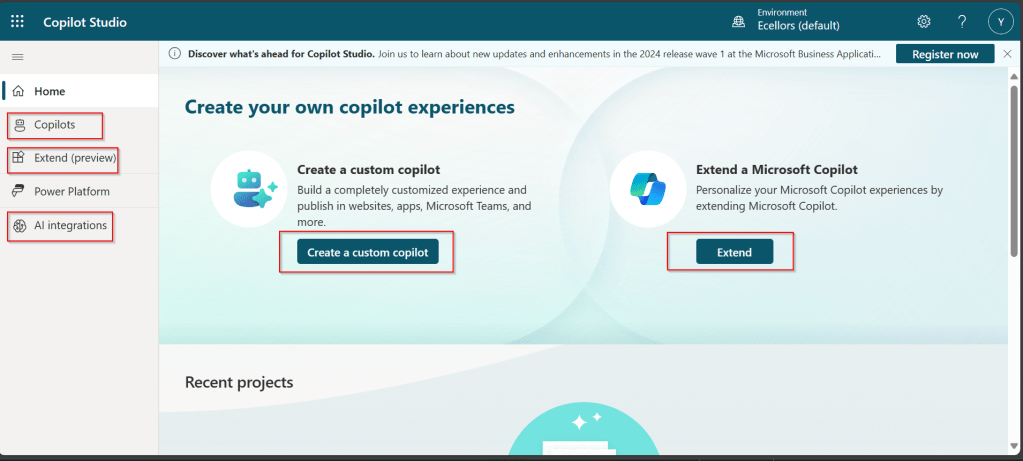
Step 7: Below is the home page of Copilot Studio.

I will be talking about each of the highlighted topics in great detail in the upcoming posts.

Note: Copilots are supported only in certain locations listed in the supported data locations, with data stored in respective data centers. If your company is located outside of the supported data locations, you need to create a custom environment with Region set to a supported data location before you can create your chatbot.

Step 8:In this step, we will create a Copilot, so click on New Copilot

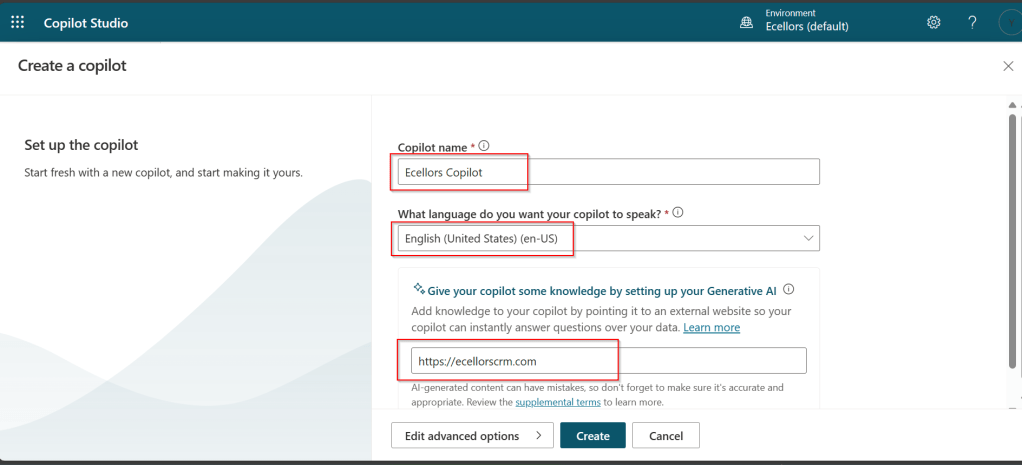
Step 9: I have provided a name; chosen a language and we can provide an existing website to utilize the Generative AI Capabilities built in Copilot Studio.

So, here I have provided my blog address. By using this, Copilot can generate suggested topics which you have option to add to your existing topics.

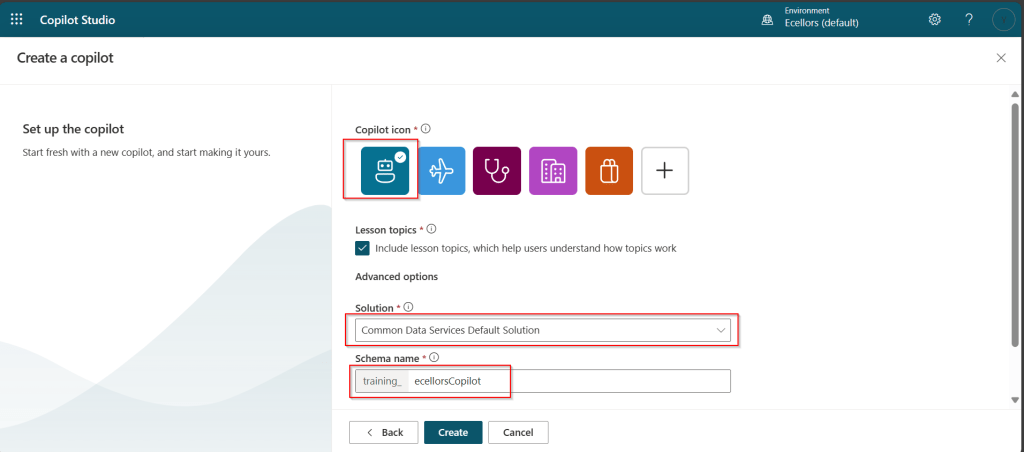
Step 10:

a. Click on advanced options; you will be able to choose an icon for the Copilot

b. You can optionally include Lesson Topics

c. Choose an existing solution you wish to add this Copilot to

d. Choose appropriate Schema name.

e. You can optionally enable voice capabilities by choosing the language in which your copilot wants to speak to.

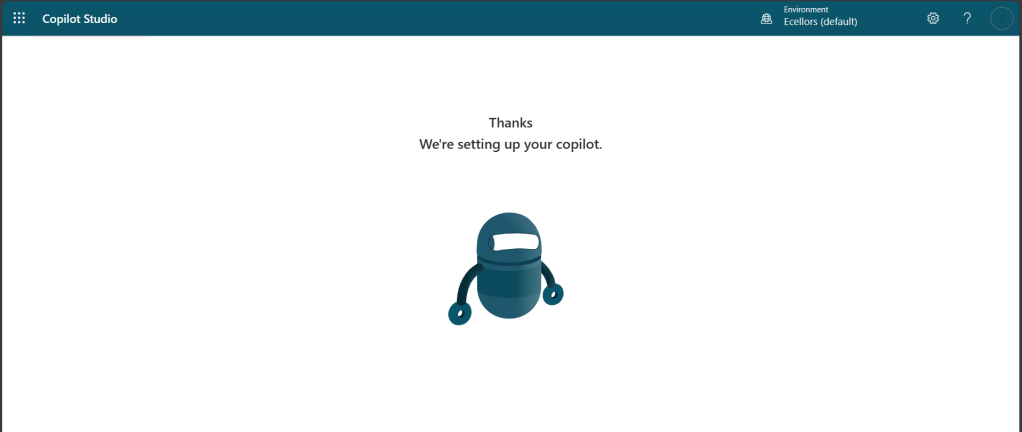
Step 11: You will be shown the below screen and within a few seconds, your Copilot will be ready.

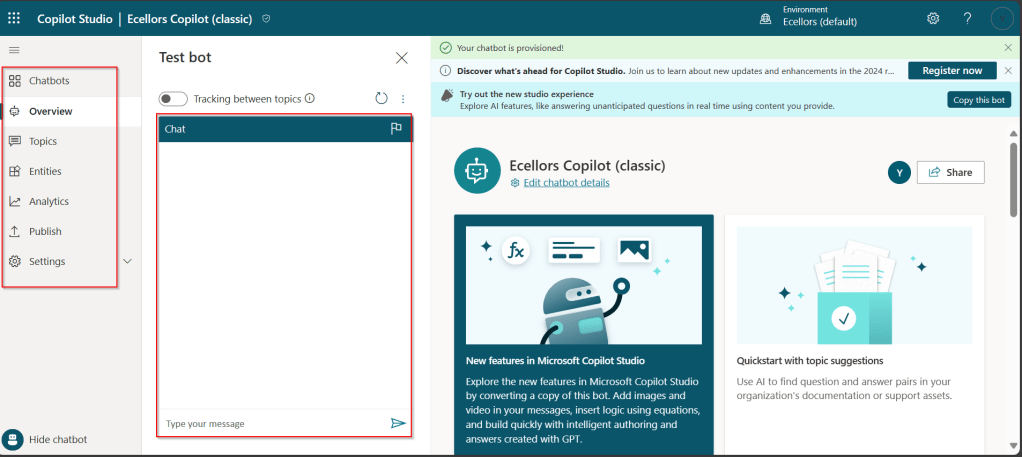
Step 12: This is the main page of your Copilot; you will also be able to add additional Copilots or delete the Copilot.

Step 13: Now, let’s understand Topics what one of the building blocks of Copilot which are nothing but predefined categories or subjects which can help to classify and organize the KB/Support articles.

The topics shown on the right are prebuilt topics for the Copilot you have just created. Here you may wish to create new topics as necessary.

Step 14: Trigger phrases are those which customer enters in the chat window to start the conversation which then calls the relevant topics. There can be multiple trigger phrases for a single topic.

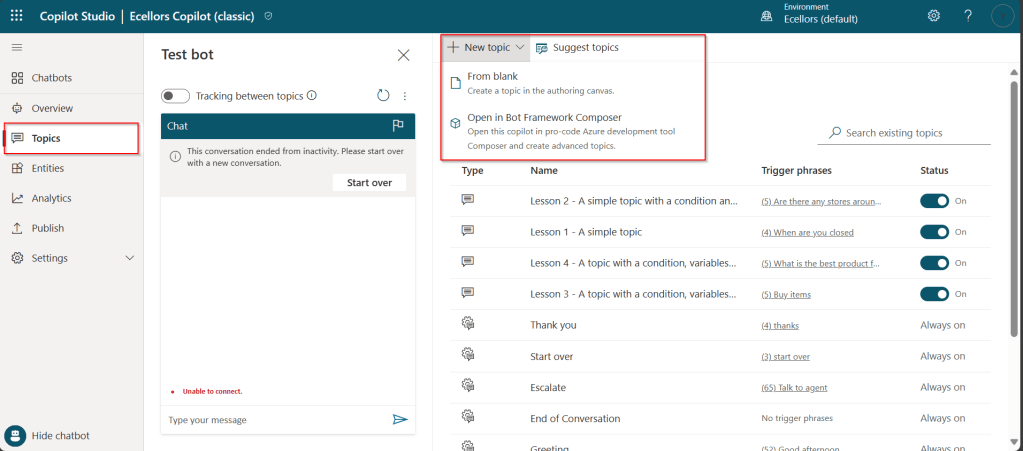
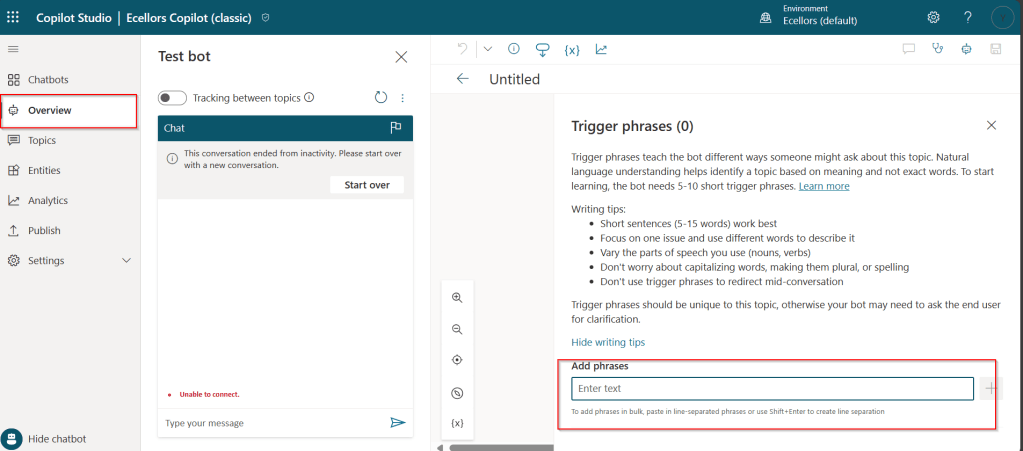
You may click to create a topic which then asks you to provide the trigger phrases, when you click to add a topic, the Trigger phrases node and a blank Message node are inserted for you.

Copilot opens the topic in the authoring canvas and displays the topic’s trigger phrases. You can add up to 1000 topics in a Copilot.

Step 15: You can add additional nodes by selecting the Plus (+) icon on the line or branch between or after a node.

Screenshot of adding a node

Step 16: When you were adding a new node, you can choose from the below options available.

You can either use any of the available options as above..

a. Ask a question

If you want to ask a question and get response from end user, you may do so by adding a node, click on Ask a question.

For example, I choose Multiple choice options.

Based on what you enter in the Identify field, you can enter what options user may have. You can nodes further to create branching logic

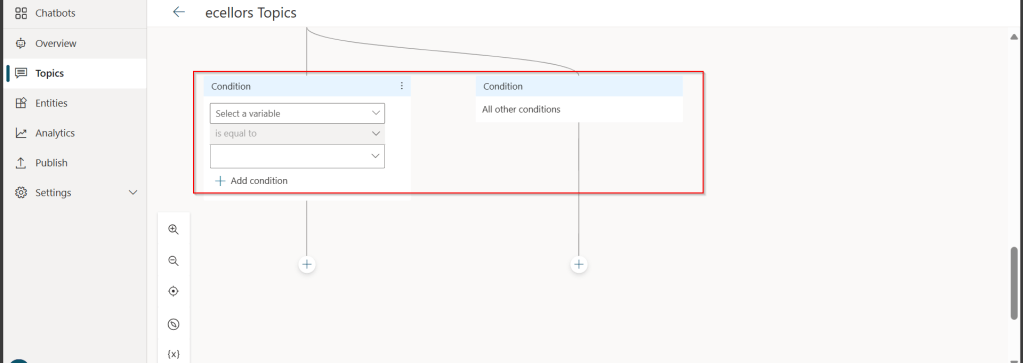
b. Add a condition

You can add a condition in the canvas as below to take your Copilot branch out conditionally.

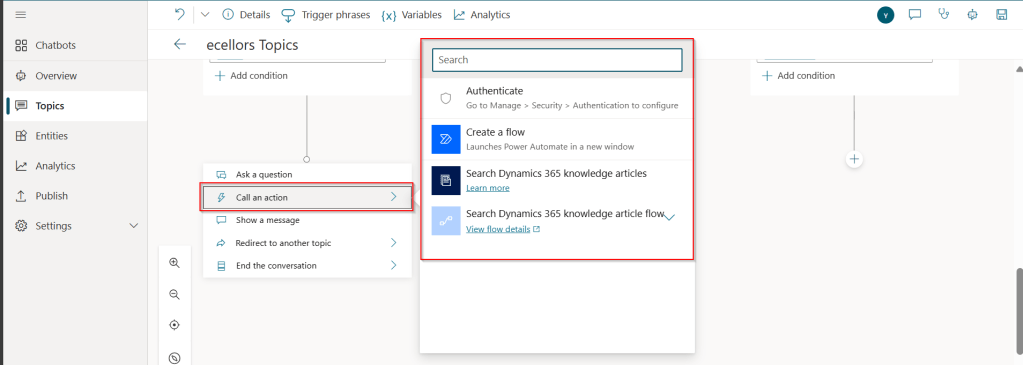
c. Call an action: The options shown below are self explanatory. You can branch out with the possible options.

d. Show a message

You may choose to show a message to the user by entering your message in the text box available.

d. Goto another topic

f. End the conversation:

Finally, you can end the conversation by choosing to end the conversation with the available options or you can transfer to an agent to take the user queries further.

Step 17:

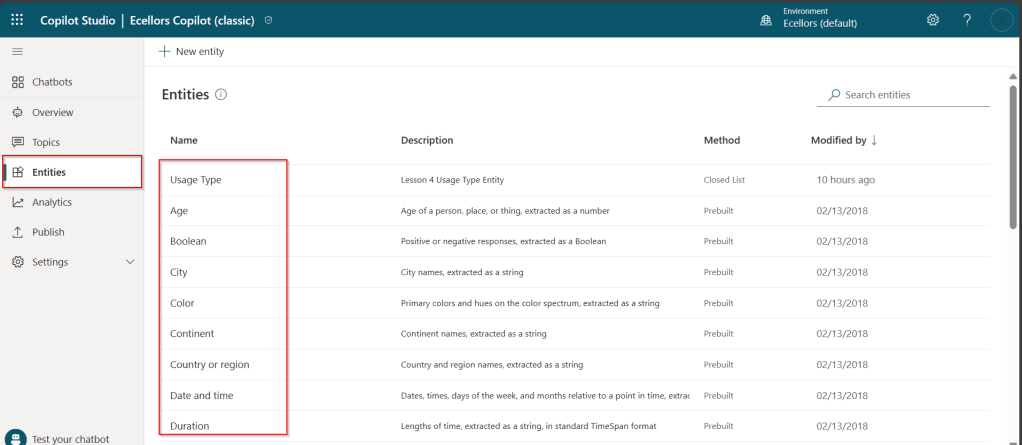
Copilot conversations are all about natural language understanding. Entity is the fundamental aspect which can be recognized from user’s input.

It can be simply can be thought real world subject like Person name, Phone number, Postal Code etc. We have system as well as custom entities while building.

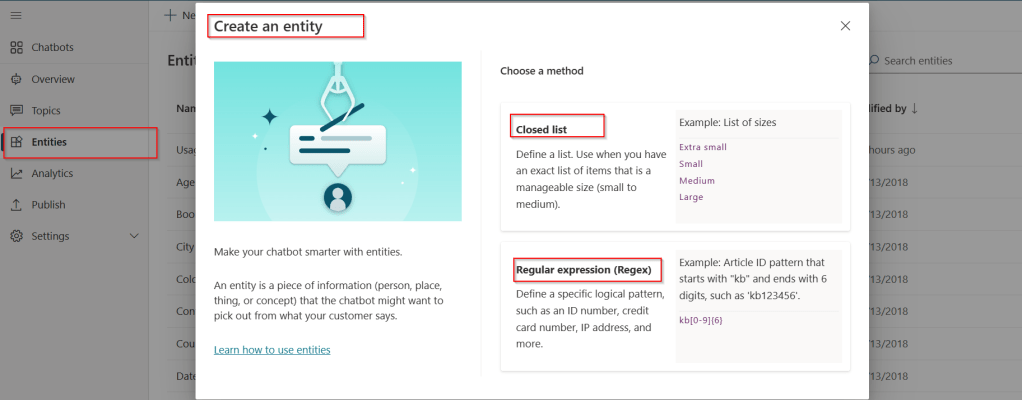
You can also build custom entities you can choose from the options available.

Now that you have seen what are the building blocks of Copilot, in the upcoming blog posts let’s see on how to test and publish your copilots.

Thank you for reading.

Cheers,

PMDY
Using Bulk Operations messages – #01 (Plugins)

Well, this could be a very interesting post as we talk about optimizing the Dataverse performance using bulk operation messages and too using Dataverse plugin customizations but wait, this post is not complete because of an issue which I will talk later in the blog. First let’s dig into this feature by actually trying out. Generally, every business wants improved performance for any logic tagged out to out of box messages and so developers try to optimize their code in various ways when using Dataverse messages.

Firstly, before diving deeper into this article, let’s first understand the differences between Standard and Elastic tables, if you want to know a bit of introduction to elastic tables which were newly introduced last year, you can refer to my previous post on elastic tables here.

The type of table you choose to store your data has the greatest impact on how much throughput you can expect with bulk operations. You can choose out of two types of tables in Dataverse, below are some key differences you can refer to: 

 Standard TablesElastic Tables
Data StructureDefined SchemaFlexible Schema
Stores data in Azure SQLStores data in Azure Cosmos DB
Data IntegrityEnsuredLess Strict
Relationship modelSupportedLimited
PerformancePredictableVariable, preferred for unpredictable and spiky workloads
AgilityLimitedHigh
PersonalizationLimitedExtensive
Standard and Elastic Table Differences

Plugins:

With Bulk Operation messages, the APIs being introduced are Create MultipleUpdateMultiple,DeleteMultiple (only for Elastic tables), Upsert Request(preview). As of now you’re not required to migrate your plug-ins to use CreateMultiple and Update Multiple instead of Create and Update messages. Your logic for Create and Update continues to be applied when applications use CreateMultiple or UpdateMultiple

This is mainly done to prevent two separate business logics for short running and long duration activities. So, it means Microsoft have merged the message processing pipelines for these messages (Create, Create Multiple; Update, Update Multiple) that means Create, Update messages continue to trigger for your existing implemented scenarios, when you update to use Create Multiple, Update Multiple still the Create, Update will behave.

Few points for consideration:

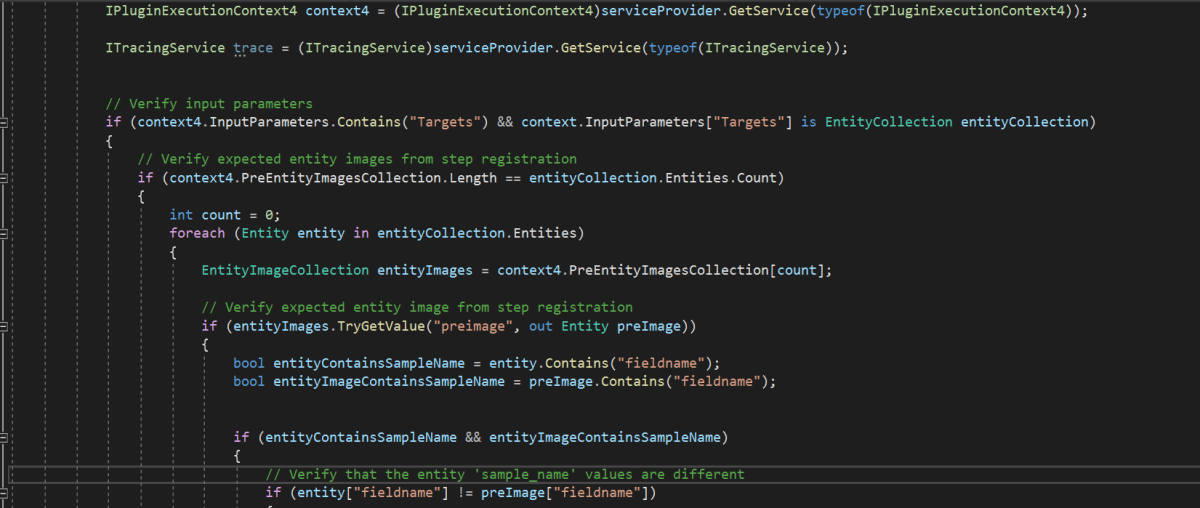
  1. While I have tested and still could see IPluginExecutionContext only provides the information and still I have noted Microsoft Documentation suggests using IPluginExecutionContext4 for Bulk Messages in Plugins where it is being shown as null yet.
  2. While you were working with Create, Update, Delete, you could have used Target property to get the input parameters collection, while working with Bulk Operation messages, you need to use Targets instead of Target.
  3. Instead of checking whether the target is Entity you need to use Entity Collection, we need to loop through and perform our desired business logic
  4. Coming to Images in plugin, these will be retrieved only when you have used IPluginExecutionContext4.

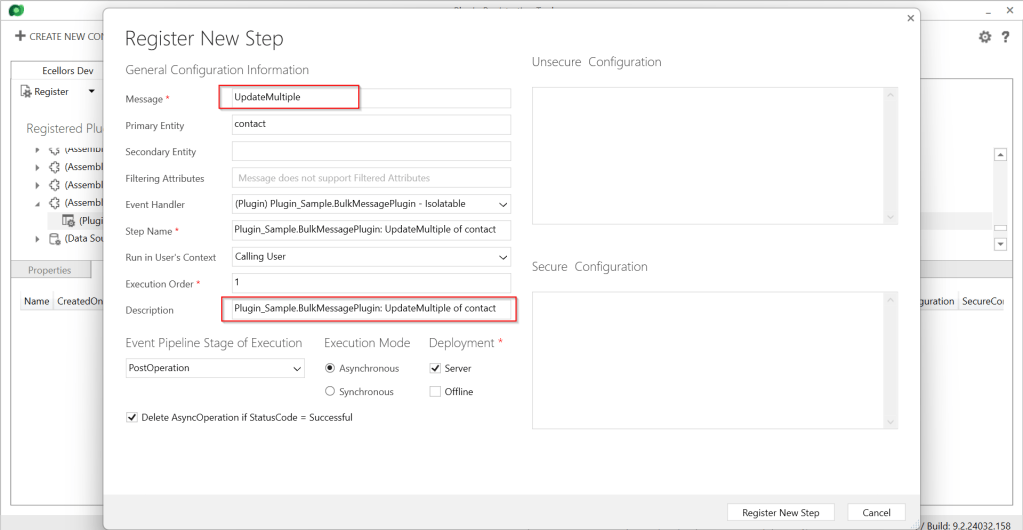
Below is the image from Plugin Registration Tool to refer(e.g. I have taken UpdateMultiple as reference, you can utilize any of the bulk operation messages)

Sample:

Below is the sample, how your Bulk operation message plugin can look like…you don’t need to use all the contexts, I have used to just check that out.

using System;
using System.Collections.Generic;
using System.Linq;
using System.Text;
using System.Threading.Tasks;
using Microsoft.Crm.Sdk;
using Microsoft.Xrm.Sdk;
using Microsoft.Xrm.Sdk.Query;
namespace Plugin_Sample
{
public class BulkMessagePlugin : IPlugin
{
public void Execute(IServiceProvider serviceProvider)
{
IPluginExecutionContext context = (IPluginExecutionContext)serviceProvider.GetService(typeof(IPluginExecutionContext));
IPluginExecutionContext2 context2 = (IPluginExecutionContext2)serviceProvider.GetService(typeof(IPluginExecutionContext2));
IPluginExecutionContext3 context3 = (IPluginExecutionContext4)serviceProvider.GetService(typeof(IPluginExecutionContext3));
IPluginExecutionContext4 context4 = (IPluginExecutionContext4)serviceProvider.GetService(typeof(IPluginExecutionContext4));
ITracingService trace = (ITracingService)serviceProvider.GetService(typeof(ITracingService));
// Verify input parameters
if (context4.InputParameters.Contains("Targets") && context.InputParameters["Targets"] is EntityCollection entityCollection)
{
// Verify expected entity images from step registration
if (context4.PreEntityImagesCollection.Length == entityCollection.Entities.Count)
{
int count = 0;
foreach (Entity entity in entityCollection.Entities)
{
EntityImageCollection entityImages = context4.PreEntityImagesCollection[count];
// Verify expected entity image from step registration
if (entityImages.TryGetValue("preimage", out Entity preImage))
{
bool entityContainsSampleName = entity.Contains("fieldname");
bool entityImageContainsSampleName = preImage.Contains("fieldname");
if (entityContainsSampleName && entityImageContainsSampleName)
{
// Verify that the entity 'sample_name' values are different
if (entity["fieldname"] != preImage["fieldname"])
{
string newName = (string)entity["fieldname"];
string oldName = (string)preImage["fieldname"];
string message = $"\\r\\n – 'sample_name' changed from '{oldName}' to '{newName}'.";
// If the 'sample_description' is included in the update, do not overwrite it, just append to it.
if (entity.Contains("sample_description"))
{
entity["sample_description"] = entity["sample_description"] += message;
}
else // The sample description is not included in the update, overwrite with current value + addition.
{
entity["sample_description"] = preImage["sample_description"] += message;
}
}
}
}
}
}
}
}
}
}

I have posted this question to Microsoft regarding the same to know more details on this why the IPluginExecutionContext4 is null , while still I am not sure if this is not deployed to my region, my environment is in India.

Recommendations for Plugins:

  • Don’t try to introduce CreateMultiple, UpdateMultiple, UpsertMultiple in a separate step as it would trigger the logic to be fired twice one for Create operation and another for CreateMultiple.
  • Don’t use batch request types such as ExecuteMultipleRequest, ExecuteTransactionRequest, CreateMultipleRequest, UpdateMultipleRequest, UpsertMultipleRequest in Plugins as user experiences are degraded and timeout errors can occur.
  • Instead use Bulk operation messages like CreateMultipleRequestUpdateMultipleRequest, UpsertMultipleRequest
    • No need to use ExecuteTransactionRequest in Synchronous Plugins as already they will be executed in the transaction.

    Hope this guidance will help someone trying to customize their Power Platform solutions using Plugins.

    I will write another blog post on using Bulk operation messages for Client Applications…

    Cheers,

    PMDY
    How do you deal with overlapping data labels in Power BI…? – Quick Tip

    Hi Folks,

    This post is a tip which I have implemented in my one of my projects which can help to improve your Power BI Reports accessibility.

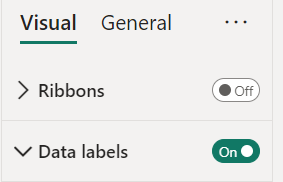
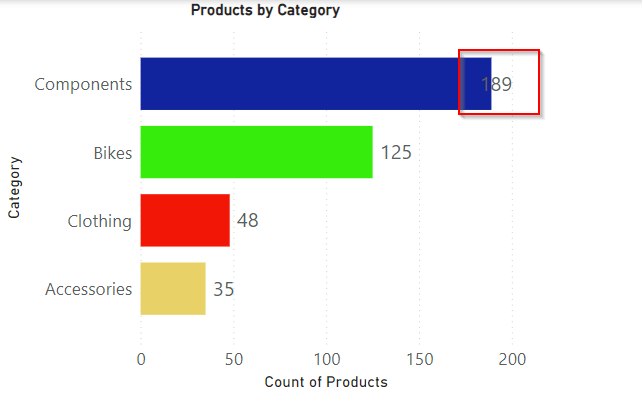
    Enabling data labels is a great way to show the numbers in the visual

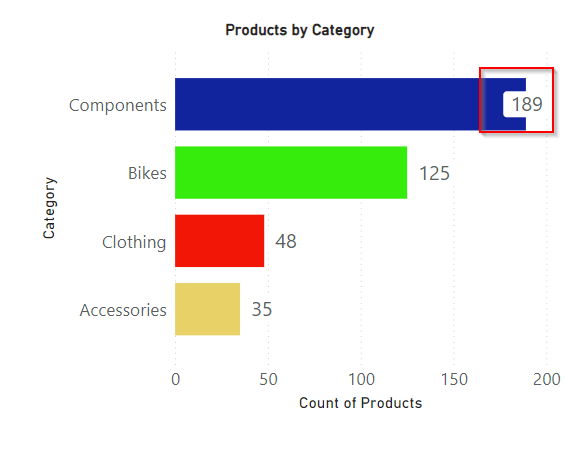
    But what if they keep overlapping even though you ensured optimal size and Data labels to be displayed at the Outside end like below. It decreases the report accessibility.

    There were two options for you…

    1. Changing the colors in the theme color

    You can change the themes by going to View option if you would like to install the ones available with Power BI, else if you want to install custom themes, you can download them from https://powerbi.tips/ and install.

    After changing the theme color, the data label is clear and readable and thereby increasing accessibility.

    2. Enable background color and set the transparency

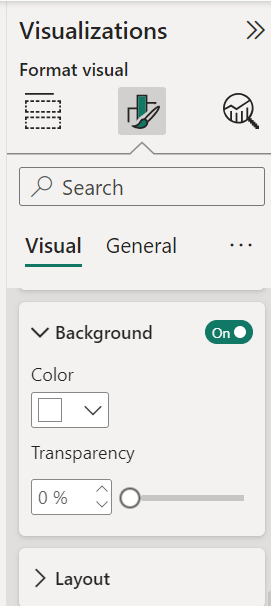
    This is the other option where you can enable the background for the data labels and set the transparency based on your requirement, it is good to set that to a low number as below.

      There it is, now your report looks a lot better for users to read the data labels

      Hope this helps someone trying to improve the readability and accessibility of the Power BI Report using the tooltips..

      Cheers,

      PMDY
      All you need to know for migrating your Power Platform environments from one region to another

      Geo Migration is a great feature/flexibility offered by Microsoft for customers who wish to move to a region which is in closest proximity to their operations even though initially their Power Platform environment region based out of a different one when they signed up. I checked out online but couldn’t find a good reference blog article yet online, hence this post.

      I will make this post detailed but a comprehensive one for anyone to understand the migration. Customers can also opt for Multi Geo for those who have a need to store data in multiple geographies to satisfy their data residency requirements. If you don’t know where your Power Platform environment resides, you can check from Power Platform Admin Center.

      If you were not aware yet, Microsoft Azure is the only cloud provider which offers services in more regions when compared to AWS (Amazon Web Services) and GCP (Google Cloud Platform). The Geo Migration feature seamlessly allows customers to move their environments in a single tenant from one region to another. e.g. for Singapore, it is as below.

      Important:

      1. Geo Migration is not generally available, so please exercise with caution.
      2. You may reach out to your TAM(Microsoft Technical Account Manager) quoting your request
      3. There were several limitations, see below references for more details.

      Mandatory Pre-Migration Check list:

      1. Any Power Apps, Power Automate Flows should be manually exported prior to the migration. Custom Connectors aren’t supported as of now, they must manually reconfigure or created in the new environment. You can export them individually or export them in group.
      2. Canvas Apps, Custom Pages, Code Components like PCF and libraries should be deleted from the environment before your migration activity starts. Else they might be in corrupted state after migration activity.
      3. If any of your Apps are not solution aware because of any reason like App calls a Power Automate when a button is called etc., you may need to explicitly export it out and take the backup.

      Post Migration Check list:

      1. After the migration, import all the packages which you have taken backup during pre migration. For those which were not solution aware, import them manually.
      2. If you have Power Portals or Power Virtual Agents, those should be exported explicitly.
      3. Make sure you test all functionalities in order not to impact end users.

      Notes:

      You don’t need to build Apps and Flows from scratch. Dynamics 365 marketing App is not supported yet. There could be some configuration changes post migration.

      While I try to put the information to the best available as per sources from Microsoft, this may change over time and variation could be different as each customer will have different workloads and dependencies with other services, so please read the references carefully before proceeding. Contact Microsoft Support or TAM as necessary.

      Hope this helps to get a sneak peek into the migration process.

      References:

      Where is your data stored?

      MultiGeo Architecture

      Dynamics 365 & Power Platform new regions

      Advance Data Residency Move Program

      Geo to Geo Migrations

      Cheers,

      PMDY

      It looks like something went wrong error in Power Automate – Quick Fix

      Hi Folks,

      While I was working with Power Automate, I encountered this error, FYI, I was using Old Designer UI, hope the fix I found was an easy one but could help someone else without digging deeper and troubleshooting by changing the flow. I tried refreshing the page couple of times as suggested in error message but still the issue remains.

      To solve this, just grab the Power Automate URL from your browser search bar…you should see something like below.

      Just replace it to

      While this could be an intermittent issue, but it persists for few mins or so. So, this tip can help someone.

      Cheers,

      PMDY
      Execution Timeout Expired. The timeout period elapsed prior to completion of the operation, or the server is not responding – Troubleshooting timeouts in Power BI

      Hi Folks,

      When I was working with my Power BI reports, I suddenly started encountering this error. I don’t have any more clue except this error message which I could see in my Power BI Desktop as below. Initially I thought there could be some problem connecting to my SQL end point of my Dataverse connection, but it isn’t.

      The error message above clearly say that the Queries are blocked. I then quickly started reviewing the model of the Power BI Report to see if there were any issues like the Relationships etc. But I couldn’t find anything in my relationships. Since I was using SQL Connection to my Dataverse, I tried to increase the Command timeout in minutes (max value being 120 minutes) from Advanced options of my connection but still the same error.

      Cause: Then I quickly noticed that in my model I have fetched the same table data both using Direct Query and Import mode. So, when I was refreshing, because of the relationships, the one imported is being dependent on the one with Direct Query.

      Fix: After review, the unnecessary Direct Query table was removed and voila it fixed the issue.

      If anyone is facing the same problem, I strongly recommend you review the Semantic Model of your Power BI Report.

      Cheers,

      PMDY
      Enabling TDS End Point for Dataverse (Preview Feature) from Power Platform Admin Center and its advantages

      Hi Folks,

      Exciting news…

      Here is how you can enable TDS End Point in Dataverse…

      1. Navigate to Power Platform Admin Center…https://admin.powerplatform.microsoft.com/home
      2. Next navigate to the respective Environment to which you want to enable TDS End Point
      3. Choose your respective environment, go to Settings
      4. In the Settings windows, select the Product and then Features.
      5. Scroll down to see TDS end point, just enable the TDS end point toggle button
      6. Once this is enabled, you can also enable user level access for this TDS end point by configuring the security role as in the below step.
      7. Open Security from Power Platform Admin Center and navigate to the available security roles, go to Miscellaneous privileges, search for tds, you can find a privilege to Allow user to access TDS endpoint.

      Advantages:

      1. With this TDS end point enabled, you can directly access the data in the Dataverse tables using SSMS(Preview) and in Power BI
      2. While the interesting part here is that Dataverse security model will be applied to the data being viewed by the user.
      3. That is whenever you were query the dataverse data using SSMS, the user role will be applied
      4. In the same way, if the Power BI report is built using the TDS(SQL end point), any user who is going to access the report will be only seeing the data he/she can access based on current security roles in Dataverse

      While this is a cool feature for anyone who is trying to build Dataverse security in Power BI without using row level security as this is a mystery till now.

      Hope this helps…

      Cheers,

      PMDY