When to use NO-LOCK in SQL – Quick Review

Hi Folks,

Well this post is not related to Power Platform, but I want to bring it on here to specify the significance of using NOLOCK in Power Platform Implementations using SQL Server.

Recently during our Deployment activity, we had a SSIS job which is writing a lot of data into SQL Server, at the same time, we were trying to read the data from the same table. I received never ending Executing query … message. It is when I had arguments on this, hence I would like to share the significance of NOLOCK.

The default behaviour in SQL Server is for every query to acquire its own shared lock prior to reading data from a given table. This behaviour ensures that you are only reading committed data. However, the NOLOCK table hint allows you to instruct the query optimizer to read a given table without obtaining an exclusive or shared lock. The benefits of querying data using the NOLOCK table hint is that it requires less memory and prevents deadlocks from occurring with any other queries that may be reading similar data. 

In SQL Server, the NOLOCK hint, also known as the READUNCOMMITTED isolation level, allows a SELECT statement to read data from a table without acquiring shared locks on the data. This means it can potentially read uncommitted changes made by other transactions, which can lead to what’s called dirty reads.

Here’s an example:

Let’s say you have a table named Employee with columns EmployeeID and EmployeeName.

CREATE TABLE Employee (
    EmployeeID INT,
    EmployeeName VARCHAR(100)
);

INSERT INTO Employee (EmployeeID, EmployeeName)
VALUES (1, 'Alice'), (2, 'Bob'), (3, 'Charlie');

Now, if two transactions are happening concurrently:

Transaction 1:

BEGIN TRANSACTION
UPDATE Employee
SET EmployeeName = 'David'
WHERE EmployeeID = 1;

Transaction 2:

SELECT EmployeeName
FROM Employee WITH (NOLOCK)
WHERE EmployeeID = 1;

If Transaction 2 uses WITH (NOLOCK) when reading the Employee table, it might read the uncommitted change made by Transaction 1 and retrieve 'David' as the EmployeeName for EmployeeID 1. However, if Transaction 1 rolled back the update, Transaction 2 would have obtained inaccurate or non-existent data, resulting in a dirty read.

Key takeaways about NOLOCK:

  • Pros: Reduces memory use, avoids blocking, speeds up reads.
  • Cons: May read uncommitted or inconsistent data.

Using NOLOCK can be helpful in scenarios where you prioritize reading data speed over strict consistency. So, in my case as I want to just view the data, using NOLOCK is good without locking the query. However, it’s essential to be cautious since it can lead to inconsistent or inaccurate results, especially in critical transactional systems.

Other considerations like potential data inconsistencies, increased chance of reading uncommitted data, and potential performance implications should be weighed before using NOLOCK.

Conclusion:

There are benefits and drawbacks to specifying NOLOCK table hint as a result they should not just be included in every T-SQL script without a clear understanding of what they do. Nevertheless, should a decision be made to use NOLOCK table hint, it is recommended that you include the WITH keyword. Using NOLOCK without WITH Statement is deprecated. Always use a COMMIT keyword at the end of the transaction.

Hope this helps…

Cheers,

PMDY

INFO.VIEW Data Analysis Expressions (DAX) functions in Power BI Desktop – Quick Review

Hi Folks,

This blog post is all about the latest features released in Power BI Desktop for DAX(Data Analysis Expressions) using DAX Query View.

Do you have the requirement any time to document your DAX functions used in your Power BI Report, then use the DAX query view which introduced new DAX functions to get metadata about your semantic model with the INFO DAX functions.

Firstly, if you were not aware, DAX Query view is the recent addition where we can query the model similar to how the analysts and developers used Power BI Desktop or other 3rd party tools to get the same information earlier. You can access DAX Query view as below in green.

When you navigate to the DAX Query view, key points to note are as below

  1. DAX Queries will be directly saved to your Model when saved from DAX Query View
  2. DAX Query View will not be visible when the Power BI Report is published to the Power BI Service
  3. The results of the DAX will be visible at the bottom of the page as shown below
  4. IntelliSense is provided by default
  5. There were 4 DAX INFO.VIEW Functions introduced as below
  6. List all your Measures using INFO.VIEW.MEASURES()
    This lists down all the measures in your Semantic Model, it also provides the Expression used for the Measure along with which table it was created.

I have selected the whole results of the measures and Copy the results you see see in the table below

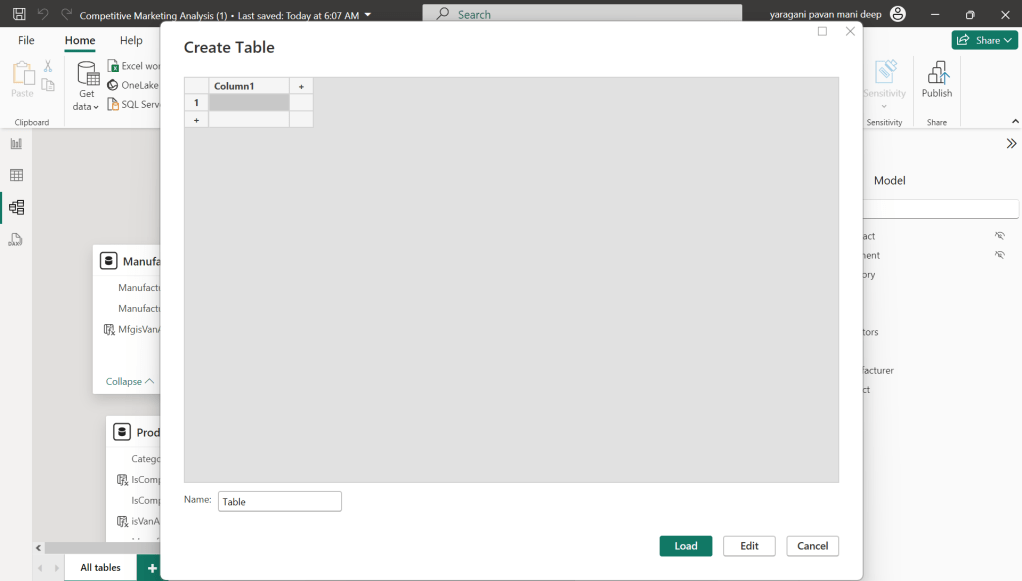
Just go to Model View and click Enter Data

You will be shown a screen like this

Just do a Cntrl + V as you have previously copied the table information

That’s it, how easy it was to document all the Measures, similarly you can document all the Meta Data available for the Power BI Report.

That’s it for today, hope you learned a new feature in Power BI Desktop…

Cheers,

PMDY

Whitepaper on Power Automate Best Practices released

Hi Folks,

Last week Microsoft Power CAT Team had released a white paper on Power Automate Best Practices which is mainly for Power Automate Developers who want to scale up their Power Automate Flows in enterprise implementations.

It has been extremely useful and insightful, so I thought of sharing with everyone again.

Please find it attached here down below

Hope you find it useful too..

Cheers,

PMDY

Understanding Dataverse search in Dynamics 365 – Quick Review

Hi Folks,

One of my colleagues asked about Dataverse search, hence I am writing this article on Dataverse Search in Dynamics 365 and in the end, will compare different search options available in Dynamics 365.

Dataverse Search:

In layman terms, Dataverse Search is a powerful search tool that helps you find information quickly across your organization’s data in Microsoft Dataverse, which is the underlying data platform for apps like Power Apps, Dynamics 365, and more, shows you all the related information from across different tables or records in one place.

In short, Dataverse Search is the evolved version of Relevance Search, offering a more robust, faster, and user-friendly search experience including search results for text in documents that are stored in Dataverse such as PDF, Microsoft Office documents, HTML, XML, ZIP, EML, plain text, and JSON file formats. It also searches text in notes and attachments. Before enabling it, just note that once Dataverse search is enabled, it will be affected in all your Model Driven Apps, as of now, just take note.

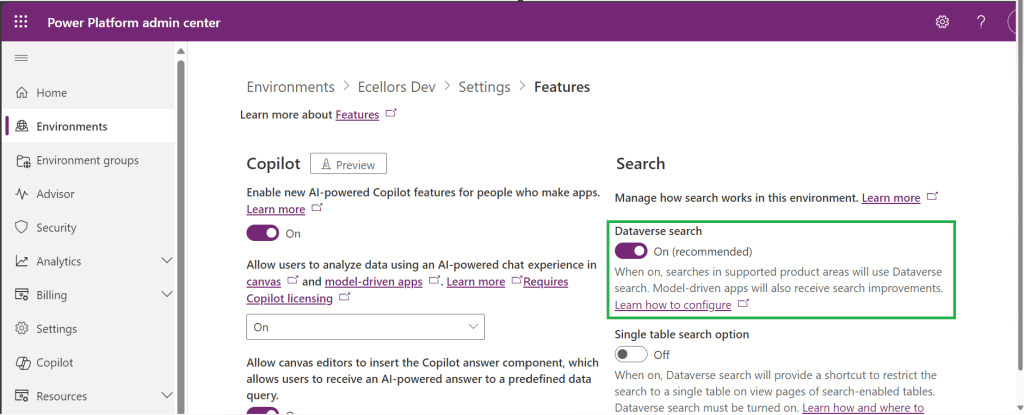
It is on by default, here is where you can now turn off the Dataverse Search:

  1. Navigate to https://admin.powerplatform.com
  2. Click on Environments –> Choose your required environment –> Settings –>Features

3. Disable/Enable the Dataverse search feature.

Once enabled, we need to configure the tables for Dataverse Search so that indexing is performed at the backend, in order to do this…

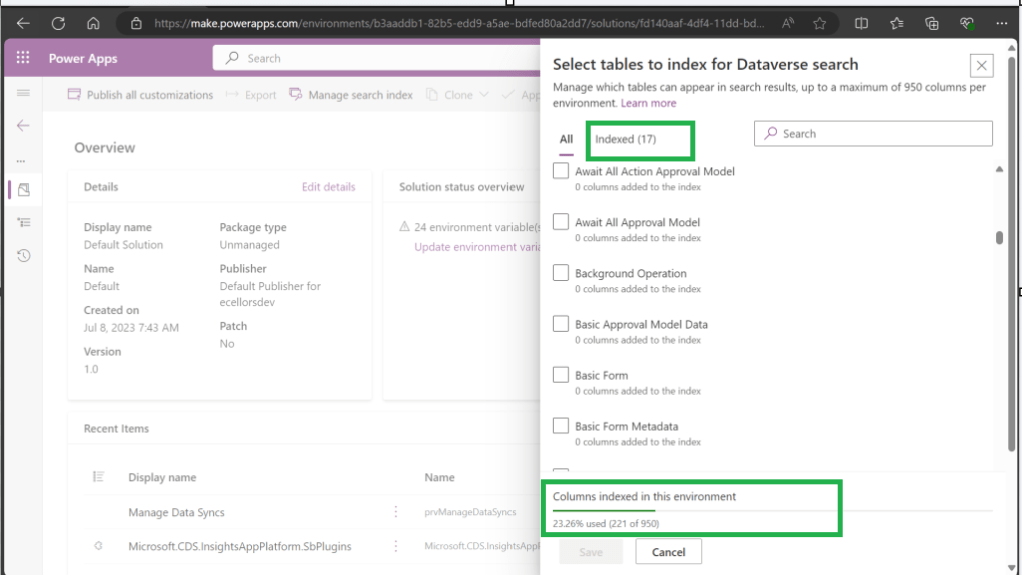
  1. Navigate to https://make.powerapps.com, select your desired solution –> Click on Overview as shown below

Now you need to choose Manage Search Index and you can choose your desired table and fields, there isn’t a limit on the number of tables you can configure, but there is a limit on the number of fields you can configure for an environment, a maximum of 1000 fields are permitted both including system and custom fields, 50 fields are used by system, so you can configure 950 fields.

Just note that some field types are treated as multiple fields in the Dataverse search index as indicated in this table.

Field typeNumber of fields used in
the Dataverse search index
Lookup (customer, owner, or Lookup type attribute)3
Option Set (state, or status type attribute)2
All other types of fields1

At the bottom of the snap above, you could see the percentage of columns indexed in this environment.

When Dataverse search is enabled, the search box is always available at the top of every page in your app. You can start a new search and quickly find the information that you’re looking for.

When Dataverse search is turned on, it becomes your default and only global search experience for all of your model-driven apps. You won’t be able to switch to quick find search also known as categorized search.

You can also enable Quick actions as shown in the below table

TableQuick actions
AccountAssign, Share, Email a link
ContactAssign, Share, Email a link
AppointmentMark complete, Cancel, Set Regarding, Assign, Email a link
TaskMark complete, Cancel, Set Regarding, Assign, Email a link
Phone CallMark complete, Cancel, Set Regarding, Assign, Email a link
EmailCancel, Set Regarding, Email a link

Here is the short table comparing all types of searches in Dynamics 365…

FunctionalityDataverse searchQuick FindAdvanced Find
Enabled by default?Yes.
Note: For non-production environments an administrator must manually enable it.
Yes, for the table grid.
No, for multiple-table quick find (categorized search). An administrator must first disable Dataverse search before multiple-table grid find can be enabled.
Yes
Single-table search scopeNot available in a table grid. You can filter the search results by a table on the results page.Available in a table grid.Available in a table grid.
Multi-table search scopeThere is no maximum limit on the number of tables you can search.Searches up to 10 tables, grouped by a table.Multi-table search not available.
Search behaviorFinds matches to any word in the search term in any column in the table.Finds matches to all words in the search term in one column in a table; however, the words can be matched in any order in the column.Query builder where you can define search criteria for the selected row type. Can also be used to prepare data for export to Office Excel so that you analyze, summarize,or aggregate data, or create PivotTables to view your data from different perspectives.
Searchable columnsText columns like Single Line of Text, Multiple Lines of Text, Lookups, and Option Sets. Doesn’t support searching in columns of Numeric or Date data type.All searchable columns.All searchable columns.
Search resultsReturns the search results in order of their relevance, in a single list.For single-table, returns the search results in a table grid. For multi-table, returns the search results grouped by categories, such as accounts, contacts, or leads.Returns search results of the selected row type with the columns you have specified, in the sort order you have configured.

Hope you learned something today…if you have any questions, do let me know in the comments…

Cheers,

PMDY

Filter data with single date slicer when multiple dates in fact table fall in range without creating relationship in Power BI

Hi Folks,

After a while, I am back with another interesting way to solve this type of problem in Power BI. It took increasingly more amount of time to figure out best approach, this post is to help suggest a way of solving differently. This post is a bit lengthy but I will try to explain it in the best way I can.

Here is the problem, I have date fields from 2 fact tables, I have to filter them using a single date slicer which is connected to a calendar table and show the data when any of dates in a particular row falls in the date slicer range. I initially thought this was an easy one and could be solved by creating a relationship between the two fact tables with calendar table, then slice and dice the data as I was able to filter the data with one fact table when connected to calendar table.

I was unable to do that because there were multiple date fields in one fact table and need to consider dates from two tables. I tried to get the value from the slicer using Calculated field since I have do row by row checking. Later understood that, date slicer values can be obtained using a calculated field but those will not be changing when the dates in date slicer is getting changed, this is because the Calculated fields using row context and will only be updated when data is loaded or user explicitly does the refresh. Instead we have to use measure which is calculated by filter context.

The interesting point here is that, if a measure is added to the visual, it returns same value for each row, so a measure shouldn’t be added to a visual as it calculates values on a table level and not at row level, it is ideal if you want to perform any aggregations.

I tried this approach using the great blog post from legends of Power BI(Marco Russo,Alberto Ferrari), but this looked increasingly complex to my scenario and don’t really need to use this, if you still wish to check this out, below is the link to that.

https://www.sqlbi.com/articles/filtering-and-comparing-different-time-periods-with-power-bi/

So, then I tried to calculate the Maximum and Minimum for each row in my fact table using MAXX; MINX functions

MaxxDate = 

VAR Date1 = FactTable[Custom Date1]
VAR Date2 = FactTable[Custom Date2]

RETURN 
MAXX(
    {
        Date1,
        Date2
        
    },
    [Value]
)
MinXDate = 

VAR Date1 = FactTable[Custom Date1]
VAR Date2 = FactTable[Custom Date2]

RETURN 
MAXX(
    {
        Date1,
        Date2
        
    },
    [Value]
)

After merging the two tables into a single one, then create two slicers connected to Maximum Date and Minimum Date for each row. I thought my problem is solved, but it isn’t, since I was only able to filter the dates which have a maximum or minimum value selected in the date slicer, any date value within the date range is being missed.

So I am back to the same situation again

This blog post really helped me get this idea

https://community.fabric.microsoft.com/t5/Desktop/How-to-return-values-based-on-if-dates-are-within-Slicer-date/m-p/385603

Below is the approach I have used,

  1. Create a date table, using the DAX below
Date =
VAR MinDate = DATE(2023,03,01)
VAR MaxDate = TODAY()
VAR Days = CALENDAR(MinDate, MaxDate)
RETURN
ADDCOLUMNS(
Days,
"UTC Date", [Date],
"Singapore Date", [Date] + TIME(8, 0, 0),
"Year", YEAR([Date]),
"Month Number", MONTH([Date]),
"Month", FORMAT([Date], "mmmm"),
"Year Month Number", YEAR([Date]) * 12 + MONTH([Date]) – 1,
"Year Month", FORMAT([Date], "mmmm yyyy"),
"Week Number", WEEKNUM([Date]),
"Week Number and Year", "W" & WEEKNUM([Date]) & " " & YEAR([Date]),
"WeekYearNumber", YEAR([Date]) & 100 + WEEKNUM([Date]),
"Is Working Day", TRUE()
)

2. Here I didn’t create any relationship between the fact and dimension tables, you can leave them as disconnected as below

    3. All you need is a simple measure which calculates if any of the dates in the fact table fall under the slicer date range, here is the piece of code

    MEASURE =
    IF (
    (
    SELECTEDVALUE ( 'Text file to test'[Date] ) > MIN ( 'Date'[Date] )
    && SELECTEDVALUE ( 'Text file to test'[Date] ) < MAX ( 'Date'[Date] )
    )
    || (
    SELECTEDVALUE ( 'Text file to test'[Custom Date1] ) > MIN ( 'Date'[Date] )
    && SELECTEDVALUE ( 'Text file to test'[Custom Date1] ) < MAX ( 'Date'[Date] )
    ) || (
    SELECTEDVALUE ( 'Text file to test'[Custom Date2] ) > MIN ( 'Date'[Date] )
    && SELECTEDVALUE ( 'Text file to test'[Custom Date2] ) < MAX ( 'Date'[Date] )
    )
    ,
    1,
    0
    )

    4. Then filtered the table with this measure value

    That’s it, you should be able to see the table values changing based on date slicer.

    Hope this helps save at least few minutes of your valuable time.

    Cheers,

    PMDY

    Dataverse Accelerator | API playground (Preview)

    Hi Folks,

    In this post, I will be talking about the features of Dataverse Accelerator in brief. Actually, the Microsoft Dataverse accelerator is an application that provides access to select preview features and tooling related to Dataverse development, it is based on Microsoft Power Pages. This is totally different from Dataverse Industry Accelerator.

    Dataverse accelerator app is automatically available in all new Microsoft Dataverse environments. If your environment doesn’t already have it, you can install the Dataverse accelerator by going to Power Platform Admin Center –> Environments –> Dynamics 365 Apps –> Install App –> Choose Dataverse Accelerator

    You can also refer to my previous blog post on installing it here if you prefer

    Once installed, you should see something like below under the Apps

    On selection of the Dataverse Accelerator App, you should see something like below, do note that you must have App-level access to the Dataverse accelerator model driven app, such as system customizer or direct access from a security role.

    Now let’s quickly see what are features available with Dataverse Accelerator

    FeatureDescription
    Low-code plug-insReusable, real-time workflows that execute a specific set of commands within Dataverse. Low-code plug-ins run server-side and are triggered by personalized event handlers, defined in Power Fx.
    Plug-in monitorA modern interface to surface the existing plug-in trace log table in Dataverse environments, designed for developing and debugging Dataverse plug-ins and custom APIs.
    Do you remember viewing Plugin Trace logs from customizations, now you don’t need system administrator role to view trace logs, giving access to this app will do, rest everything remains the same.
    API PlaygroundA preauthenticated software testing tool which helps to quickly test and play with Dataverse API’s.

    I wrote a blog post earlier on using Low Code Plugins, you may check it out here, while using Plugin Monitor is pretty straight forward.

    You can find my blog post on using Postman to test Dataverse API’s here.

    Now let’s see how can use the API Playground, basically you will be able to test the below from API Playground similar to Postman. All you need to open the API Playground from Dataverse accelerator. You will be preauthenticated while using API Playground.

    TypeDescription
    Custom APIThis includes any Dataverse Web API actionsfunctions from Microsoft, or any public user-defined custom APIs registered in the working environment.
    Instant plug-inInstant plug-ins are classified as any user-defined workflows registered as a custom API in the environment with a related Power Fx Expressions.
    OData requestAllows more granular control over the request inputs to send OData requests.

    Custom API, Instant Plugin – You select the relevant request in the drop down available in API Playground and provide the necessary input parameters if required for your request

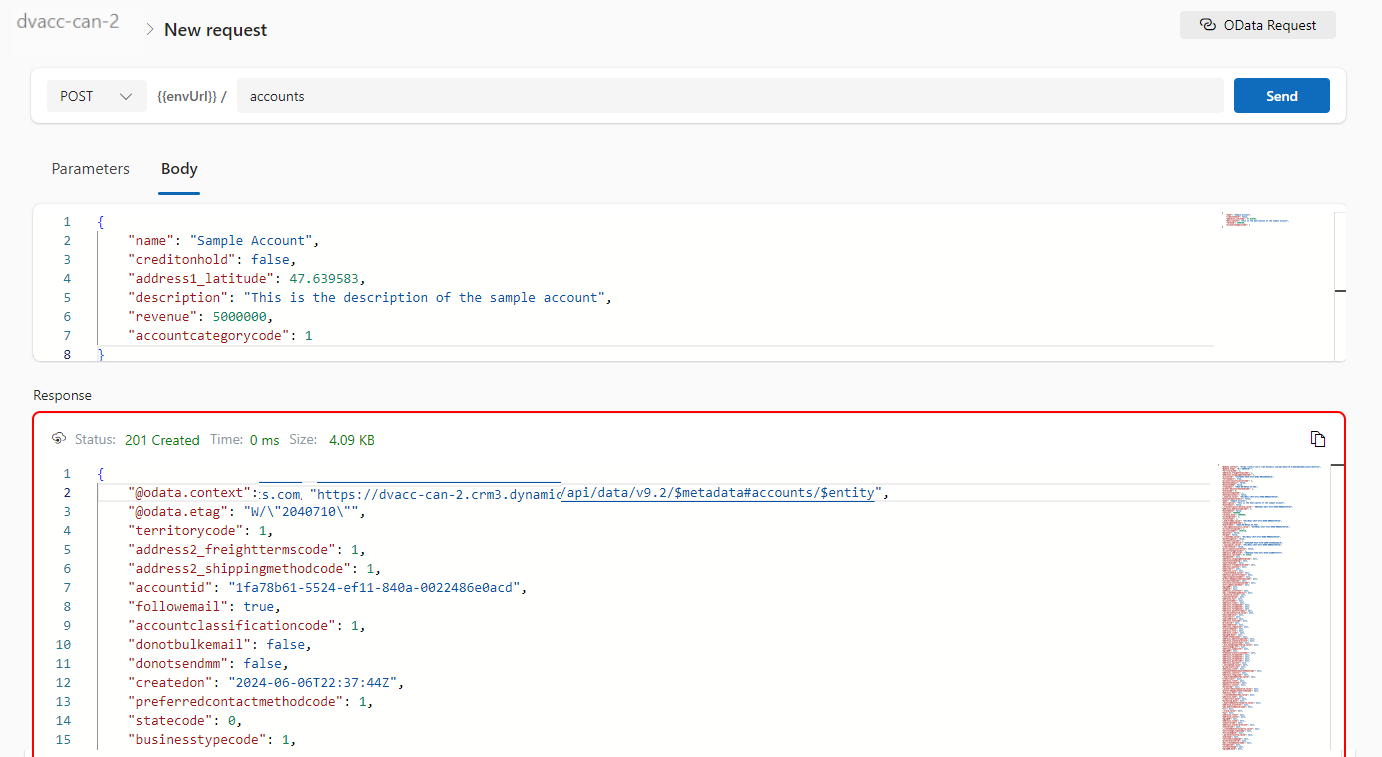
    OData request – Select OData as your request and provide the plural name of the entity and hit send

    After a request is sent, the response is displayed in the lower half of your screen which would be something like below.

    OData response

    I will update this post as these features get released in my region(APAC), because at the time of writing this blog post, this API Playground feature is being rolled out globally and was still in preview.

    The Dataverse accelerator isn’t available in GCC or GCC High environments.

    Hope learned something about Dataverse Accelerator.

    Cheers,

    PMDY

    My top 3 favorite features released at Build 2024 for Canvas Apps…

    Hi Folks,

    This sounds good for those who are Pro Dev and also those working on Fusion teams (Pro + Low Code), as well. Just note, all these features are in preview or experimental features and are available in US Preview Region now as they were just released in the Microsoft Build 2024 last week. Public preview of these features is expected to be released in June 2024, so you can then try out in your region as well. If you want to check these out now, spin up a trial in US Preview region.

    These are the top new features

    1. View the Code behind the Canvas Apps
    2. Use Copilot to generate comments and expressions for your Canvas Apps
    3. Integrate Canvas Apps with GitHub

    Feature #1: View the Code behind the Canvas Apps

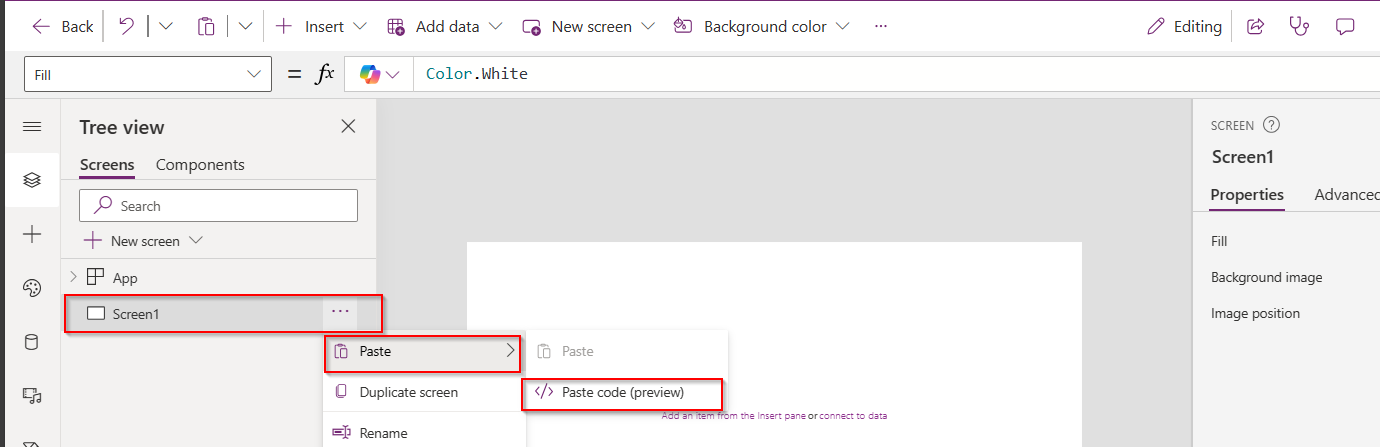
    Now you can view the code behind your Canvas Apps, besides the screen where the components reside, click on the ellipses as below

    You should be able to see the YAML source code for your Canvas App, the code is currently read only, you can click on Copy code option in the above screen at the bottom of page.

    Make the necessary changes to the YAML code, create a new blank screen and you can then copy the YAML code to recreate the previous screen for which you copied the YAML code into a new screen if you wish you.

    Here I will copy the code for the container inside, then I will create a new Blank screen

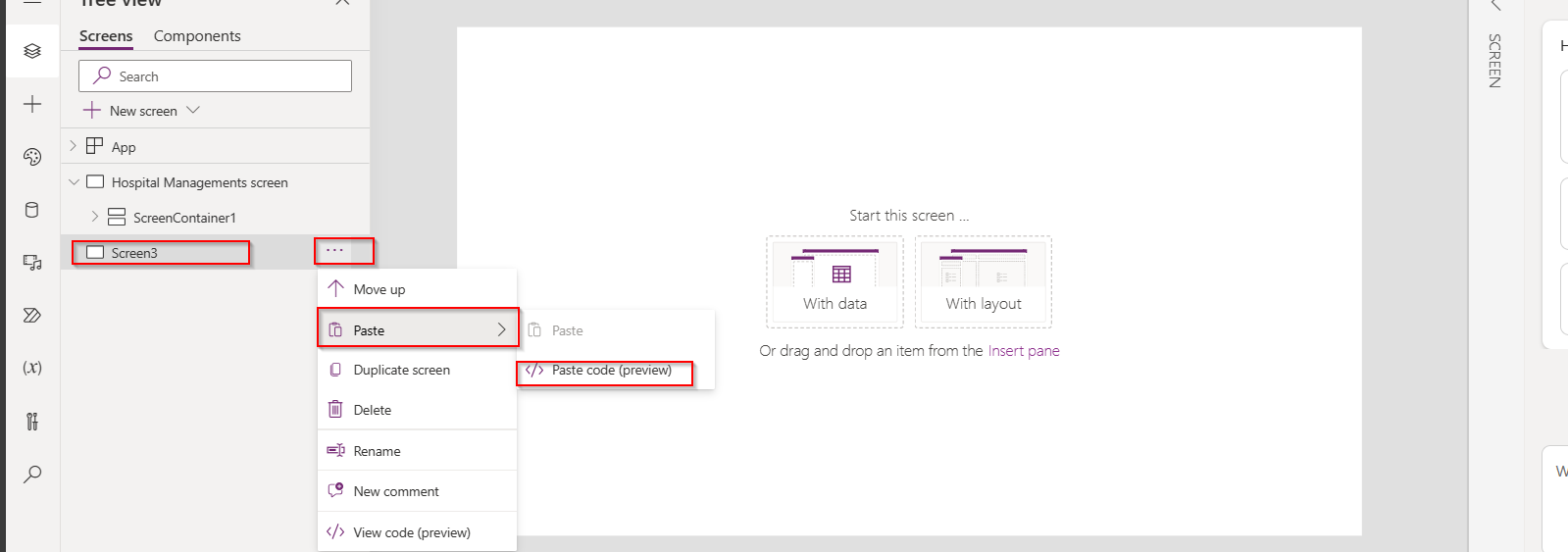
    Once blank screen is added, expand it so that it occupies the entire size of the App, then click on Paste as below

    Give it a minute, your new screen is now ready with container inside as below e.g here it was Screen3, just rename this accordingly.

    How easy it was…. make sure you copy it to relevant item, meaning if you copied the code of container, you could only copy it to another container and not a screen.

    Feature #2: Use Copilot to generate comments and expressions for your Canvas Apps

    Do you want to generate comments for the expressions you wrote. Or have you forgot the logic which you have written for Canvas Apps long time back, don’t worry, use this approach.

    Let’s say, I am choosing OnSelect Property, I have the below formula

    Let’s ask Copilot what this mean, click on the Copilot icon available as below

    Choose to explain the formula

    So now you click on Copy option available and paste it above your command, this serves as a comment for your expression, you can try for any complex expression you wrote in your App. This improves the readability of your app and also makers can use existing knowledge to quickly get up to speed, minimize errors, and build—fast next time you were working on the same App

    Now you can generate Power Fx using Copilot, you can start typing in natural language what you need in comments and as soon you stop typing, it shows as generating as below…you could use either // and /* */, comments can remain in the formula bar as documentation, just like with traditional code.

    It generates the Power Fx command for your input as below and then you need to click on Tab key on your keyboard, it will show something like below

    And finally, you can see the output as below.

    You can apply these two tips for complex formulas as well.

    Feature 3: Integrate Canvas Apps with GitHub

    Did you ever notice that if the canvas app was opened by one user, when another user tries to open the same Canvas app, you would see a warning message and you need to explicitly click on override to take it forward, meaning at any point of time, only one person could be able to work on the Canvas App.

    Now we can use first class Devops with the GitHub Integration feature enabled, many people can work on the same canvas app at the same time and also commit the code for Canvas Apps to Git, let’s see this.

    Prerequisites:

    1. You need to have a GitHub Repo created, creating branches is optional, we can use main branch otherwise.
    2. Enable the experimental feature as below

    Then you should see

    Next thing is you need to configure Git version control as below, you can either use GitHub or Azure DevOps for this, I want to create a new Directory for storing my canvas app like GitHub Test which is not yet in my GitHub Account.

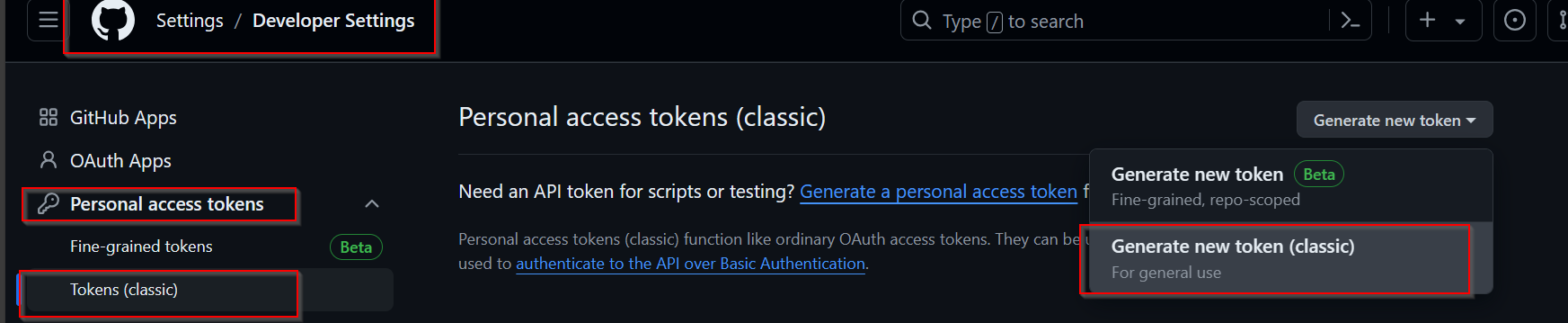
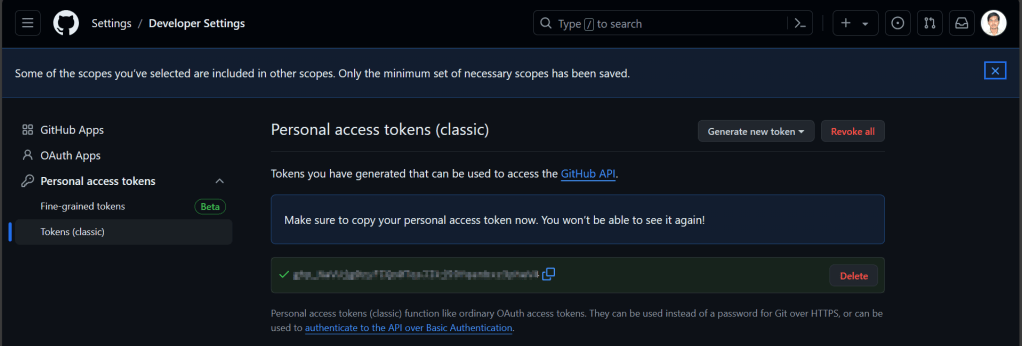
    You need to your GitHub Account settings to create a new token as below.

    For the personal access token, give repo level scope and click generate token.

    Copy the personal access token in the connect to a Git Repository window, once authenticated, you should see a message like below.

    Click Yes, you should see something like below

    Within a minute, you should the below screen w

    So, you should the code files being created in your GitHub Account as below

    Now, your team can make the changes in the GitHub, since GitHub allows multiple people to work on it, latest commit will be reflected whenever you try to open the Canvas App from the maker portal. This helps developers build and deploy to source control without leaving the maker portal. Whenever you try to open this app, it will ask your Git Account credentials.

    Do note that these features are currently available in US Preview region as they are just released last week in Build and would be released to other regions in near future, possibly in June 2024.

    Hope you learned something new coming up next month or sooner…

    That’s it for today…

    Cheers,

    PMDY

    Restore deleted records in Dataverse table – Quick Review

    Hi Folks,

    Have you or your user ever mistakenly deleted records in Model Driven Apps..? Do you remember we can recover the deleted records from recycle bin in your PC, now similarly we can also do this in Dataverse also.

    In this blog post, I will discuss about how you can retrieve a deleted record in Dataverse.

    Till now, we have following tools in XRMToolBox wherein we can restore the deleted records (https://www.xrmtoolbox.com/plugins/DataRestorationTool, https://www.xrmtoolbox.com/plugins/NNH.XrmTools.RestoreDeletedRecords, https://www.xrmtoolbox.com/plugins/BDK.XrmToolBox.RecycleBin) but wait, these tools require Auditing to be enabled for the concerned table. What if you don’t have auditing enabled for that…now we have a preview feature which comes as a saviour where you don’t need any external tools anymore to restore them.

    To use this, just enable this feature from Power Platform Admin Center, you can optionally set the recovery interval if you wish to.

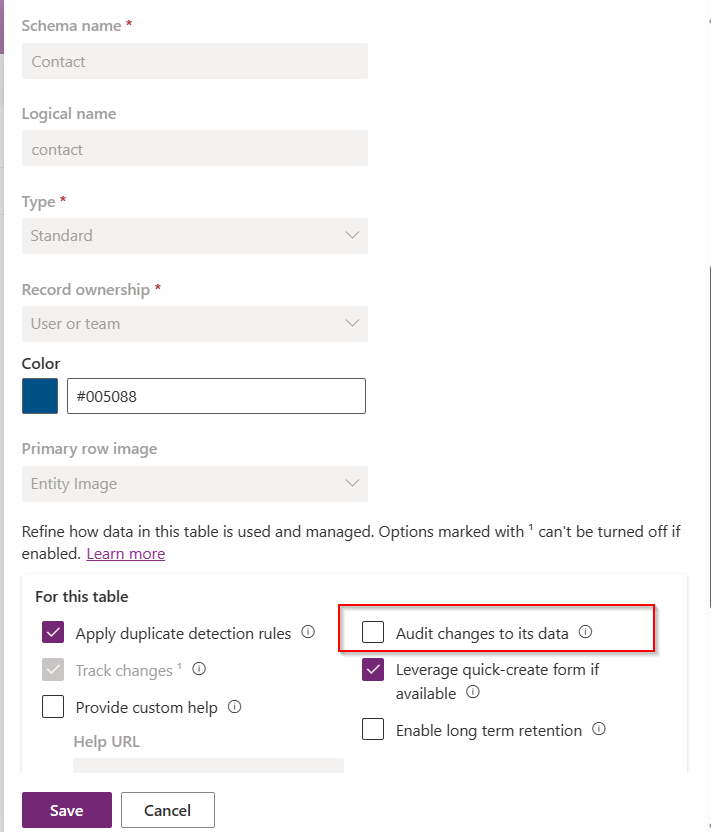
    For this, we take Contact table as example, now let’s check the audit setting of the contact table..well, it’s turned off.

    Even the auditing is not enabled for the contact entity, with this Recycle Bin Preview feature, we should be able to recover the records, let’s see this in action.

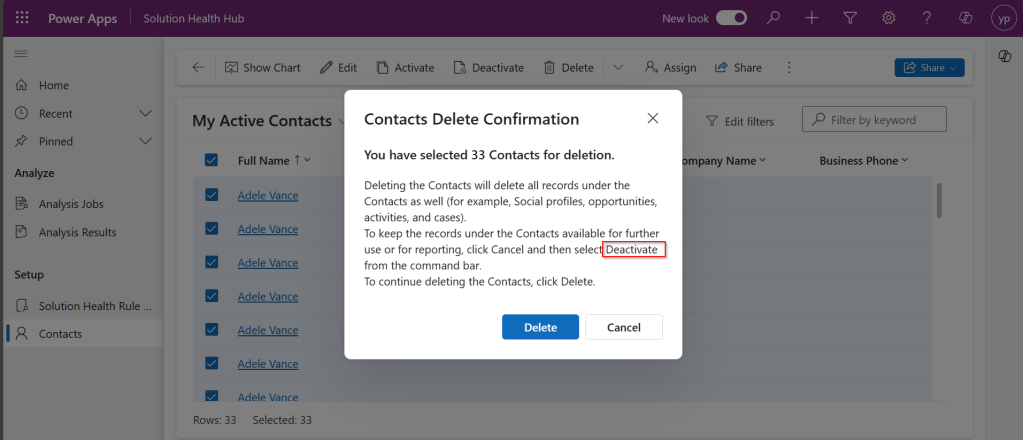
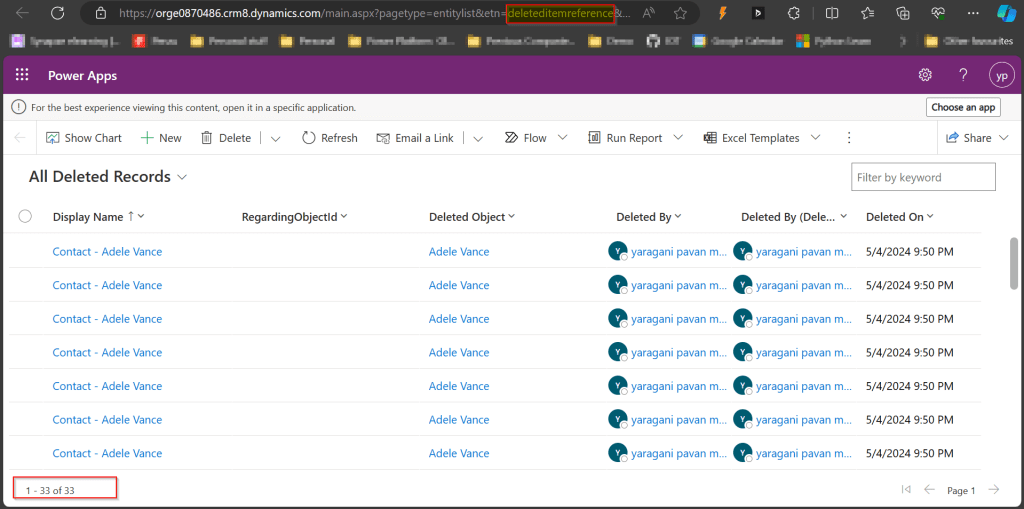
    Now try deleting the contact records, I have 33 contact records in my environment, let me delete all of them.

    It suggests you deactivate rather than delete, still let’s delete them.

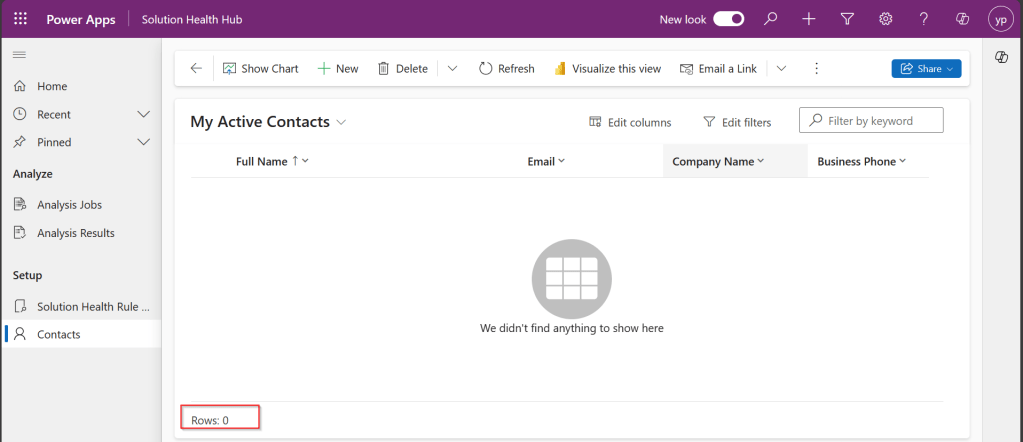
    All the records are now deleted.

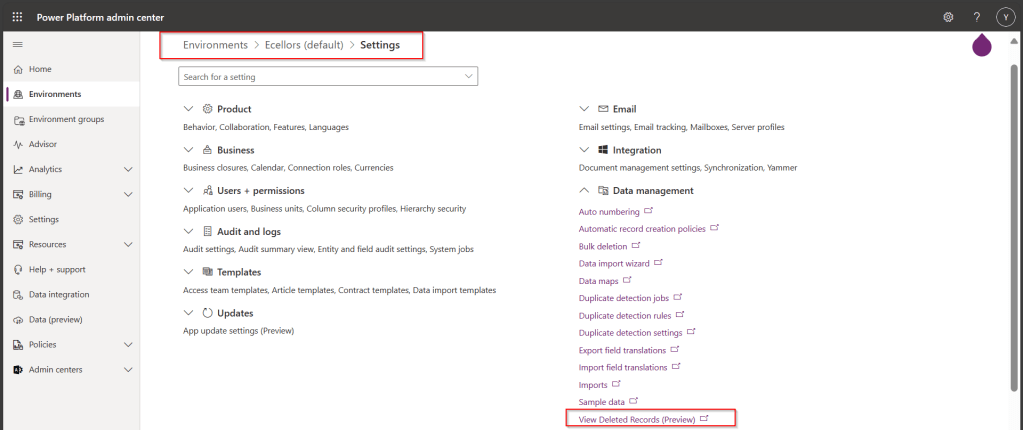
    Now, let’s see how to recover them back…. just go to Power Platform Admin Center –> Environments –> Settings –> Data Management

    As you click on View Deleted Records, you will be navigated to a view from a new table called DeletedItemReference which stores the deleted records just like recycle bin.

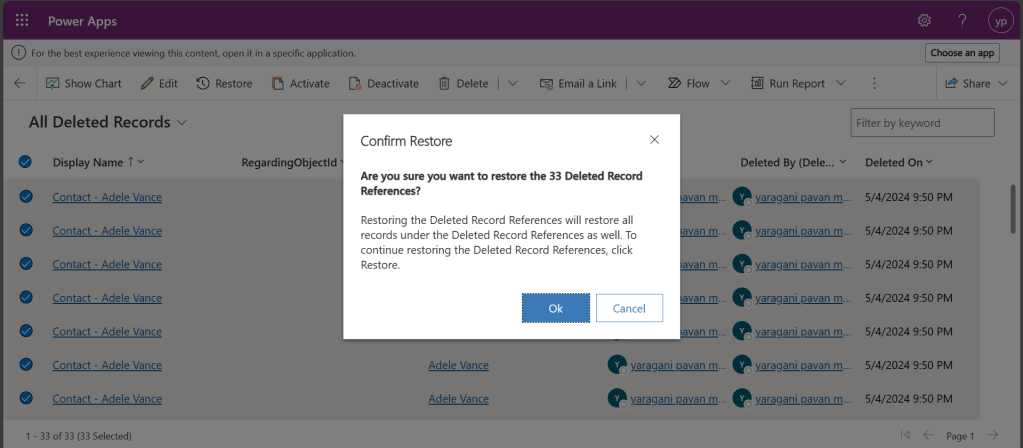
    Just select the records, you should see a restore button available on the command bar, here I choose All Deleted Records.

    Once you click on restore, you will be shown a confirmation dialog, click on Ok.

    You should see the records back in the respective table i.e. Contact here.

    In this post, we saw recovering records which were deleted manually…the same thing works for records deleted using Bulk Delete jobs or whatever way you try to delete.

    Note:

    1. This is a preview feature and not recommended to use in Production environments right away.
    2. You will not be able to recover the deleted records when you have custom business logic applied to delete the records from deleteditemreference table also, moreover this still a preview feature and not recommended for Production use.
    3. You will be able to recover records which were deleted by the Cascading behavior, like record Child records alone when Parent is still deleted.
    4. You can only recover up to the time frame you have set above and maximum up to 30 days from date of deletion.

    Hope you learned something new…that’s it for today…

    Reference:

    https://learn.microsoft.com/en-us/power-platform/admin/restore-deleted-table-records

    Cheers,

    PMDY

    #02 – Copilot Learn Series: Test and Publish your bot

    Thanks for visiting my blog, this post is a continuation of my previous blog post on creating a Copilot, if you haven’t gone through that, I would strongly recommend checking my introductory post on this topic, you can find it here.

    Well, so in this blog post, we will see how you can test and publish your bot so your bot development would be complete.

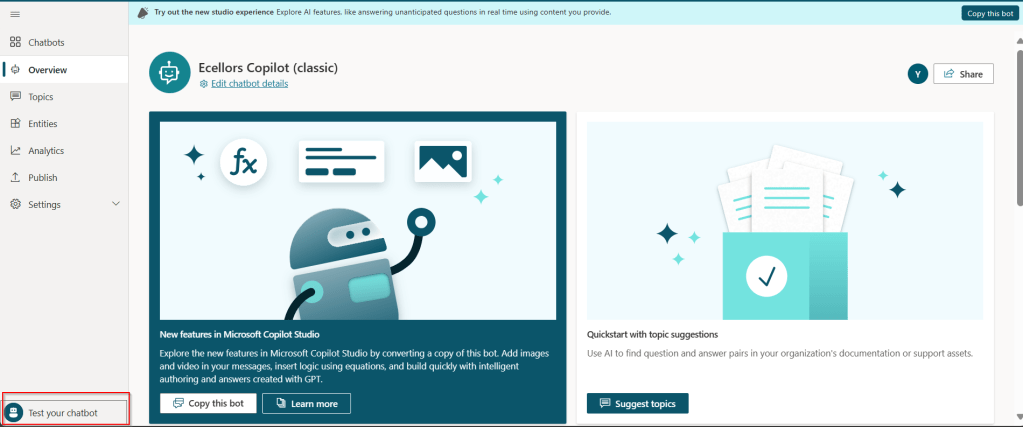
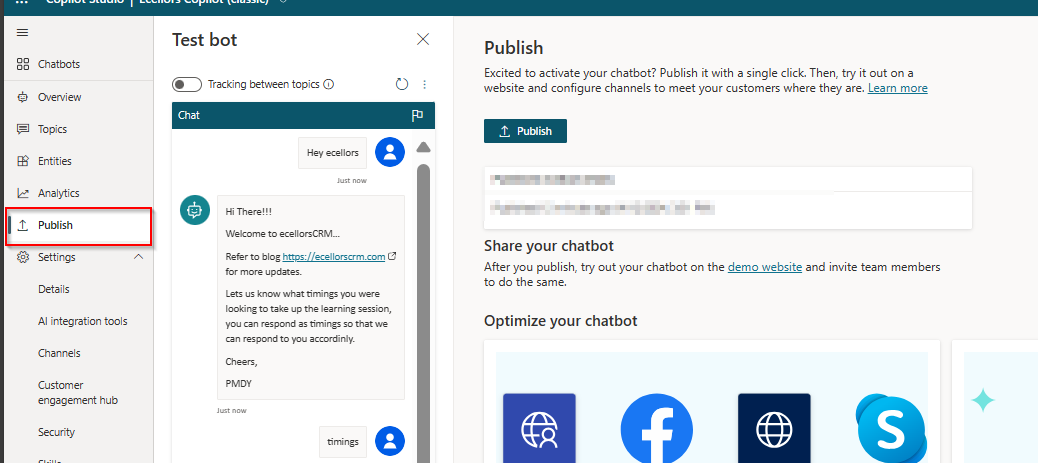
    Your bot can be tested, and messages will be displayed on the chat screen.

    Step 1: Test your Copilot:

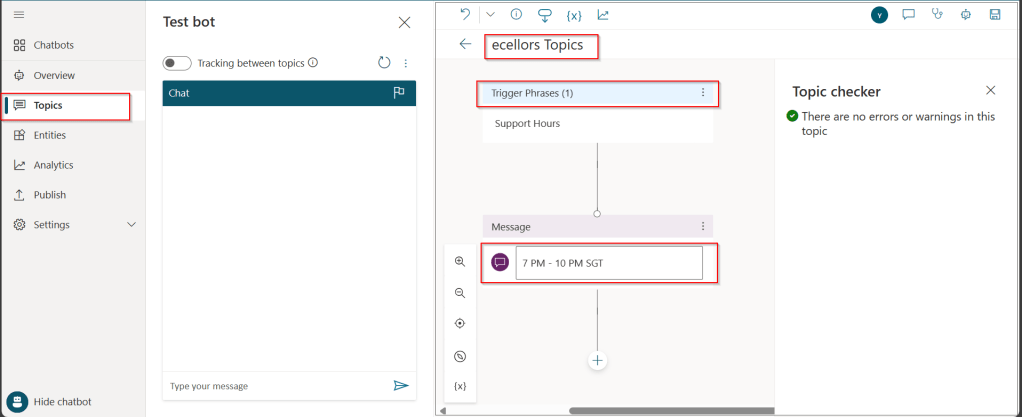
    The bot calls the topics based on the trigger phrases you have entered as below.

    You can return to the authoring canvas for the topic at any time to revise its conversation path. The Test chat pane will automatically refresh itself when you save changes to a topic.

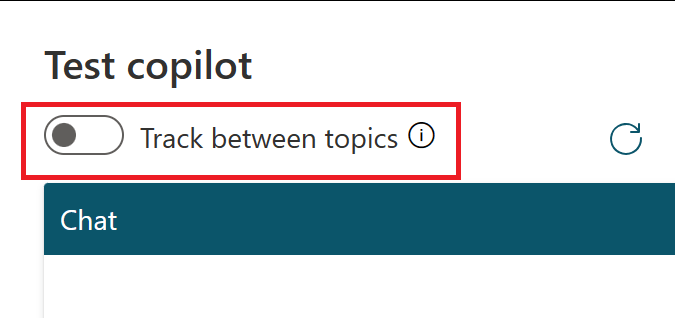
    As you fine-tune your bot, it can be useful to enable tracking between topics so you can follow through the conversation path step by step.

    Step 2: Publish your bot

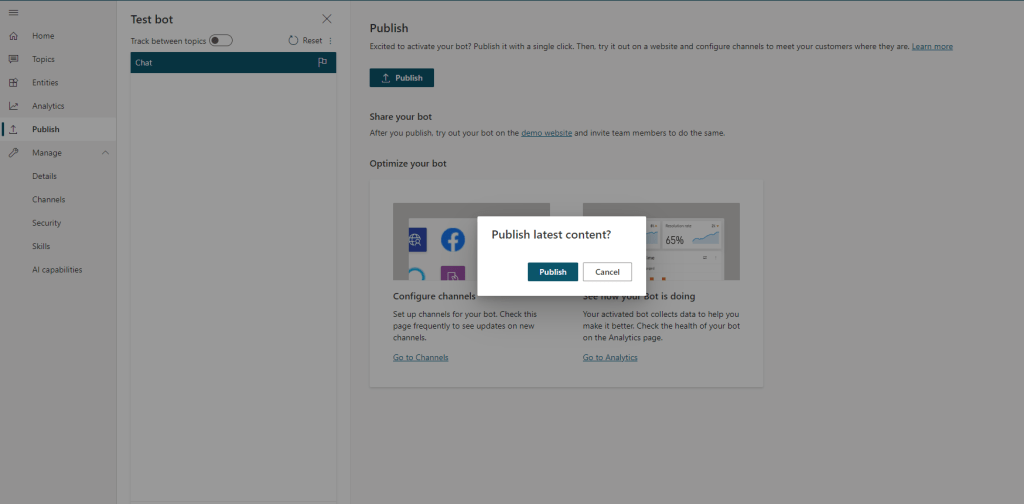
    Once you confirm that everything is good and then you can publish your Copilot.

    Publishing you bot helps to engage with your customers on multiple platforms or channels.

    Each time an update is made, you would need to publish the bot in the Copilot Studio and this will publish the changes to all your respective configured channels. If you haven’t configured any channels, you may proceed to next step to get to know this.

    Step 3: Configure Channels

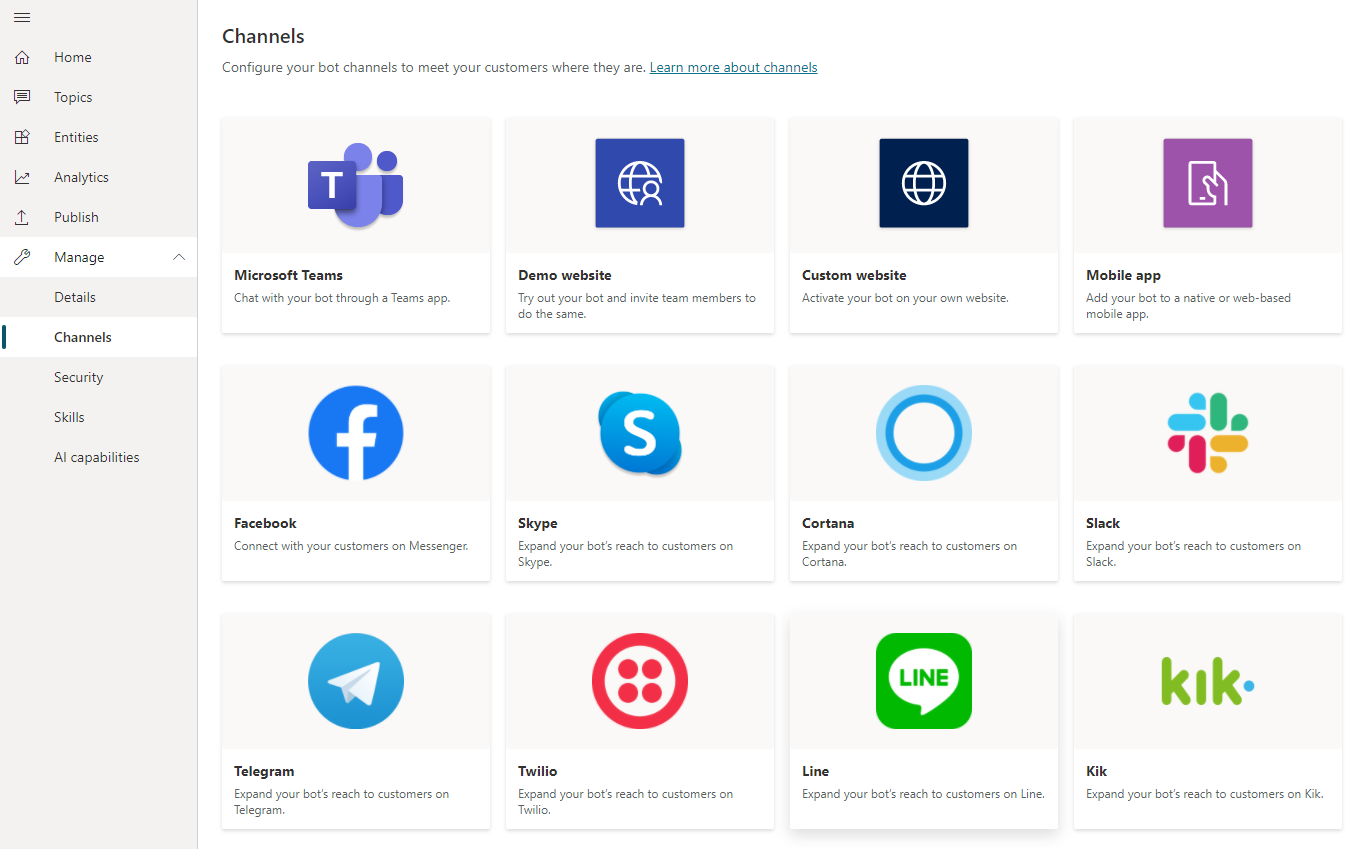
    You can see what channels we currently support by selecting Manage and going to the Channels tab in the side navigation pane and each channel may require different setup and configuration.

    Channel settings

    Step 4: Finally let’s see how the Copilot looks like when you embed...

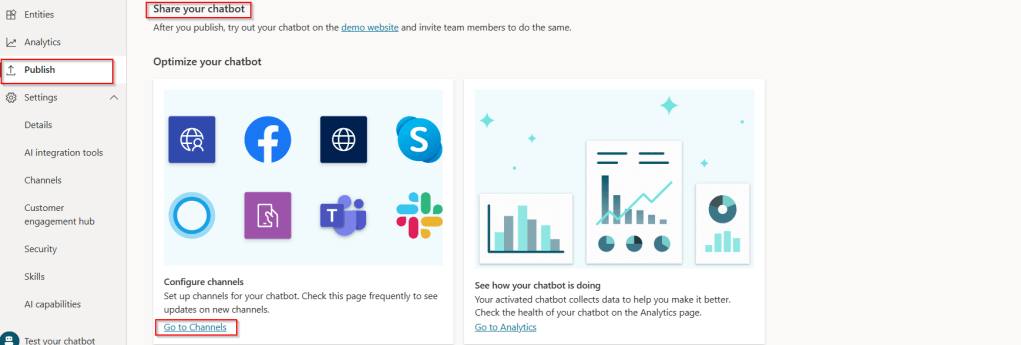
    a. Navigate to channels as highlighted from publish tab:

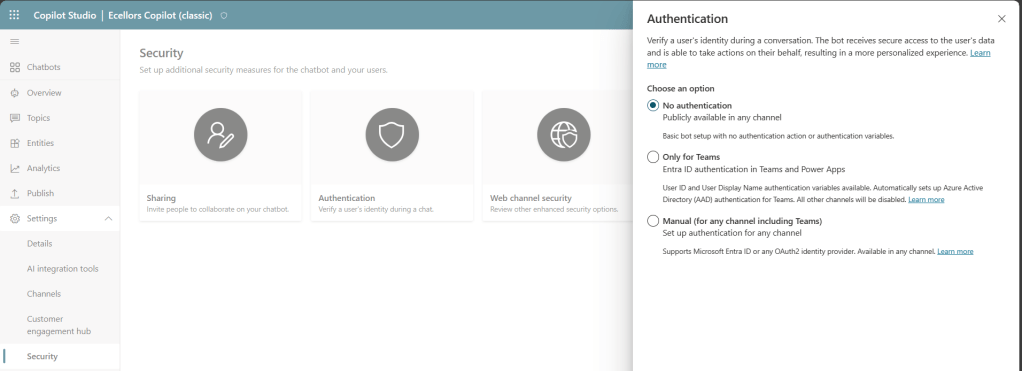
    b. Verify if the channels are enabled:

    If not enabled, make sure you set the authentication for your Copilot properly for the respective channel to embed your bot. For simplicity, I have chosen No authentication.

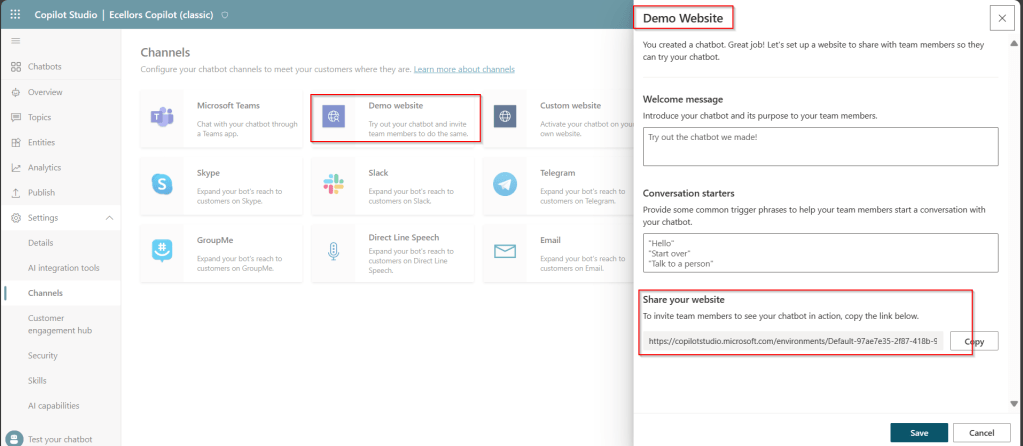
    c. Find the embed code:

    As shown above, you can find the embed code under Share your website.

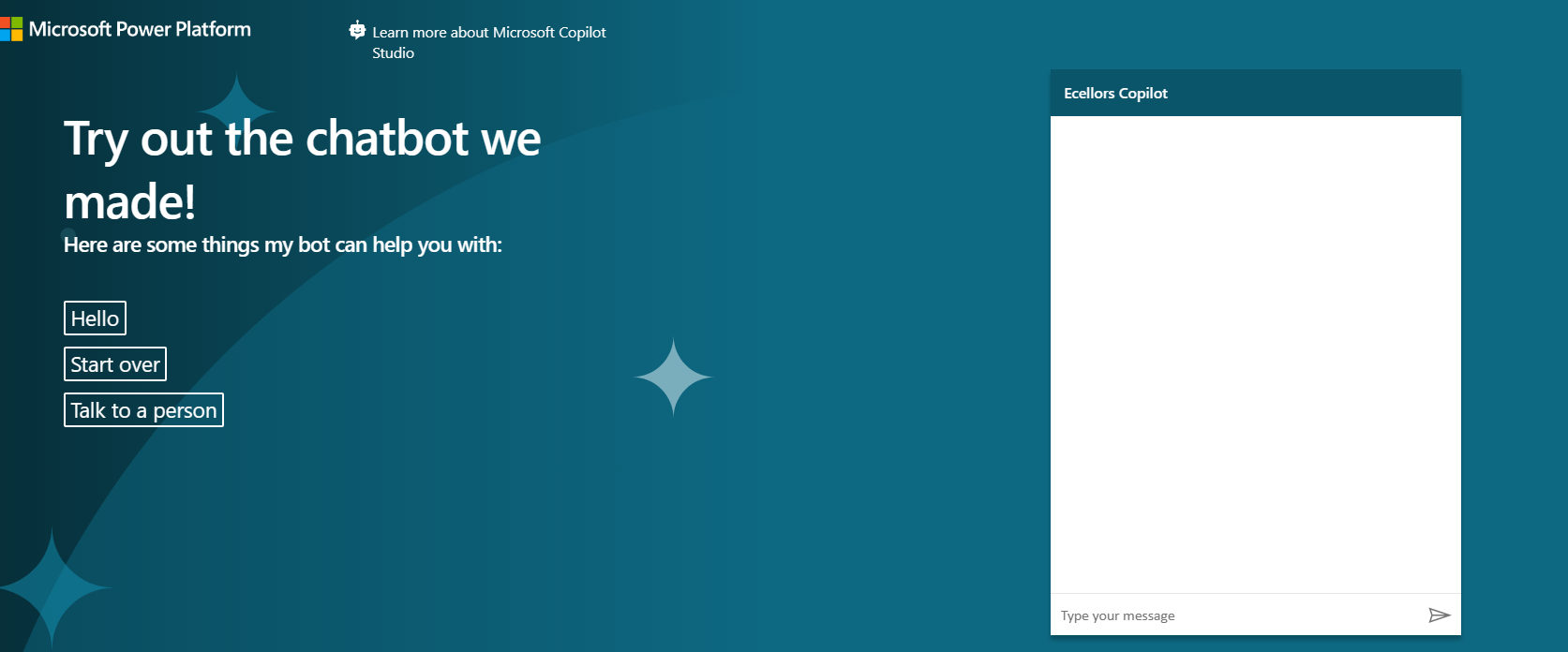
    d. Copy the embed code in browser:

    You can test out your Copilot in your browser by pasting your embed code and it should look something like below.

    Step 5: Bot analytics

    a. Do note that there might be one hour of delay between when the conversations occur and when the statistics for those conversations appear in the analytics views

    b. All the channels’ analytics will be logged here.

    c. You can find the Summary on how your bot is performing, understand how your topics defined are performing and come up with CSAT Scores out of this.

    Now that we have learnt how to build a simple Copilot, in the next blog post, I will cover about the Variable Management and Topic Management in Copilots which would help to design your desired topic conversation path for your Chatbot.

    Hope this helps…

    Cheers,

    PMDY

    #01 – Copilot Learn Series – Getting started with understanding Copilot Studio and basic building blocks of a Copilot (a.k.a Power Virtual agents)

    In the next few blog posts in this series, I will be talking all about Microsoft Copilot aka Power Virtual Agent from beginner to advanced topics, you might see longer posts but you don’t require any prerequisite knowledge on Copilot to follow.

    So, lets’ get started and learn with me in this blog series, let’s dive into the capabilities of Generative AI using #copilot.

    Actually, Copilots empowers teams to quickly and easily create powerful bots using a guided, no-code graphical experience.

    In this blog post, we will see how you can create a simple Chatbot. Excited? so let’s get started.

    Step 1: Go to https://aka.ms/TryPVA try out.

    Step 2: Click on Try free option available.

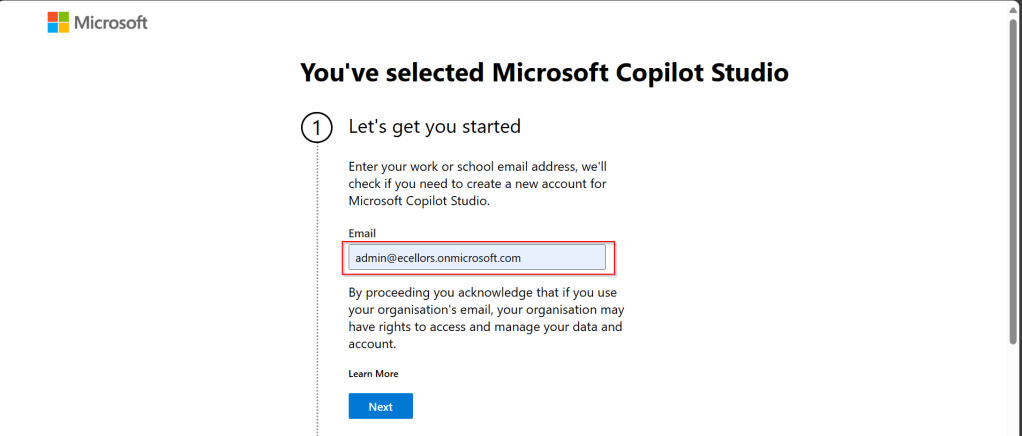
    Step 3: Enter your email address and click on Next.

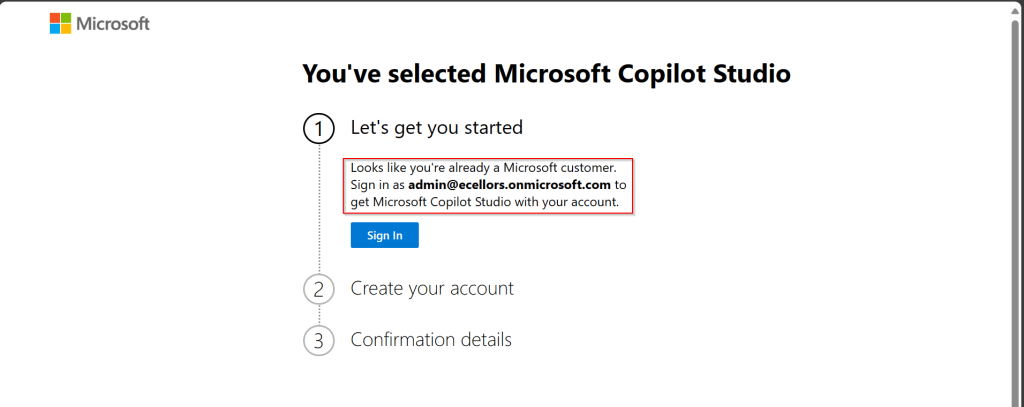
    Step 4: In case you have an existing Microsoft 365 Subscription, you will be shown something below.

    Step 5: Click on SignIn, I have already had an account in Copilot Studio, in case you don’t have, one will be created.

    Step 6:

    a. Once you click on Get Started, Copilot Studio opens in a new tab and you will be asked to login once, enter your Signin details.

    b. In case you previously logged created a Copilot Studio trial, you can continue using it, else extend it to 30 days if requested. Click on Done at the bottom.

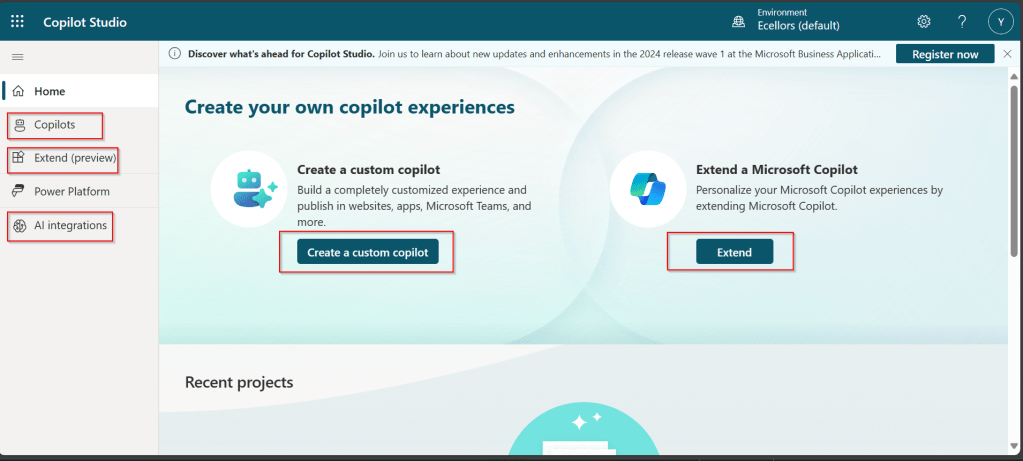
    Step 7: Below is the home page of Copilot Studio.

    I will be talking about each of the highlighted topics in great detail in the upcoming posts.

    Note: Copilots are supported only in certain locations listed in the supported data locations, with data stored in respective data centers. If your company is located outside of the supported data locations, you need to create a custom environment with Region set to a supported data location before you can create your chatbot.

    Step 8:In this step, we will create a Copilot, so click on New Copilot

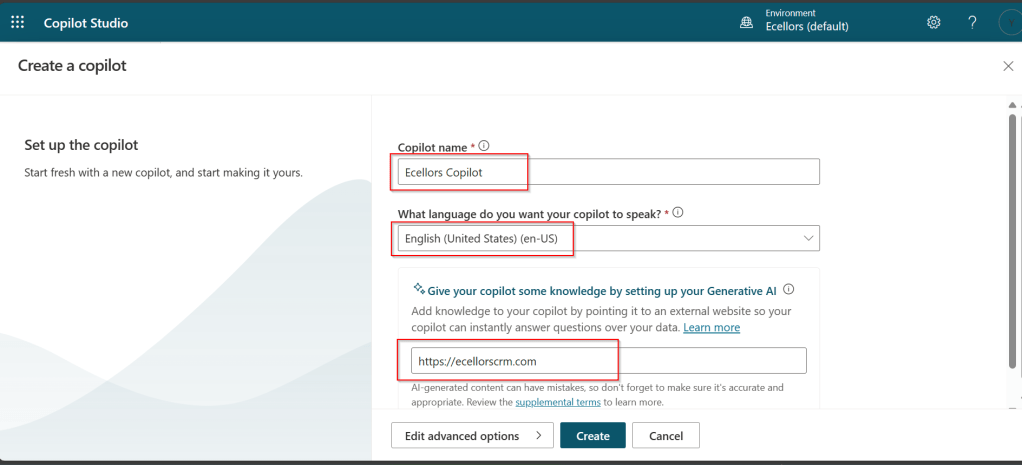
    Step 9: I have provided a name; chosen a language and we can provide an existing website to utilize the Generative AI Capabilities built in Copilot Studio.

    So, here I have provided my blog address. By using this, Copilot can generate suggested topics which you have option to add to your existing topics.

    Step 10:

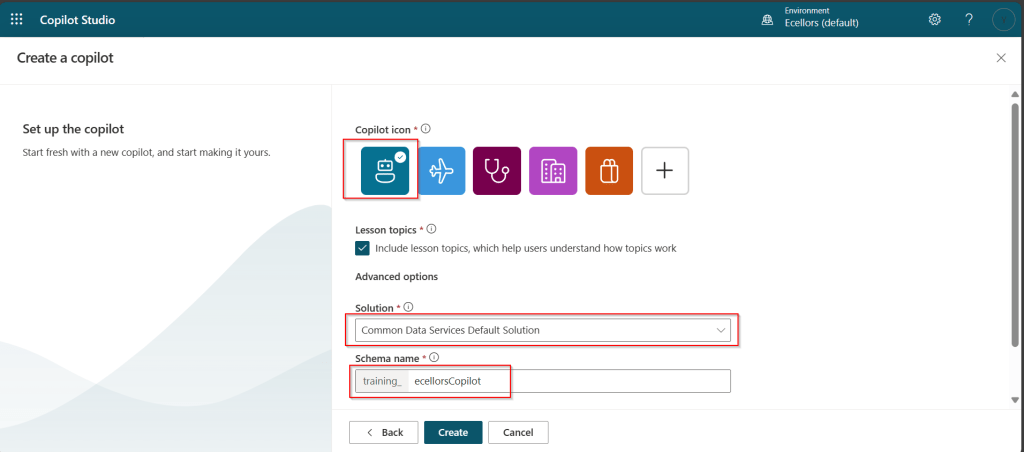
    a. Click on advanced options; you will be able to choose an icon for the Copilot

    b. You can optionally include Lesson Topics

    c. Choose an existing solution you wish to add this Copilot to

    d. Choose appropriate Schema name.

    e. You can optionally enable voice capabilities by choosing the language in which your copilot wants to speak to.

    Step 11: You will be shown the below screen and within a few seconds, your Copilot will be ready.

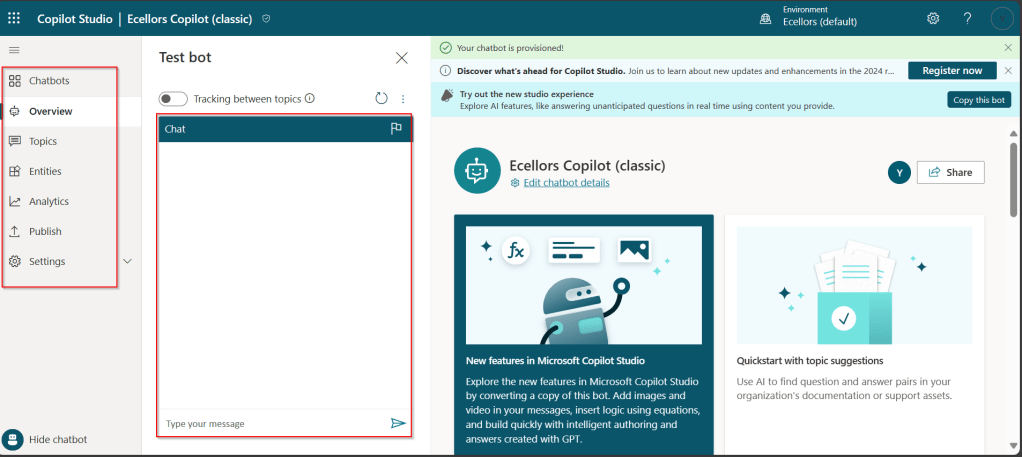
    Step 12: This is the main page of your Copilot; you will also be able to add additional Copilots or delete the Copilot.

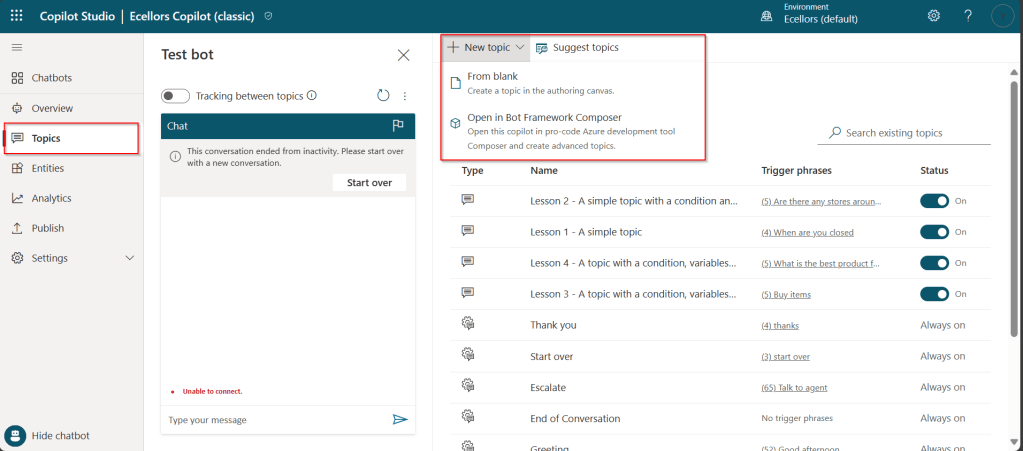
    Step 13: Now, let’s understand Topics what one of the building blocks of Copilot which are nothing but predefined categories or subjects which can help to classify and organize the KB/Support articles.

    The topics shown on the right are prebuilt topics for the Copilot you have just created. Here you may wish to create new topics as necessary.

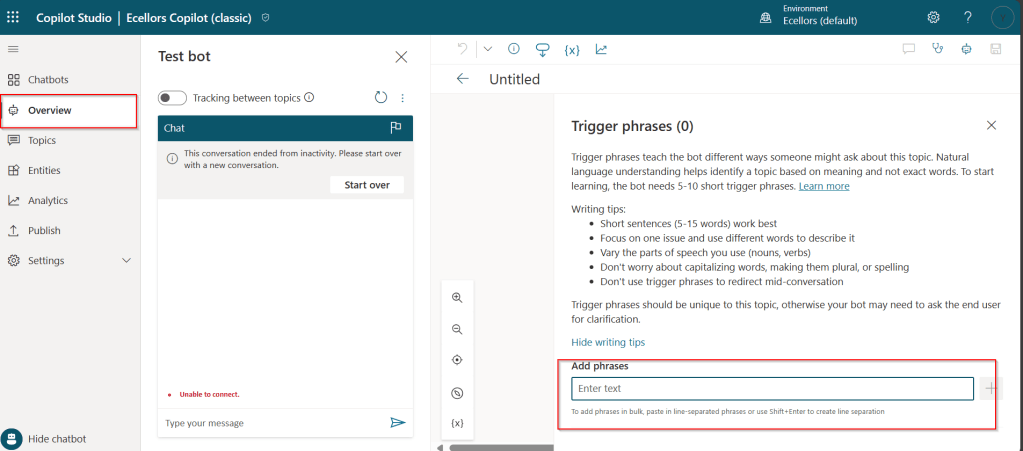
    Step 14: Trigger phrases are those which customer enters in the chat window to start the conversation which then calls the relevant topics. There can be multiple trigger phrases for a single topic.

    You may click to create a topic which then asks you to provide the trigger phrases, when you click to add a topic, the Trigger phrases node and a blank Message node are inserted for you.

    Copilot opens the topic in the authoring canvas and displays the topic’s trigger phrases. You can add up to 1000 topics in a Copilot.

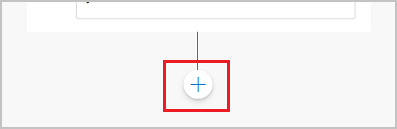
    Step 15: You can add additional nodes by selecting the Plus (+) icon on the line or branch between or after a node.

    Screenshot of adding a node

    Step 16: When you were adding a new node, you can choose from the below options available.

    You can either use any of the available options as above..

    a. Ask a question

    If you want to ask a question and get response from end user, you may do so by adding a node, click on Ask a question.

    For example, I choose Multiple choice options.

    Based on what you enter in the Identify field, you can enter what options user may have. You can nodes further to create branching logic

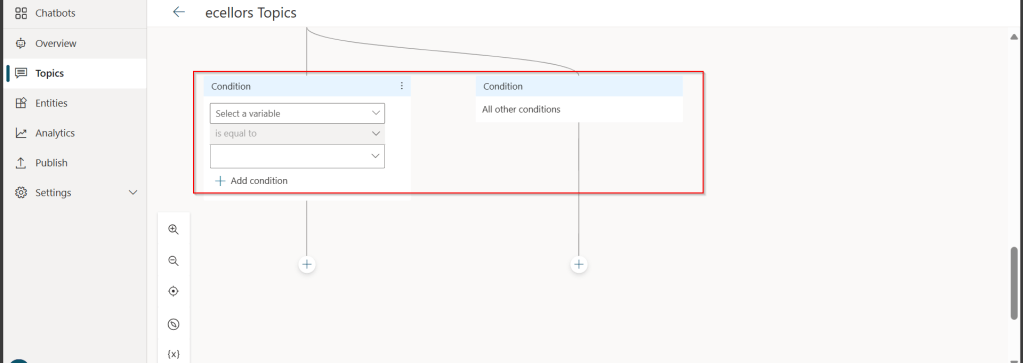
    b. Add a condition

    You can add a condition in the canvas as below to take your Copilot branch out conditionally.

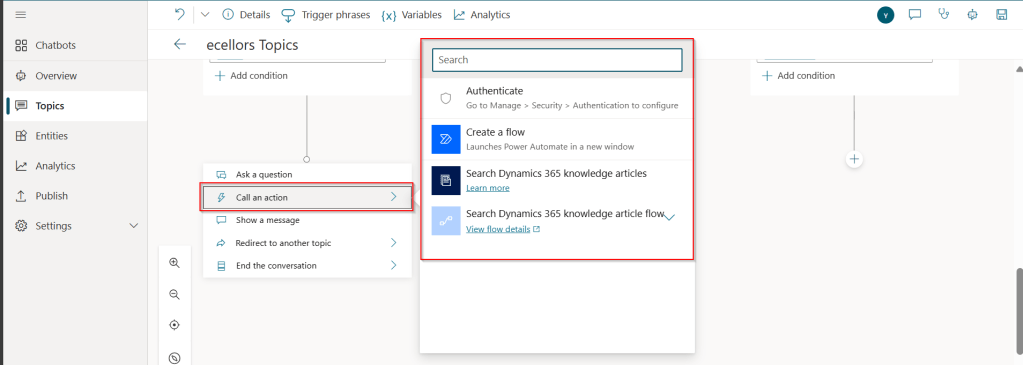
    c. Call an action: The options shown below are self explanatory. You can branch out with the possible options.

    d. Show a message

    You may choose to show a message to the user by entering your message in the text box available.

    d. Goto another topic

    f. End the conversation:

    Finally, you can end the conversation by choosing to end the conversation with the available options or you can transfer to an agent to take the user queries further.

    Step 17:

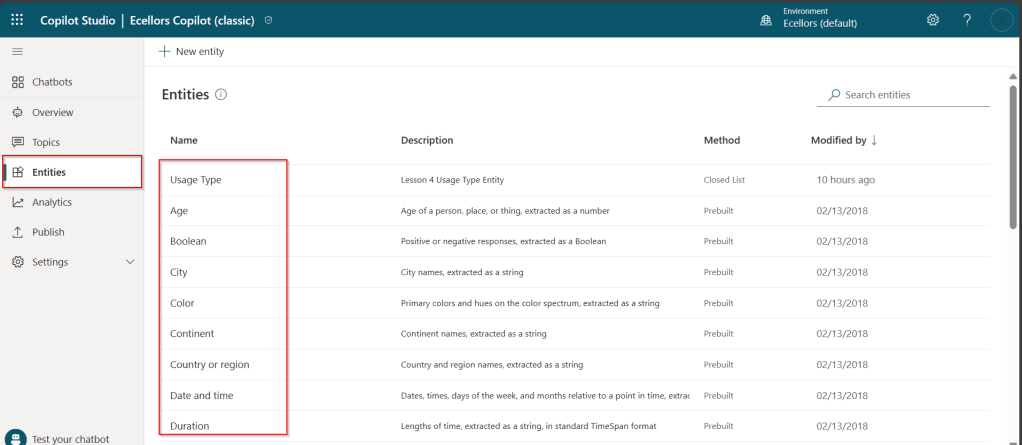
    Copilot conversations are all about natural language understanding. Entity is the fundamental aspect which can be recognized from user’s input.

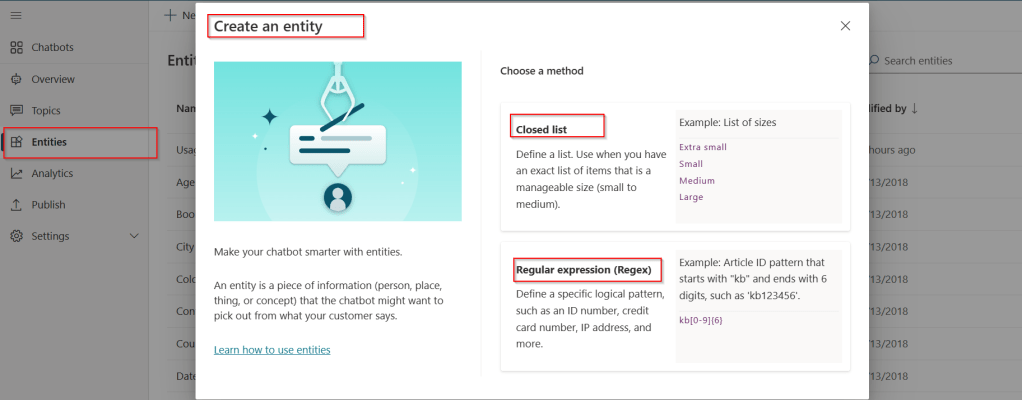
    It can be simply can be thought real world subject like Person name, Phone number, Postal Code etc. We have system as well as custom entities while building.

    You can also build custom entities you can choose from the options available.

    Now that you have seen what are the building blocks of Copilot, in the upcoming blog posts let’s see on how to test and publish your copilots.

    Thank you for reading.

    Cheers,

    PMDY