Setup Copilot in a Model-driven app – Quick Review

Hi Folks,

Wondering how you can enable Copilot in Dynamics 365 Model Driven App …? Then you come to the right place, few days ago, I was trying to use it few days back but couldn’t. Hence this blog post is from my experience.

There were few things to configure for your Copilot to respond to your queries. So, I will be taking about that in this blog post today. Let’s get started…

Copilot in model-driven Power Apps was in Preview since July 2023.

Prerequisite: You must have a non-production environment with Dataverse database, apps, and data.

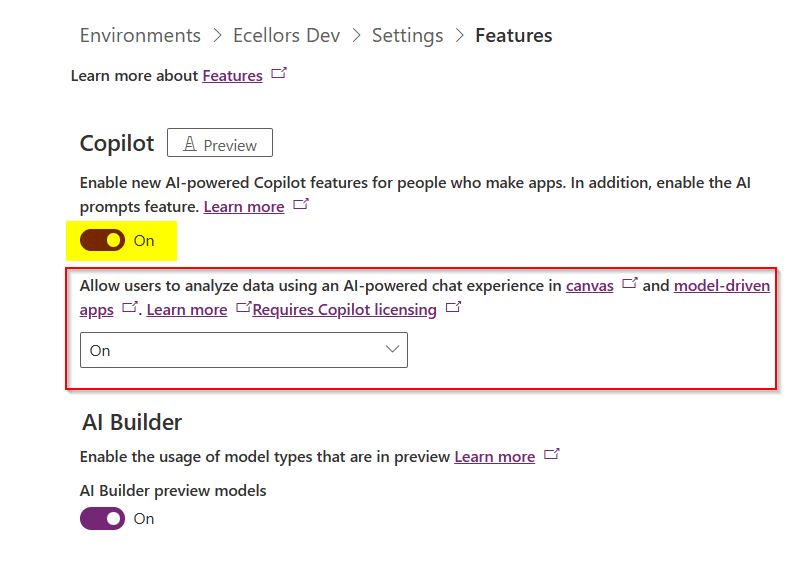
Step 1: Go to Power Platform Admin Center –> Select the environment –> Settings –> Product –> Features –> Select On for AI-powered experience as highlighted below, if you were App maker and want to try it for yourself, you would also need to check the option in yellow below.
Step 2: Go to Power Platform Admin Center –> Select the environment –> Settings –> Product –> Behaviour –> Select Monthly channel or Auto  for Model-driven app release channel option and click save.

Step 3: Well, this step is important, in this task, we configure a Dataverse table and columns for Copilot.

Go to Power Apps and make sure that you have the correct environment.

Select tables and navigate to the respective table for which you want to enable Copilot capability.

Step 4: Here I am using OOB Account entity, you can choose whichever entity you wish to setup.

Step 5: Navigate to Properties for the Account table as below

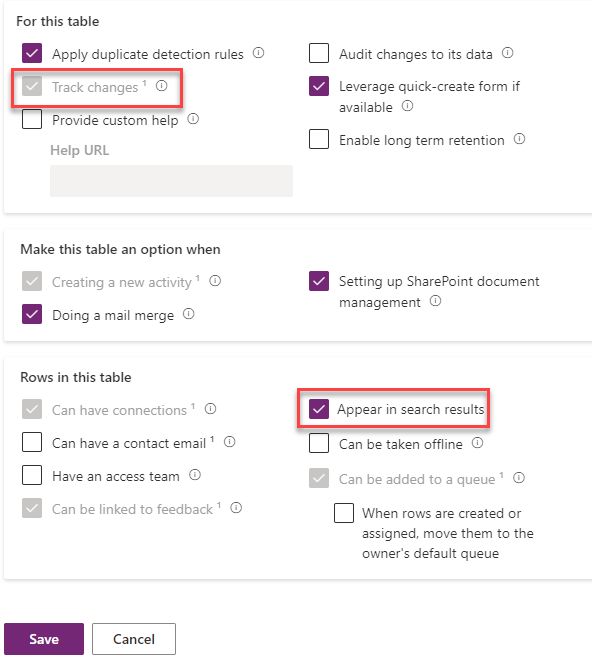
Step 6: Choose settings as highlighted below and click on save.
Step 8: Open the Account table and go views

Step 9: Here in this step, would need configure the Quick Find View, add the necessary fields to the view for it to be searchable for Copilot. Add in the fields which your users would be searching for in the Copilot.

Step 10: Here we have to make sure the fields are added to the view and then save and publish.

That’s it, the configuration is done.

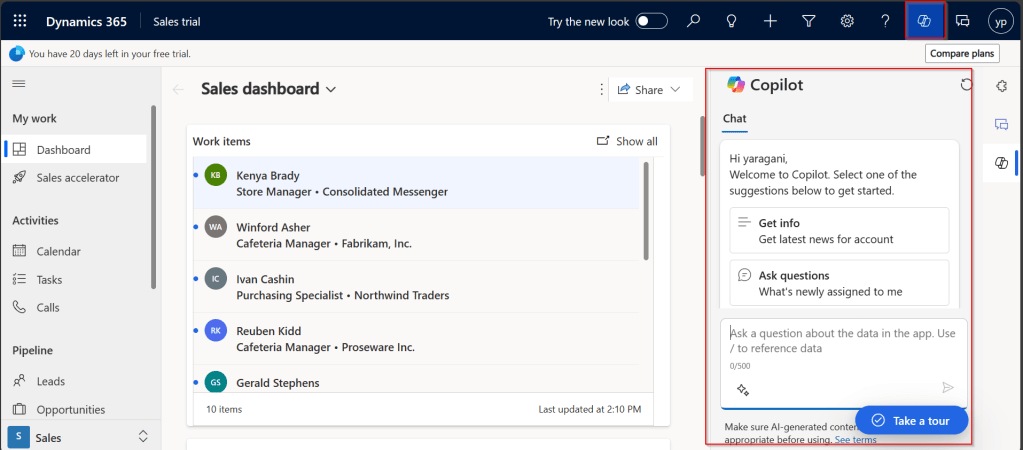
Step 11: In this step, we will test the Copilot by opening the App in which the configured entity is available. Click on the Copilot icon as highlighted below, this shows the Chat window for Copilot
Step 12:

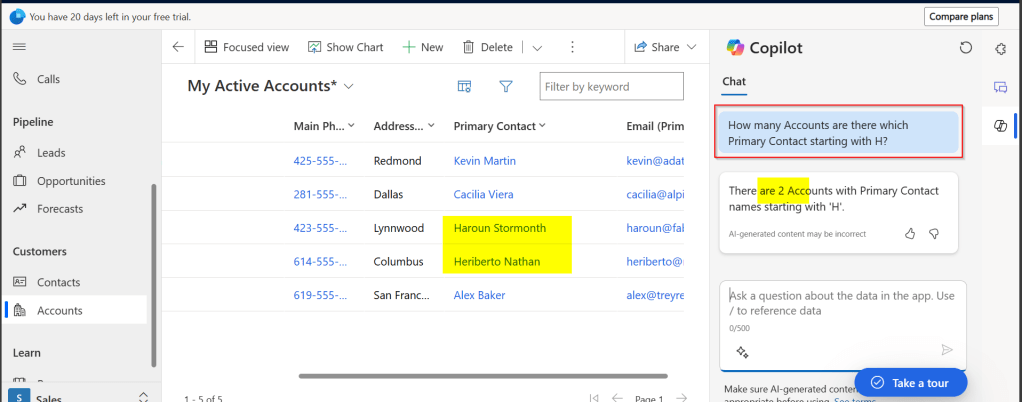
Test 1: Prompt: How many Accounts are there which Primary Contact starting with H? Well, it showed correctly as below.
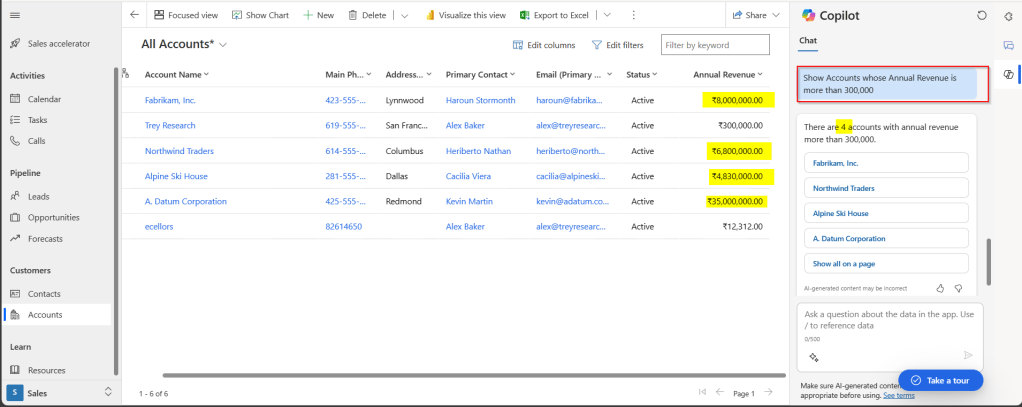
Test 2: Prompt: Show Accounts whose Annual Revenue is more than 300,000? It showed correctly as below.
Hope this helps you to setup Copilot for your Model Driven Apps. I will leave it to yourself to try this out.

Make sure, you give all the details in the prompt itself, it will not be able to store the previous response, meaning you can’t continue your conversation providing information in bits and pieces. You can setup the same for your Custom entity also, make sure you add the fields to the quick find view of that entity.

It is not recommended for Production environments as it is still a preview feature. In case, the response is not accurate, you can report this to Microsoft by hitting thumbs up or thumbs down and provide the relevant feedback.

Lot more to come in the upcoming days, learning different aspects of Copilot became a necessity these days.

That’s it for today…hope this helps…

Cheers,

PMDY

Restore deleted records in Dataverse table – Quick Review

Hi Folks,

Have you or your user ever mistakenly deleted records in Model Driven Apps..? Do you remember we can recover the deleted records from recycle bin in your PC, now similarly we can also do this in Dataverse also.

In this blog post, I will discuss about how you can retrieve a deleted record in Dataverse.

Till now, we have following tools in XRMToolBox wherein we can restore the deleted records (https://www.xrmtoolbox.com/plugins/DataRestorationTool, https://www.xrmtoolbox.com/plugins/NNH.XrmTools.RestoreDeletedRecords, https://www.xrmtoolbox.com/plugins/BDK.XrmToolBox.RecycleBin) but wait, these tools require Auditing to be enabled for the concerned table. What if you don’t have auditing enabled for that…now we have a preview feature which comes as a saviour where you don’t need any external tools anymore to restore them.

To use this, just enable this feature from Power Platform Admin Center, you can optionally set the recovery interval if you wish to.

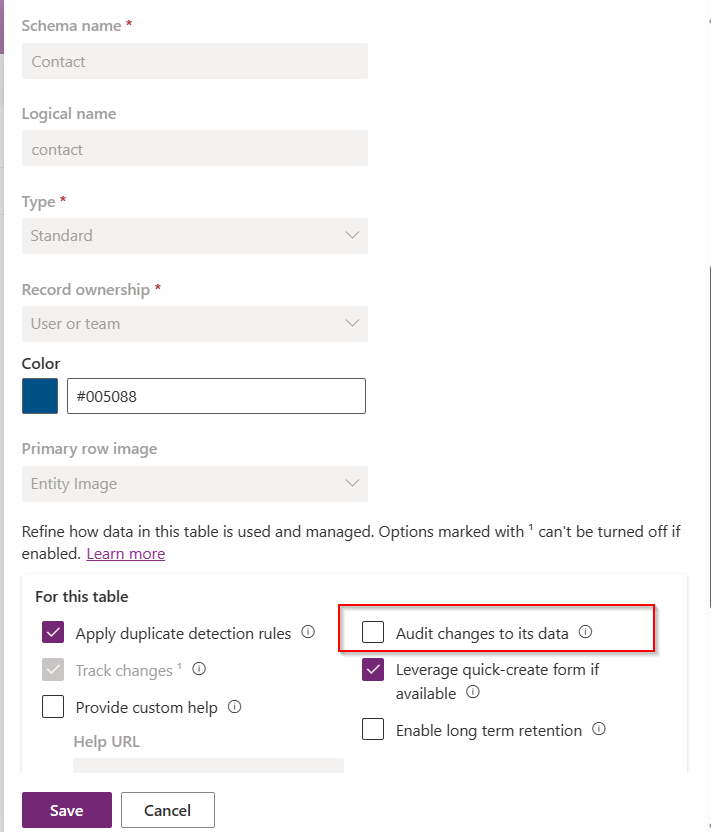
For this, we take Contact table as example, now let’s check the audit setting of the contact table..well, it’s turned off.

Even the auditing is not enabled for the contact entity, with this Recycle Bin Preview feature, we should be able to recover the records, let’s see this in action.

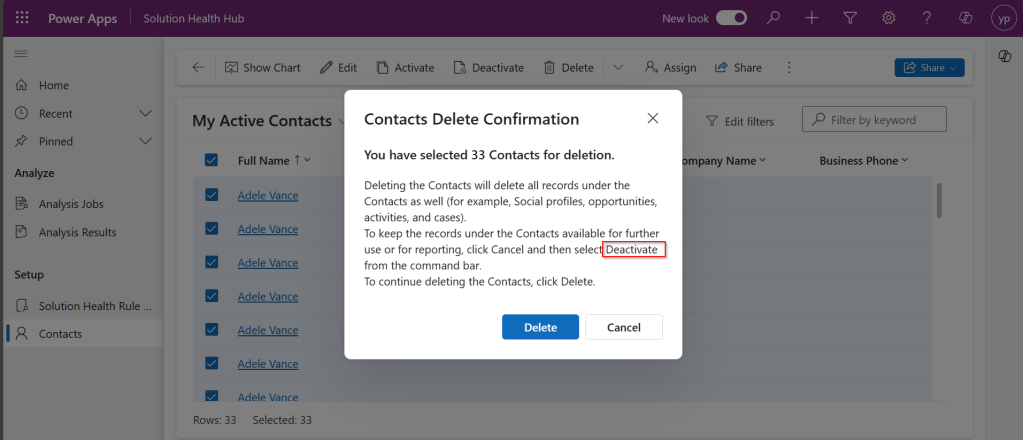
Now try deleting the contact records, I have 33 contact records in my environment, let me delete all of them.

It suggests you deactivate rather than delete, still let’s delete them.

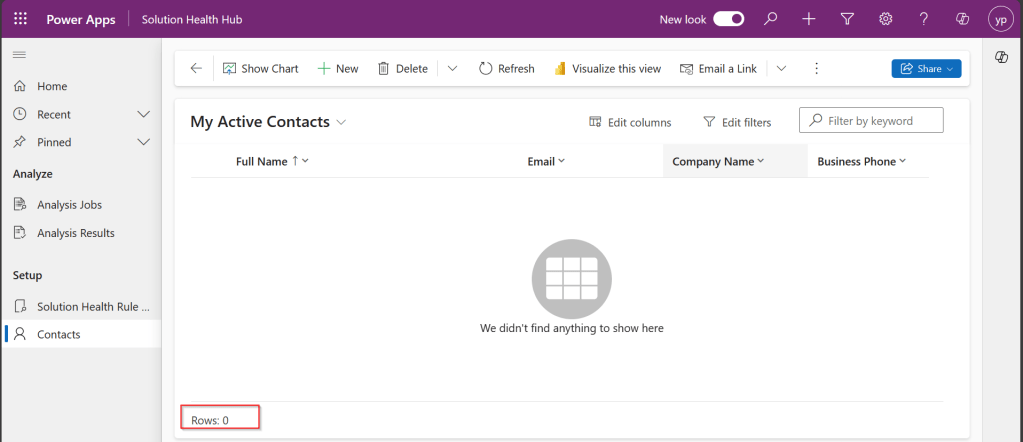
All the records are now deleted.

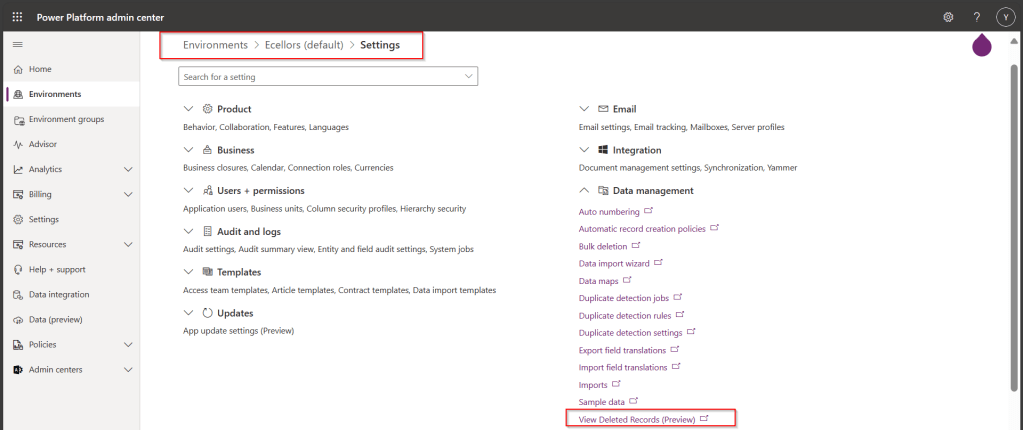
Now, let’s see how to recover them back…. just go to Power Platform Admin Center –> Environments –> Settings –> Data Management

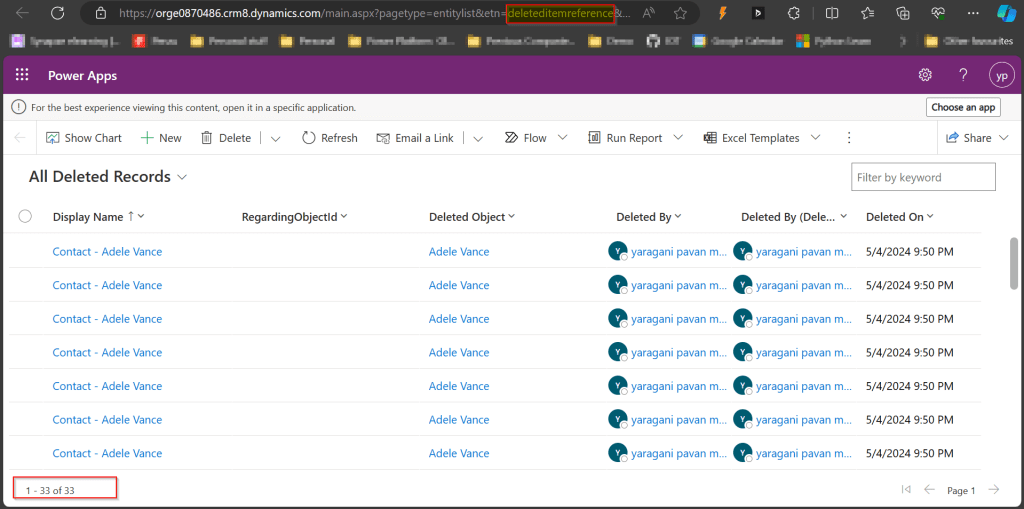
As you click on View Deleted Records, you will be navigated to a view from a new table called DeletedItemReference which stores the deleted records just like recycle bin.

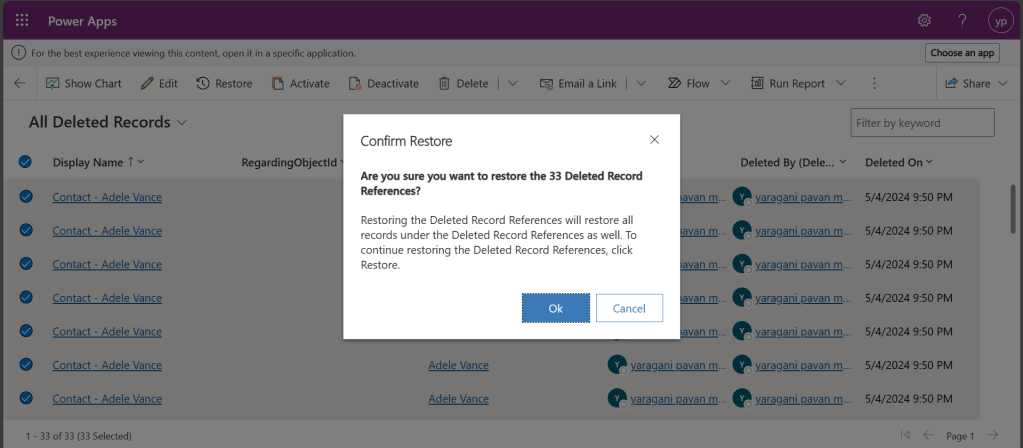
Just select the records, you should see a restore button available on the command bar, here I choose All Deleted Records.

Once you click on restore, you will be shown a confirmation dialog, click on Ok.

You should see the records back in the respective table i.e. Contact here.

In this post, we saw recovering records which were deleted manually…the same thing works for records deleted using Bulk Delete jobs or whatever way you try to delete.

Note:

  1. This is a preview feature and not recommended to use in Production environments right away.
  2. You will not be able to recover the deleted records when you have custom business logic applied to delete the records from deleteditemreference table also, moreover this still a preview feature and not recommended for Production use.
  3. You will be able to recover records which were deleted by the Cascading behavior, like record Child records alone when Parent is still deleted.
  4. You can only recover up to the time frame you have set above and maximum up to 30 days from date of deletion.

Hope you learned something new…that’s it for today…

Reference:

https://learn.microsoft.com/en-us/power-platform/admin/restore-deleted-table-records

Cheers,

PMDY

Paste JSON/XML as classes in Visual Studio – Quick Tip

Hi Folks,

With this post I will show you how you can quickly add classes for your JSON and XML in Power Platform using Visual Studio.

Sometimes, there will be requirements where you need to convert and replace your Power Automate Flows with custom code either using Plugins or Actions. In this case, you may definitely need to parse the response returned by REST API calls and you might need to create relevant classes to hold the parameters and attributes, creating these manually would be cumbersome and takes few minutes of time even for a good developer.

Here I am taking the example using JSON.

So, without further due, let’s see in this in action.

Step 1: So, just copy using Cntrl + C shortcut, this is mandatory, else you will not able to see the Paste JSON as Classes and Paste XML as classes under edit..

{
"orderId": "ORD123456",
"customerName": "John Doe",
"orderDate": "2024-04-27T08:30:00Z",
"items": [
{
"itemId": "ITEM001",
"itemName": "Product A",
"quantity": 2,
"unitPrice": 25.99
},
{
"itemId": "ITEM002",
"itemName": "Product B",
"quantity": 1,
"unitPrice": 35.50
}
],
"totalAmount": 87.48,
"shippingAddress": {
"street": "456 Elm St",
"city": "Metropolis",
"zipcode": "54321",
"country": "USA"
},
"status": "Shipped"
}

Step 2: Then open Visual Studio –> Edit –> Paste Special

Step 3: Click on Paste JSON As Classes and soon you should be able to see something as below.

That’s it, your classes are now generated from the copied JSON File, you can do pretty much the similar thing with XML.

Hope this helps someone trying to achieve a similar goal…

Cheers,
PMDY

#01 – Copilot Learn Series – Getting started with understanding Copilot Studio and basic building blocks of a Copilot (a.k.a Power Virtual agents)

In the next few blog posts in this series, I will be talking all about Microsoft Copilot aka Power Virtual Agent from beginner to advanced topics, you might see longer posts but you don’t require any prerequisite knowledge on Copilot to follow.

So, lets’ get started and learn with me in this blog series, let’s dive into the capabilities of Generative AI using #copilot.

Actually, Copilots empowers teams to quickly and easily create powerful bots using a guided, no-code graphical experience.

In this blog post, we will see how you can create a simple Chatbot. Excited? so let’s get started.

Step 1: Go to https://aka.ms/TryPVA try out.

Step 2: Click on Try free option available.

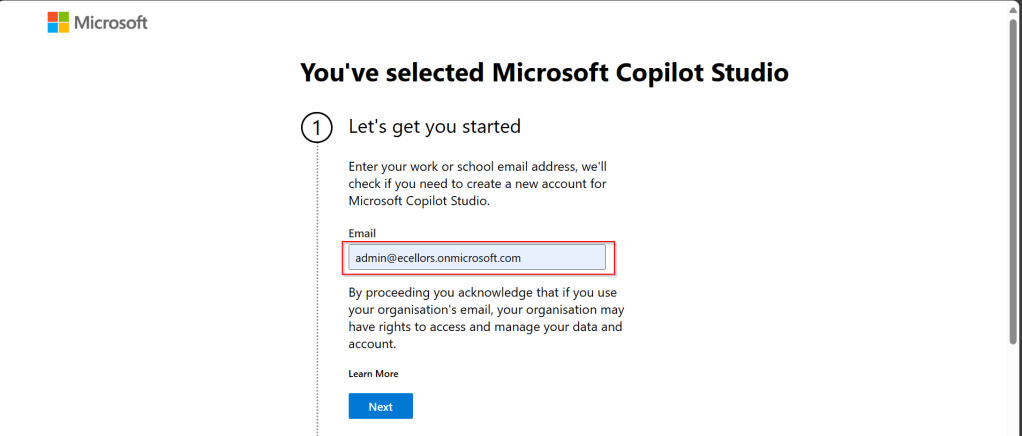
Step 3: Enter your email address and click on Next.

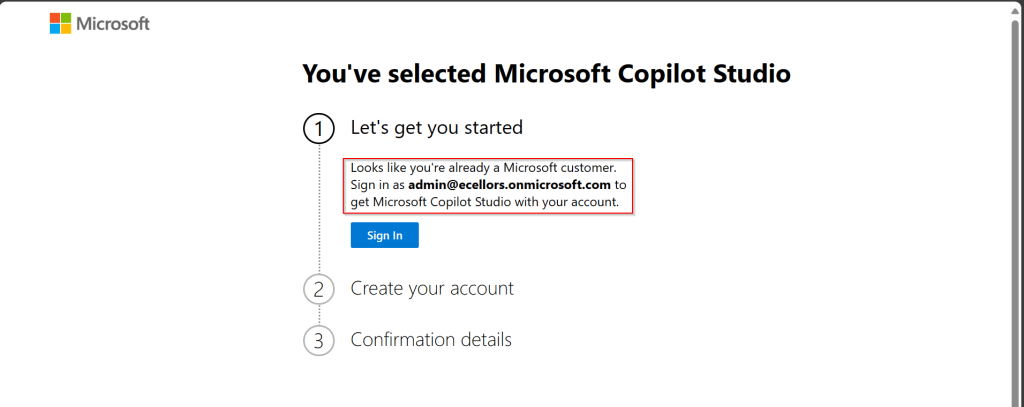
Step 4: In case you have an existing Microsoft 365 Subscription, you will be shown something below.

Step 5: Click on SignIn, I have already had an account in Copilot Studio, in case you don’t have, one will be created.

Step 6:

a. Once you click on Get Started, Copilot Studio opens in a new tab and you will be asked to login once, enter your Signin details.

b. In case you previously logged created a Copilot Studio trial, you can continue using it, else extend it to 30 days if requested. Click on Done at the bottom.

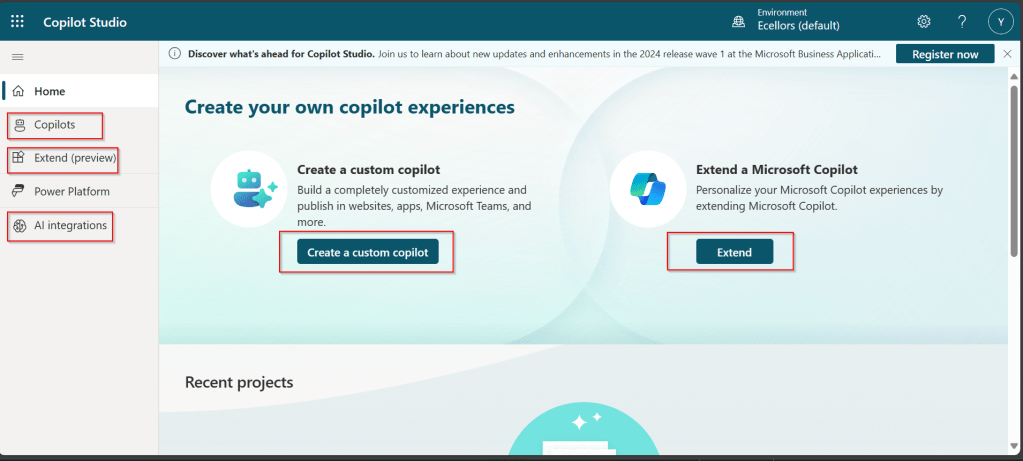
Step 7: Below is the home page of Copilot Studio.

I will be talking about each of the highlighted topics in great detail in the upcoming posts.

Note: Copilots are supported only in certain locations listed in the supported data locations, with data stored in respective data centers. If your company is located outside of the supported data locations, you need to create a custom environment with Region set to a supported data location before you can create your chatbot.

Step 8:In this step, we will create a Copilot, so click on New Copilot

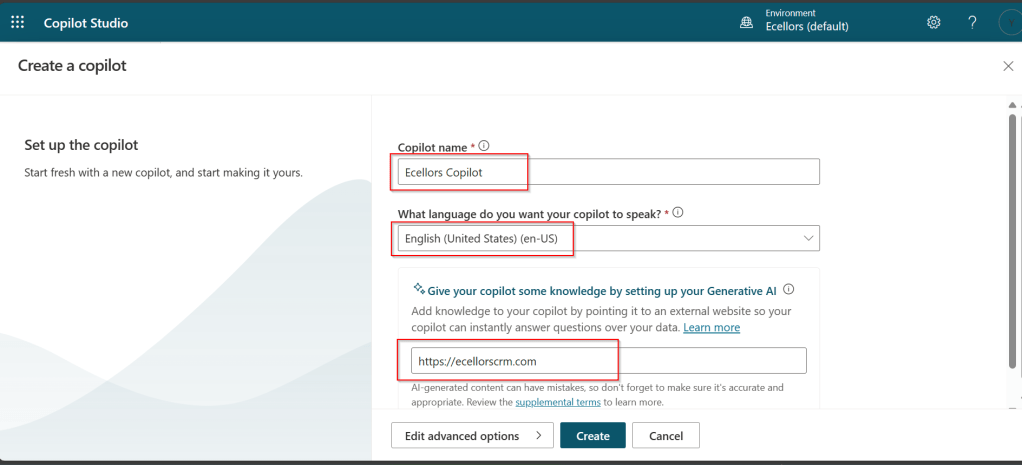
Step 9: I have provided a name; chosen a language and we can provide an existing website to utilize the Generative AI Capabilities built in Copilot Studio.

So, here I have provided my blog address. By using this, Copilot can generate suggested topics which you have option to add to your existing topics.

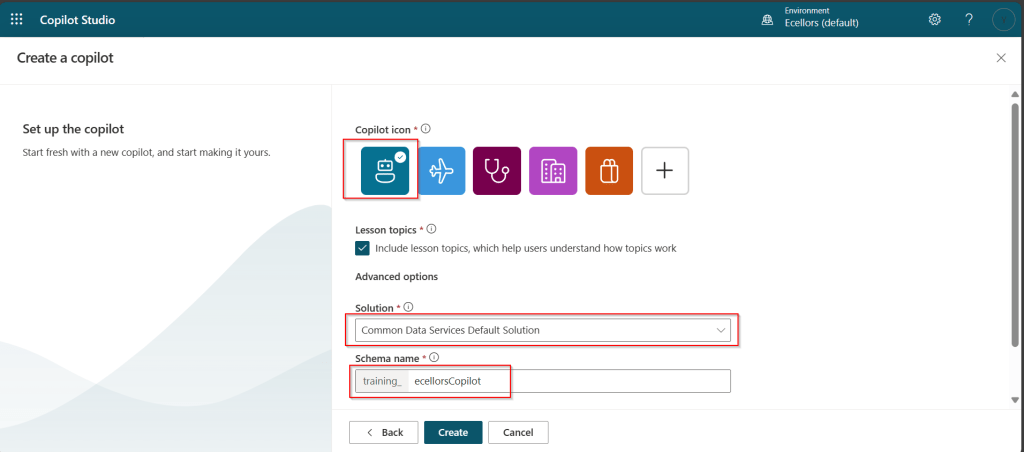
Step 10:

a. Click on advanced options; you will be able to choose an icon for the Copilot

b. You can optionally include Lesson Topics

c. Choose an existing solution you wish to add this Copilot to

d. Choose appropriate Schema name.

e. You can optionally enable voice capabilities by choosing the language in which your copilot wants to speak to.

Step 11: You will be shown the below screen and within a few seconds, your Copilot will be ready.

Step 12: This is the main page of your Copilot; you will also be able to add additional Copilots or delete the Copilot.

Step 13: Now, let’s understand Topics what one of the building blocks of Copilot which are nothing but predefined categories or subjects which can help to classify and organize the KB/Support articles.

The topics shown on the right are prebuilt topics for the Copilot you have just created. Here you may wish to create new topics as necessary.

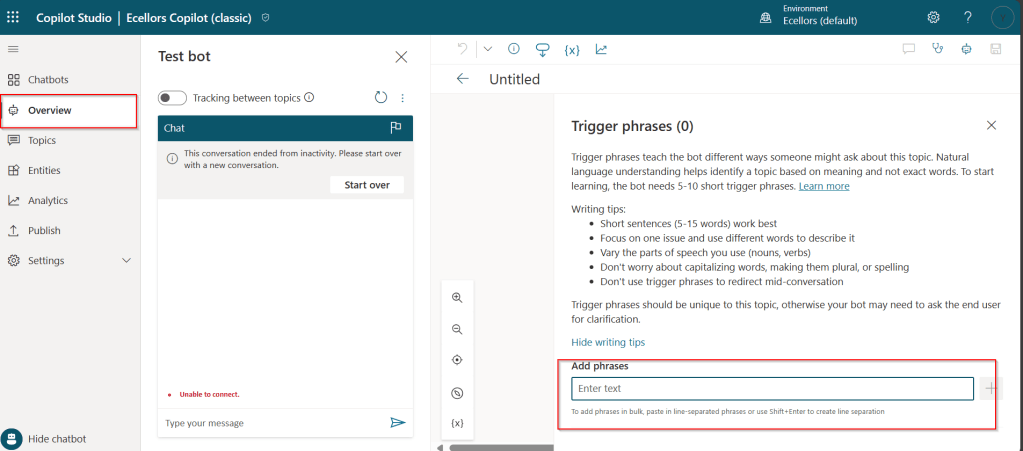
Step 14: Trigger phrases are those which customer enters in the chat window to start the conversation which then calls the relevant topics. There can be multiple trigger phrases for a single topic.

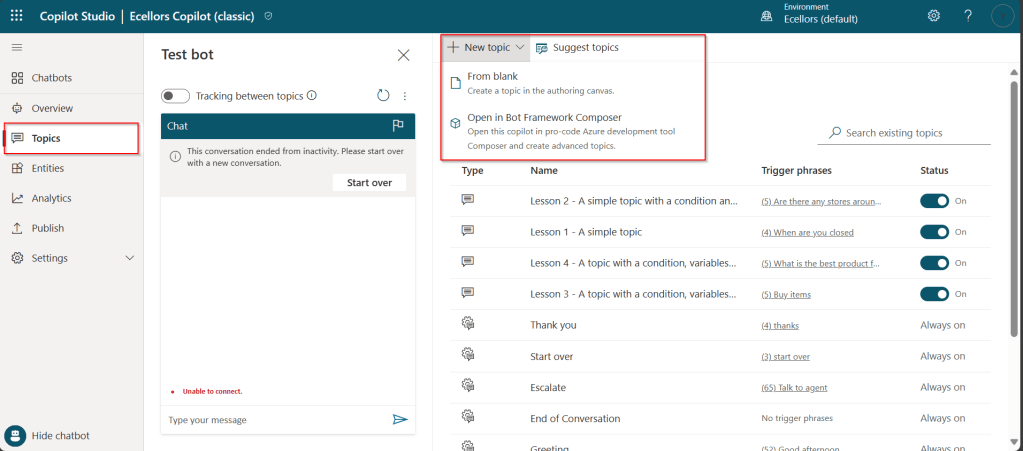
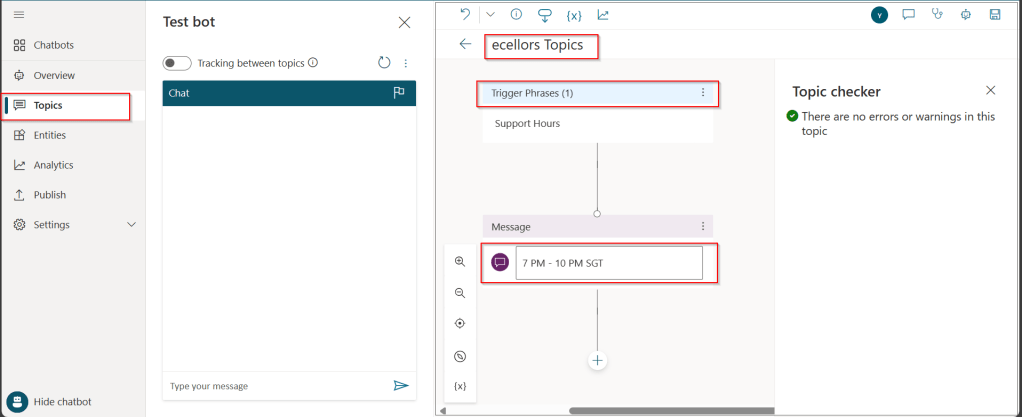
You may click to create a topic which then asks you to provide the trigger phrases, when you click to add a topic, the Trigger phrases node and a blank Message node are inserted for you.

Copilot opens the topic in the authoring canvas and displays the topic’s trigger phrases. You can add up to 1000 topics in a Copilot.

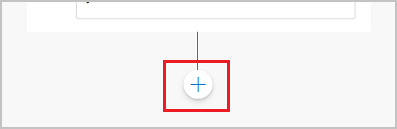
Step 15: You can add additional nodes by selecting the Plus (+) icon on the line or branch between or after a node.

Screenshot of adding a node

Step 16: When you were adding a new node, you can choose from the below options available.

You can either use any of the available options as above..

a. Ask a question

If you want to ask a question and get response from end user, you may do so by adding a node, click on Ask a question.

For example, I choose Multiple choice options.

Based on what you enter in the Identify field, you can enter what options user may have. You can nodes further to create branching logic

b. Add a condition

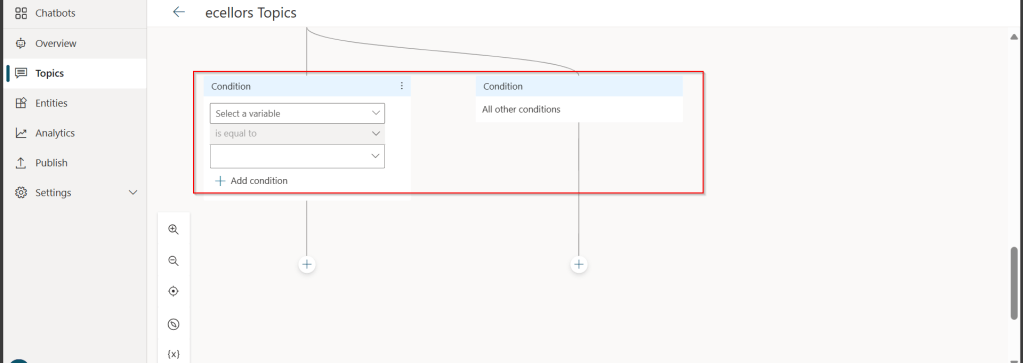
You can add a condition in the canvas as below to take your Copilot branch out conditionally.

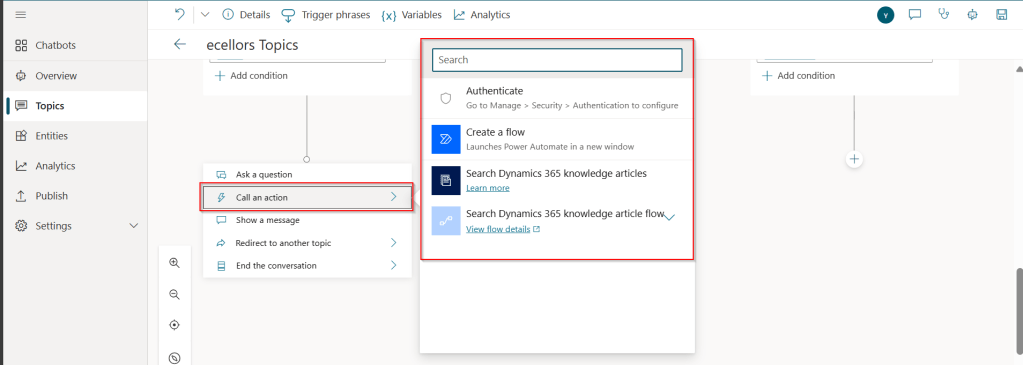
c. Call an action: The options shown below are self explanatory. You can branch out with the possible options.

d. Show a message

You may choose to show a message to the user by entering your message in the text box available.

d. Goto another topic

f. End the conversation:

Finally, you can end the conversation by choosing to end the conversation with the available options or you can transfer to an agent to take the user queries further.

Step 17:

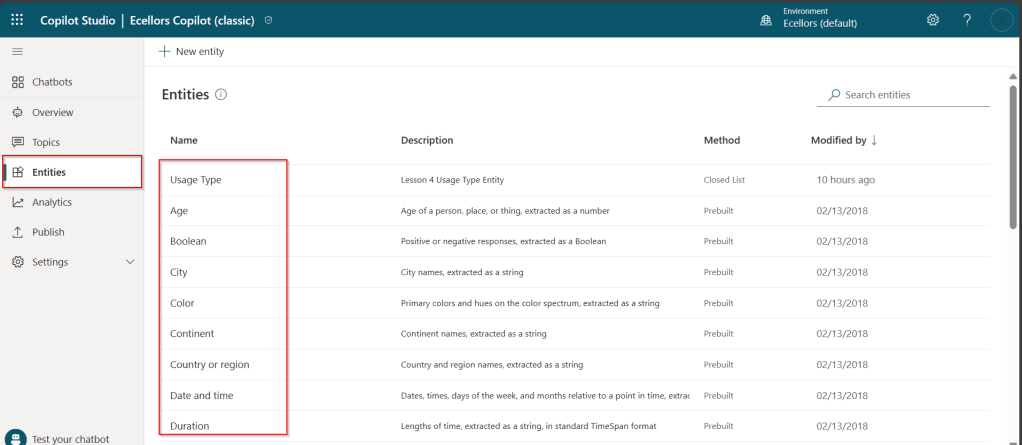
Copilot conversations are all about natural language understanding. Entity is the fundamental aspect which can be recognized from user’s input.

It can be simply can be thought real world subject like Person name, Phone number, Postal Code etc. We have system as well as custom entities while building.

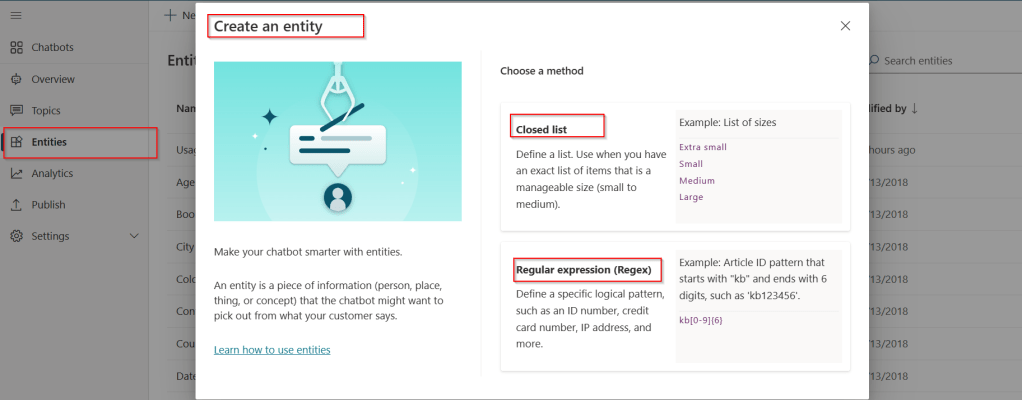
You can also build custom entities you can choose from the options available.

Now that you have seen what are the building blocks of Copilot, in the upcoming blog posts let’s see on how to test and publish your copilots.

Thank you for reading.

Cheers,

PMDY

Enabling TDS End Point for Dataverse (Preview Feature) from Power Platform Admin Center and its advantages

Hi Folks,

Exciting news…

Here is how you can enable TDS End Point in Dataverse…

  1. Navigate to Power Platform Admin Center…https://admin.powerplatform.microsoft.com/home
  2. Next navigate to the respective Environment to which you want to enable TDS End Point
  3. Choose your respective environment, go to Settings
  4. In the Settings windows, select the Product and then Features.
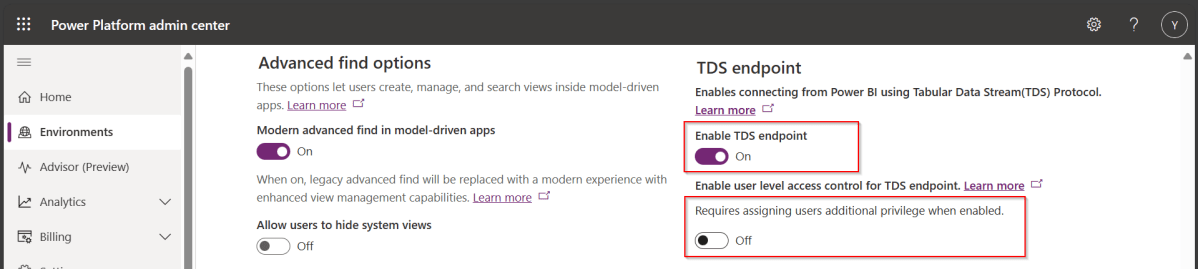
  5. Scroll down to see TDS end point, just enable the TDS end point toggle button
  6. Once this is enabled, you can also enable user level access for this TDS end point by configuring the security role as in the below step.
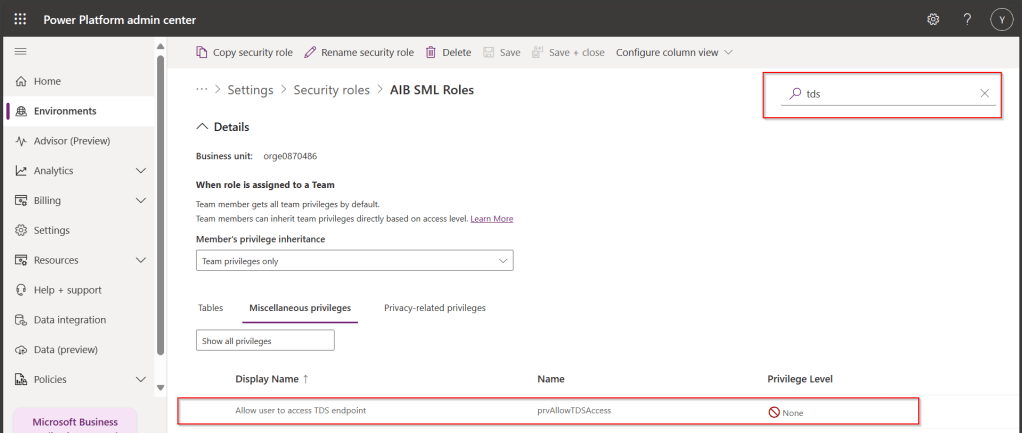
  7. Open Security from Power Platform Admin Center and navigate to the available security roles, go to Miscellaneous privileges, search for tds, you can find a privilege to Allow user to access TDS endpoint.

Advantages:

  1. With this TDS end point enabled, you can directly access the data in the Dataverse tables using SSMS(Preview) and in Power BI
  2. While the interesting part here is that Dataverse security model will be applied to the data being viewed by the user.
  3. That is whenever you were query the dataverse data using SSMS, the user role will be applied
  4. In the same way, if the Power BI report is built using the TDS(SQL end point), any user who is going to access the report will be only seeing the data he/she can access based on current security roles in Dataverse

While this is a cool feature for anyone who is trying to build Dataverse security in Power BI without using row level security as this is a mystery till now.

Hope this helps…

Cheers,

PMDY

Community tools for Power BI Reports Development

Hi Folks,

This blog post is all about the tools developed by the community for Power BI Development over the years.

While I have only mentioned about DAX Studio in my earlier blog posts, this post lists down all the tools available till date.

  1. DAX Studio https://daxstudio.org/ – This is the single most important tool with lots of features.
  2. DAX formatter https://www.daxformatter.com/ – formats  DAX code
  3. DAX Guide https://dax.guide/
  4. Power BI Helper https://powerbihelper.org/ – tool to create documentation for the Power BI
  5. ALM Tool Kit (http://alm-toolkit.com/)- manages the application life cycle of models
  6. Bravo https://www.sqlbi.com/tools/bravo-for-power-bi/ – used for simple Power BI Tasks
  7. Tabular Editor https://tabulareditor.com/ – Used to create and manage Models
  8. Power BI Side Tools https://thebipower.fr/index.php/power-bi-sidetools/ – Increases the productivity during report development
  9. Power BI Embedded Analytics Playground https://playground.powerbi.com/en-us/home – Explore how you can use embedded analytics in your applications
  10. Business Ops – https://powerbi.tips/product/business-ops/ deployment tool for adding external tools extensions to Power BI Desktop   
  11. Power BI Embedder https://github.com/DynamicsNinja/PowerBiEmbedder XrmToolBox plugin that allows you to embed the Power BI report into the CDS form. 
  12. Power BI OptionSet Assistant – https://www.xrmtoolbox.com/plugins/GapConsulting.PowerBIOptionSetAssistant/ Creates a custom entity and populates it with records which represent option-set values
  13. Power Query M Builder https://www.xrmtoolbox.com/plugins/PowerQueryBuilder/ Create Power Query (M) scripts for Dynamics 365 and Power BI.

If I missed any, please let me know in comments.

References:

https://learn.microsoft.com/en-us/power-bi/transform-model/desktop-external-tools

Cheers,

PMDY

Use environment variable to deploy different version of Power BI Reports across environments in Power Platform

Hi Folks,

Thank you for visiting my blog…in this post, we will see how we can create and manage a Power BI Environment variable in Model driven apps in Power Platform.

So, let’s say, we have two environments 1. Dev 2. Default, we want to deploy export the solution with Power BI report from Dev environment as managed solution and import that to Default environment. The report in Default environment should point to Production workspace in Power BI.

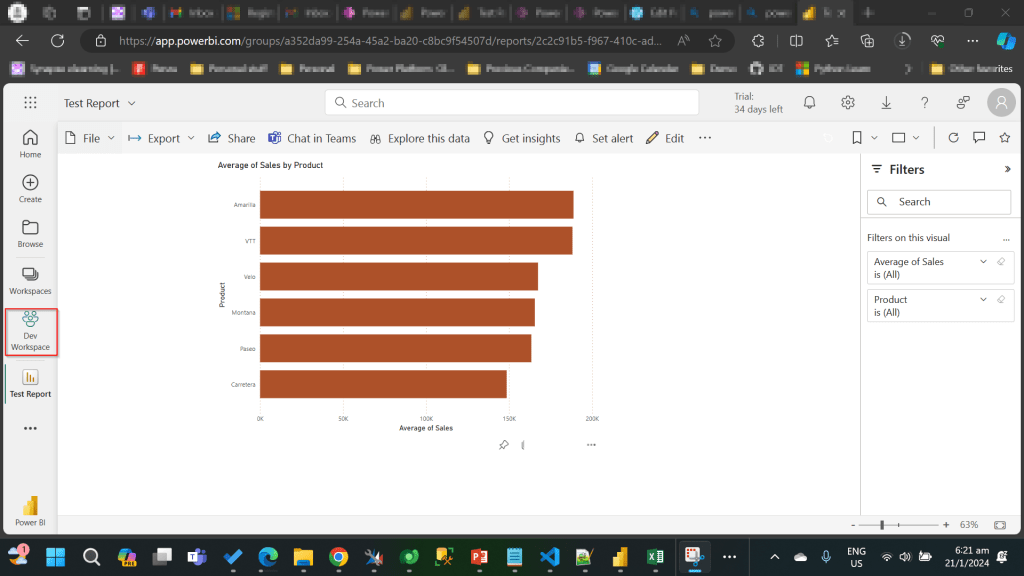
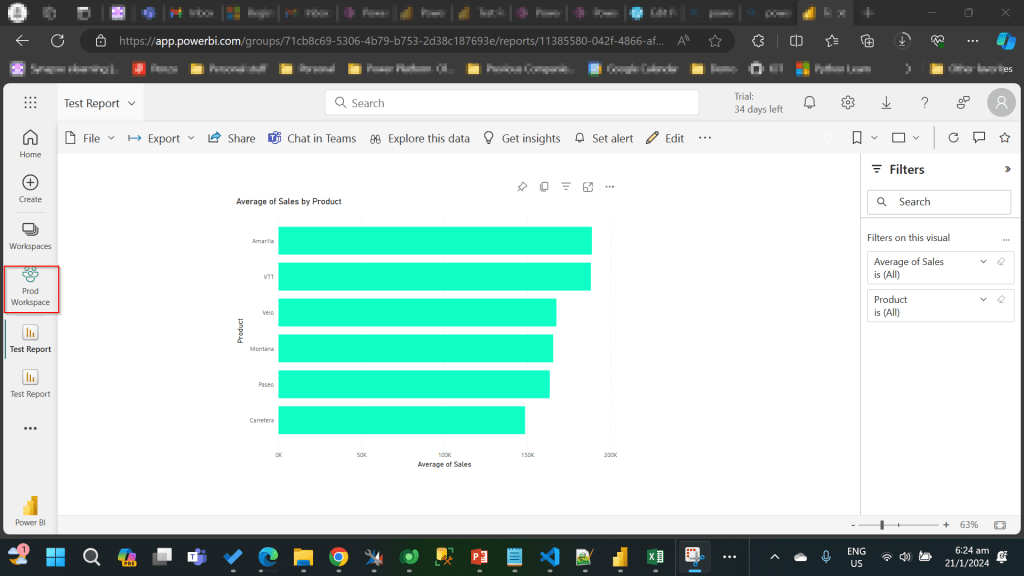
I have the following reports in workspaces.

Development workspace:

Production Workspace:

Now in order to deploy the report to Production, we need to use a managed solution and the report should point to Production workspace. So, in order to handle this, we will need to define an environment variable to store the workspace information. So, let’s get started.

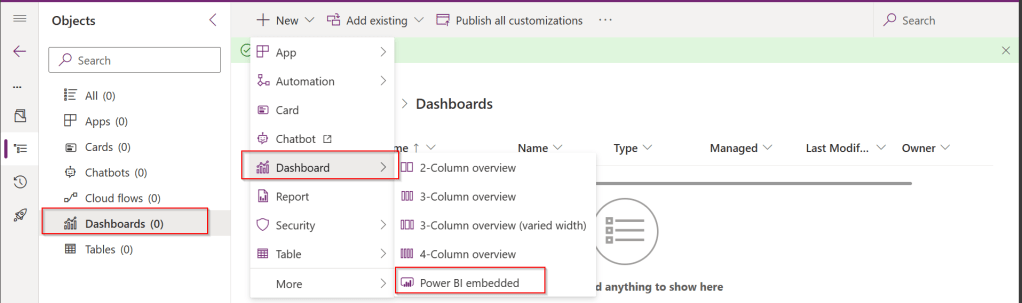
First, we will create a Power BI embedded report in Development environment.

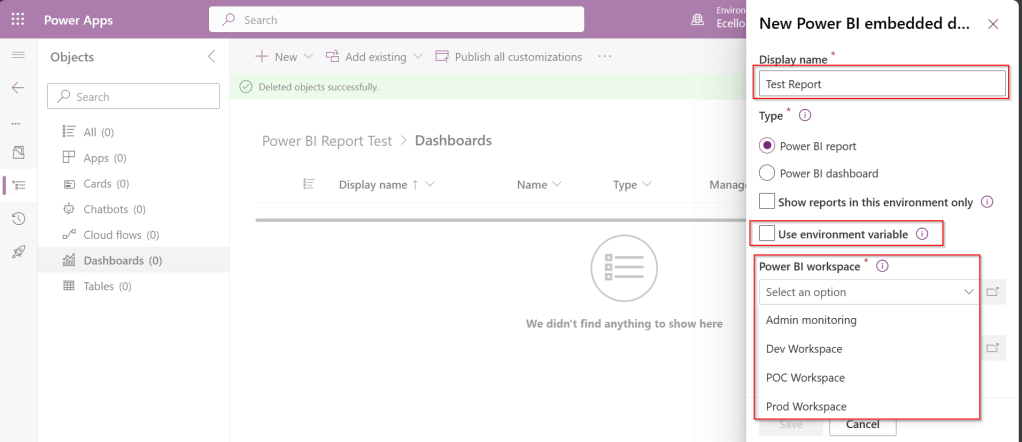
While you were creating a Power BI embedded report, you will be presented an option to choose from the Power BI workspace.

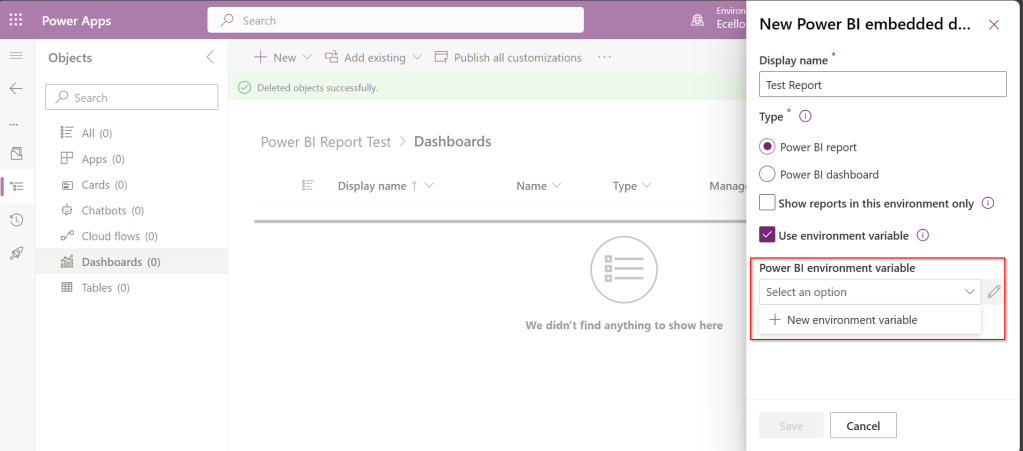
In order to achieve this requirement of deploying different versions of Power BI report in different instances, we need to use environment variable, so check the Use environment variable option.

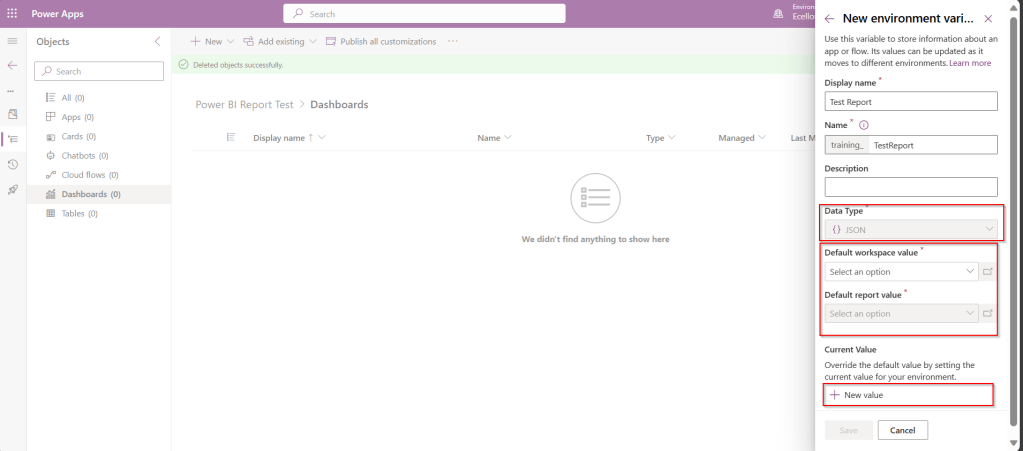
  1. The environment variable will be specific to this report and should be included in the solution when we want to deploy this report to higher environment.
  2. The next thing to note is that Default workspace would reflect the default value for this report and current value is required when we want to set to another report in a different environment.

In Development environment, we choose as below..

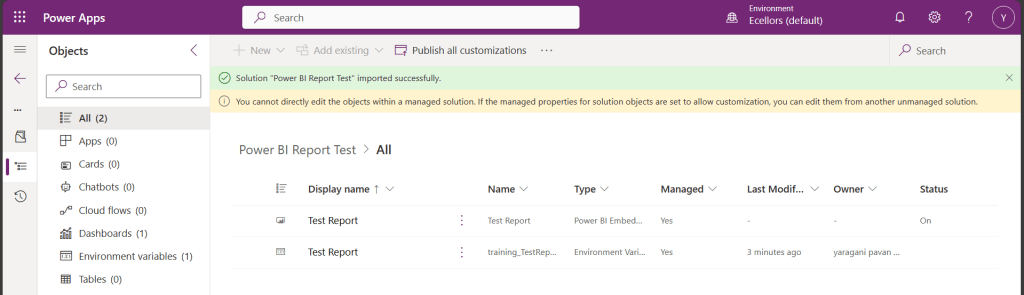
Once the environment variable is saved, we now have 1 Dashboard and 1 environment variable component in the solution.

This solution is published and then exported as Managed solution, imported to another environment (Default environment which serves as Production environment here).

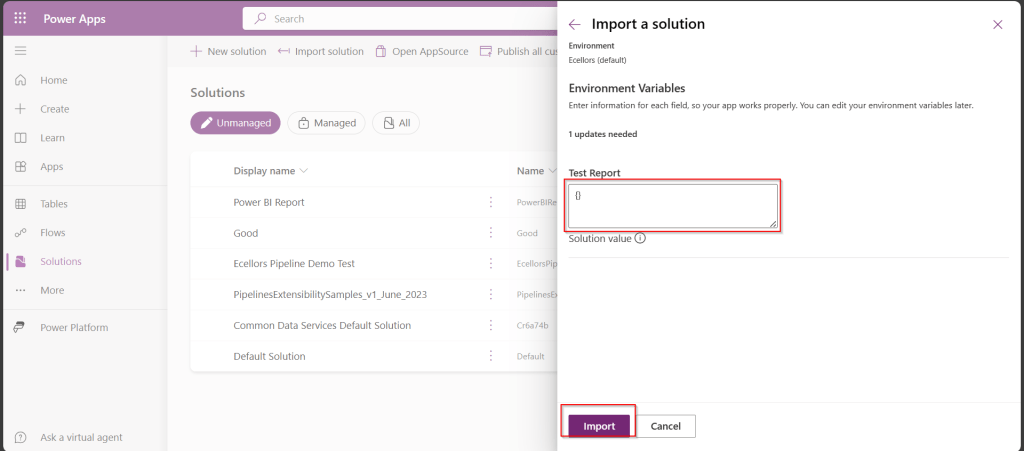
While importing, it asks to update environment variable, you can proceed to click on Import.

Now we have the solution in Default environment.

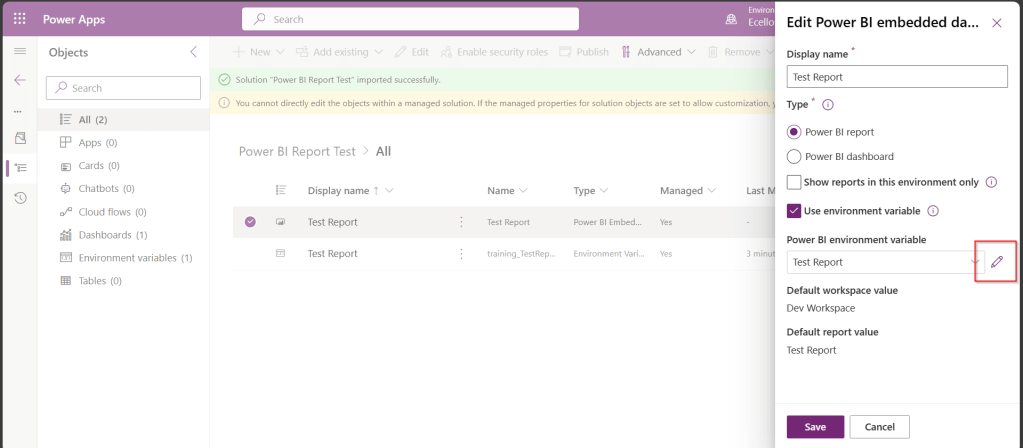
In order to update the value of the report to consider from Production environment, we need to open the report and click on the Pencil icon besides the Power BI Environment variable.

Then choose Prod workspace and its respective report and click save, publish.

That’s it…

You will be able to see two different reports in your Development and Default instances.

In this way, it is very easy to manage and deploy different versions of Power BI Report to different environments like Dev, Test, Prod.

Hope this helps…

Cheers,

PMDY

Creating a Power BI report from AWS S3 bucket in Microsoft Fabric – No code way

Hi Folks,

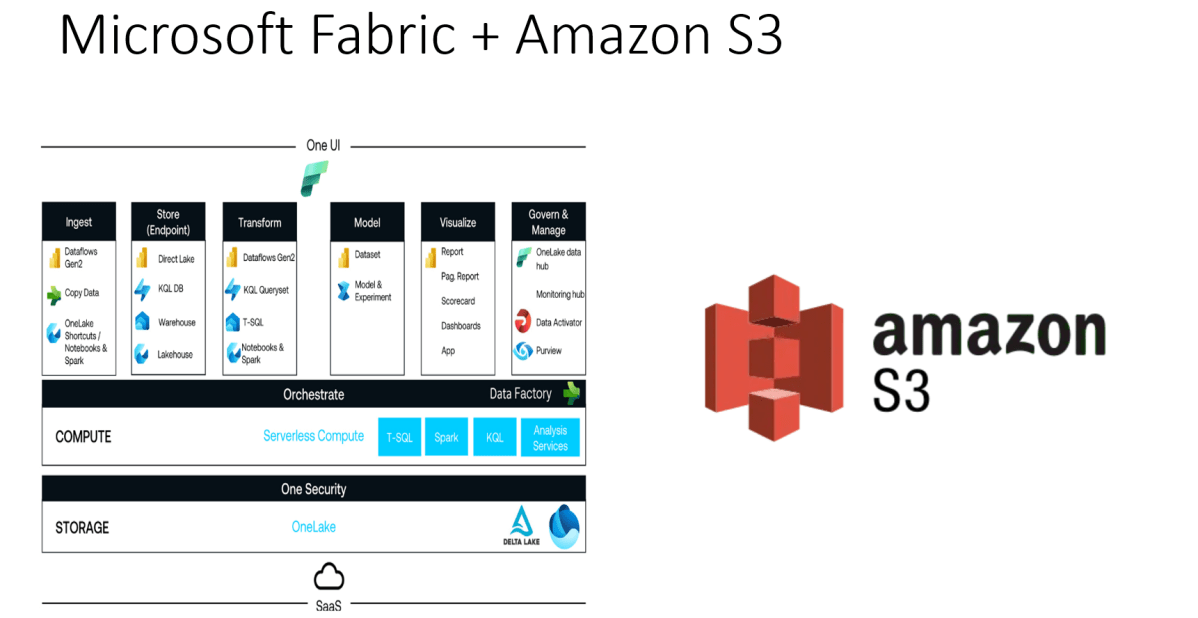
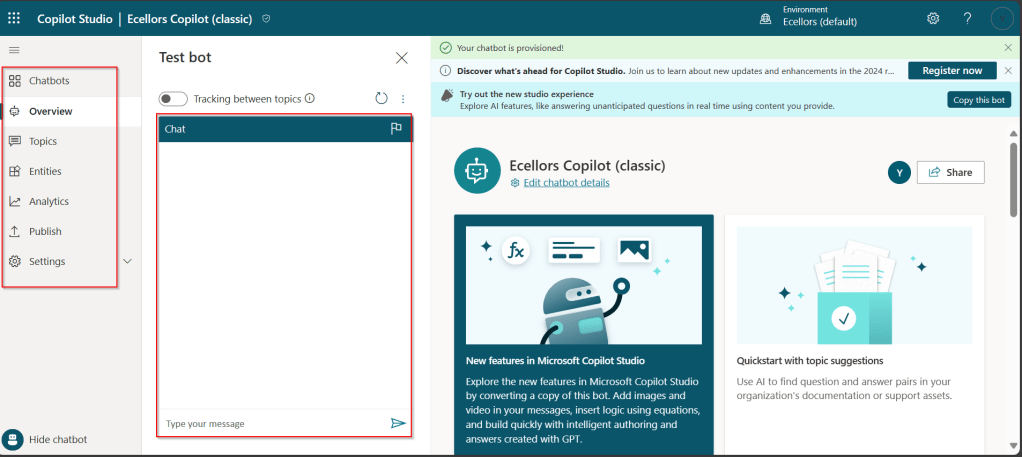
Did you ever try out the features released with Microsoft Fabric during Ignite 2023. So here is my first YouTube video on how you can use the features in Microsoft Fabric to show a Power BI report out of CSV File in AWS S3 bucket.

Earlier when you want to achieve such requirement, you would need to write Python script in Power BI Desktop to show anything from AWS S3 bucket in Power BI. Also, tons of new features included ex. One Lake Data Hub and also brought Data Engineering, Data Science, Data Warehouse, Real Time Analytics under one umbrella so it paved way for building great Data Projects especially Big Data.

So, I would definitely recommend you check out the features…all you need is just register for a free Fabric Trial, that’s it, you can use these 60 days. This is more than enough to try out. You can find the link on the Fabric page itself, however I am not sure if this is only for a limited period of time. Don’t waste this.

If you want to learn about these features, don’t forget to check the Microsoft Learn and complete the Fabric Challege here. I hope you would definitely love them.

Thank you.

Cheers,

PMDY
Installing GnuPG – Your open-source software companion to encrypt/decrypt files for your Power Platform Integrations

What’s GnuPG?

GnuPG is a complete and free implementation of the OpenPGP standard. GnuPG allows you to encrypt and sign your data and communications; it features a versatile key management system, along with access modules for all kinds of public key directories. GPG can use both symmetric and asymmetric encryption to encrypt and decrypt.

So, now let’s talk about the tool Gpg4Win. Gpg4win is an email and file encryption package for most versions of Microsoft Windows and Microsoft Outlook, which utilizes the GnuPG framework for symmetric and public-key cryptography, such as data encryption, digital signatureshash calculations etc. It’s open source and a free tool, it has been widely used by many of the encryption implementations. So, let’s see how you can install a GnuPG Software.

You can navigate to this GnuPG Download link of the official download page. You can download the latest version, as of writing this blog Gpg4Win 4.2.0 is the latest.

Gpg4win 4.2.0 contains mainly, rest of the components aren’t of interest for this blog:

1.GnuPG 2.4.3 : Actual software used to encrypt and decrypt.

2. Kleopatra 3.1.28: Kleopatra is a certificate manager and GUI for GnuPG, it stores all your certificates and keys.

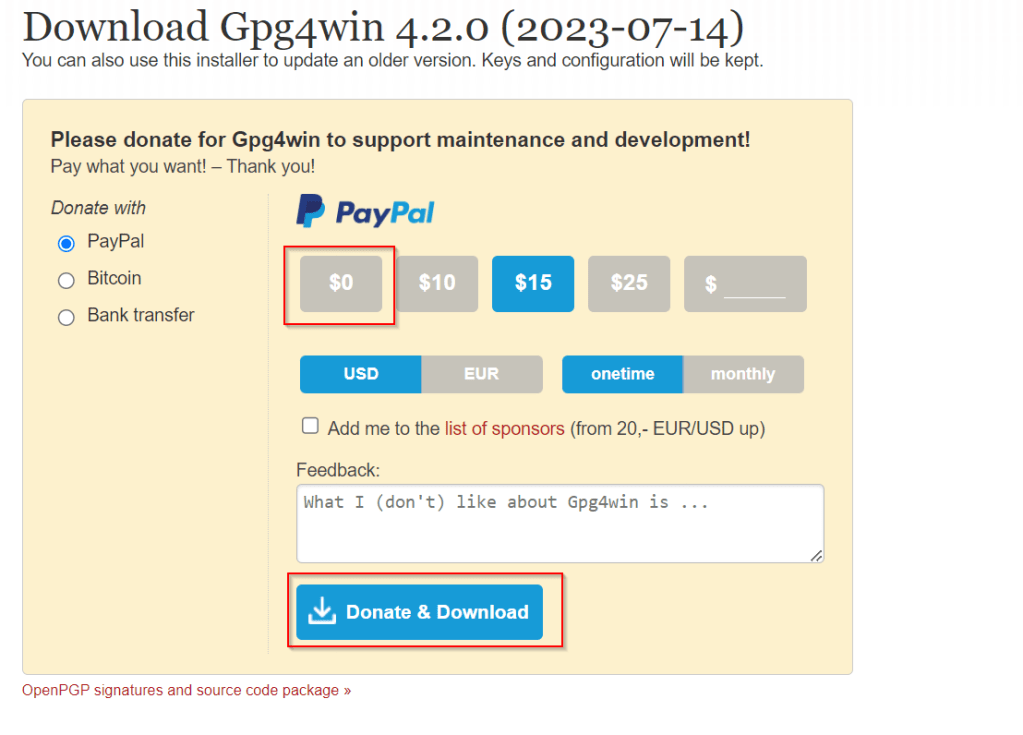
Choose $0 and proceed to download which now

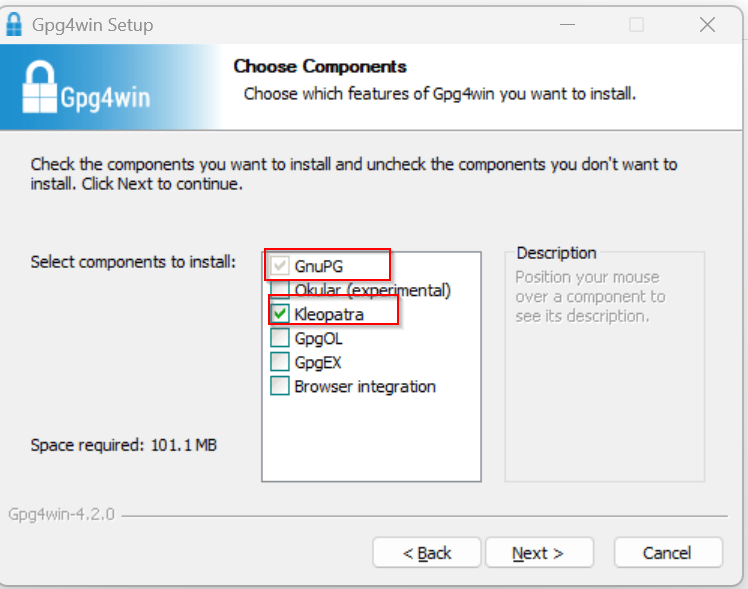
This now downloads the Gpg4Win software. So once click and start your installation, choose the necessary components required.

You can proceed to select only GnuPG, Kleopatra or both, which installs only GnuPG command line and/or Kleopatra which is a windows utility.

If you choose not to install Kleopatra, it’s ok, you still be able to encrypt and decrypt but only using command line, but if you have Kleopatra, you can use GUI for encryption or decryption.

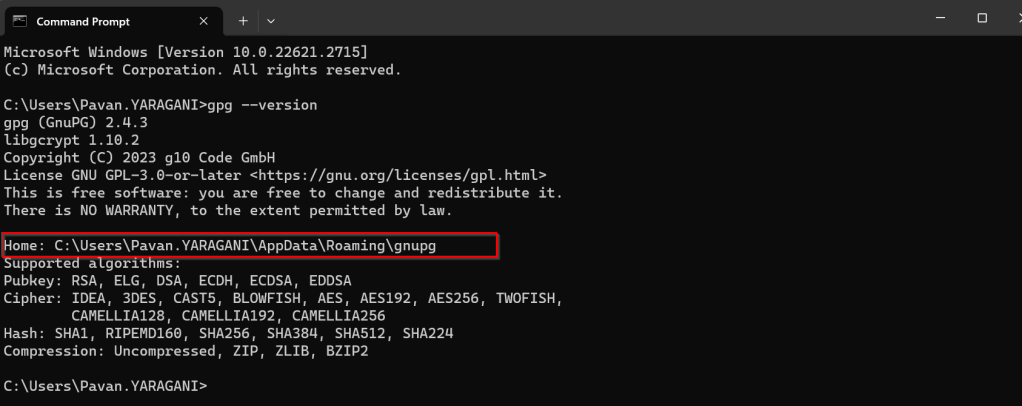
Once you have installed GnuPG, just open Command Prompt, start entering gpg..

You can also check the root folder where all your Key rings will be stored…

With gpg is now set up in your PC, you will be able to encrypt and decrypt using gpg command line scripts.

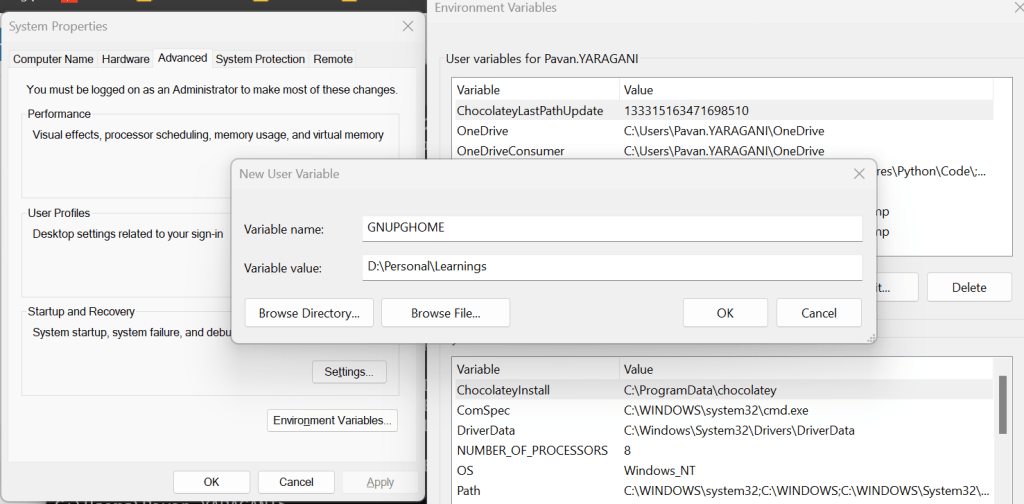
Ok, now everything is good, how about if other persons when logged into this PC, will they be able to use the gpg commands to encrypt or decrypt, of course not, for this you need to follow as below…

All you need to set an environment variable which is of scope user and set the home location for gpg to look for keys in that machine.

Once you have set this, the home location of gpg is now changed, so any user who have access to this path can be able to encrypt or decrypt without issues.

You check the modified location by using this command

I hope you have learned something…below this post, I have added the link to the blog post where the encryption and decryption just below this blog post, we will see how you can encrypt and decrypt files using gpg command line utility being called from C#. Any questions do let me know in comments….

Happy Integrating Power Platform with 3rd party Applications.

Cheers,

PMDY

Open Dynamics 365 Model Driven Apps faster with these two tips…Quick Tip

Hi Folks,

With increase in the adoption of Power Platform, the number of Dynamics 365 Model Driven apps are growly rapidly.

Did you ever face any performance issues opening up your App…? These tips if remembered can definitely help you down the road in your implementations.

Tip 1: Want to load your App faster…are you trying to open a URL like this https://ecellorsdev.crm8.dynamics.com/ , then just append main.aspx, this makes your App to load faster.

Tip 2: Are you trying to open the settings page similar to this URL https://ecellorsdev.crm8.dynamics.com/main.aspx?settingsonly=true and it keeps on loading…

Then right click on your browser and choose to duplicate your tab.

Both these techniques, helps your App to resolve quickly…don’t forget to try out and see while working on your projects.

Cheers,

PMDY